Update text translation
The Study Designer application provides the capability to translate CRF texts into multiple languages. This provides a significant advantage in global clinical trials where participants speak different languages. By addressing diverse linguistic needs, CRF translation promotes standardized data collection across international sites.
When you have all the target texts generated, they are ready to be translated into specific previously applied languages. You can manually translate each target text or amend the existing translation that was previously added or imported from a file.
-
In the Study Designer application header, select the TRANSLATION tab.
 Figure 1. Accessing CRF translation functionality
-
From the toolbar, select the latest draft CRF version, otherwise, you cannot update translations.
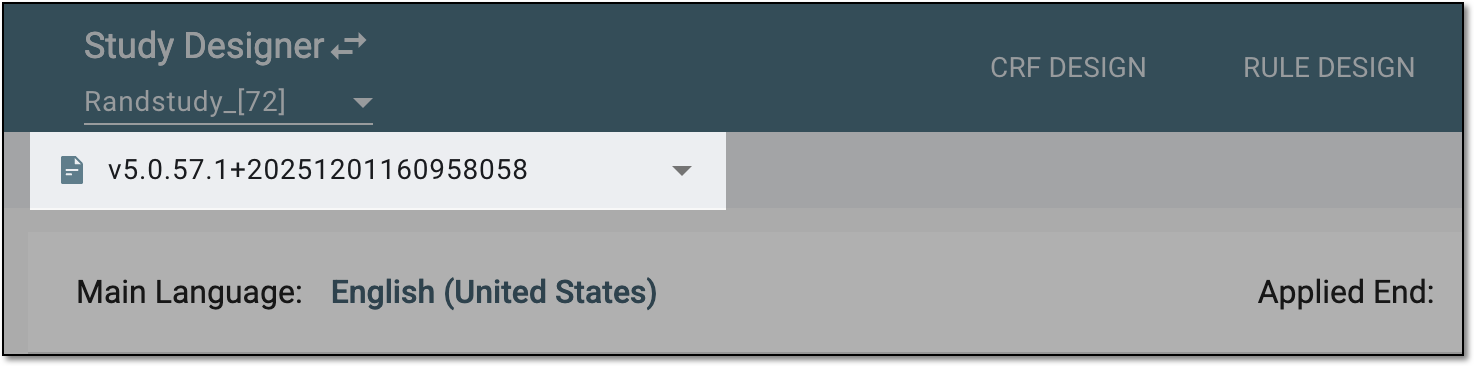 Figure 2. Selecting draft CRF version
-
From the Applied End field, select the application where the data is to be collected and from Translation Language, select the language of translations for the target texts.
 Figure 3. Selecting applied end and translation language
-
Then select the tab to access the needed text translation as follows:
-
By Target: to access target texts and their respective translations disregarding their location in the current study design. The translation updates you introduce here, apply to the target text in all locations where it is used.
-
By Location: to access the texts of the CRF items (currently, only codelist items) and their respective translations, organized by their location in the current study design. The translation updates you introduce here, apply only to the target text in a certain location where it is used.
Tip
You can check the location of the text by viewing its references or ODM element path.
 Figure 4. Accessing translations by target texts or location
-
-
In the table that appears, next to the needed target text, select Edit
 .
. Figure 5. Selecting option to edit translation text
-
In the Edit dialog that appears, enter the text translation and select
 .
.Tip
If the text supports rich text characters, the respective tools for rich text formatting are available in the text editor.
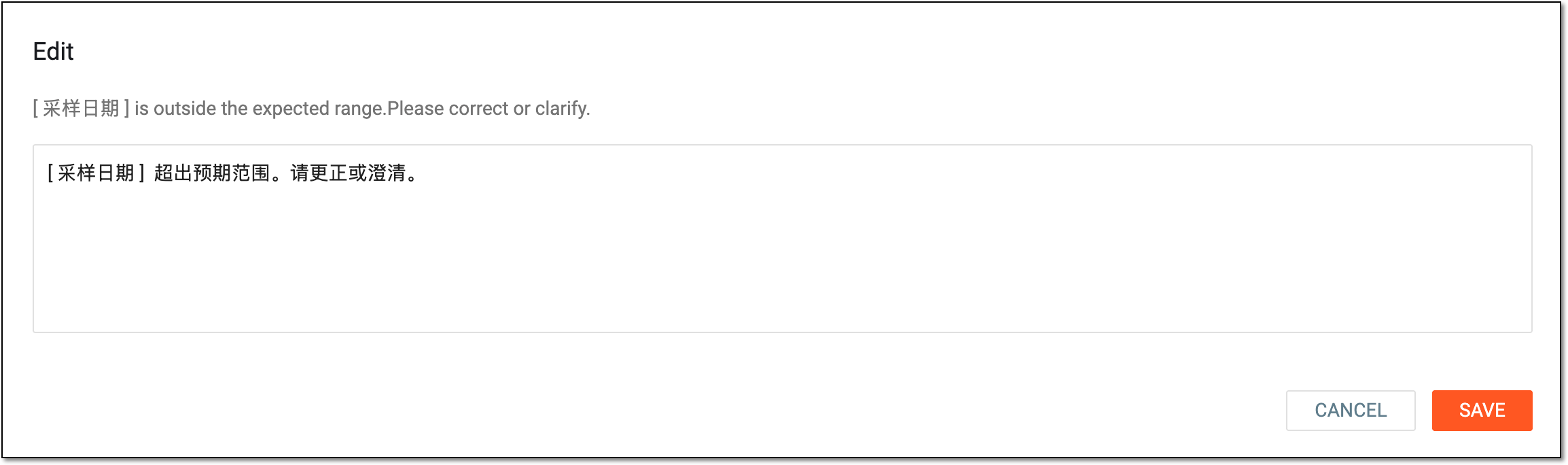 Figure 6. Updating text translation
Once saved, based on the tab you were operating—By Target or By Location—the text translation is updated in all locations where it is used, or only for the target text in a certain location where it is used. You can now repeat the same steps to update other text translations if needed.