Exception handling
In the CTMS application, with the Exceptional Handling feature, you can reassign the tasks of an inactive user or approver to an active one. The task list generated upon exception handling operations helps you analyze the details of the tasks assigned to a certain user and make a decision on their reassignment.
For instance, John is no longer working on the study, and their user is inactivated. Thus, all the active tasks assigned to John in CTMS must be covered by Jane, who is still active and has the same scope of responsibilities and access permissions. Using the Exceptional Handling functionality, all the tasks of John can be assigned to Jane.
From Exceptional Handling, you can perform the user replacement as explained in the following sections.
In CTMS, a monitoring visit refers to an activity when a monitor, usually a clinical research associate(CRA), visits sites to review and verify study-related activities, including data collection, patient safety, and adherence to the study protocol. A monitoring visit owner is needed to own the monitoring visits assigned. With the Exceptional Handling feature, you can reassign the tasks of an inactive monitoring visit owner to an active user. The task list of monitoring visit owner generated upon exception handling helps you view the details of tasks assigned to a certain user.
-
In the CTMS application header, select the REPORT tab.
-
On the page that opens, from the left pane, select Exceptional Handling.
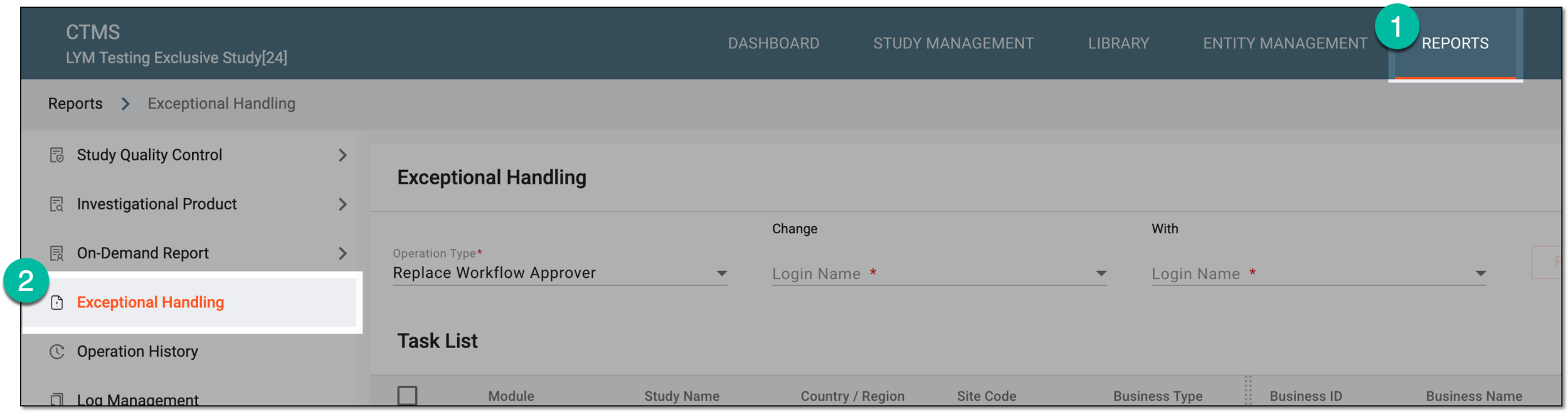 Figure 1. Accessing exception handling
-
On the Exceptional Handling page that opens, in the Operation Type field, select Replace Monitoring Visit Owner and fill in the attributes as explained in the following table.
 Figure 2. Selecting original and replacement monitoring visit owners
Tip
In the following table, mandatory elements are marked with an asterisk (*).
Element
Details
Change Login Name*
Select the login name of the user whose tasks are to be replaced.
With Login Name*
Select the login name of the user to whom you want to assign the tasks.
FILTER
Select
 to view all the tasks of the selected user whose tasks are to be reassigned.
 -
In the Task List table, analyze the details of the original user's monitoring visits and select the checkboxes next to those you want to reassign to the replacement user. The available details are explained in the following table.
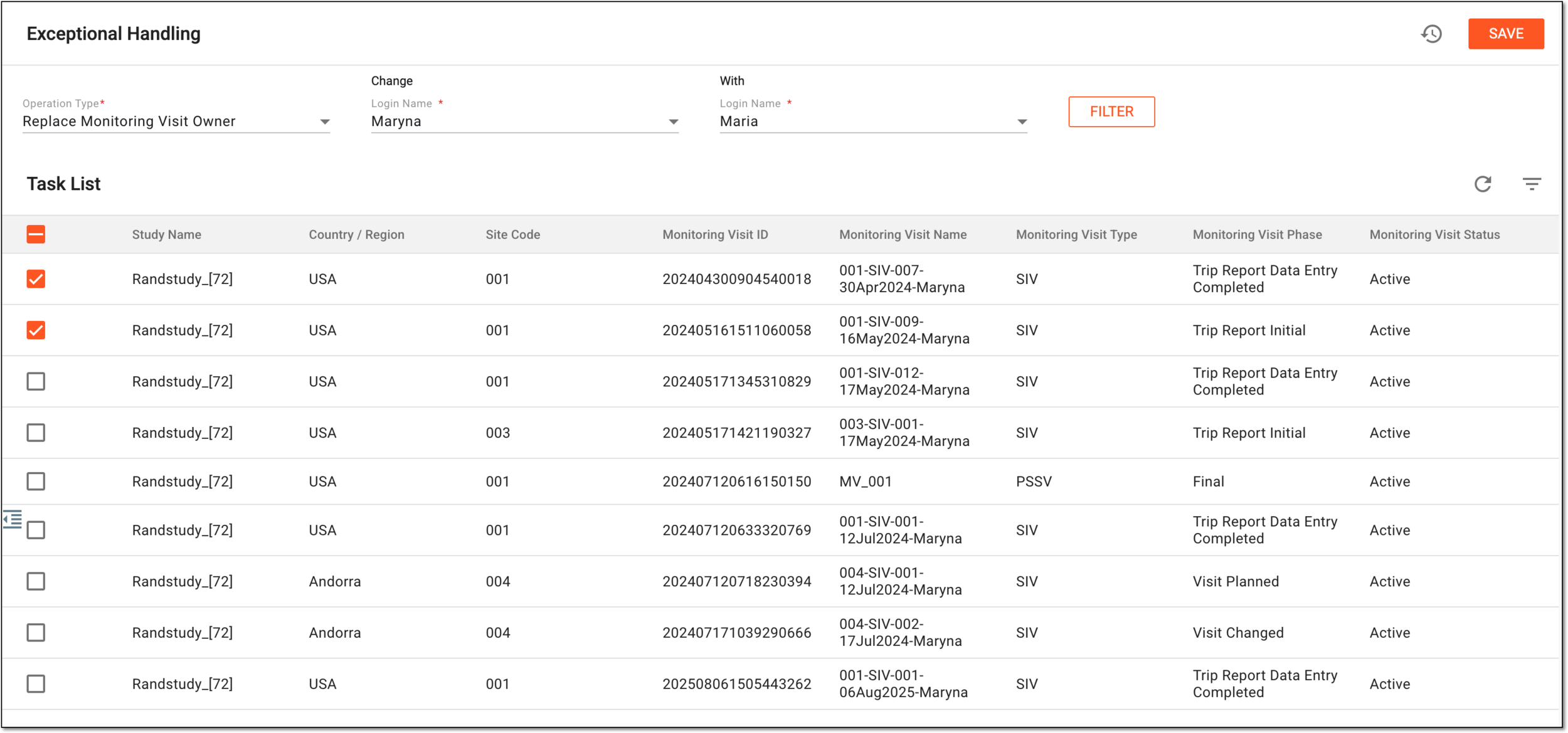 Figure 3. Selecting tasks to replace monitoring visit owner
Column
Details
Study Name
Represents the name of the study to which the task belongs.
Country / Region
Represents the name of the country or region to which the task belongs.
Site Code
Represents the code of the site to which the task belongs.
Monitoring Visit ID
Represents the unique, system-generated identifier for each monitoring visit record.
Monitoring Visit Name
Represents the name of the visit, often including site name, visit type, and sequence number.
Monitoring Visit Type
Represents the type of the monitoring visit to which the task relates.
Monitoring Visit Phase
Represents the current stage of the visit, for example, visit cancelled, trip report initial, and so on.
Monitoring Visit Status
Represents the current operational state of the visit, for example, active or inactive.
-
Select
 to finalize the ownership reassignment.
Once saved, the monitoring visit owner is replaced for the selected tasks. You can also view the operation history of the Exceptional Handling feature.
In CTMS, a workflow represents a series of tasks intended for review and approval procedures during contract audit, payment request audit, or trip report audit in CTMS. A workflow approver is a system user responsible for validating the tasks performed to complete an action of the assigned workflow. In case the user in charge is unavailable to perform their task, you can reassign their tasks to another user via Exceptional Handling to avoid stalling or completely stopping the study conduct processes.
-
In the CTMS application header, select the REPORT tab.
-
On the page that opens, from the left pane, select Exceptional Handling.
Figure 1. Accessing exception handling
-
On the Exceptional Handling page that opens, from the Operation Type field, select Replace Workflow Approver and fill in the fields as explained in the following table.
 Figure 2. Selecting original and replacement workflow approvers
Tip
In the following table, mandatory elements are marked with an asterisk (*).
Element
Details
Change Login Name*
Select the login name of the original user—the person whose workflow approval tasks in CTMS you want to reassign to the replacement user.
With Login Name*
Select the login name of the replacement user—the person who must replace the original user in completing the workflow approval tasks.
FILTER
Select
to view all the tasks of the original user available for reassignment. -
In the Task List table, analyze the details of the original user's tasks and select the checkboxes next to those you want to reassign to the replacement user. The task details are explained in the following table.
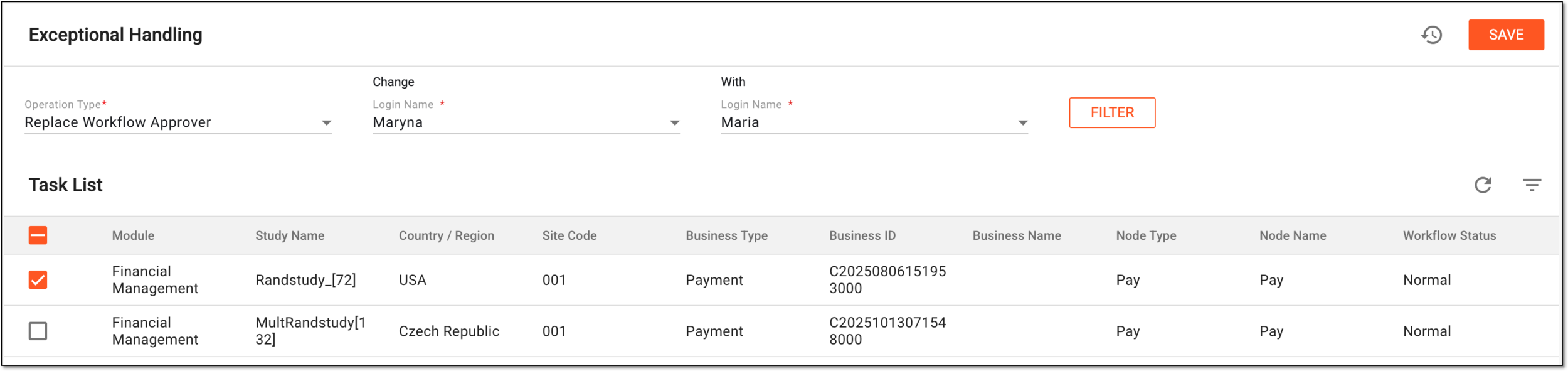 Figure 3. Selecting tasks to replace workflow approver
Column
Details
Module
Represents whether the task is a monitoring or financial module.
Study Name
Represents the name of the study to which the task belongs.
Country / Region
Represents the name of the country or region where the task belongs.
Site Code
Represents the code of the site to which the task belongs.
Business Type
Represents the type of business of the task. The business type is selected from the list of available ones upon the task creation.
Business ID / Name
Represents the name or ID of the business of the task. The business name or ID can be changed when the task is created.
Monitoring Visit Name
Represents the name of the visit, often including site name, visit type, and sequence number.
Node Type
Represents the type of the current workflow node of the task.
Node Name
Represents the name of the current workflow node of the task.
Workflow Status
Represents the current status of the task workflow.
-
Select
to finalize the task reassignment.
Once saved, the workflow approver is replaced for the selected tasks; the replacement user can now complete their newly assigned tasks. You can also analyze the operation history for the Exceptional Handling feature to analyze all the replacement operations if needed.
In the CTMS application, with the Exceptional Handling feature, you can increase the number of monitoring visit name to standardize the monitoring visit naming sequence when automatic numbering fails or duplicates occur—ensuring accurate tracking, reporting, and audit compliance. The task list generated upon exception handling operations helps you view the details of the tasks, where you can change the existing self-increased number to a new one.
-
In the CTMS application header, select the REPORT tab.
-
On the page that opens, from the left pane, select Exceptional Handling.
Figure 1. Accessing exception handling
-
On the Exceptional Handling page that opens, in the Operation Type field, select Edit Self-increase Number of Monitoring Visit Name and fill in the attributes as explained in the following table.
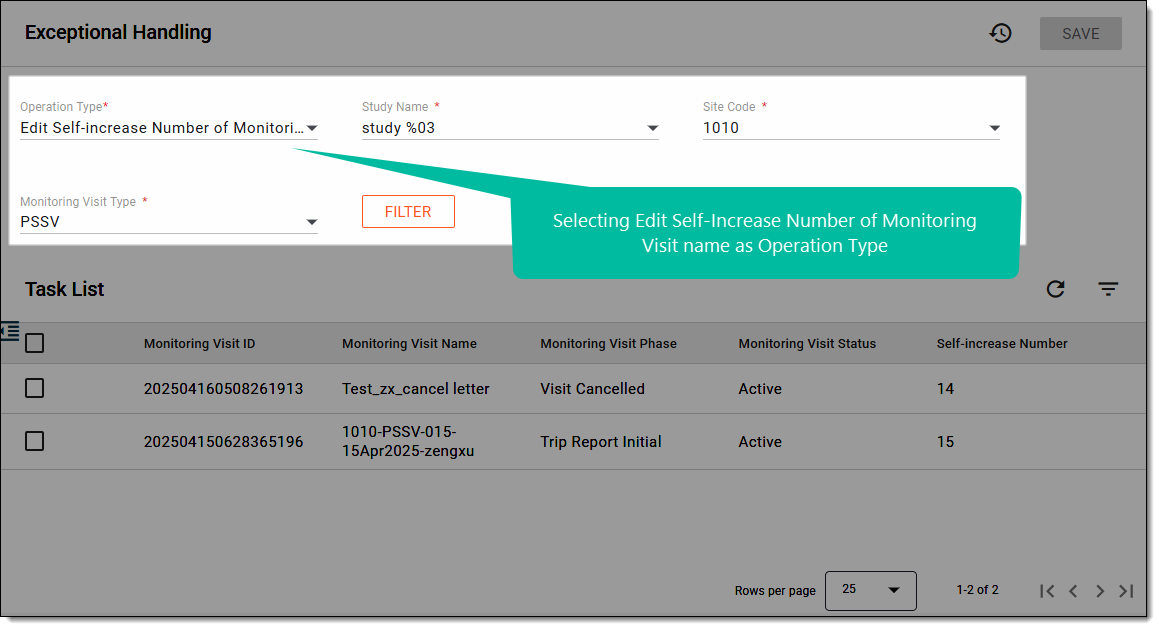 Figure 2. Selecting self-increase number of monitoring visit name
Tip
In the following table, mandatory elements are marked with an asterisk (*).
Element
Details
Study Name*
Select the study within which you want to edit the number of monitoring visit name.
Site Code*
Select the site code for which you want to edit the number of monitoring visit name.
This field is activated upon selecting the study.Monitoring Visit Type*
Select the monitoring visit type associated with the selected site code.
This field is activated upon selecting the site code.FILTER
Select
to view all the tasks of the selected monitoring visit type that you want to edit. -
View the details of the tasks available for the selected study, site, and monitoring visit type as explained in the following table.
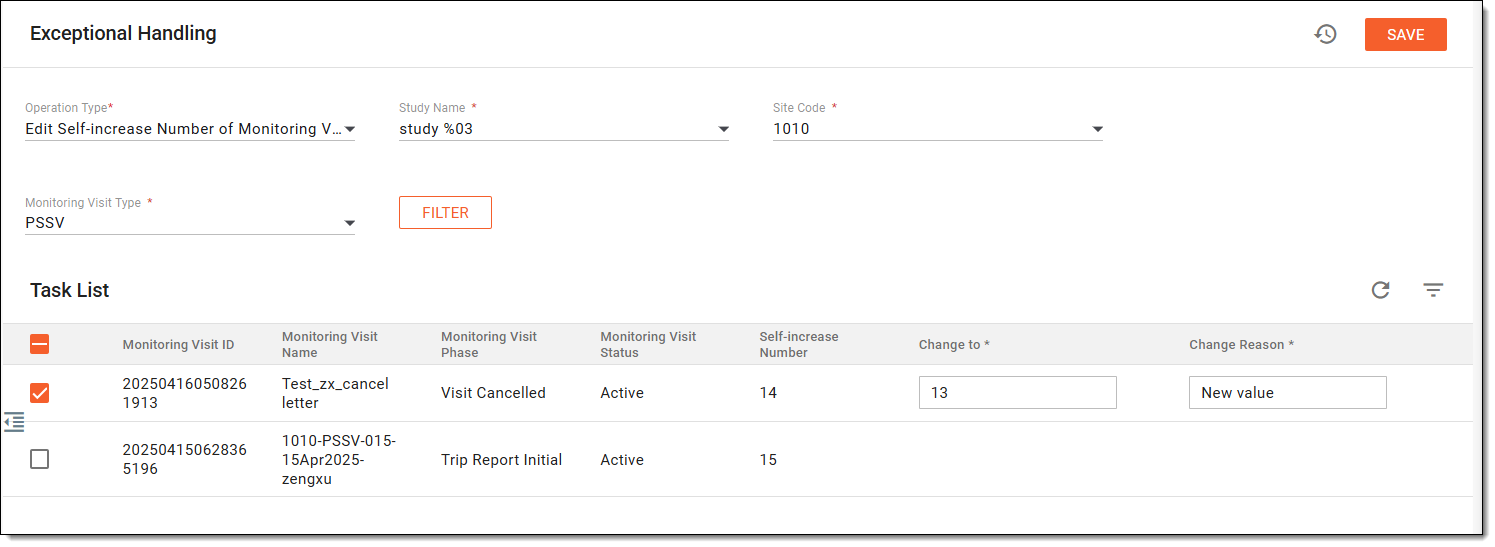 Figure 3. Viewing tasks of self-increase number of monitoring visit name
Column
Details
Monitoring Visit ID
Represents the unique, system-generated identifier for each monitoring visit record.
Monitoring Visit Name
Represents the name of the visit, often including site name, visit type, and sequence number.
Monitoring Visit Phase
Represents the current stage of the visit, for example, visit canceled, trip report initial, and so on.
Monitoring Visit Status
Represents the current operational state of the visit, for example, active or inactive.
Self-increase Number
Represents the automatically incremented numeric value used to maintain sequential naming when manual edits or exceptions occur.
-
In the list, select the checkbox next to the task for which you want to edit the number of the monitoring visit name. Upon selection, the table displays two additional columns as explained in the following table.
Figure 4. Updating self-increase number of monitoring visit name
Tip
In the following table, mandatory elements are marked with an asterisk (*).
Column
Details
Change to*
Enter the new numerical value for the self-increase adjustment to specify the sequence of appearance during monitoring visits.
Change Reason*
Enter the reason for the changed value you have added.
This column is only available during value updates. -
After updating the self-increase number of monitoring visit name, select
to implement the changes.
Once saved, the new value is displayed in the Self-increase Number column of the Task List page.