Delete codelist item
In the Study Designer app, each codelist added to the study contains a collection of items (codes) to be used as responses for specific questions in CRFs. You can delete any existing codelist items to ensure that unnecessary data is not captured and to meet the specific demands of the study or the requirements set forth by the sponsor.
Important
Before initiating the following procedure, ensure to select the latest unlocked CRF version from the toolbar of the CRF DESIGN tab, otherwise, you cannot delete codelist items from your study. The CRF version remains unlocked until it is submitted to EDC for data entry.
-
In the Study Designer application header, select the CODELIST tab.
 Figure 1. Accessing codelist management
-
In the CodeList Setting table that appears, select a codelist whose code item you need to delete.
 Figure 2. Selecting codelist
-
On the codelist details page that opens, select Delete
 next to the needed code item.
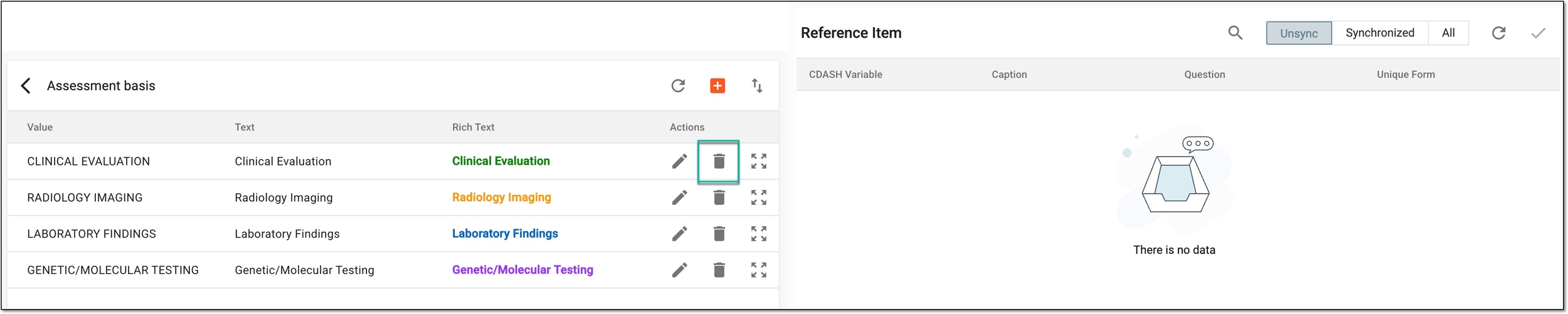 Figure 3. Selecting option to delete item
-
In the dialog that appears, select
 to confirm your action.
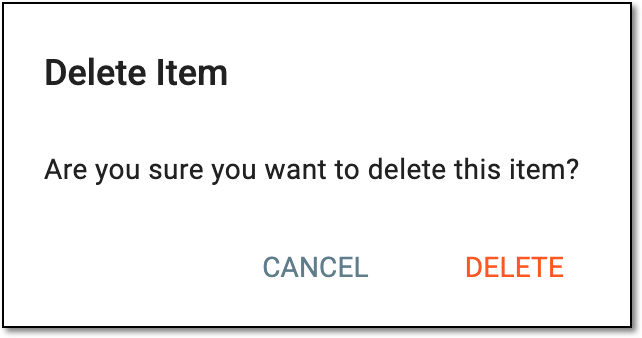 Figure 4. Deleting codelist item
Once confirmed, the code item is deleted. You now need to sync the codelist with associated variables so deleted responses are no longer available in corresponding forms.