Convert codelist to multilevel
In the Study Designer application, you can expand codelists into multitiered hierarchies. Such a structure facilitates the linkage of response items from one codelist to corresponding codes in another, thereby reinforcing data consistency and improving the efficiency of the data entry process within EDC. To demonstrate the utility of this functionality, consider the following example.
In the Medical History (Details) form, investigators are often required to document subjects' medical conditions. The sponsor may request to have responses not entered manually but chosen from predefined MedDRA codelists. To ease the data entry process in EDC, the study team can configure the question about the body or organ system. The response then dictates the subsequent display of relevant conditions or disorders in the next question.
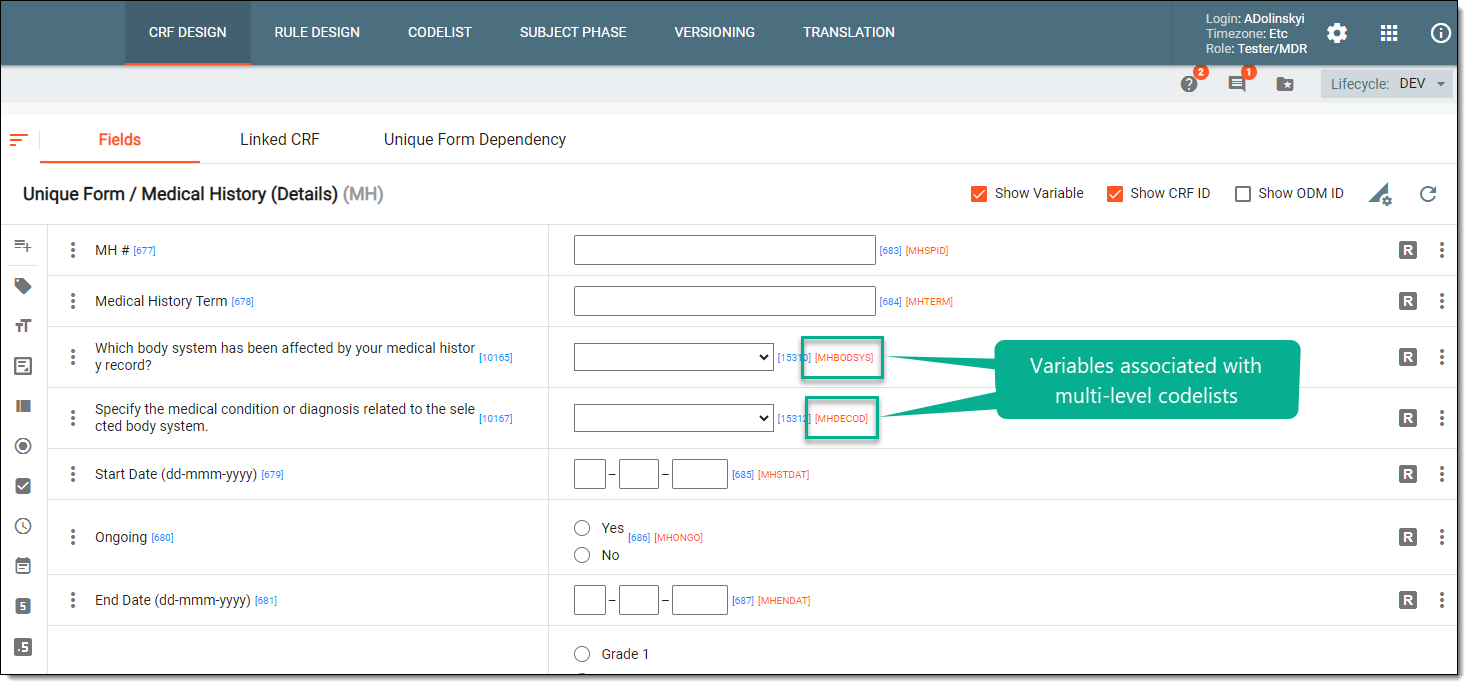
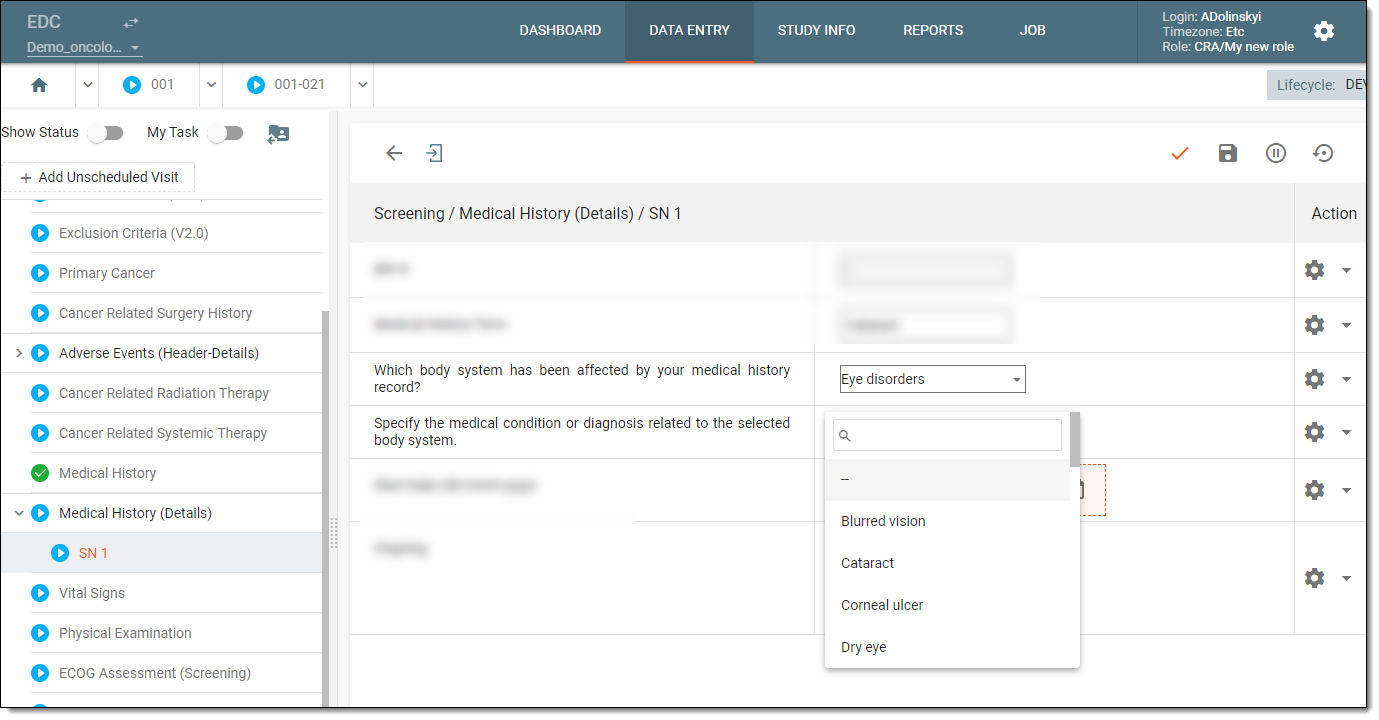
Given that MedDRA codelists encompass a wide array of medical conditions, the application of multilevel hierarchical tiering is instrumental. This tiering can be tuned to present only pertinent items contingent on the previous response. For instance, if a respondent identifies "Eye disorders" as the affected organ system, the subsequent options are filtered to include only ocular-related conditions as indicated in the converted codelist.
Important
Before initiating the following procedure, ensure to select the latest unlocked CRF version from the toolbar of the CRF DESIGN tab, otherwise, you cannot convert codelists in your study. The CRF version remains unlocked until it is submitted to EDC for data entry.
-
In the Study Designer application header, select the CODELIST tab.
 Figure 3. Accessing codelist management
-
In the CodeList Setting table that appears, select Convert to multi-level
 next
to the codelist you want to convert.
next
to the codelist you want to convert. Figure 4. Selecting conversion option
Tip
At this step, you select to convert a codelist that is to be at the higher response hierarchy in the multilevel tiering.
-
On the page that opens, convert the selected codelist as shown in the figure and explained in the following instructions.
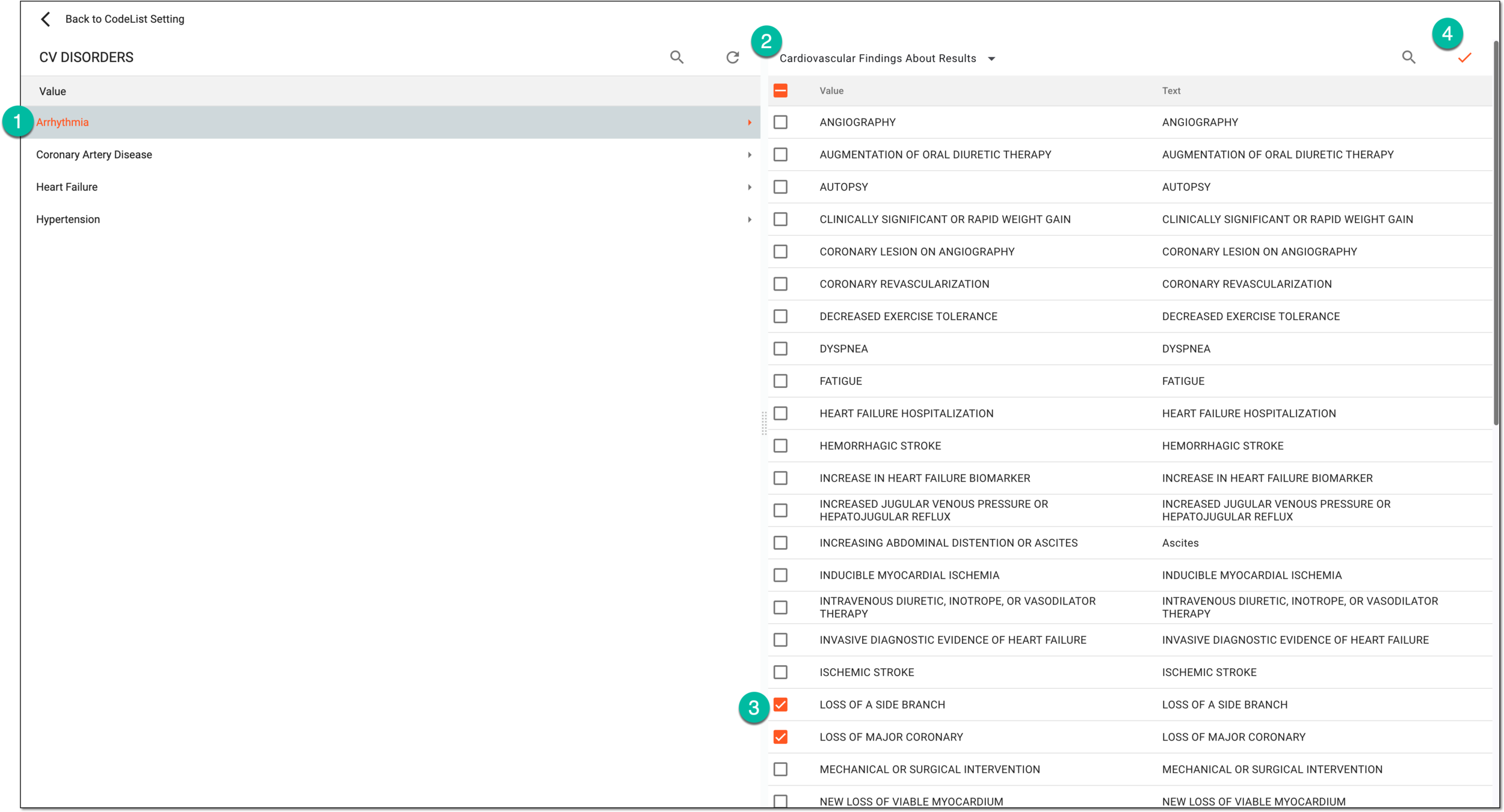 Figure 5. Converting codelist
-
From the workspace toolbar, select the reference codelist.
-
In the left pane, select the code item that you want to be associated with items from the reference codelist.
-
In the right pane, select checkboxes next to code items from the reference codelist.
-
From the workspace toolbar, select Save
 to apply the multi-level configuration.
-
Once saved, the codelist is converted to multilevel. It can now be associated with variables when adding listbox items to questions in forms.