Shipment alerts
In IWRS, you can configure alerts for the system users to get notified of different events occurring with item shipments between your study sites and depots as explained in the following sections.
In IWRS, you can create and manage alerts to notify interested parties of item shipment delays to depots.
Based on the recipient user's time zone, the delayed shipment notifications for depots are sent daily, 00:00–08:00 AM.
-
In the IWRS application header, select the TREATMENT DESIGN tab.
-
On the page that opens, in the left pane, select Alert > Shipment.
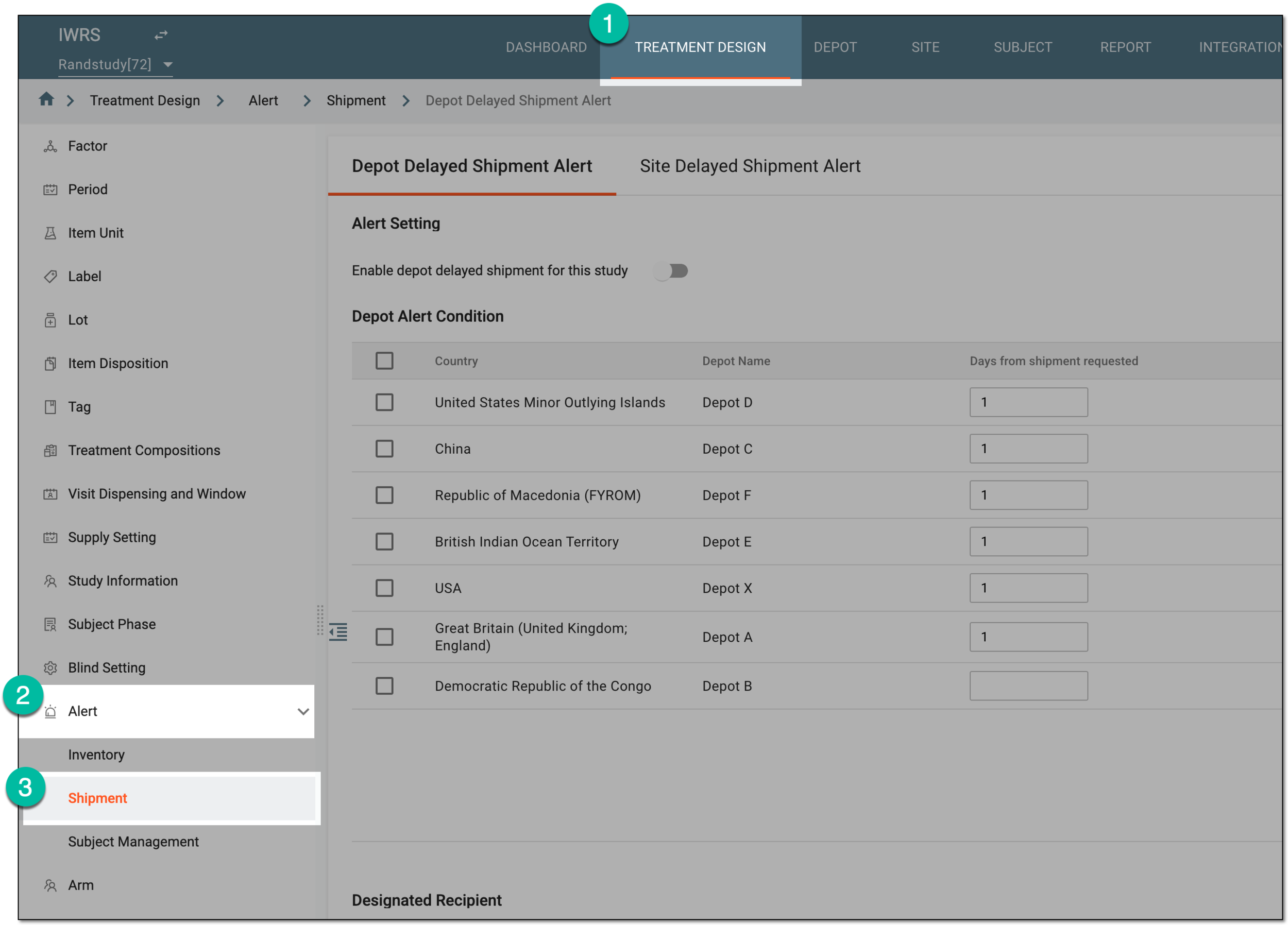 Figure 1. Accessing shipment alert configuration
-
On the page that opens, under the Depot Delayed Shipment Alert tab, configure the alert settings as explained in the following table.
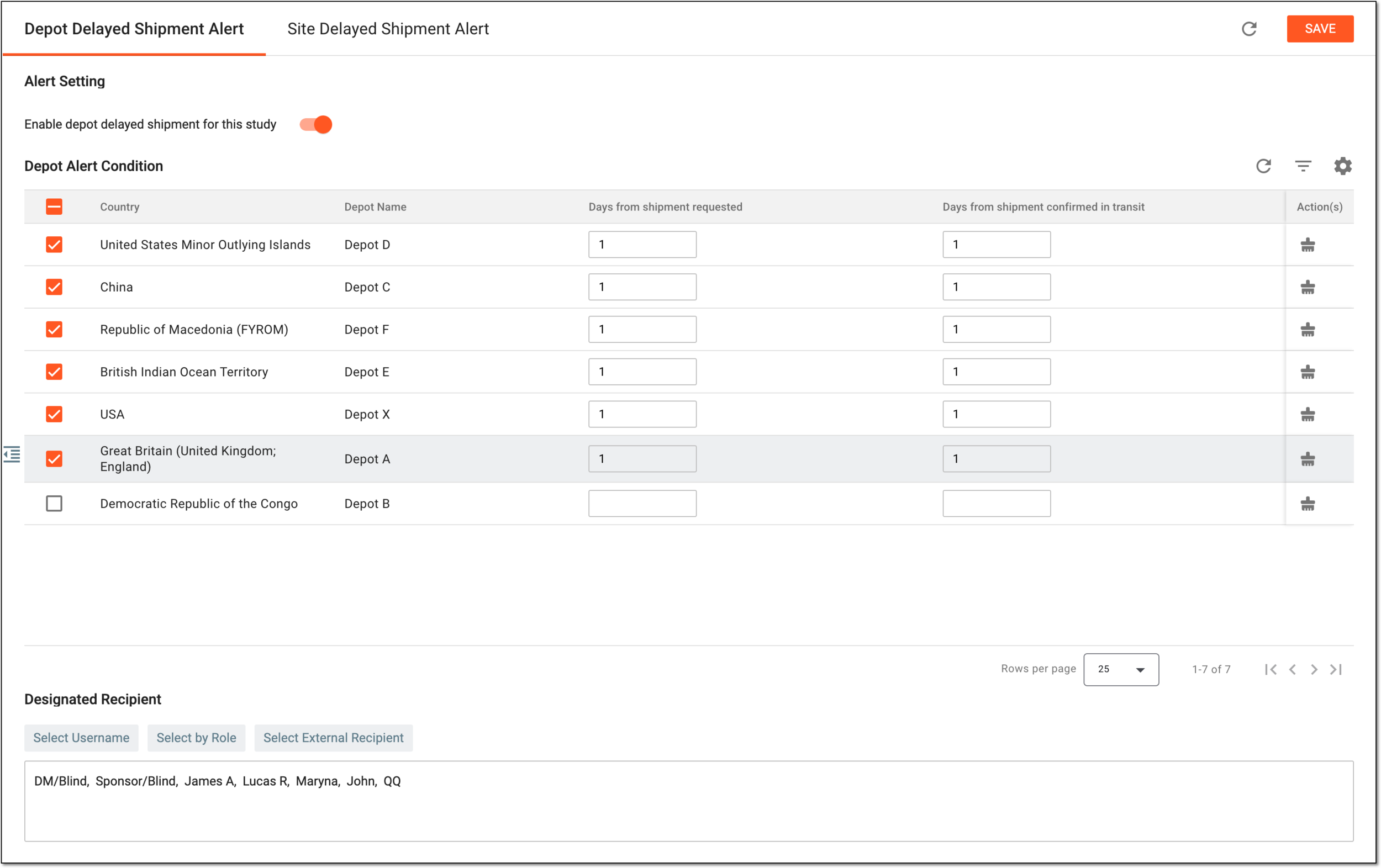 Figure 2. Configuring shipment delay alert for depots
Tip
In the following table, mandatory elements are marked with an asterisk (*).
Element
Details
Alert Setting
Enable site delayed shipment alert for all sites
-
Turn the toggle on to enable the delayed shipment alert functionality for the depots of your study.
When enabled, upon saving, the indicating icon
 appears next to the tab name.
 -
Turn the toggle off to disable the delayed shipment alert functionality for the depots of your study.
Site Alert Condition
Country
Represents the name of the country where the depot is located.
Depot Name
Represents the name of the depot for which you can set the delayed shipment alert.
Days from shipment requested
Enter the number of days to pass since the shipment is requested but not marked as received to consider the shipment delayed.
For instance, if it is 3, then if the shipment was requested three days ago and still is not marked as received in the system, it is considered delayed, and the alert triggers.
Days from shipment confirmed in transit
Enter the number of days to pass since the shipment is in transit but not marked as received to consider the shipment delayed.
For instance, if it is 2, then if the shipment was marked as in transit two days ago and still is not marked as received in the system, it is considered delayed, and the alert triggers.
Set Alert Condition
Select checkboxes next to multiple depots from the table, and then select
 to configure the Days from shipment
requested and Days from shipment confirmed in transit parameters in batch.
to configure the Days from shipment
requested and Days from shipment confirmed in transit parameters in batch.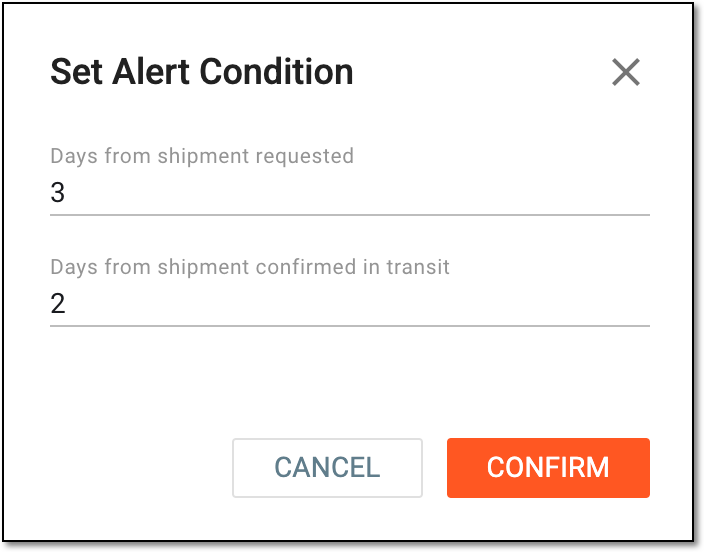 Figure 3. Setting alert conditions in batch
Designated Recipient
Select Username
Select this button and from the list that opens, select the users to be the recipient of the delayed shipment alert emails for depots.
The selected users will receive the delayed shipment emails only for the depots to which they have access. For instance, if the user has access to three out of five study depots, they only get notified of the delayed shipments for those three
                                        depots.
Once the individual users are selected, you can also select the user roles to be the recipients via the Select by Role button.
Select by Role
Select this button and from the list that opens, select the user roles to be the recipient of the delayed shipment alert emails for depots.
If a user within the selected roles is assigned to a specific depots, they receive the delayed shipment emails only for the depots to which they have access.Once user roles are selected, you can also select the individual users to be the recipients via the Select Username button.
Select External Recipient
Select this button and from the list that opens, select preconfigured external recipients—contacts who are not system users but for whom the account exists in IWRS to be able to include them in correspondence—and select the ones to receive an alert email. To remove a person from recipients, clear the checkbox next to their name.
If the external recipient is associated with specific depots, they receive the delayed
                                        shipment emails only for the depots to which they have access.
SAVE
Select
 to save the implemented changes.
Select this icon to refresh the page, discard all your changes, and return the fields to their original values.
-
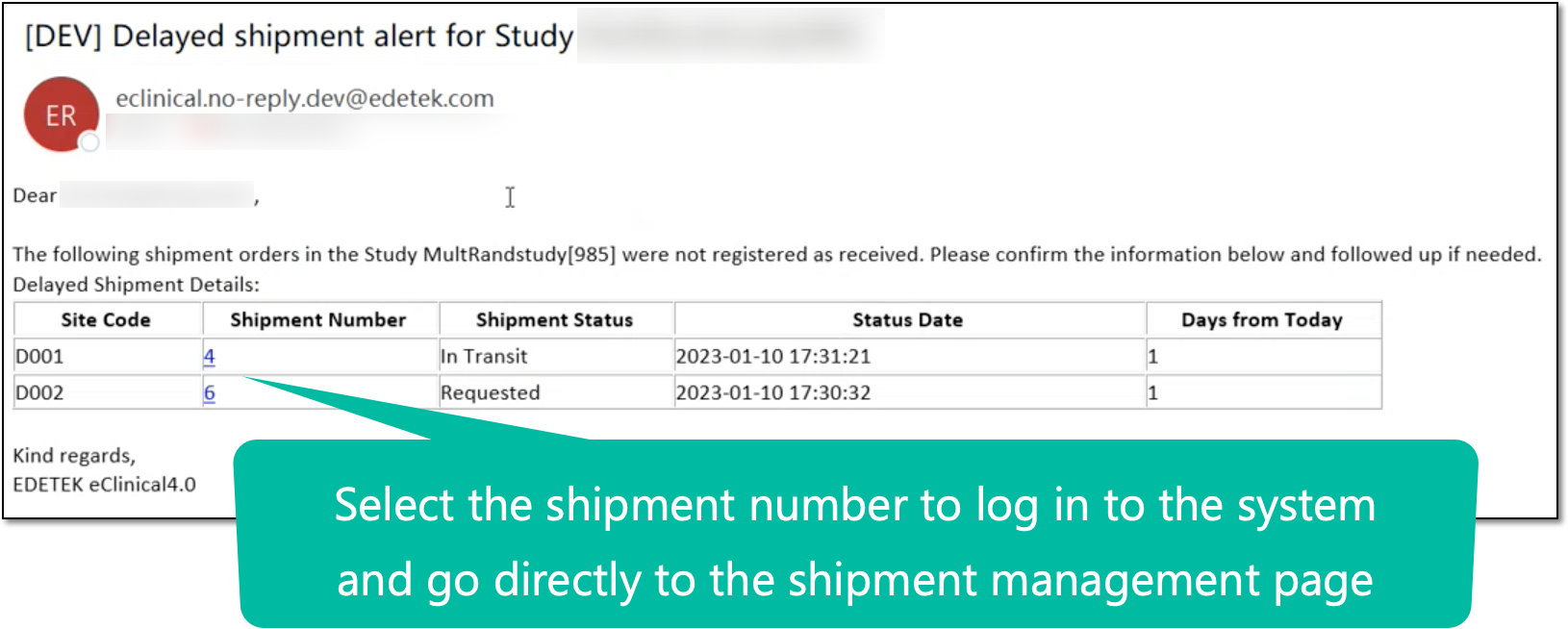
Upon enabling the functionality and saving, your alert configurations are set. Once the conditions are met, the alert recipient(s) will get notified via email of the delayed depot shipment(s). In the email, you can select the shipment number to log in to IWRS and go directly to the shipment management page.
In IWRS, you can create and manage alerts to notify interested parties of item shipment delays to sites.
Based on the recipient user's time zone, the delayed shipment notifications for sites are sent daily, 00:00–08:00 AM.
-
In the IWRS application header, select the TREATMENT DESIGN tab.
-
On the page that opens, in the left pane, select Alert > Shipment.
Figure 1. Accessing shipment alert configuration
-
On the page that opens, under the Site Delayed Shipment Alert tab, configure the alert settings as explained in the following table.
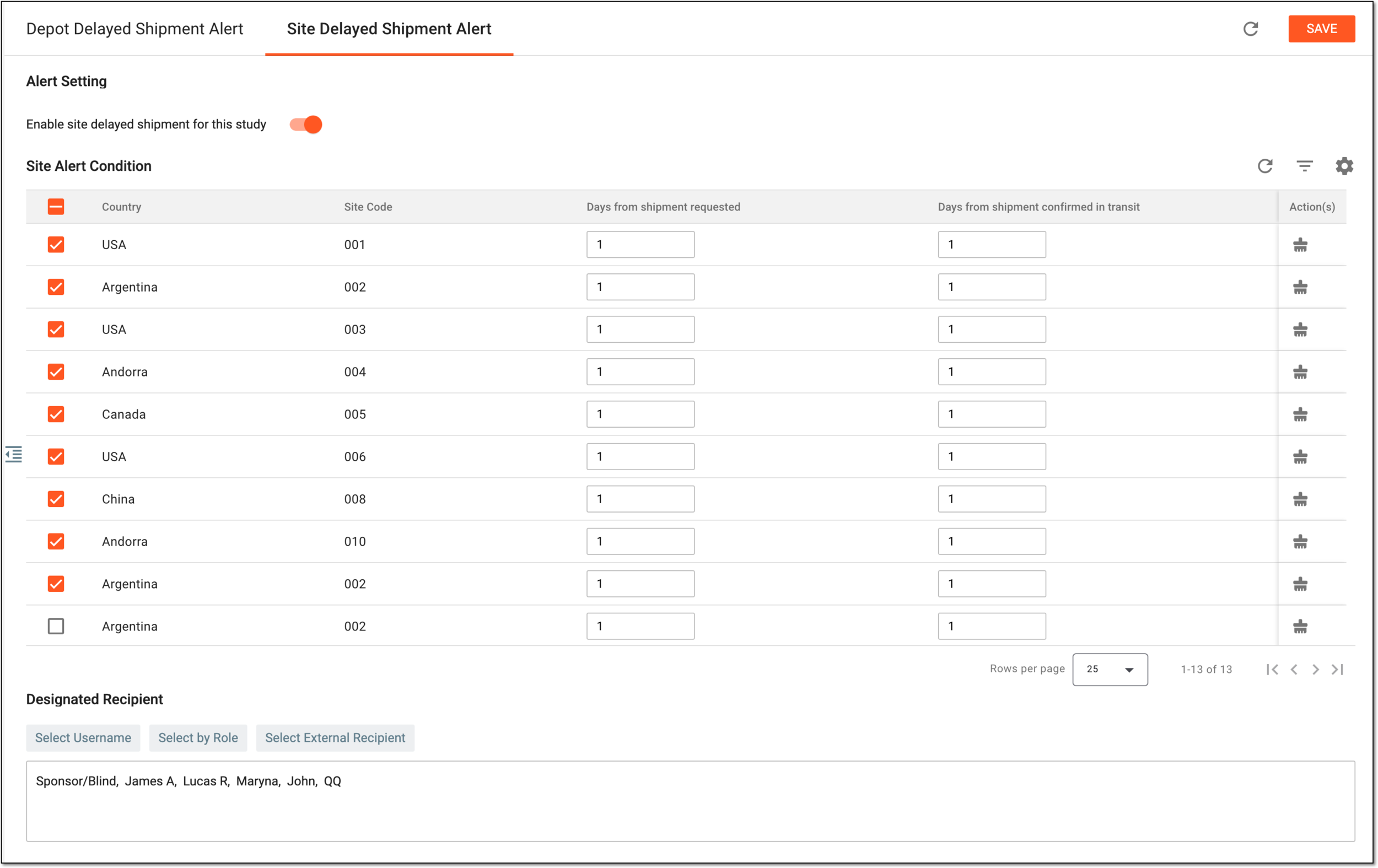 Figure 2. Configuring shipment delay alert for sites
Tip
In the following table, mandatory elements are marked with an asterisk (*).
Element
Details
Alert Setting
Enable site delayed shipment alert for all sites
-
Turn the toggle on to enable the delayed shipment alert functionality for the sites of your study.
When enabled, upon saving, the indicating icon
appears next to the tab name. -
Turn the toggle off to disable the delayed shipment alert functionality for the sites of your study.
Site Alert Condition
Country
Represents the name of the country where the site is located.
Site Code
Represents the code of the site for which you can set the delayed shipment alert.
Days from shipment requested
Enter the number of days to pass since the shipment is requested but not marked as received to consider the shipment delayed.
For instance, if it is 3, then if the shipment was requested three days ago and still is not marked as received in the system, it is considered delayed, and the alert triggers.
Days from shipment confirmed in transit
Enter the number of days to pass since the shipment is in transit but not marked as received to consider the shipment delayed.
For instance, if it is 1, then if the shipment was marked as in transit one day ago and still is not marked as received in the system, it is considered delayed, and the alert triggers.
Set Alert Condition
Select checkboxes next to multiple sites from the table, and then select
to configure the Days from shipment
requested and Days from shipment confirmed in transit parameters in batch.Figure 3. Setting alert conditions in batch
Designated Recipient
Select Username
Select this button and from the list that opens, select the users to be the recipient of the delayed shipment alert emails for sites.
The selected users receive the delayed shipment emails only for the sites to which they have access. For instance, if the user has access to three out of five study sites, they only get notified of the delayed shipments for those three
                                        sites.
Once the individual users are selected, you can also select the user role(s) to be the recipients via the Select by Role button.
Select by Role
Select this button and from the list that opens, select the user roless to be the recipient of the delayed shipment alert emails for sites.
If a user within the selected roles is assigned to specific sites, they receive the delayed shipment emails only for the sites to which they have access.Once user roles are selected, you can also select the individual users to be the recipients via the Select Username button.
Select External Recipient
Select this button and from the list that opens, select preconfigured external recipients—contacts who are not system users but for whom the account exists in IWRS to be able to include them in correspondence—and select the ones to receive an alert email. To remove a person from recipients, clear the checkbox next to their name.
If the external recipient is associated with specific sites, they receive the delayed shipment
                                        emails only for the sites to which they have access.
SAVE
Select
to save the implemented changes.Select this icon to refresh the page, discard all your changes, and return the fields to their original values.
-
Upon enabling the functionality and saving, your alert configurations are set. Once the conditions are met, the alert recipients get notified via email of the delayed site shipments. In the email, you can select the shipment number to log in to IWRS and go directly to the shipment management page.