Create external recipient account
By maintaining the recipient list, you can create a contact sheet of people who are not necessarily eClinical system users, thus enabling external parties to become recipients of system notifications—various alerts or site and depot shipment notices.
-
In the IWRS application header, select the ALERT tab.
-
On the page that opens, from the left pane, select External Recipient.
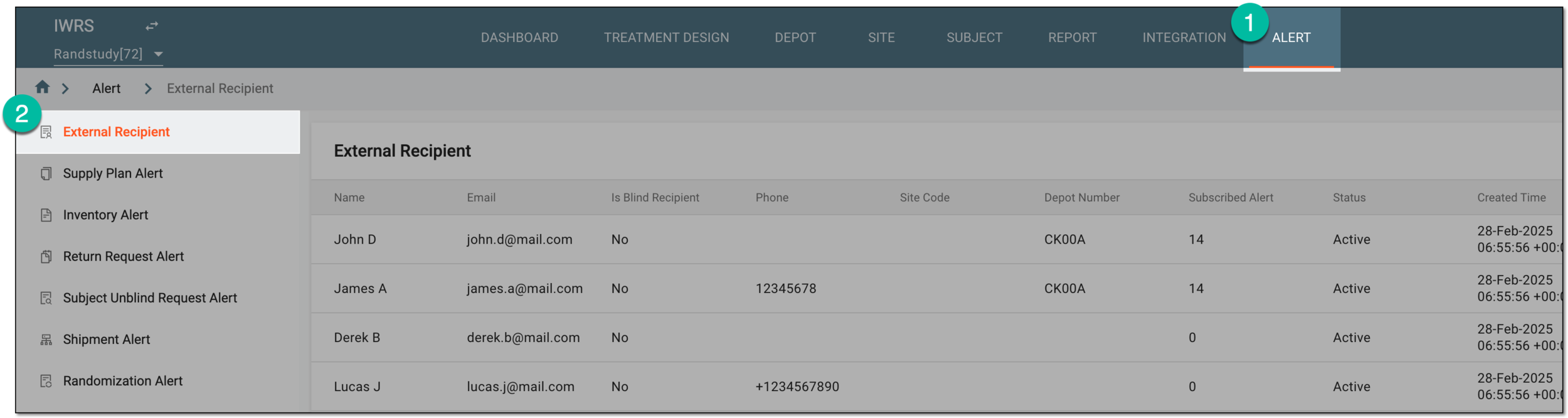 Figure 1. Accessing external recipient list
-
On the External Recipient page that opens, from the workspace toolbar, select New Item
 .
.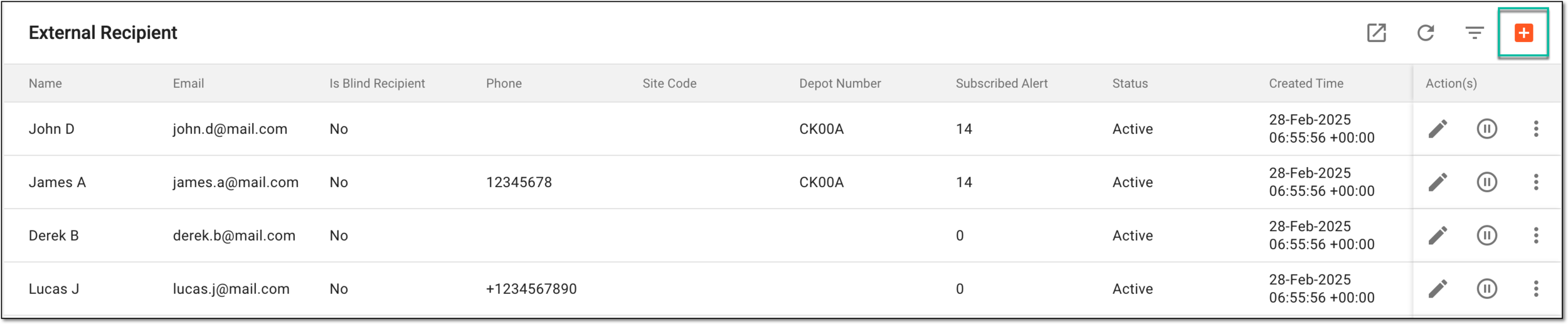 Figure 2. Adding external recipient account
-
In the New dialog that appears, configure your recipient account details as explained in the following table.
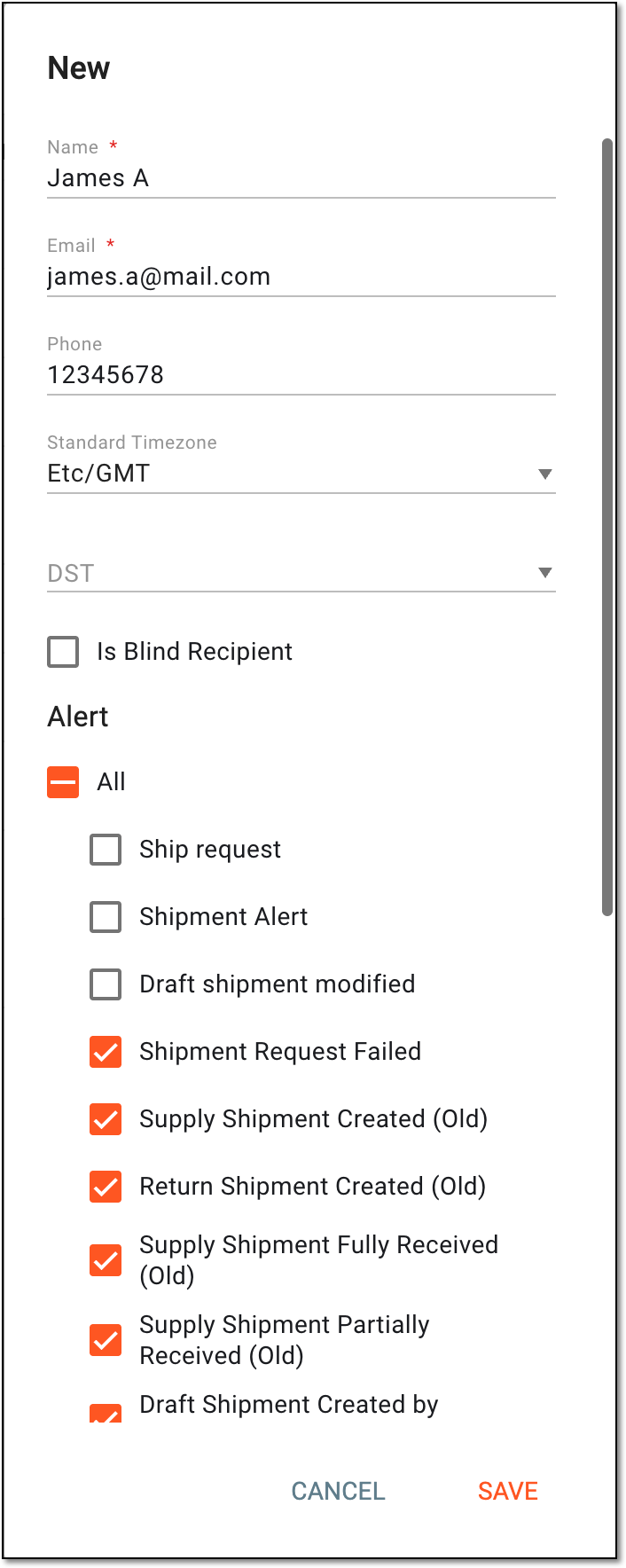 Figure 3. Configuring external recipient account
Tip
In the following table, mandatory elements are marked with an asterisk (*).
Element
Details
Name*
Enter the name of the person for whom you create the recipient account.
Email*
Enter the email address of the person for whom you create the recipient account. This address will be used to notify the person on all the assigned events and alerts.
Phone
Enter the contact phone number of the person for whom you create the recipient account.
Standard Timezone
Select the time zone of the person's location. According to this setting, the time of alert delivery will be calculated by the system.
DST
Select the daylight saving time value. If the Standard Timezone selection is made, the DST value populates automatically based on the selected time zone.
Is Blind Recipient
Select this checkbox if the recipient must be blinded—all the sensitive data must be concealed in the correspondence with the person. If selected, only the blinded alerts are available for association with this recipient.
Alert
Select the checkboxes next to the alerts for which this account will be the recipient. The options available for selection are the alerts configured under various categories of the ALERT tab of IWRS.
You can skip alert selection if this account has no assigned notifications.
You can only see blinded alerts on the list if the Is Blind Recipient checkbox is selected.SAVE
Select
 to implement the changes.
CANCEL
Select
 to discard the changes and close the dialog.
Once saved, a new recipient is added. They can now be assigned to receive correspondence on various alerts or associated with sites and depots.