Inventory alerts
In IWRS, you can configure alerts for the system users to get notified of different events occurring in item inventories of your study sites and depots as explained in the following sections.
In IWRS, you can create and manage alerts to notify interested parties of the item status change in the inventory of the depots and sites involved in your study.
If enabled, the selected recipients get an email notification when the item status changes according to the alert settings. The status can be changed as a result of the following occurrences:
-
The manual status (disposition) changes for the item via the depot or site inventory.
-
The new status assignment for the items when fully receiving the shipment.
-
The new status assignment for the items when partially receiving the shipment.
Important
As the alert on the item status change contains item unit information, it is only available for users with unblinded permissions.
-
In the IWRS application header, select the TREATMENT DESIGN tab.
-
On the page that opens, in the left pane, select Alert > Inventory.
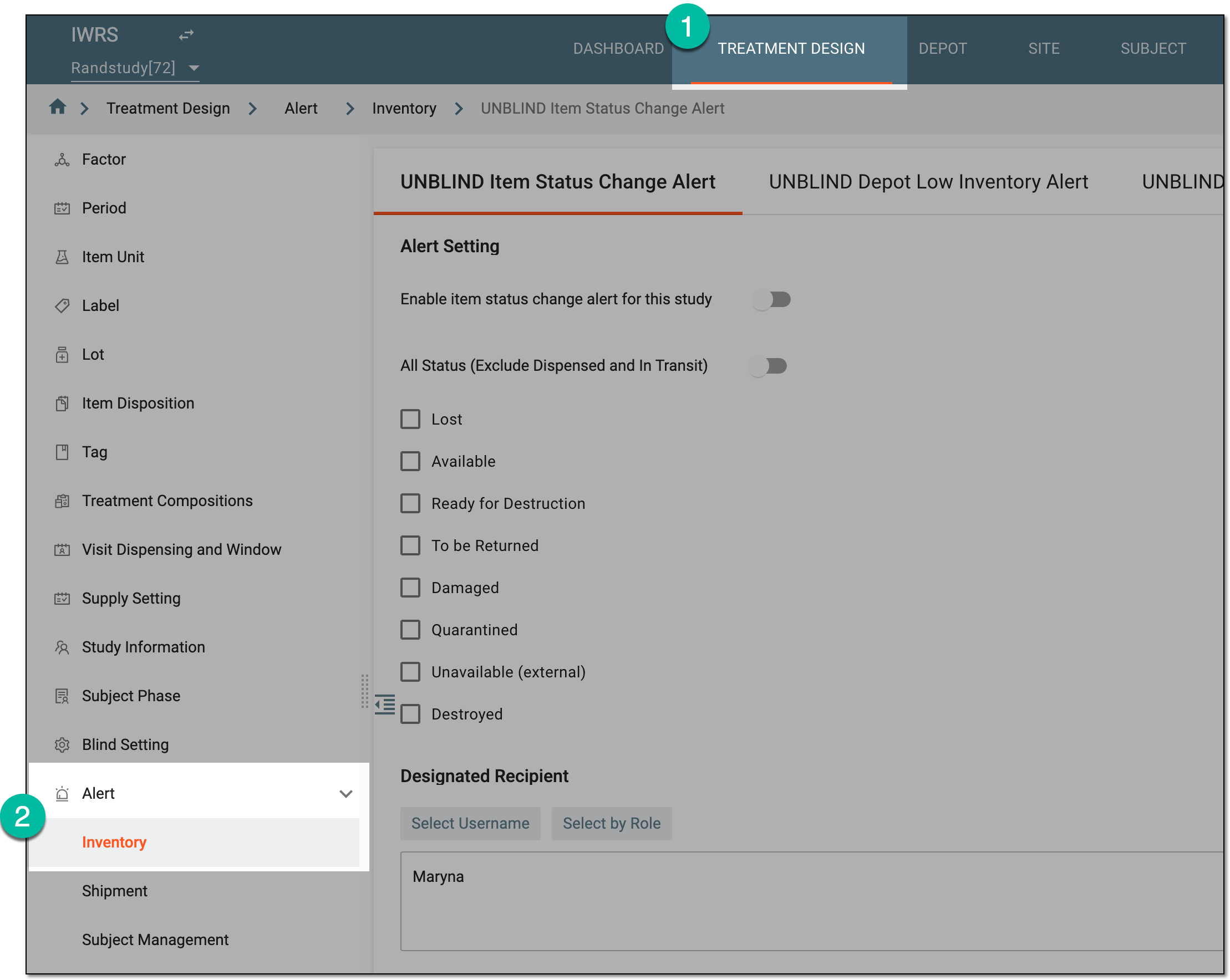 Figure 1. Accessing inventory alert settings
-
On the page that opens, under the UNBLIND Item Status Change Alert tab, configure the alert settings as explained in the following table.
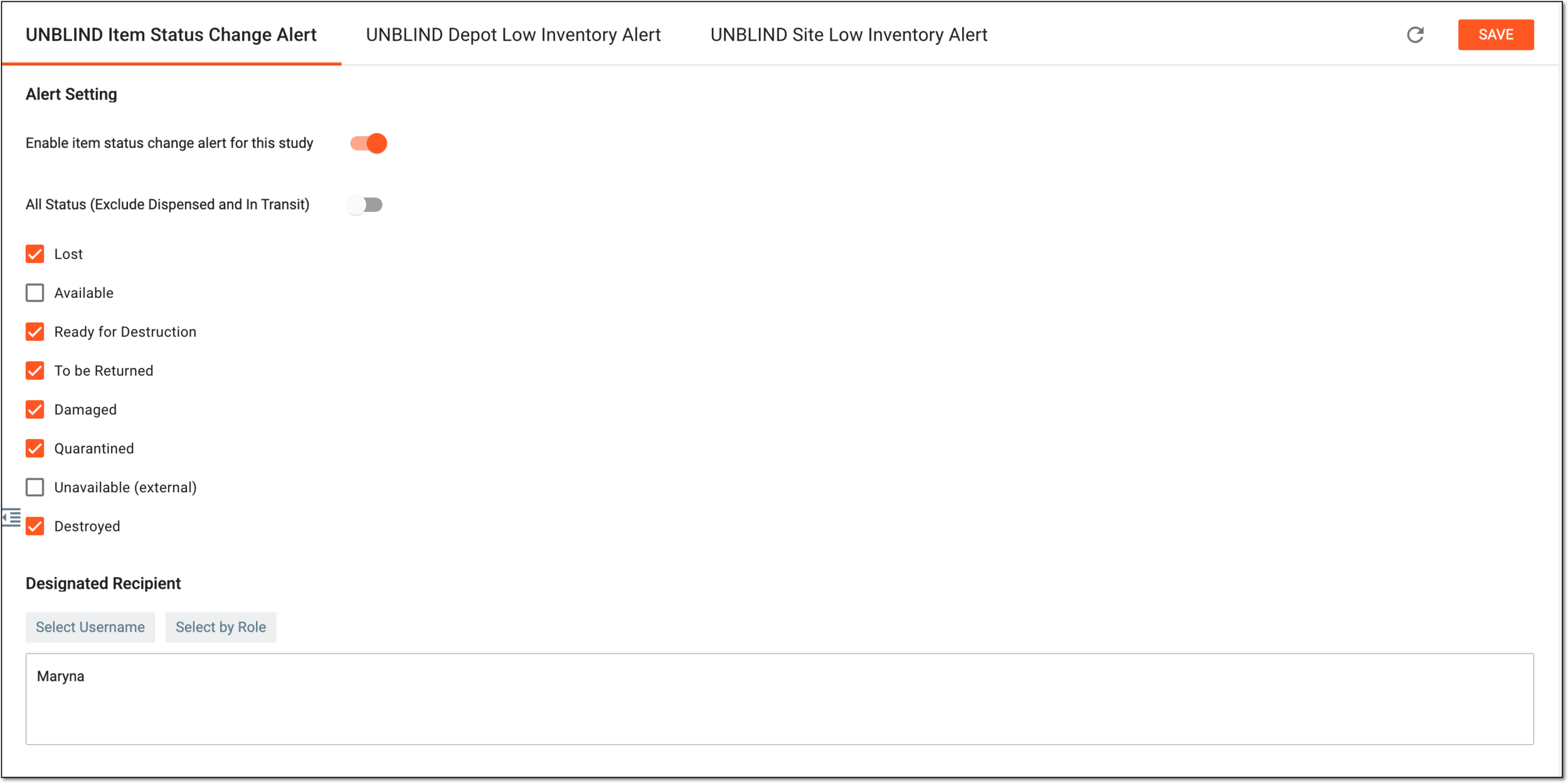 Figure 2. Configuring item status change
Tip
In the following table, mandatory elements are marked with an asterisk (*).
Element
Details
Alert Setting
Enable item status change alert for this study
-
Turn the toggle on to enable the item status change alert functionality for your study.
When enabled, upon saving, the indicating icon
 appears next to the tab name.
 -
Turn the toggle off to disable the item status change alert functionality for your study.
All Status (Exclude Dispensed and In Transit)
-
Turn the toggle on if you want to receive an alert notification when item status changes to any of the listed statuses. The list of statuses cannot be viewed or selected if this toggle is turned on.
-
Turn the toggle off if you do not want to receive an alert notification.
If you want to receive an alert notification when the item status changes to a particular status, select the checkbox of the required status.
For instance, select the Ready for Destruction and Destroyed checkboxes, if you want to receive an alert notification when the item status changes to either ready for destruction, destroyed, or both.
Designated Recipient
Select Username
Select this button and from the list that opens, select the user(s) to be the recipient of the item status change alert emails.
As the item status change alert contains item unit information, only the unblinded users are available in the list and can be set as recipients.Also, if a selected user is assigned to a certain site(s)/depot(s), they will only get emails on the item status change within the inventory of their site(s)/depot(s).Once the individual user(s) are selected, you can also select the user role(s) to be the recipients via the Select by Role button.
Select by Role
Select this button and from the list that opens, select the user role(s) to be the recipient of the item status change alert emails. All the users within the selected user role(s) will be notified of the occurring event.
As the item status change alert contains item unit information, only the unblinded user roles are available in the list and can be set as recipients.Also, if a user within a selected role is assigned to a certain site(s)/depot(s), they will only get emails on the item status change within the inventory of their site(s)/depot(s).Once user roles are selected, you can also select the individual user(s) to be the recipients via the Select Username button.
SAVE
Select
 to apply the implemented changes.
Select this icon to refresh the page, discard all your changes, and return the fields to their original values.
-
Upon enabling the functionality and saving, your alert configurations are set. Once the conditions are met, the alert recipients get notified via email of the item status changes in your study sites' and depots' inventories.
In the email, you can find details such as the new status, item unit name, and item number.
In IWRS, you can create and manage alerts to notify interested parties of the low inventory of items in the depots and the need to request new shipments.
Based on the recipient user's time zone, the low inventory notifications for depots are sent daily, 00:00–08:00 AM.
Important
As the depot inventory alert contains item unit information, it is only available for users with unblinded permissions.
Also, to avoid unnecessary notifications, you can only configure low inventory alerts for depots with real inventory data. You cannot set alerts for depots that never had any inventories or received shipments.
-
In the IWRS application header, select the TREATMENT DESIGN tab.
-
On the page that opens, in the left pane, select Alert > Inventory.
Figure 1. Accessing inventory alert settings
-
On the page that opens, under the UNBLIND Depot Low Inventory Alert tab, configure the alert settings as explained in the following table.
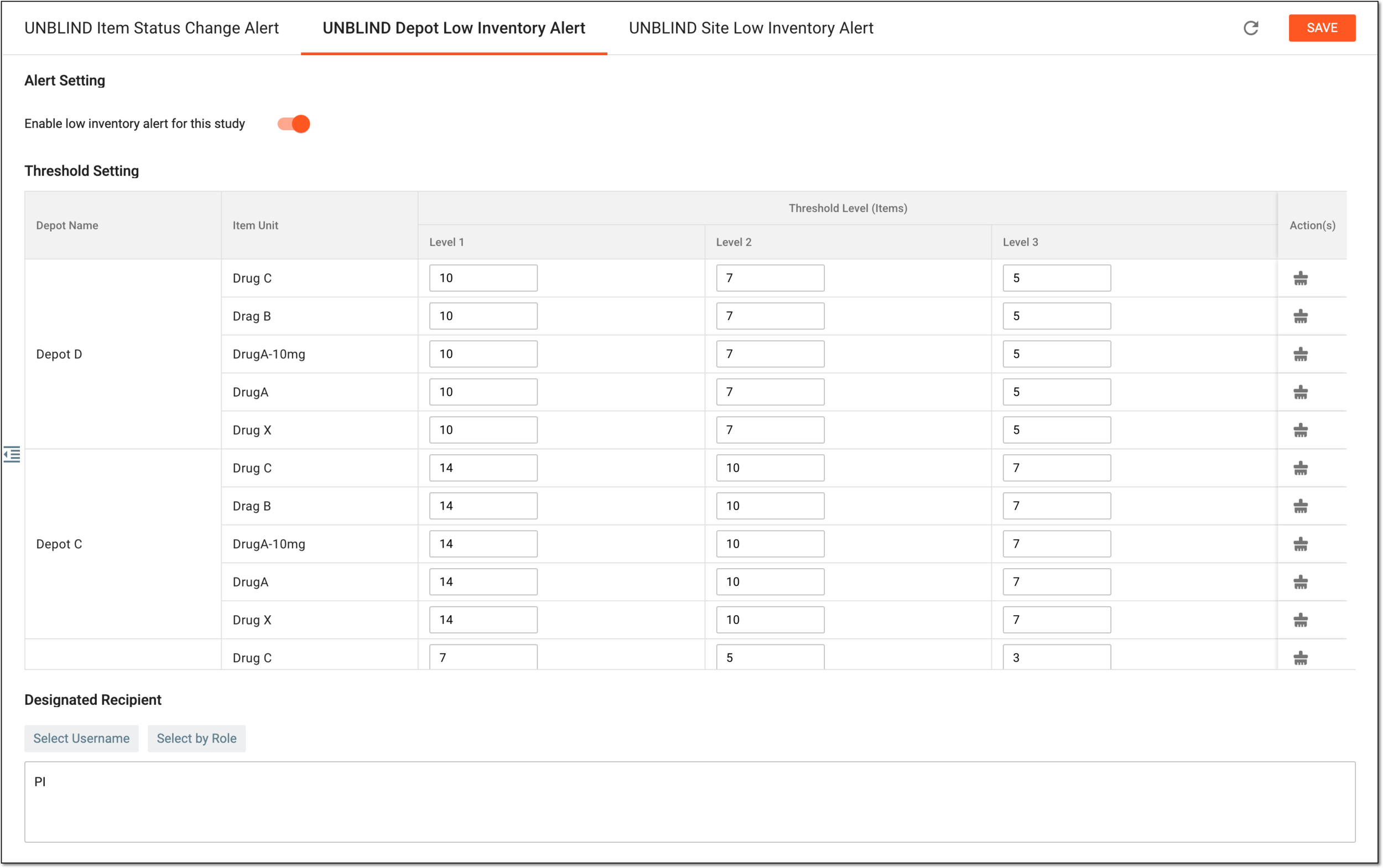 Figure 2. Configuring depot low inventory alert
Tip
In the following table, mandatory elements are marked with an asterisk (*).
Element
Details
Alert Setting
Enable depot low inventory alert for this study
-
Turn the toggle on to enable the low inventory alert functionality for the depots of your study.
When enabled, upon saving, the indicating icon
appears next to the tab name. -
Turn the toggle off to disable the low inventory alert functionality for the depots of your study.
Threshold Setting
Depot Name
Represents the name of the depots involved in your study.
Item Unit
Represents the item unit in the inventory of the respective depot.
Threshold Level (Items)
Enter the number of items in the depot inventory to serve as a threshold level that, upon crossing, triggers the alert.
You can set up to three threshold levels, with Level 1 being the highest and Level 3 the lowest.
For instance, you can set the highest-level threshold to remind you or the authorized person to order more items when they are still sufficient in the inventory. Then if the second- and third-level threshold is passed, the system will notify you each time that the item inventory is still running low, for instance, because of the delayed shipment, and you need to take action as soon as possible.
Actions
Select Clear
 to clear the data in the Threshold Level (Items) columns.
Designated Recipient
Select Username
Select this button and from the list that opens, select the users to be the recipients of the low depot inventory alert emails.
As the depot inventory alert contains item unit information, only the unblinded users are available in the dropdown list and can be set as recipients.Also, if a selected user is assigned to a certain depot, they will only get emails on the item status change within the inventory of their depot.Once the individual users are selected, you can also select the user roles to be the recipients via the Select by Role button.
Select by Role
Select this button and from the list that opens, select the user roles to be the recipient of the low depot inventory alert emails. All the users within the selected user roles will be notified of the occurring event.
As the depot inventory alert contains item unit information, only the unblinded user roles are available in the dropdown list and can be set as recipients.Also, if a user within a selected role is assigned to a certain depot, they will only get emails on the item status change within the inventory of their depot.Once user roles are selected, you can also select the individual users to be the recipients via the Select Username button.
SAVE
Select
to save the implemented changes.Select this icon to refresh the page, discard all your changes, and return the fields to their original values.
-
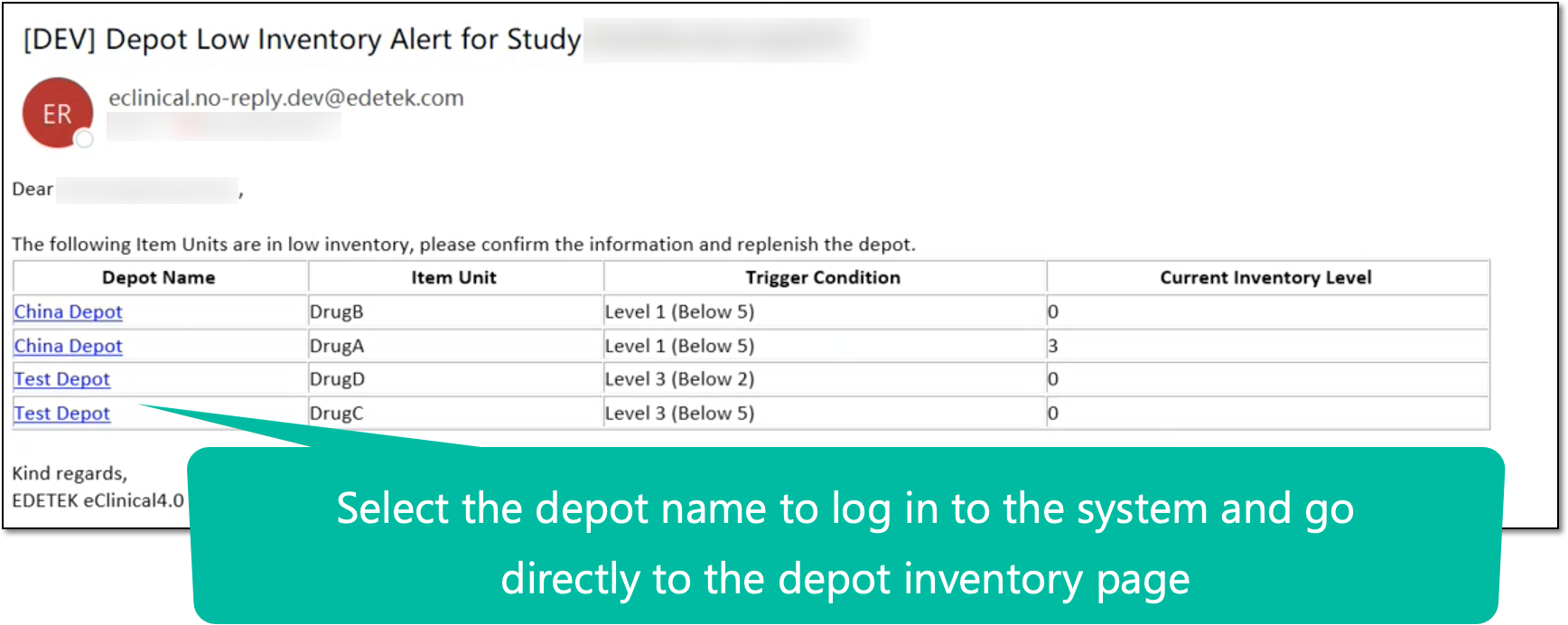
Upon enabling the functionality and saving, your alert configurations are set. Once the conditions are met, the alert recipients get notified via email of the low depot inventory level.
In the email, the Trigger Value column displays the threshold level passed to trigger the alert. The Current Inventory Level column represents the number of items in the Available status in the depot inventory at the moment the alert was triggered. Also, you can select the depot name to go directly to the depot inventory by item page.
In IWRS, you can create and manage alerts to notify interested parties of the low inventory of items at the study sites and the need to request new shipments.
Based on the recipient user's time zone, the low inventory notifications for sites are sent daily, 00:00–08:00 AM.
Important
As the site inventory alert contains item unit information, it is only available for users with unblinded permissions.
Also, to avoid unnecessary notifications, you can only configure low inventory alerts for sites with real inventory data. You cannot set alerts for sites that never had any inventories or received shipments.
This alert only triggers for the sites whose buffer setting is enabled in their supply plan.
-
In the IWRS application header, select the TREATMENT DESIGN tab.
-
On the page that opens, in the left pane, select Alert > Inventory.
Figure 1. Accessing inventory alert settings
-
On the page that opens, under the UNBLIND Site Low Inventory Alert tab, configure the alert settings as explained in the following table.
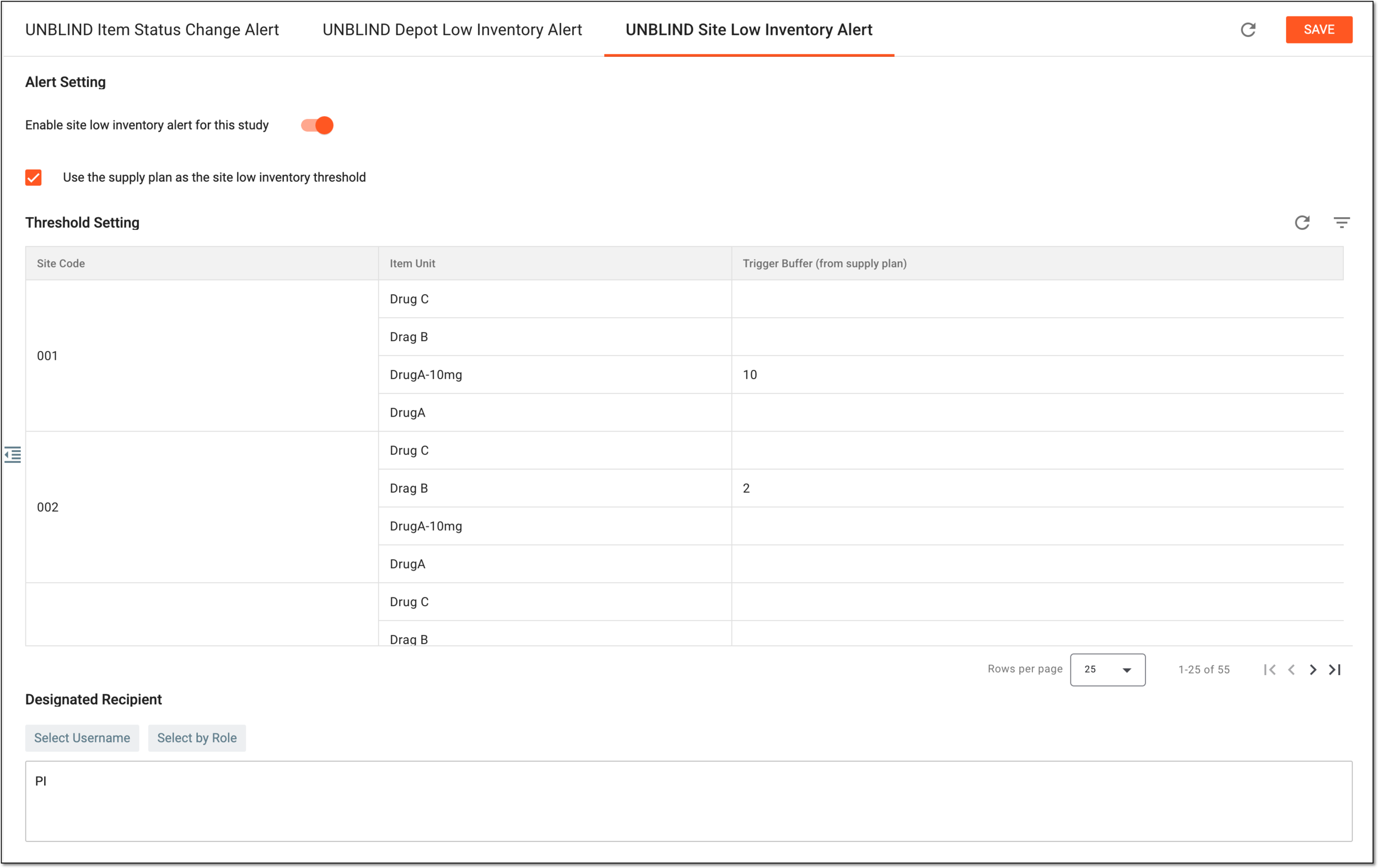 Figure 2. Configuring site low inventory alert
Tip
In the following table, mandatory elements are marked with an asterisk (*).
Element
Details
Alert Setting
Enable site low inventory alert for this study
-
Turn the toggle on to enable the low inventory alert functionality for the sites of your study.
When enabled, upon saving, the indicating icon
appears next to the tab name. -
Turn the toggle off to disable the low inventory alert functionality for the sites of your study.
Use the supply plan as the site low inventory threshold
Select this checkbox to populate the trigger buffer values configured for the respective site and item in the supply plan as the threshold level that triggers the site's low inventory alert.
If selected, you cannot manually change the threshold levels.
Threshold Setting
Site Code
Represents the code of the sites involved in your study.
Item Unit
Represents the item unit in the inventory of the respective site.
Trigger Buffer
Represents the number of items configured as a trigger buffer for a shipment request in the supply plan for the site. That is, when the number of available items in the site's inventory is lower than or equal to the trigger buffer value, a shipment request to the supplier depot is triggered automatically.
This value is empty and the alert does not trigger for the site if the buffer setting is disabled for the
                                        site in its supply plan.
Threshold Level (Items)
Enter the number of items in the site inventory to serve as a threshold level that, upon crossing, triggers the alert.
Actions
Select Clear
to clear the data in the Threshold Level (Items)
columns.Designated Recipient
Select Username
Select this button and from the list that opens, select the users to be the recipients of the low site inventory alert emails.
As the site inventory alert contains item unit information, only the unblinded users are available in the dropdown list and can be set as recipients.Also, if a selected user is assigned to a certain sites, they will only get emails on the item status change within the inventory of their sites.Once the individual users are selected, you can also select the user roles to be the recipients via the Select by Role button.
Select by Role
Select this button and from the list that opens, select the user roles to be the recipient of the low site inventory alert emails. All the users within the selected user roles will be notified of the occurring event.
As the site inventory alert contains item unit information, only the unblinded user roles are available in the dropdown list and can be set as recipients.Also, if a user within a selected role is assigned to a certain sites, they will only get emails on the item status change within the inventory of their sites.Once user roles are selected, you can also select the individual users to be the recipients via the Select Username button.
SAVE
Select
to save the implemented changes.Select the refresh symbol to reload the page, discard all your changes, and return the fields to their original values.
-
Upon enabling the functionality and saving, your alert configurations are set. Once the conditions are met, the alert recipients get notified via email of the low site inventory level.
In the email, the Trigger Value column displays the threshold level passed to trigger the alert. The Current Inventory Level column represents the number of items in the Available status in the site inventory at the moment the alert was triggered. Also, you can select the site code to go directly to the site inventory by item page.