Activate/Inactivate on-demand report
In EDC, you can configure custom on-demand reports to include only the data you need for your statistical analysis or other business needs. If you want to make your custom report temporarily unavailable to view from the Report List page, you can inactivate it and then activate it again when needed.
Important
You also need to inactivate the on-demand report before deleting it, because for the active reports the Delete option is unavailable.
-
In the EDC application header, select the REPORTS tab.
-
On the page that opens, in the left pane, select On-Demand Report > Report Configuration.
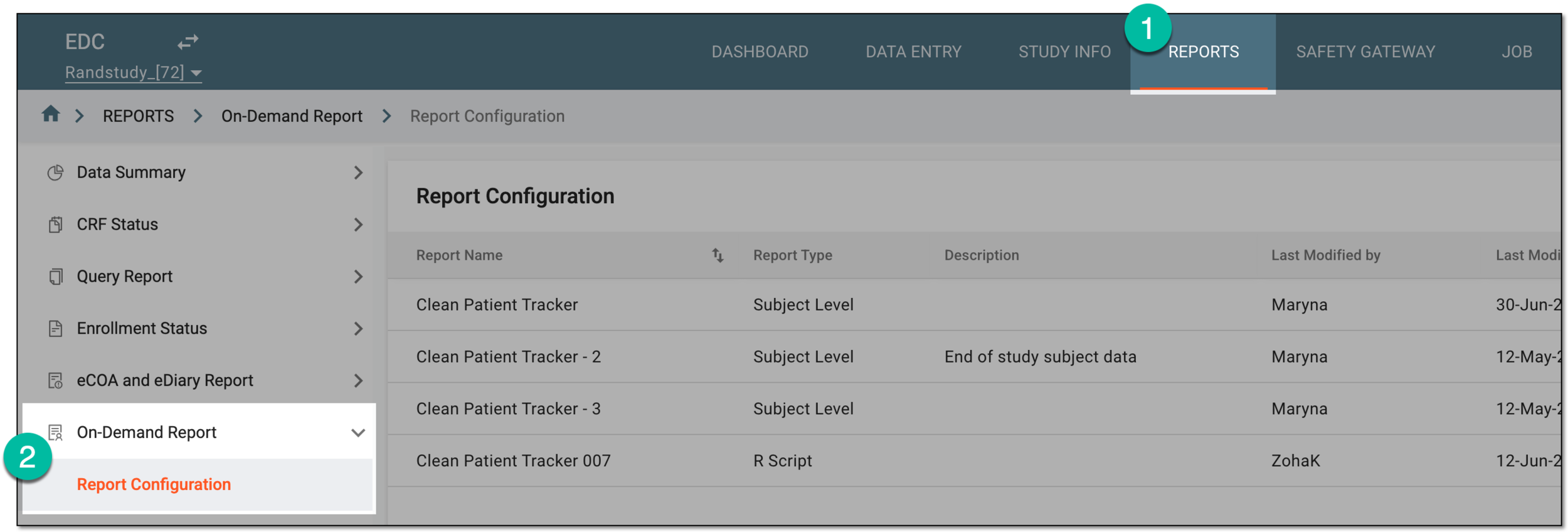 Figure 1. Accessing on-demand report configuration
-
In the Report Configuration list that appears, find the report you want to amend and next to it, in the Actions column, select one of the following options:
-
Activate
 : select to make the inactive on-demand available again to view and export from the Report List page.
 -
Inactivate
 : select to make the active on-demand unavailable to view and export from the Report List page. Also, use the Inactivate feature to enable the report deletion option.
 Figure 2. Activating and inactivating on-demand report configuration
-
Upon selecting the respective option, your report is activated/inactivated and becomes available/unavailable from the Report List page. You can also delete the inactivated report if needed.