Export inventory data
Under the Inventory subtab, you can view the item statistics of the depot given from three different perspectives: summary, lot, and item. You can download the data from any of the inventory tabs—By Summary, By Lot, or By Item—and use it offline.
-
In the IWRS application header, select the DEPOT tab.
-
On the Depot List page that opens, in the table, go to the depot from the inventory of which you want to export the data.
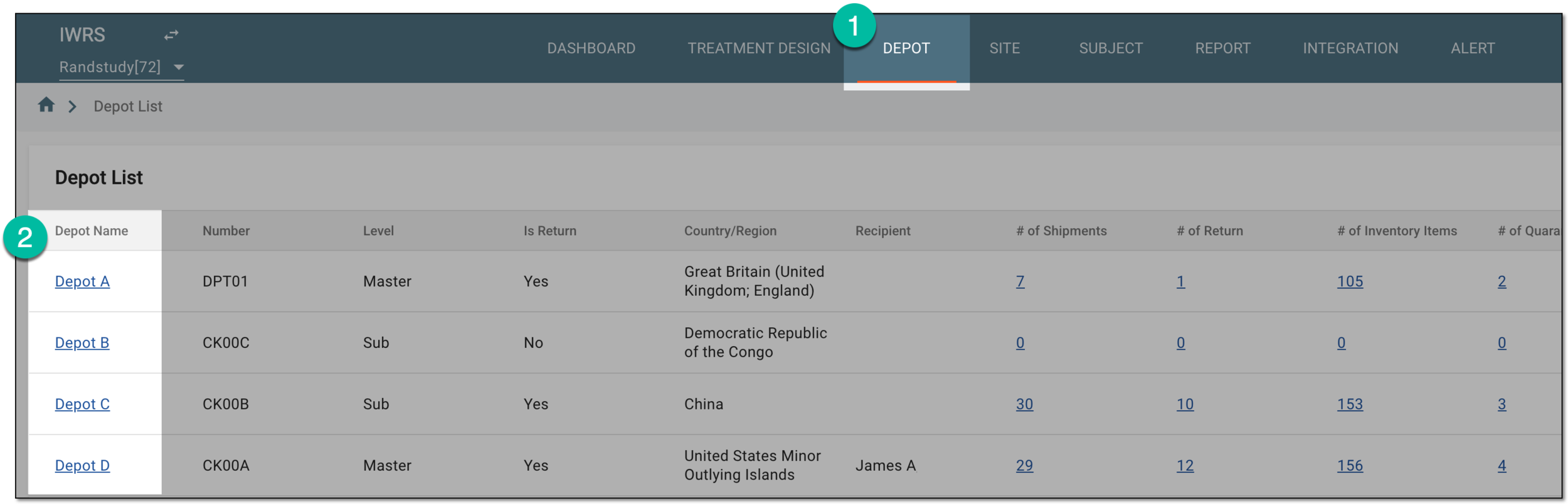 Figure 1. Selecting depot to open its details
-
On the Depot Information page that opens, in the left pane, select the Inventory subtab.
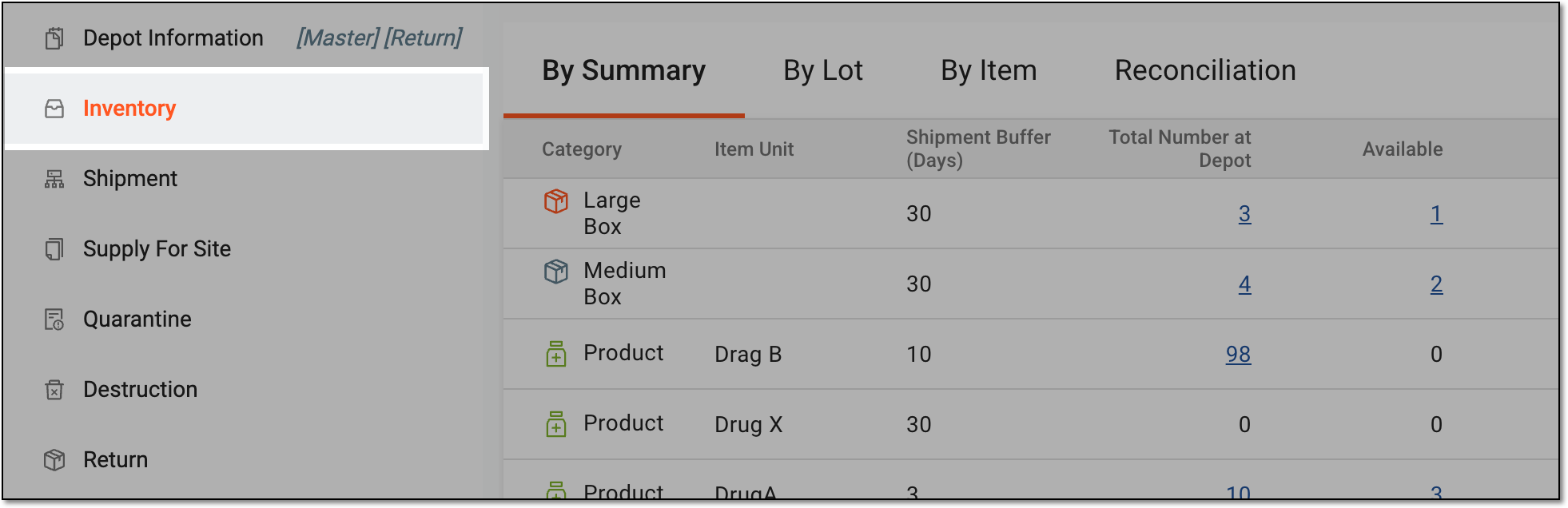 Figure 2. Accessing depot inventory
-
From the contents panel, select the tab from which you want to export the data: By Summary, By Lot, or By Item.
-
On the page that opens, on the workspace toolbar, select Export
 and follow the prompts to save the file to your machine.
 Figure 3. Exporting inventory by summary data to XLSX
-
Once selected, the widget appears displaying your download progress. Select the widget to open the My Downloads dialog.
 Figure 4. Downloads widget
-
In the My Downloads dialog that opens, you can find the following tabs:
-
Preparing: under this tab, you can find all the files whose export is in progress, and they are not yet ready for download.
-
Download is Ready: under this tab, you can find all the files whose export is complete, and they can be downloaded to your computer.
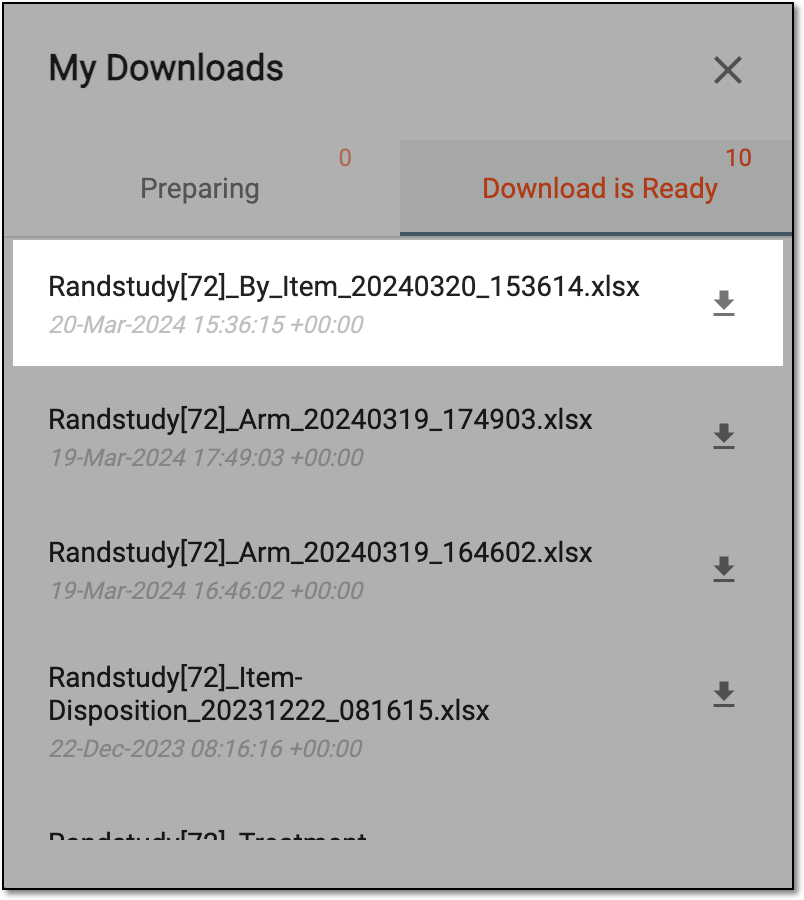 Figure 5. Viewing downloads
-
-
Under the Download is Ready tab, next to the file that you want to download, select
 .
.
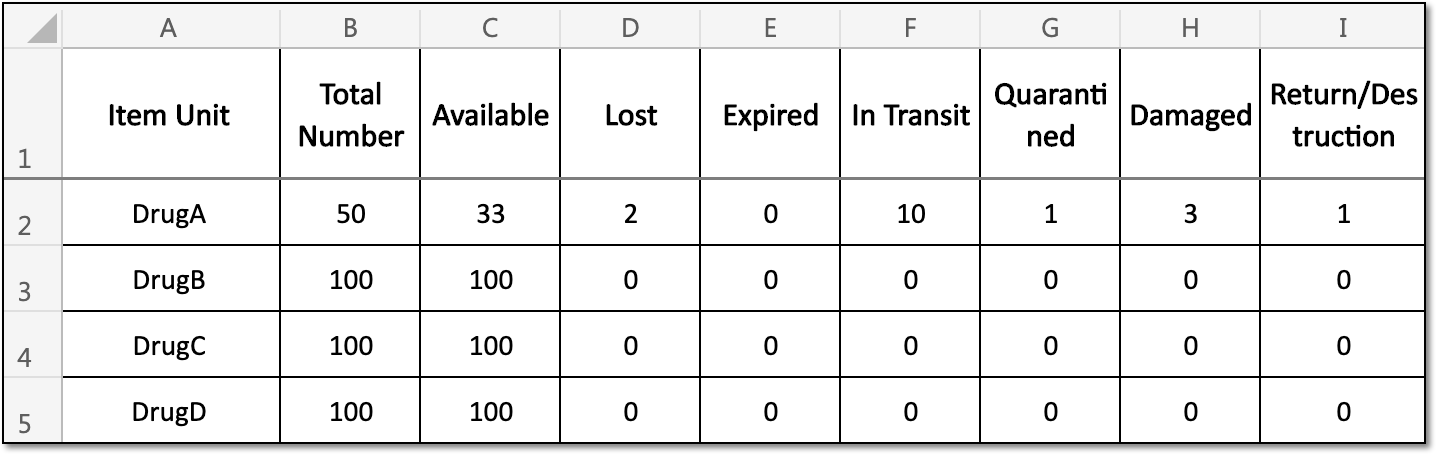
Upon saving, the XLSX file is downloaded to your local machine.
 |