Activate/Inactivate site
When you add a site to the CTMS system, you can either activate it immediately or leave it inactive. However, when you activate/inactivate a site, consider the following:
-
Activation is required if you need to link a certain study to a certain site. By linking, you are telling the CTMS system and its users that a certain study is being conducted at that site (inactive sites cannot be used to link studies to sites; this is only possible if a site is activated first).
-
Inactivation is needed when, for example, the site is no longer needed, and you no longer want to use it.
When you do not need a site, you can also delete it. However, the main difference between inactivating and deleting a site is that an inactivated site can be reactivated while deleting a site is permanent. Keep in mind, if a site is deleted from the system and then needs to be added back, it will be added as a new site.
Tip
When linking a site to a certain study, you basically inform the CTMS system and its users that a certain study is being conducted at that site.
In CTMS, there are three options to activate/inactivate a site:
-
In the CTMS application header, select the ENTITY MANAGEMENT tab.
-
On the page that opens, in the left pane, leave the Site tab selected.
-
On the Site List page, depending on the view mode applied to your sites, do one of the following:
-
If sites are presented as tiles:
-
On the Site List page that opens, on the tile representing the site you want to activate/inactivate, select Activate
 /Inactivate
  .
.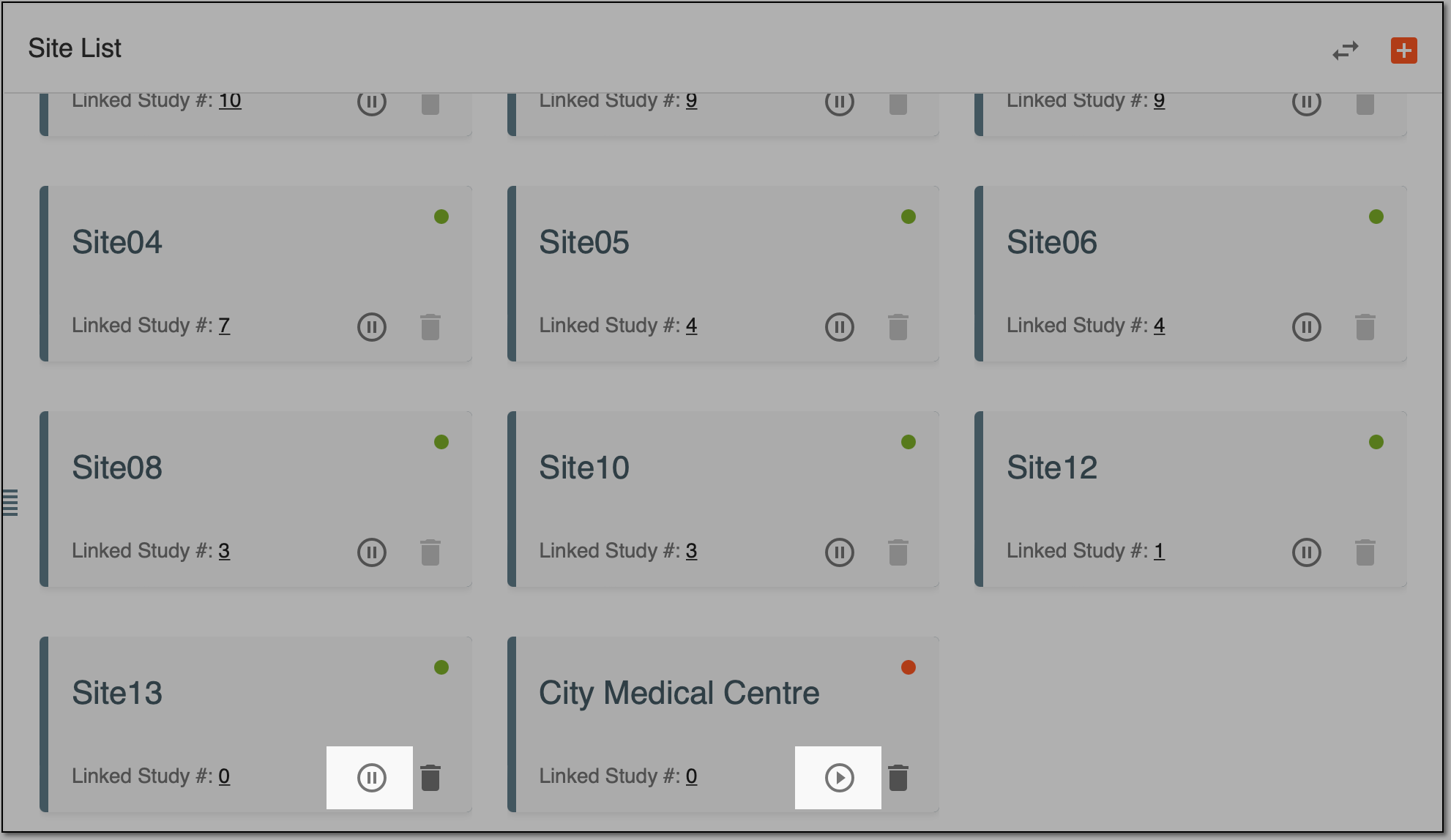 Figure 1. Locating Activate/Inactivate option on tile
-
-
If sites are presented as a list:
-
On the Site List page that opens, in the Actions column, select Activate
/Inactivate .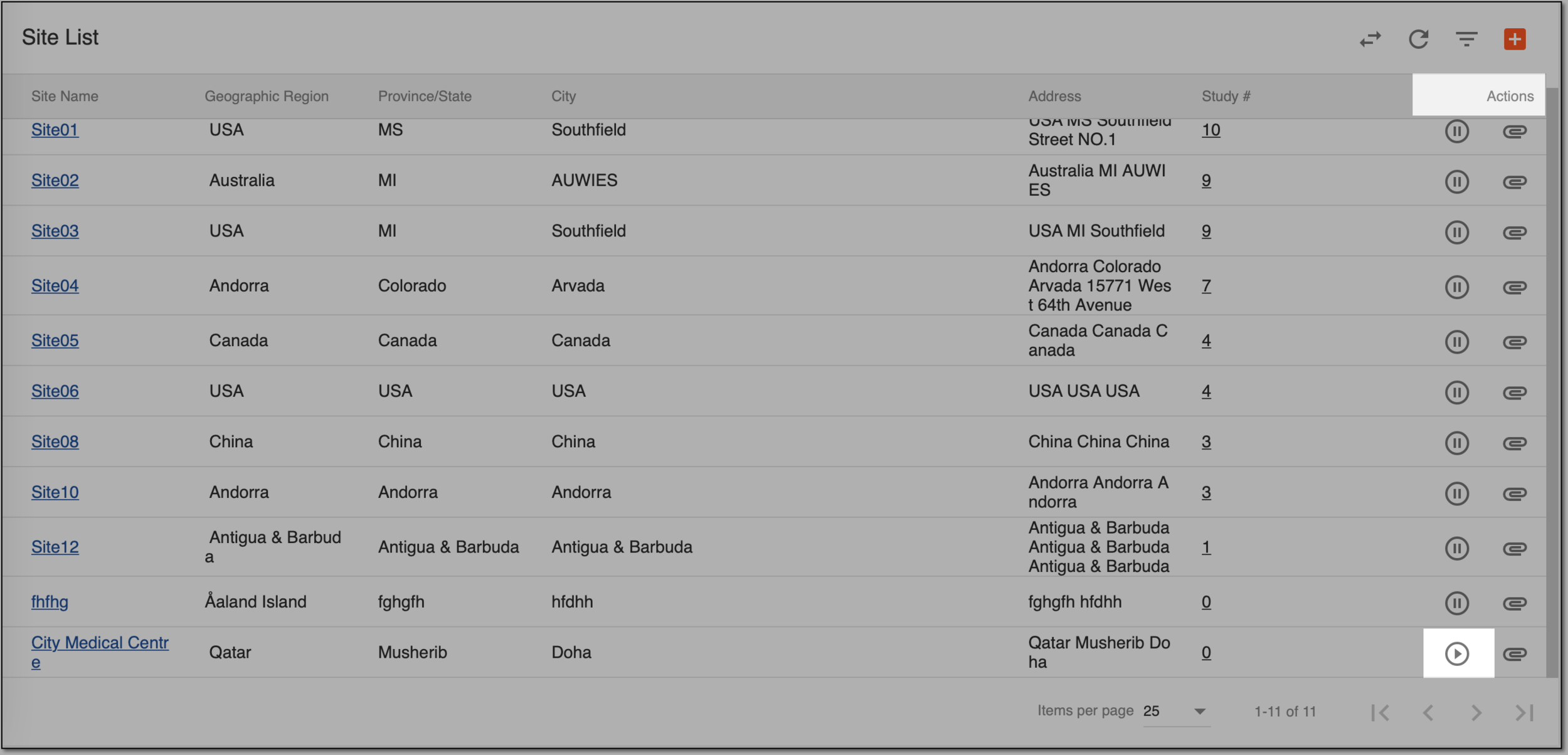 Figure 2. Locating Activate/Inactivate option in Actions column
-
Important
You cannot inactivate sites that have already been linked to certain studies. In this case, the system brings up an error.
-
-
When inactivating, in the DEACTIVE dialog that opens, select Yes to confirm the inactivation.
A site is activated/inactivated.
-
In the CTMS application header, select the ENTITY MANAGEMENT tab.
-
On the page that opens, in the left pane, leave the Site tab selected.
-
On the Site List page that opens, depending on the view mode applied to your sites, do one of the following:
-
If sites are presented as tiles, on the Site List page that opens, select the tile representing the site you want to activate/inactivate.
-
If sites are presented as a list, on the Site List page that opens, in the Site Name column, select the hyperlink representing the name of the site you want to activate/inactivate.
-
-
On the Details page that opens, select Activate
 /Inactivate
  .
.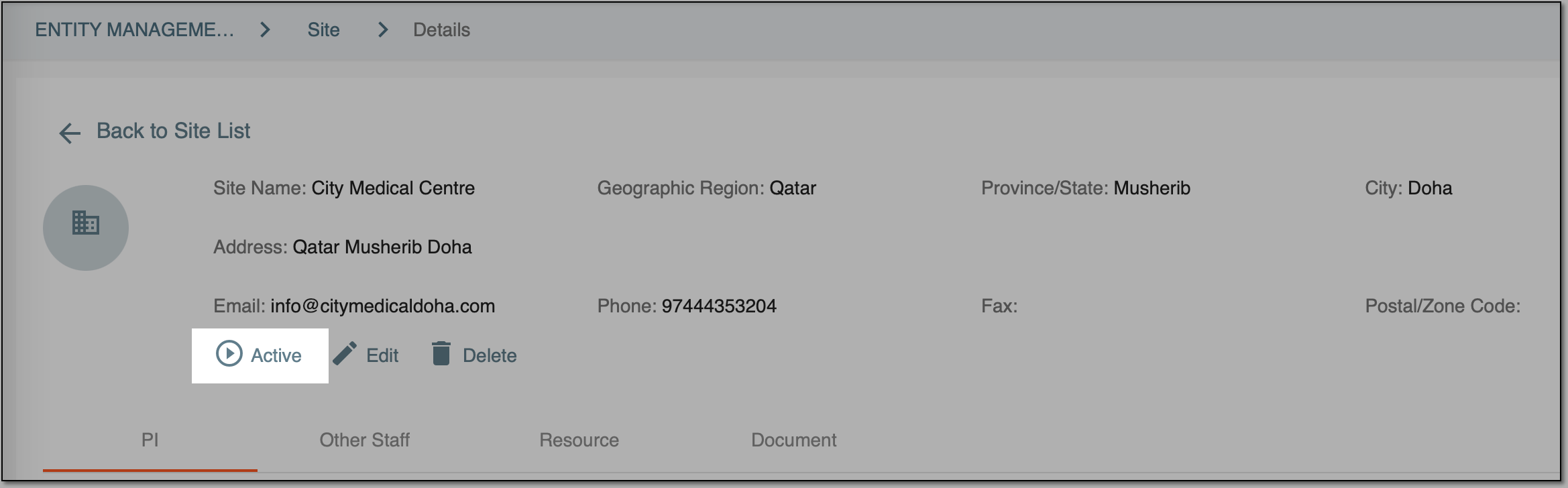 Figure 3. Activating/inactivating site from Details page
Important
You cannot inactivate sites that have already been linked to certain studies. In this case, the system brings up an error.
-
When inactivating, in the DEACTIVE dialog that opens, select Yes to confirm the inactivation.
A site is activated/inactivated.
-
In the CTMS application header, select the ENTITY MANAGEMENT tab.
-
On the left side of the page, in the navigation panel, leave the Site tab selected.
-
On the Site List page that opens, depending on the view mode applied to your sites, do one of the following:
-
If sites are presented as tiles, on the Site List page that opens, select the tile representing the site you want to activate/inactivate.
-
If sites are presented as a list, on the Site List page that opens, in the Site Name column, select the hyperlink representing the name of the site you want to activate/inactivate.
-
-
On the Details page that opens, select
 .
. -
In the Update Item form that opens, select/clear the Site Active checkbox.
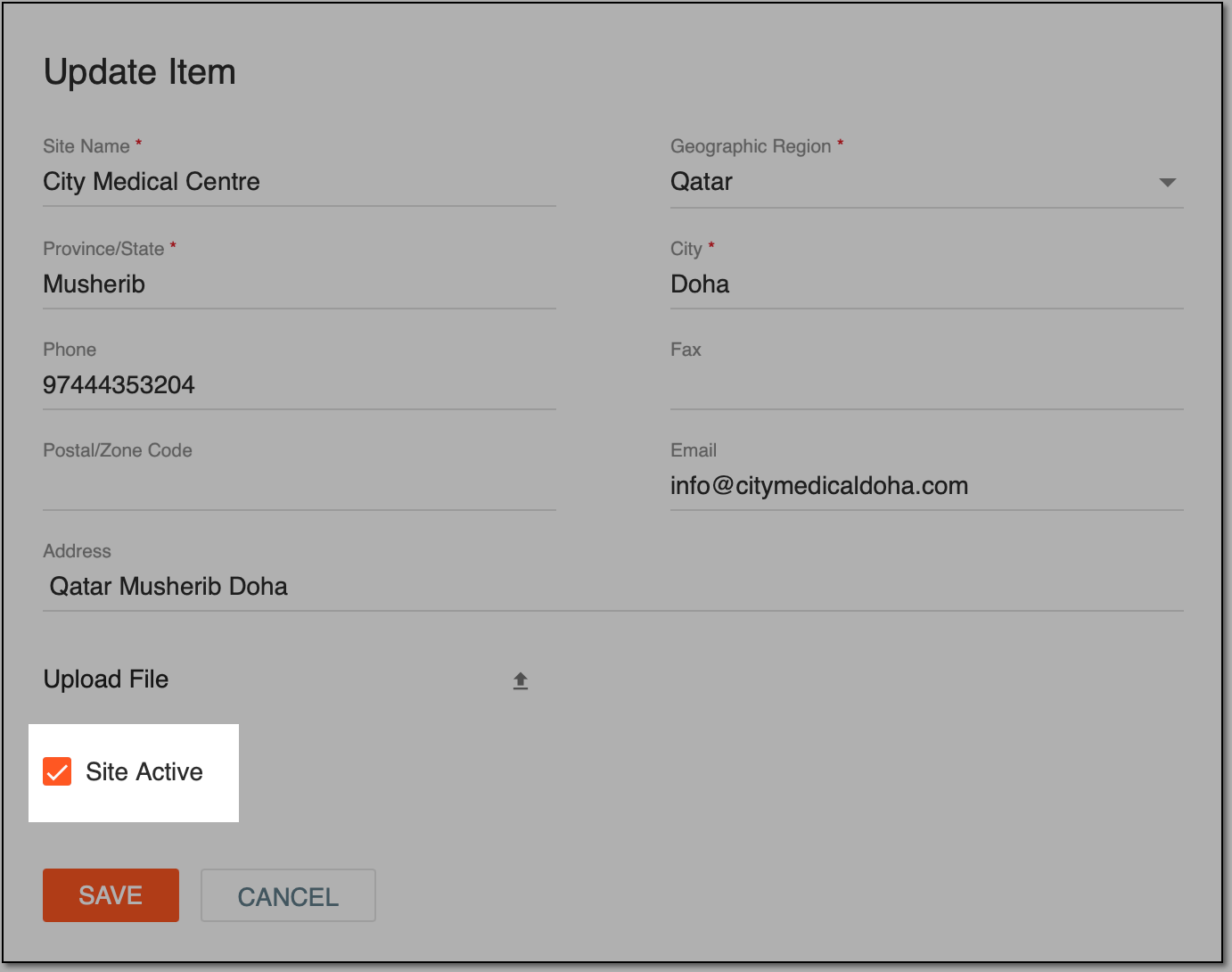 Figure 4. Activating/inactivating site from Update Item form
Important
You cannot inactivate sites that have already been linked to certain studies. In this case, the checkbox is disabled.
-
Select
 to save the changes made.
Once saved, a site is activated/inactivated.