Delete site
You can delete any sites that are no longer needed. However, you can delete sites that are not yet added to any studies. If a site has already been linked to a study, it cannot be deleted. In this case, the Delete option is disabled.
Important
This action is permanent and irreversible. If you want to delete a site temporarily, use the Inactivate option instead.
-
In the CTMS application header, select the ENTITY MANAGEMENT tab.
-
On the page that opens, in the left pane, leave the Site tab selected.
-
On the Site List page, depending on the view mode applied to your sites, do one of the following:
-
If sites are presented as tiles:
-
On the Site List page that opens, on the tile representing the site you want to delete, select Delete
 .
.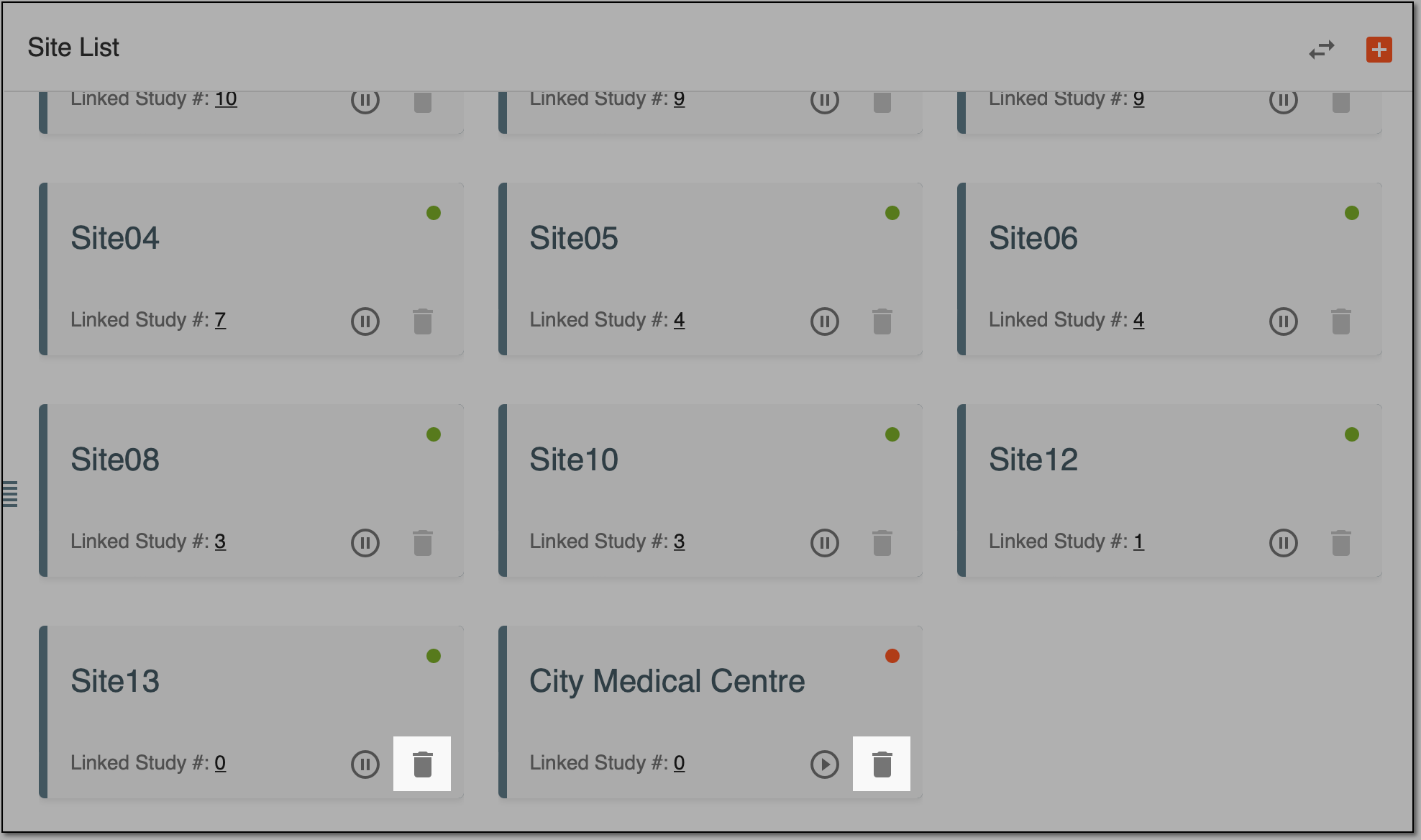 Figure 1. Deleting site from Site List page
Alternatively, click the tile and then, on the Details page that opens, select Delete
 .
.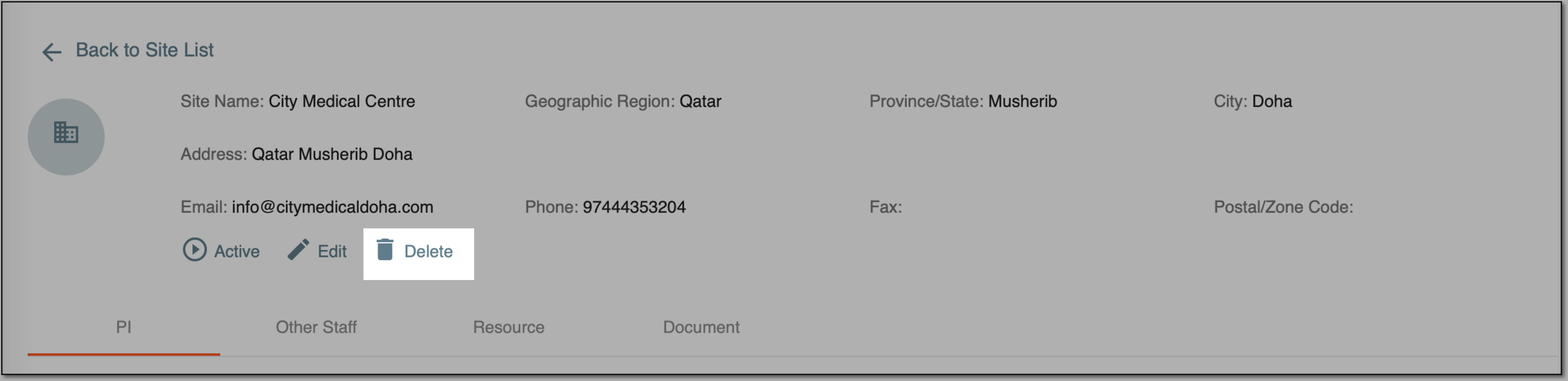 Figure 2. Deleting site from Details page
-
-
If sites are presented as a list:
-
On the Site List page that opens, in the Site Name column, select the hyperlink representing the name of the site you want to delete.
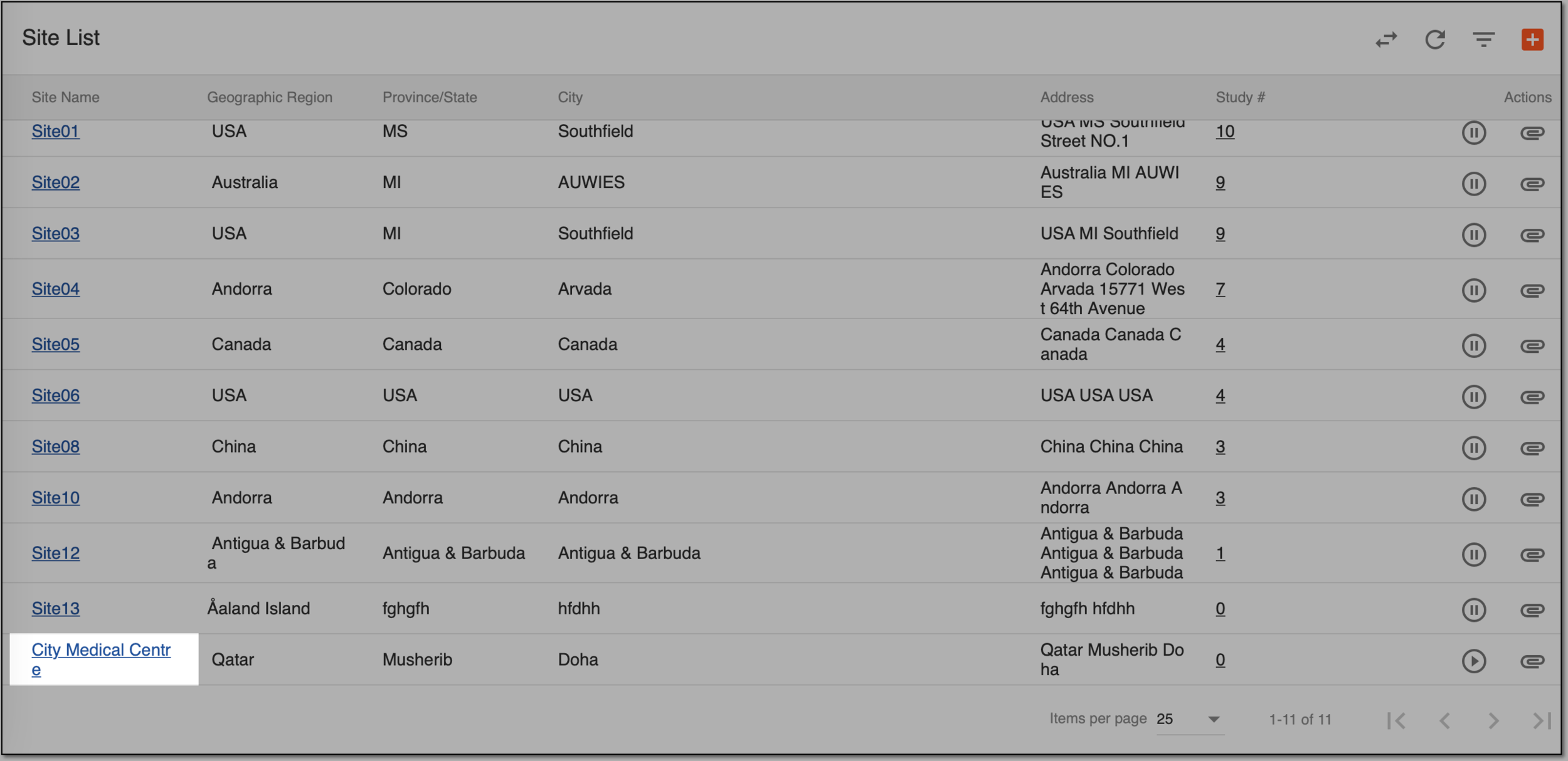 Figure 3. Locating site to delete
-
On the Details page that opens, select Delete
.Figure 4. Deleting site from Details page
-
-
-
In the dialog that opens, confirm your decision by selecting
 .
.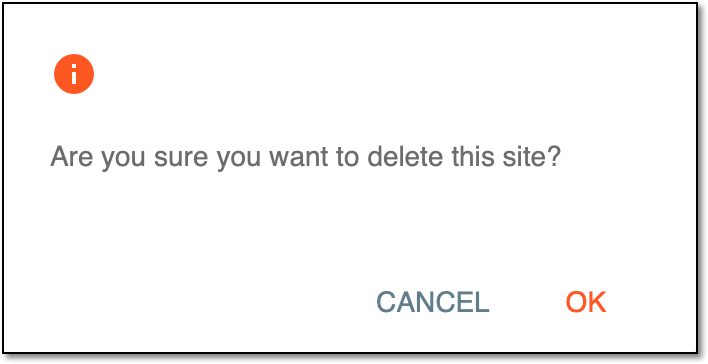 Figure 5. Confirming deletion
Once confirmed, a site is deleted from the CTMS system.