Create supply plan
In IWRS, the supply plans are created to automate shipment requests and simplify the item (drug) delivery process for sites.
-
In the IWRS application header, select the TREATMENT DESIGN tab.
-
From the left pane, select the Supply Setting subtab.
-
On the Supply Plan page that opens, select New Item
 .
. -
On the New page that opens, fill in the fields as explained in the following table.
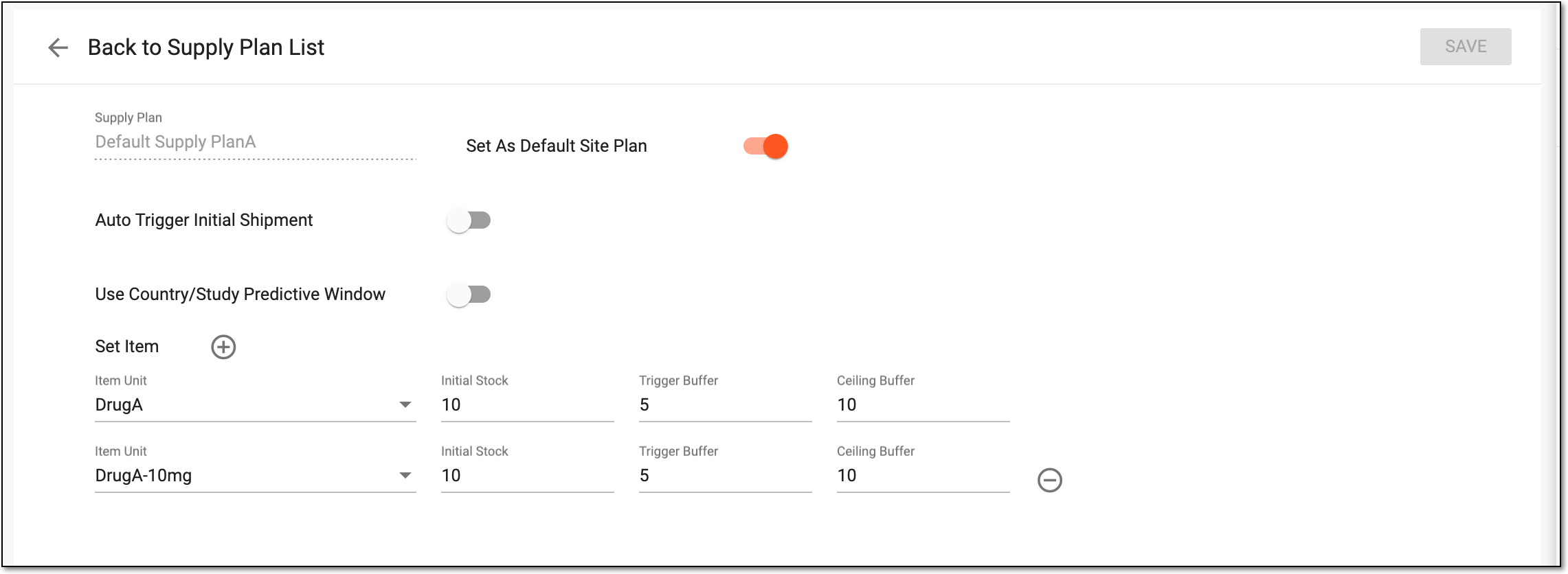 Figure 1. Creating new supply plan
Element
Details
Supply Plan
Enter the supply plan name.
Set As Default Site Plan
Turn this toggle on to set the supply plan as default for every site in the study. If turned on, this plan is automatically applied to all newly created sites.
Auto Trigger Initial Shipment
-
Turn on the toggle to automatically trigger the initial shipment request for a site when one of the set conditions is met: the site has the first subject reaching the dispensing phase.
-
Turn off the toggle to not trigger the initial shipment request automatically and leave it up to the site personnel to create the initial shipment manually.
When site has first subject
This field is only available if the Auto Trigger Initial Shipment toggle is turned on and represents one of the possible trigger conditions.
Select this option if you want the initial shipment request to be automatically created when at least one of the subjects at the site obtains the subject phase that is set as dispensing.
For instance, in your study, the Randomized phase is set as dispensing. Thus, when at least one subject at a site is switched to the Randomized phase, the system automatically requests items to suffice for the upcoming dispensations.
The number of items in the initial shipment request depends on the initial stock configured for the supply plan.
When site activates the shipping
This field is only available if the Auto Trigger Initial Shipment toggle is turned on and represents one of the possible trigger conditions.
Select this option if you want the initial shipment request to be automatically created when the site is activated and becomes available for shipping.
Set Item
Select
 to add another item to the supply plan.
Item Unit
Select the needed product unit from the list of available ones.
Initial Stock
Enter the number of items that must be in the initial stock.
Trigger Buffer
Enter the number of items to act as a trigger buffer for a shipment request. That is when the number of items in the site's inventory or transit is lower than or equal to the trigger buffer value, a draft shipment request to the supplier depot is triggered automatically. The draft shipment replenishes the product units to its ceiling buffer.
Ceiling Buffer
Enter the number of items set as a ceiling buffer.
When the trigger buffer is surpassed and an automatic shipment request is sent to the supplier, the number of items in the request equals the ceiling buffer minus the number of items left in the inventory.
Tip
If the supply plan is set as default, the blue star icon
 appears next to its name in the Supply Plan table.
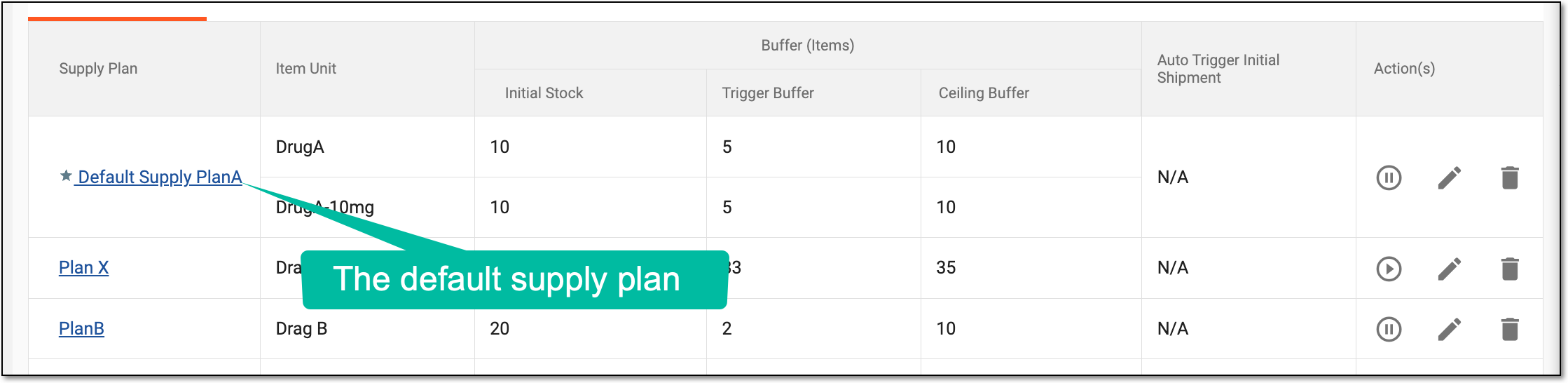 Figure 2. Viewing default supply plan in list
-
-
Select
 to save implemented changes.
Upon saving, the new supply plan is created and added to the Supply Plan table. You can also edit the existing supply plan.
In eClinical, a set of required parameters (for example, item units, minimum and maximum stock values) that is set to automate the process of drug supply to sites to always maintain a sufficient amount of medications for all subjects registered at this site.
In IWRS, the supply plan can be created and managed under the TREATMENT DESIGN tab > Supply Plan subtab.
In a clinical trial, a location where the subject treatment and drug dispensation occur. It can be a hospital, a private laboratory, or other institutions.
A specific phase that a subject has to complete in the course of a clinical trial to move further to the next phase. For instance, Screening, Enrolled, Randomized, and others.
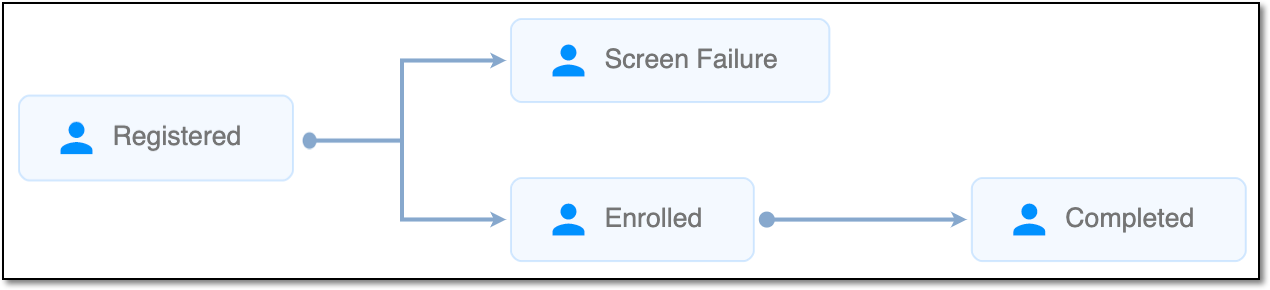 |
In eClinical, subject phases are designed individually for each study via the SD application, although they are referenced in others, like IWRS or EDC.
An investigational product that is used in a study. In eClinical, it can be viewed as an equivalent to a drug name to distinguish items at all stages of their lifecycle—manufacturing, shipment, dispensation to subjects, or else.
Another name for the product unit in the IWRS system is item unit.
In eClinical, a unit of a drug that is being tested in a clinical trial is referred to as an item.