Query management in document warehouse
For the files uploaded to the document warehouse, you can open queries to request clarifications, resolve uncertainties, or for other reasons. Queries provide clear and traceable way of communication, aiding the transparency of study files management.
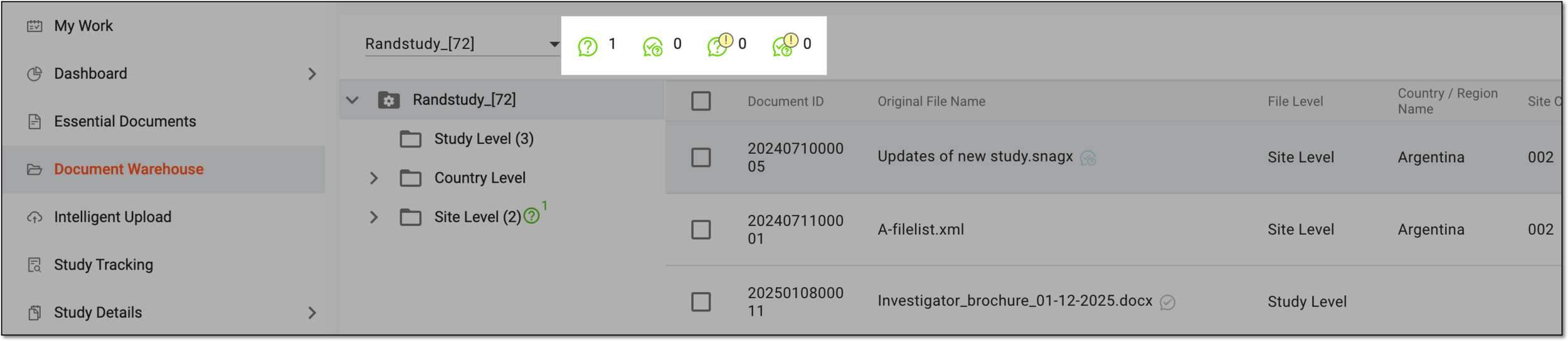
Once you open the Document Warehouse file storage, you can see the query panel that depicts how many queries in different statuses are assigned to you. The details of the query panel are explained in the following table.
|
Element |
Details |
|---|---|
|
My Open Query |
Represents the number of open queries assigned to you and awaiting for your reply. |
|
My Answered Query |
Represents the number of queries opened by you that have already been replied by the assignee. |
|
My Overdue Open Query |
Represents the number of open queries assigned to you that are past their expected due date set upon opening the query. |
|
My Overdue Answered Query |
Represents the number of queries opened by you that are past their expected due date and are answered by the assignee. |


In Document Warehouse, you can manage your queries as discussed in the following sections.
In eTMF, the Document Warehouse tab is mainly used for the temporary storage of some unorganized files so that, upon request, they can be organized by data managers (DM) and other accountable individuals per DIA RM and uploaded to the Essential Documents storage.
While the files are stored in the document warehouse, you can open queries on them to request clarifications, resolve uncertainties, or for other reasons.
Important
To open queries, you must have the Document Warehouse > Open Query permission granted to your user role via ADMIN.
-
In the eTMF application header, select the TMF tab.
-
In the Study List that opens, from the table, select the name of the study for which you want to access the document warehouse.
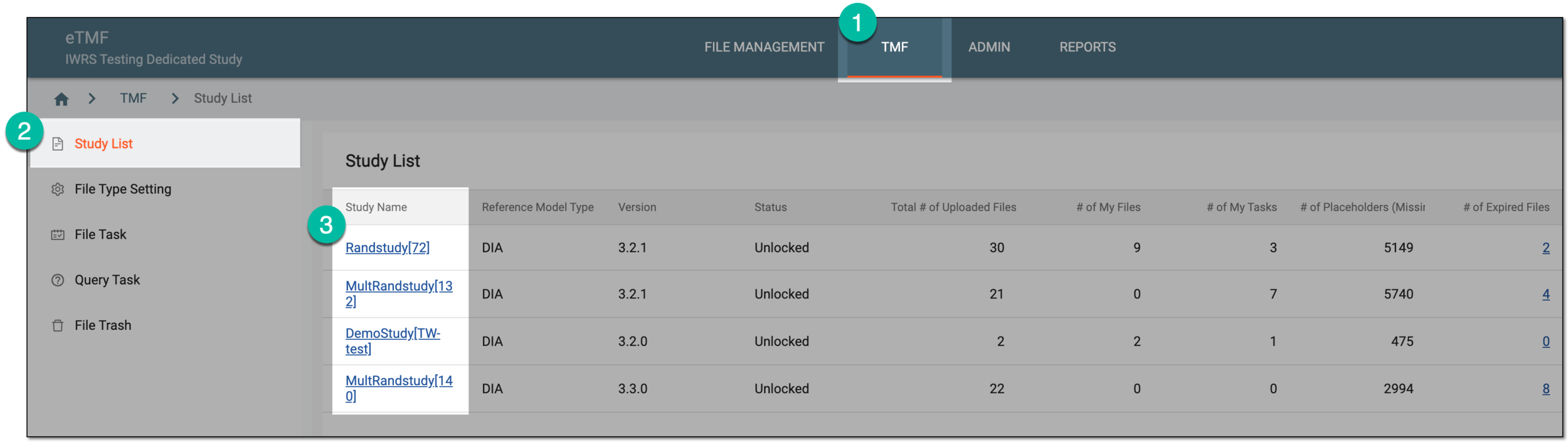 Figure 1. Selecting study
-
From the left pane, select the Document Warehouse subtab. If required, from the study selection field, you can change another study.
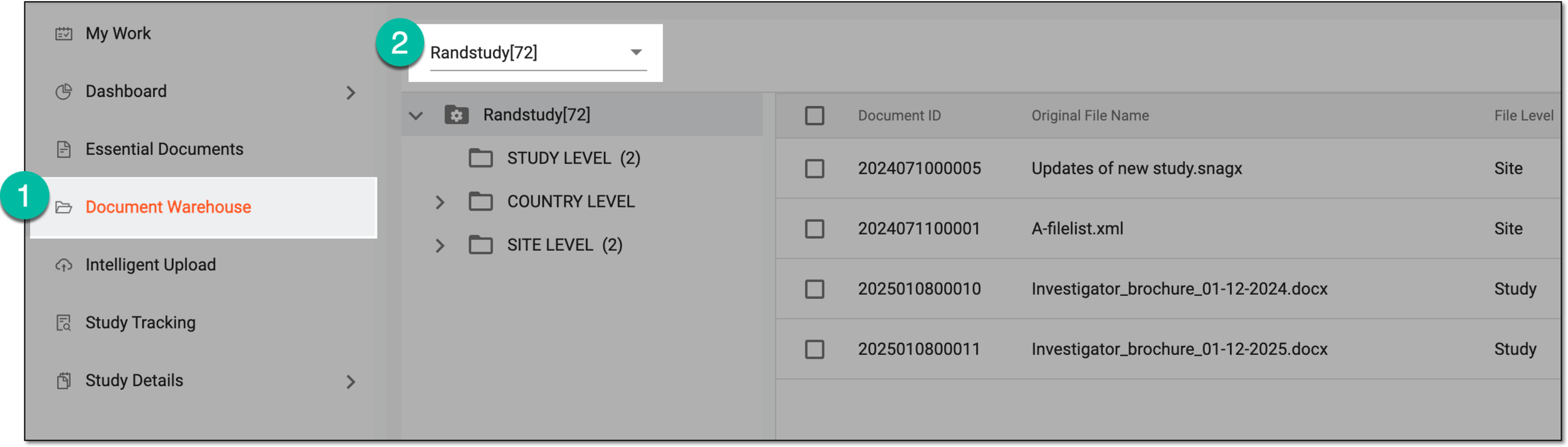 Figure 2. Accessing document warehouse and study
-
From the explorer tree panel, select the directory containing the file for which you want to open a query.
-
Locate the file and from the Actions column next to it, select More
 >
Open Query
>
Open Query  .
. Figure 3. Selecting option to open query
-
In the Open Query dialog that opens, fill in the fields as explained in the following table.
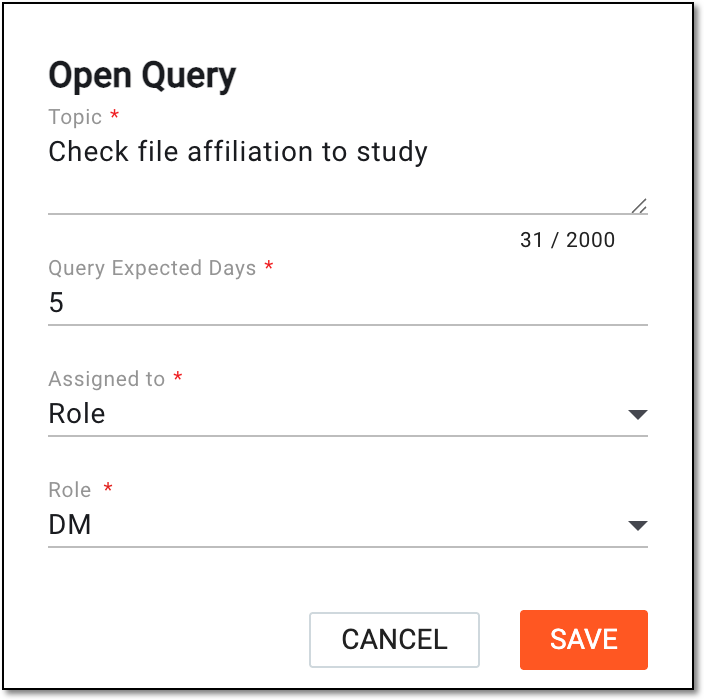 Figure 4. Opening query in document warehouse
Tip
In the following table, mandatory elements are marked with an asterisk (*).
Element
Details
Topic*
Enter the descriptive topic of your query that you want the assignee to address.
Query Expected Days*
Enter the number of days to define the query expiration period.
You can set the expected days value for all your queries with the Study Configuration feature. Then the number is predefined upon opening a new query. Nevertheless, it is always editable.
Assigned to*
Select to whom you want to address the query—a specific group of users with the same scope of responsibilities and access rights (Role) or a certain person or people (Assignee).
Role*
Select the user role to whose representatives you want to address your query. This field becomes available if Role is selected in the Assigned to field.
For instance, if you need someone to check the file against the source document, you can select the CRC role here as they work at sites and have access to subject data in source documents.
Keep in mind, that the user role with which you currently operate the system is unavailable in the list. Thus, you cannot open a query assigned to yourself. For example, if you are logged in as CRC, the CRC role is missing from the
                                        list.
Assignee*
Select the name of the users to whom you want to address your query. This field becomes available if Assignee is selected in the Assigned to field.
For instance, if you need someone to check the file against the source document at a specific site and you know the person working there, you can select their name here and they will address your inquiry.
Keep in mind, that your own user name is unavailable in the list. Thus, you cannot open a query assigned to yourself.SAVE
Select
 to implement the changes.
CANCEL
Select
 to discard the changes and close the dialog.
Upon saving, the query is open and a respective icon  appears next to the file name. Now, the assigned users receive and can reply to the query.
For the files uploaded to the document warehouse, you can open queries to request clarifications, resolve uncertainties, or for other reasons.
The previously opened query can be edited if there is a need for some adjustments.
-
In the eTMF application header, select the TMF tab.
-
In the Study List that opens, from the table, select the name of the study for which you want to access the document warehouse.
Figure 1. Selecting study
-
From the left pane, select the Document Warehouse subtab. If required, from the study selection field, you can change another study.
Figure 2. Accessing document warehouse and study
-
From the explorer tree panel, select the directory containing the file for which you want to edit a query.
-
Locate the file with the query and next to the file name, select Open Query
.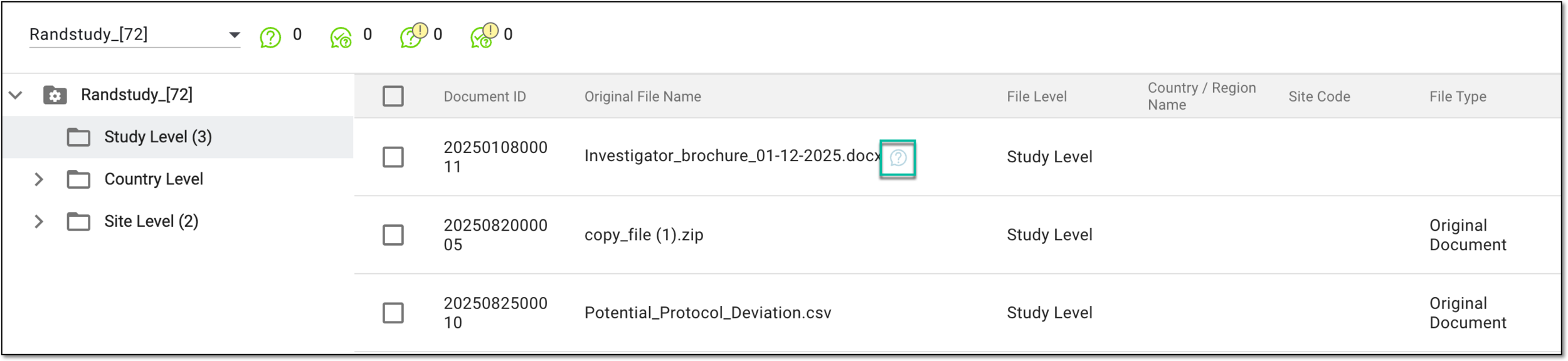 Figure 3. Accessing query to edit
-
In the Query List panel, next to the query you want to update, select Edit
 .
.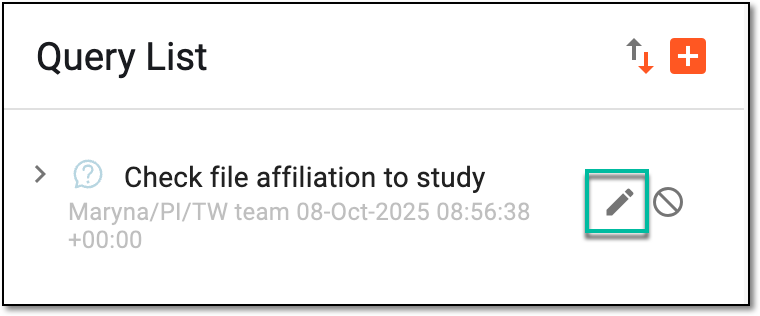 Figure 4. Selecting option to edit query
-
In the Edit Query dialog that appears, update the details as needed. These details are identical to those explained in the table of the Open query for file in document warehouse section.
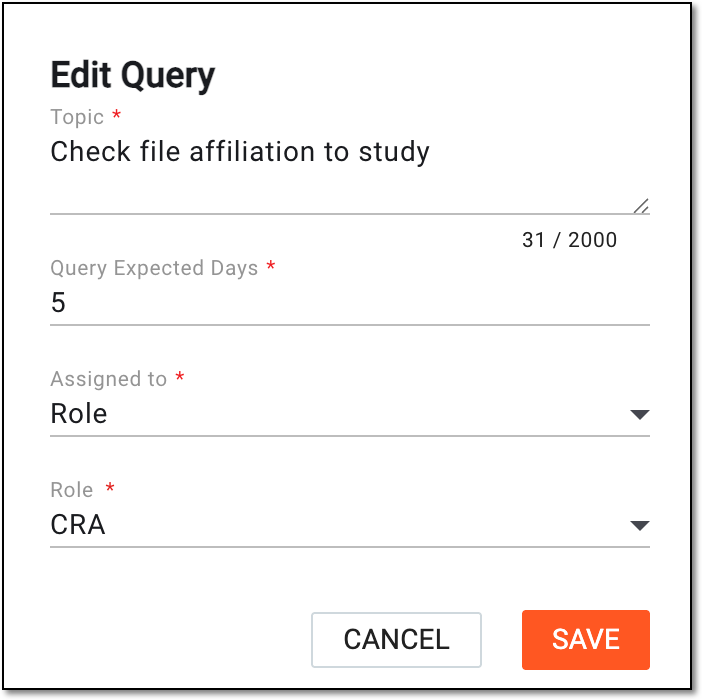 Figure 5. Editing query details
-
Select
to implement the changes.
Once saved, the query is updated.
For the files uploaded to the document warehouse, you can open queries to request clarifications, resolve uncertainties, or for other reasons.
The query is always addressed to a certain assignee or a group of users of the same role who have to answer the question, perform needed actions, or otherwise address the query topic. In eTMF, you can reply to the open query to provide your feedback. Queries with their replies provide a traceable way of communication, aiding in resolving issues with files.
Important
To reply to queries, you must have the Document Warehouse > Reply Query permission granted to your user role via ADMIN.
-
In the eTMF application header, select the TMF tab.
-
In the Study List that opens, from the table, select the name of the study for which you want to access the document warehouse.
Figure 1. Selecting study
-
From the left pane, select the Document Warehouse subtab. If required, from the study selection field, you can change another study.
Figure 2. Accessing document warehouse and study
-
From the explorer tree panel, select the directory containing the file for which you want to address a query.
-
Locate the file with the query and next to the file name, select Open Query
.Figure 3. Accessing open query
-
In the Query List panel that opens, expand the query of your interest by selecting
 . Then in the Reply field, enter the message to address the query topic and select
  to save the reply.
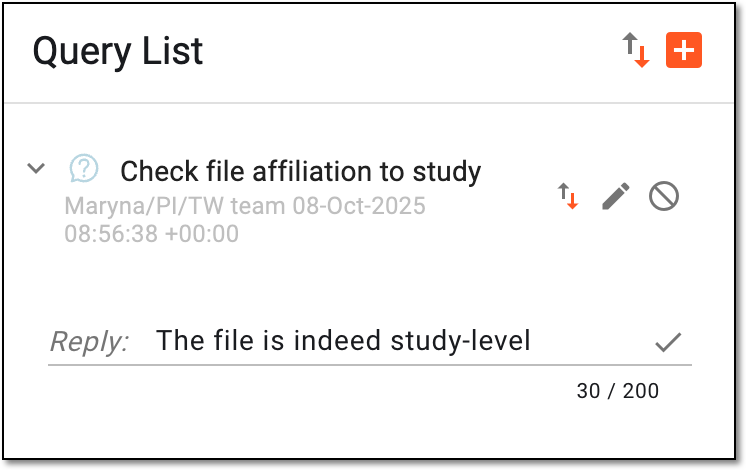 Figure 4. Replying to query
You have replied the query.
For the files uploaded to the document warehouse, you can open queries to request clarifications, resolve uncertainties, or for other reasons.
The previously opened query has to be closed once the query topic is addressed. Closing the query means confirming the resolution of the issue in a traceable way, aiding in transparent study document handling.
-
In the eTMF application header, select the TMF tab.
-
In the Study List that opens, from the table, select the name of the study for which you want to access the document warehouse.
Figure 1. Selecting study
-
From the left pane, select the Document Warehouse subtab. If required, from the study selection field, you can change another study.
Figure 2. Accessing document warehouse and study
-
From the explorer tree panel, select the directory containing the file for which you want to close a query.
-
Locate the file with the query and next to the file name, select Open Query
.Figure 3. Accessing open query
-
In the Query List panel, next to the query you want to update, select Close
 .
.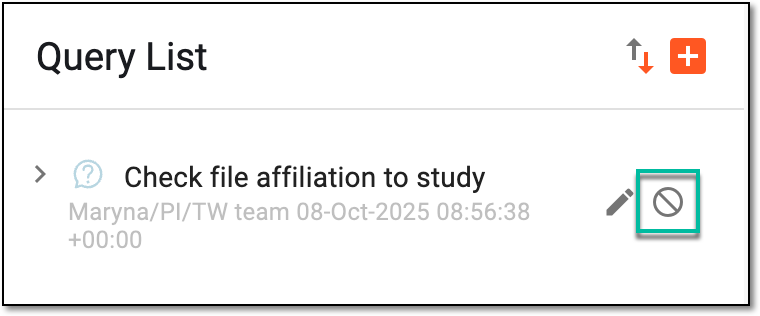 Figure 4. Selecting option to close query
-
In the confirmation dialog that appears, select
 to close the query.
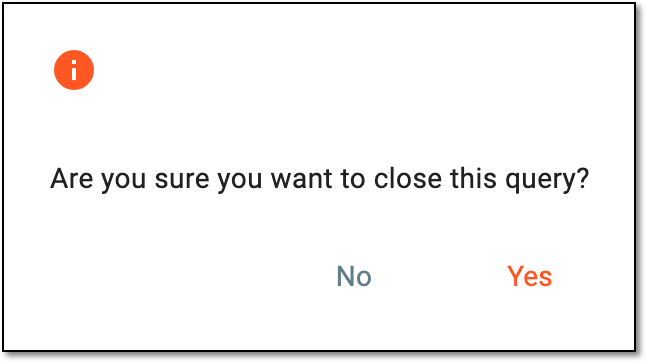 Figure 5. Confirming query closure
Upon confirmation, the query is closed, and the icon next to the file name changes to Closed Query  .
.