Upload file to document warehouse
In eTMF, the Document Warehouse tab is mainly used for the temporary storage of some unorganized files so that, upon request, they can be organized by data managers (DM) and other accountable individuals per DIA RM and uploaded to the Essential Documents storage.
You can manually upload files from your computer to the document warehouse and assign them to either study, site, or country level. It is important to upload the file at the appropriate level, as it aids in successfully managing the files in the future and maintaining data integrity.
-
In the eTMF application header, select the TMF tab.
-
In the Study List that opens, from the table, select the name of the study for which you want to access the document warehouse.
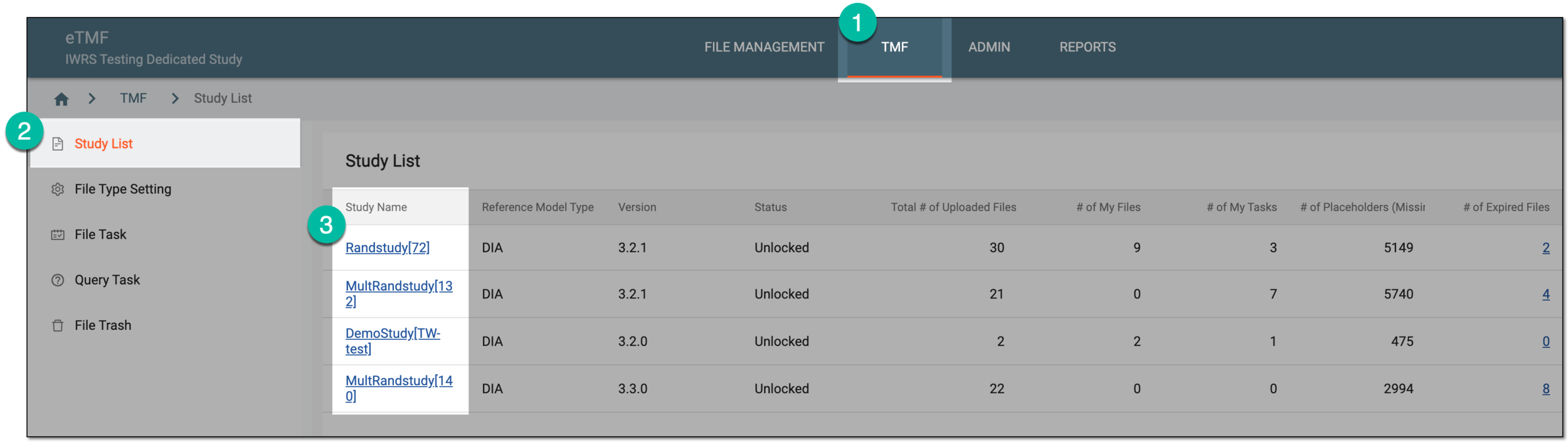 Figure 1. Selecting study
-
From the left pane, select the Document Warehouse subtab. If required, from the study selection field, you can change another study.
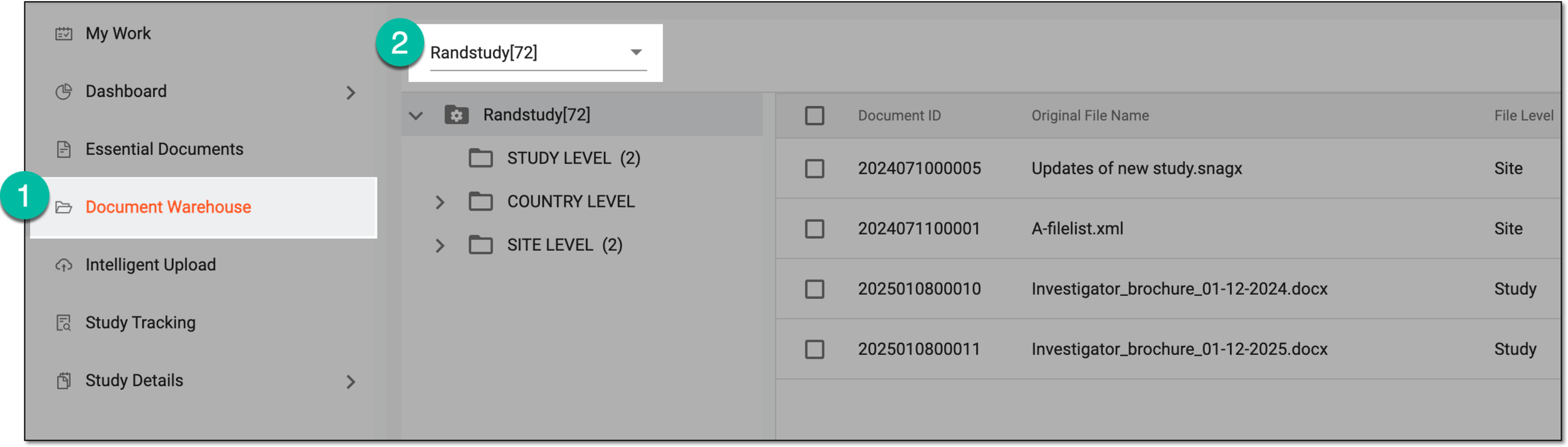 Figure 2. Accessing document warehouse and study
-
From the workspace toolbar, select Upload File
 .
.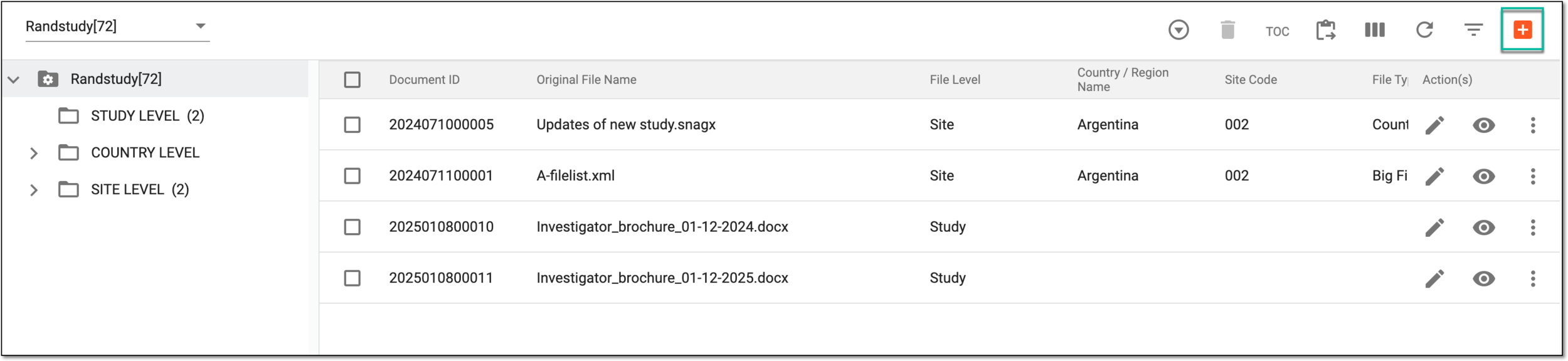 Figure 3. Selecting option to upload file
-
In the Upload File panel that expands, select the upload area or drag the file you want to upload. Once the file is added, complete its attributes as explained in the following table.
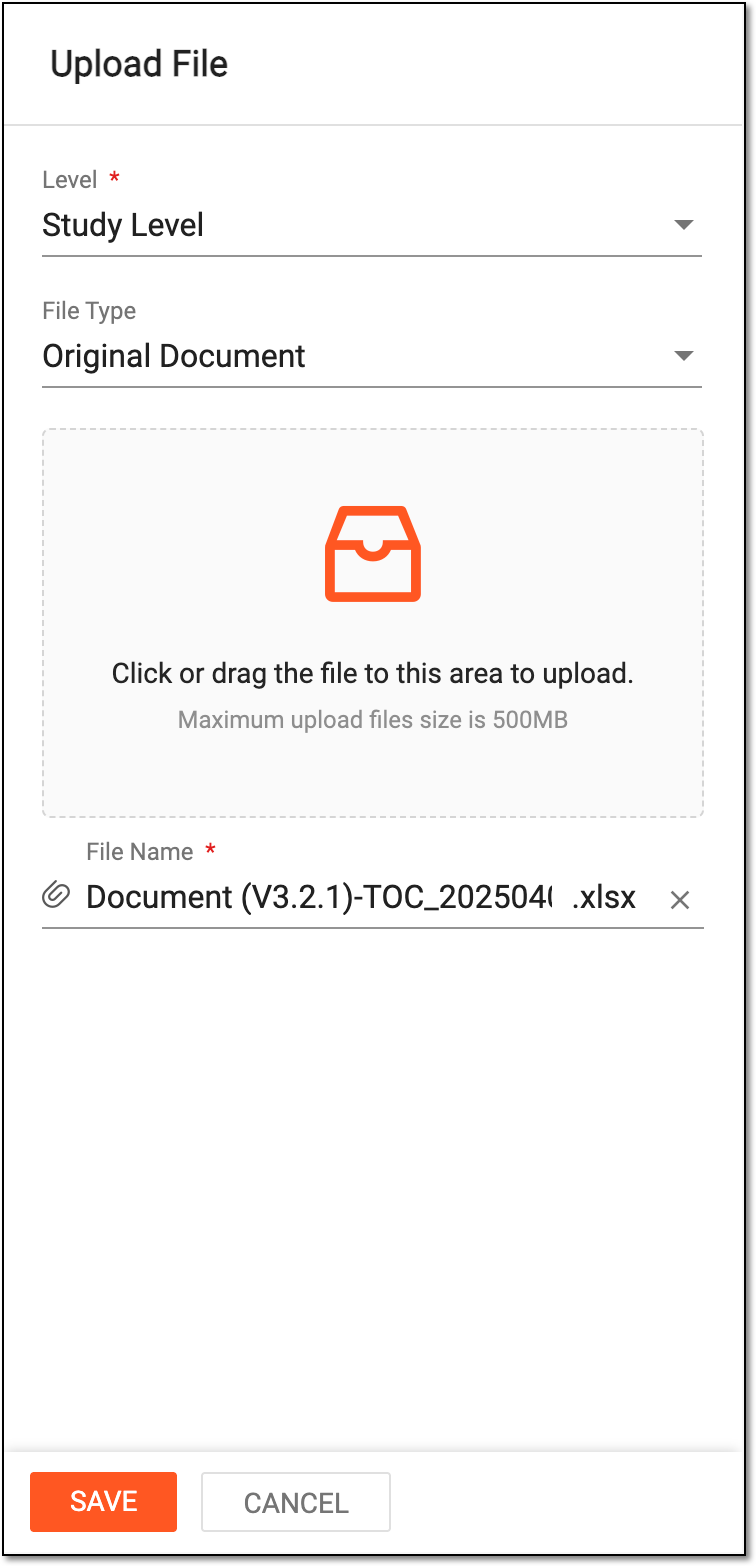 Figure 4. Uploading file to document warehouse
Tip
In the following table, mandatory elements are marked with an asterisk (*).
Element
Details
Level*
Select the level at which your file is going to be available:
-
Study Level: the file being uploaded is available at all the sites and countries of the selected study.
-
Site Level: the file being uploaded is only available for the selected site.
-
Country Level: the file being uploaded is only available at the sites of the selected country.
Country/Region Name*
Select the name of the country for which the file is to be available in the system.
This field is only available if in the Level field, you have selected either the Country
                                  Level or Site Level value.
Site Code*
Select the code of the site for which the file is to be available in the system.
This field is only available if in the Level field, you have selected the Site
                                  Level value.
File Type
Select the type of the file to distinguish the file purpose in the system.
File types you see in the list are populated from File Type Setting.File Preview
Select the eye icon
 next to the file you are uploading to preview its content.
SAVE
Select
 to implement the changes.
CANCEL
Select
 to discard the changes without saving and close the file upload panel.
 -
Once saved and the upload is successful, depending on the selected parameters—study, country, or site code—you can find your file in the corresponding directory of the explorer tree—STUDY, COUNTRY, or SITE.
Important
Once the access permission is provided by the ADMIN application, all the users can view all the files uploaded in Document Warehouse.