Delete files from document warehouse
In eTMF, the Document Warehouse tab is mainly used for the temporary storage of some unorganized files so that, upon request, they can be organized by data managers (DM) and other accountable individuals per DIA RM and uploaded to the Essential Documents storage.
If a document is no longer needed, you can delete it to keep your document warehouse uncluttered and up to date.
Tip
The files are permanently deleted from the Document Warehouse and not stored in the Trash folder. Thus, they cannot be restored.
You can delete only the files uploaded by you or all files, depending on whether you have the Write All Files permission granted to your user role via the ADMIN application.
-
In the eTMF application header, select the TMF tab.
-
In the Study List that opens, from the table, select the name of the study for which you want to access the document warehouse.
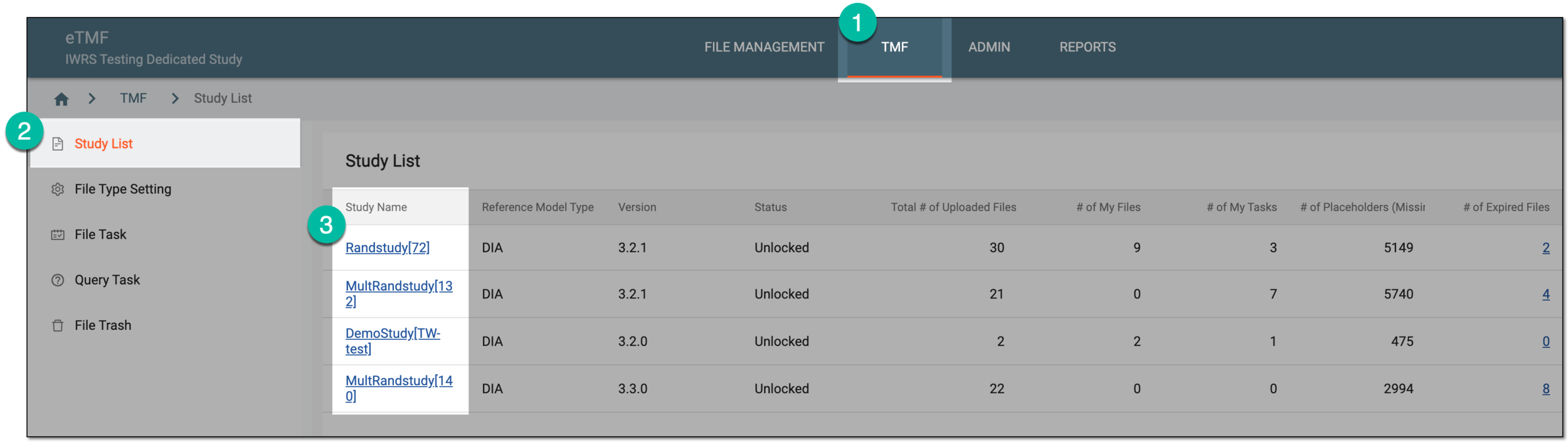 Figure 1. Selecting study
-
From the left pane, select the Document Warehouse subtab. If required, from the study selection field, you can change another study.
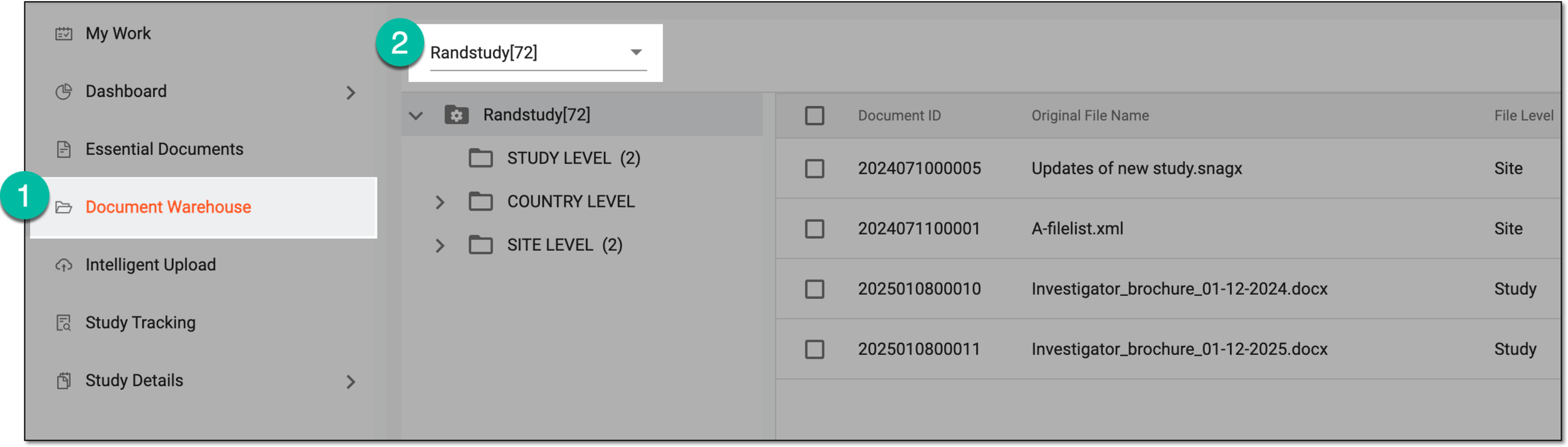 Figure 2. Accessing document warehouse and study
-
From the explorer tree panel, select the directory containing the files you want to delete.
-
On the contents panel, do the following to delete a single or multiple files at once.
-
In the Delete dialog that opens, enter the reason for file deletion and select
 .
.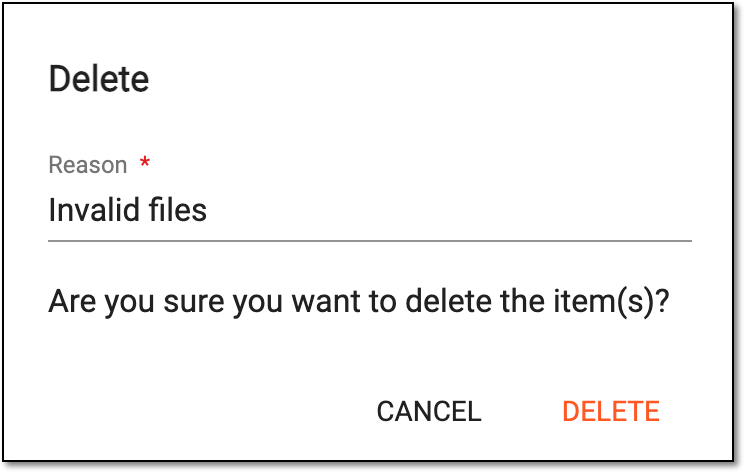 Figure 5. Confirming file deletion




Upon confirmation, the files are deleted from the system and cannot be restored.