Edit file details in document warehouse
In eTMF, the Document Warehouse tab is mainly used for the temporary storage of some unorganized files so that, upon request, they can be organized by data managers (DM) and other accountable individuals per DIA RM and uploaded to the Essential Documents storage.
If needed, you can modify the details of the uploaded document, such as its name or level (site or country) to keep your information up-to-date in the document warehouse.
-
In the eTMF application header, select the TMF tab.
-
In the Study List that opens, from the table, select the name of the study for which you want to access the document warehouse.
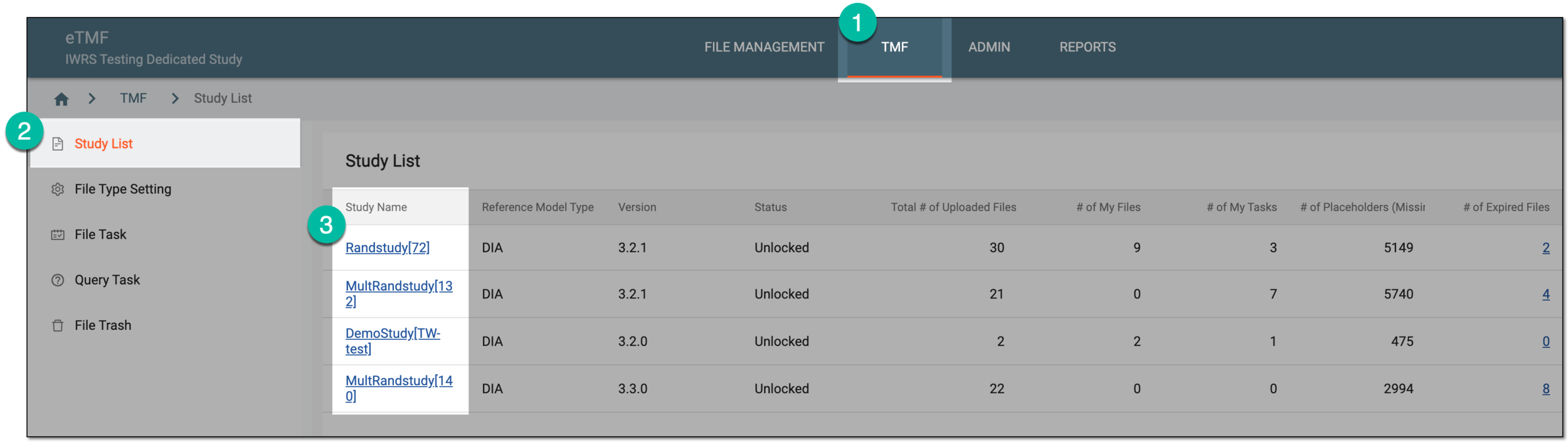 Figure 1. Selecting study
-
From the left pane, select the Document Warehouse subtab. If required, from the study selection field, you can change another study.
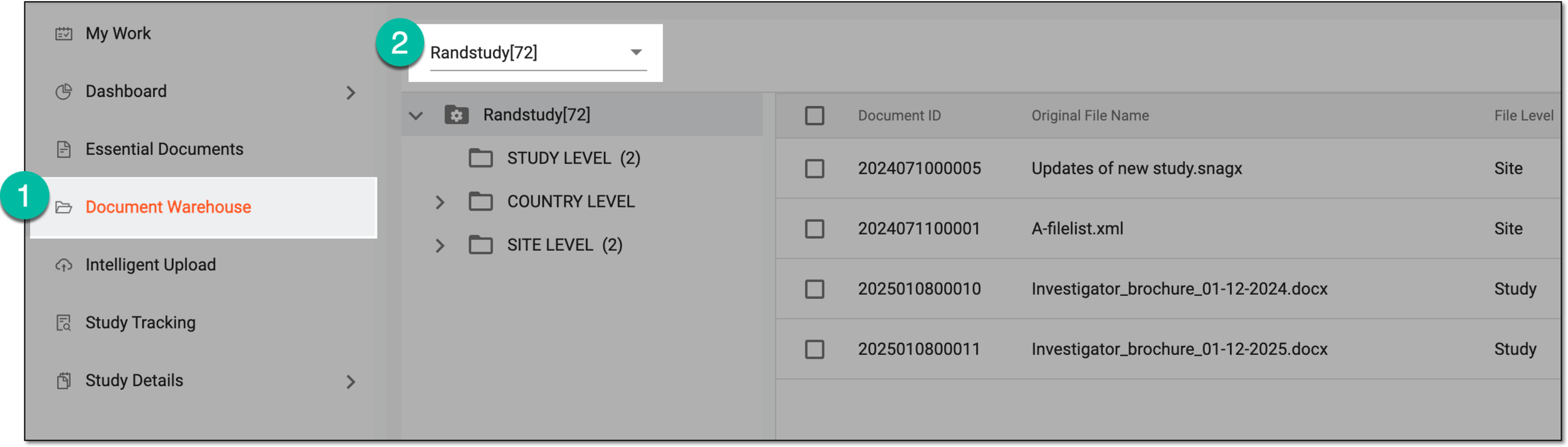 Figure 2. Accessing document warehouse and study
-
From the explorer tree pane, select the directory containing the file you want to update.
-
On the contents panel, locate the file and from the Actions column next to it, select Edit
 .
.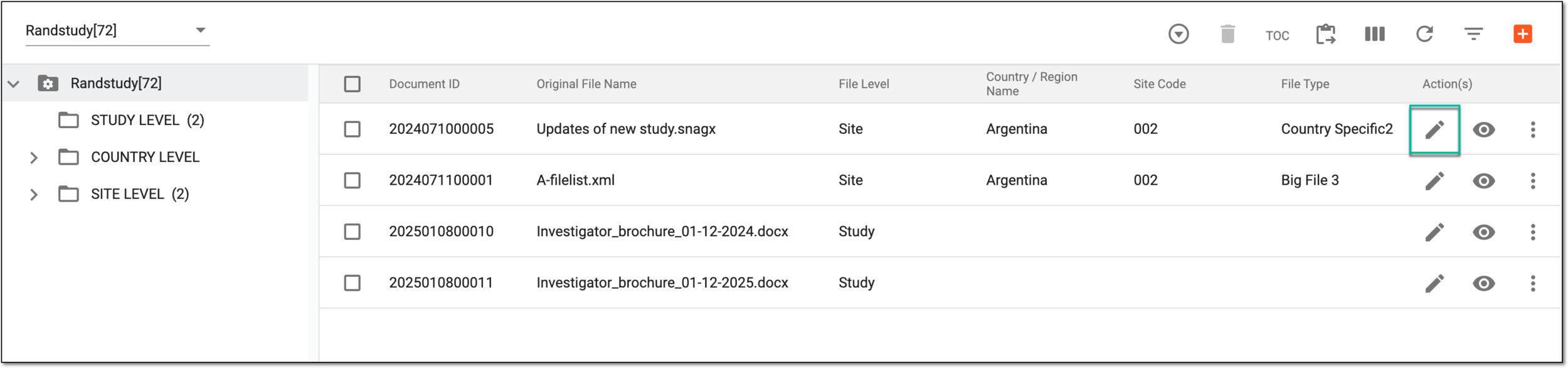 Figure 3. Selecting to edit file in document warehouse
-
In the Edit dialog that opens, edit the attributes as explained in the following table.
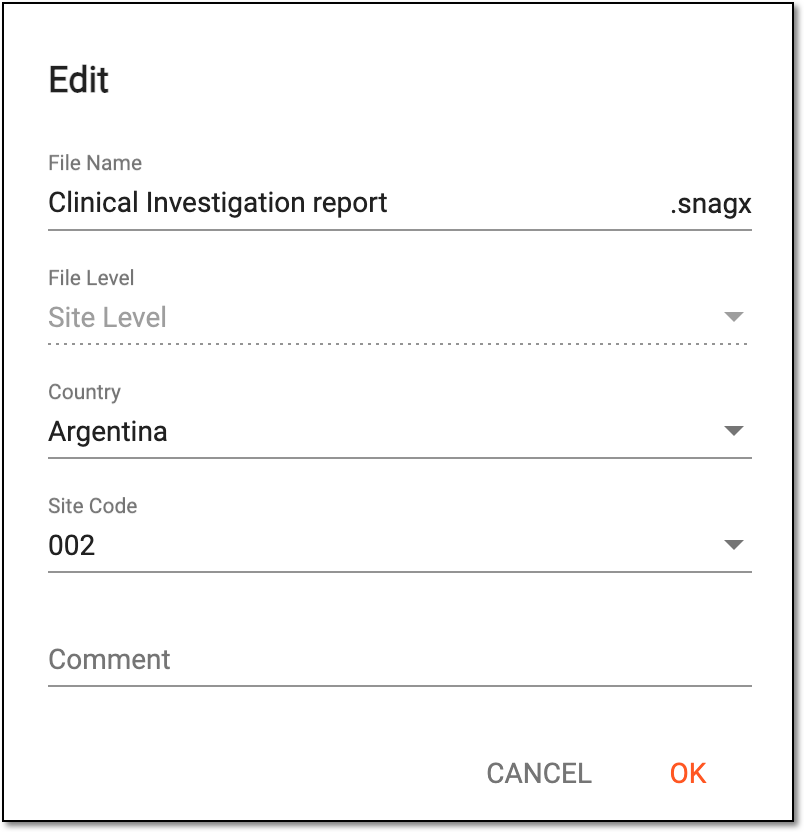 Figure 4. Editing file details
Elements
Details
File Name
Represents the name of the file. Edit the file name by selecting the field.
File level
Represents the level of the file based on the selected directory. It is read-only.
-
Study Level: represents Study, if the selected directory is STUDY LEVEL.
-
Country Level: represents Country, if the selected directory is COUNTRY LEVEL. The level changes from site to country if a different country is selected in the country field.
-
Site Level: represents Site, if the selected directory is SITE LEVEL. The level changes from country to site if a different site is selected in the site code field.
Country
Select the country to which the file belongs.
Site Code
Select the site code to which the file belongs.
OK
Select
 to save your changes.
CANCEL
Select
 to discard changes without saving and close the Edit dialog.
 -
Once saved, the file details are updated.