Edit image file in document warehouse
In eTMF, the Document Warehouse tab is mainly used for the temporary storage of some unorganized files so that, upon request, they can be organized by data managers (DM) and other accountable individuals per DIA RM and uploaded to the Essential Documents storage.
The image files in PNG, JPEG, and JPG formats can be edited in the app without the need to download them for adjustments. For instance, you can rotate or flip the improperly oriented image.
-
In the eTMF application header, select the TMF tab.
-
In the Study List that opens, from the table, select the name of the study for which you want to access the document warehouse.
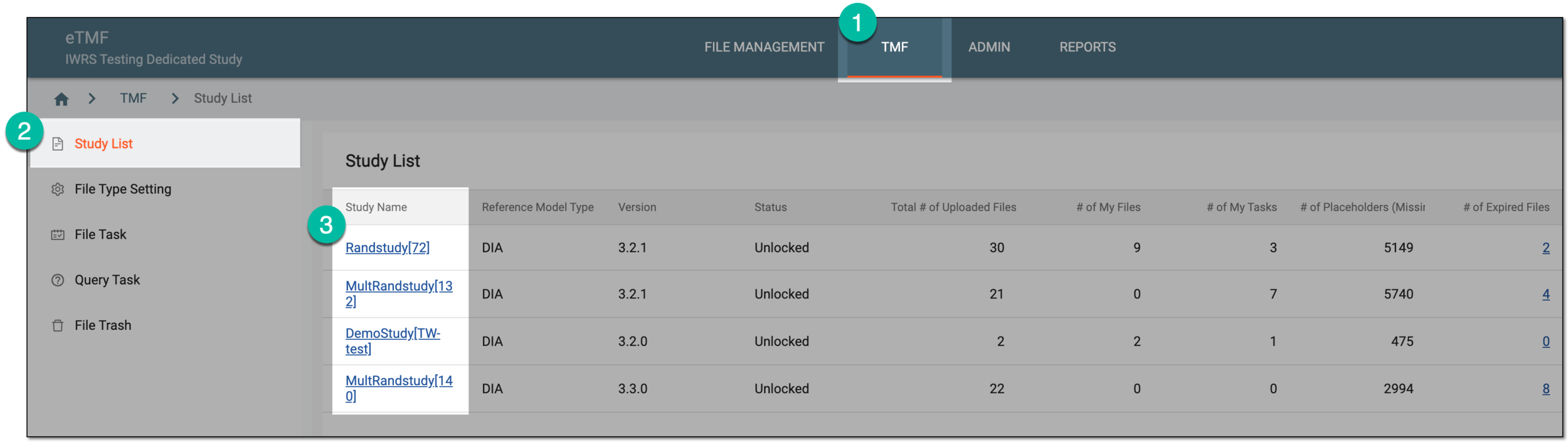 Figure 1. Selecting study
-
From the left pane, select the Document Warehouse subtab. If required, from the study selection field, you can change another study.
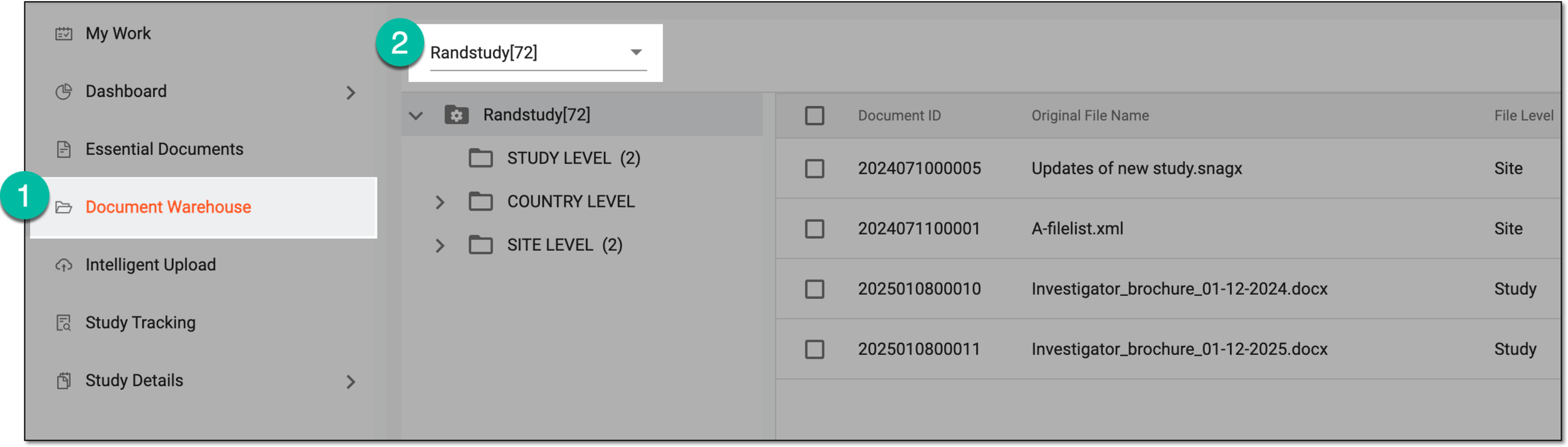 Figure 2. Accessing document warehouse and study
-
From the explorer tree panel, select the directory containing the image file you want to edit.
-
On the page that appears, next to the needed file under Action(s) column, select More
 > Edit Image
  .
.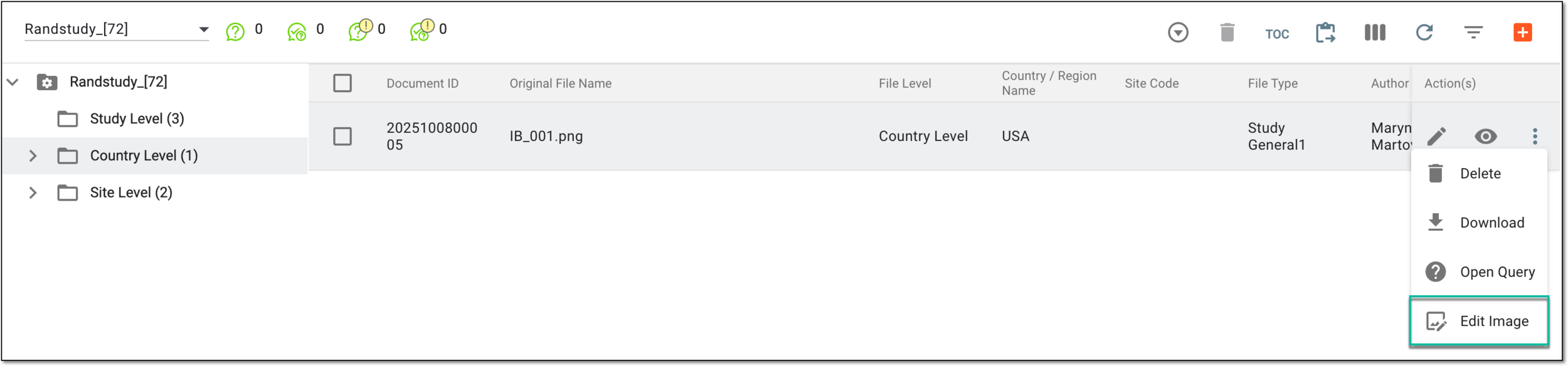 Figure 3. Selecting option to edit image
-
On the Edit Image page that opens, update the image using the tools explained in the following table.
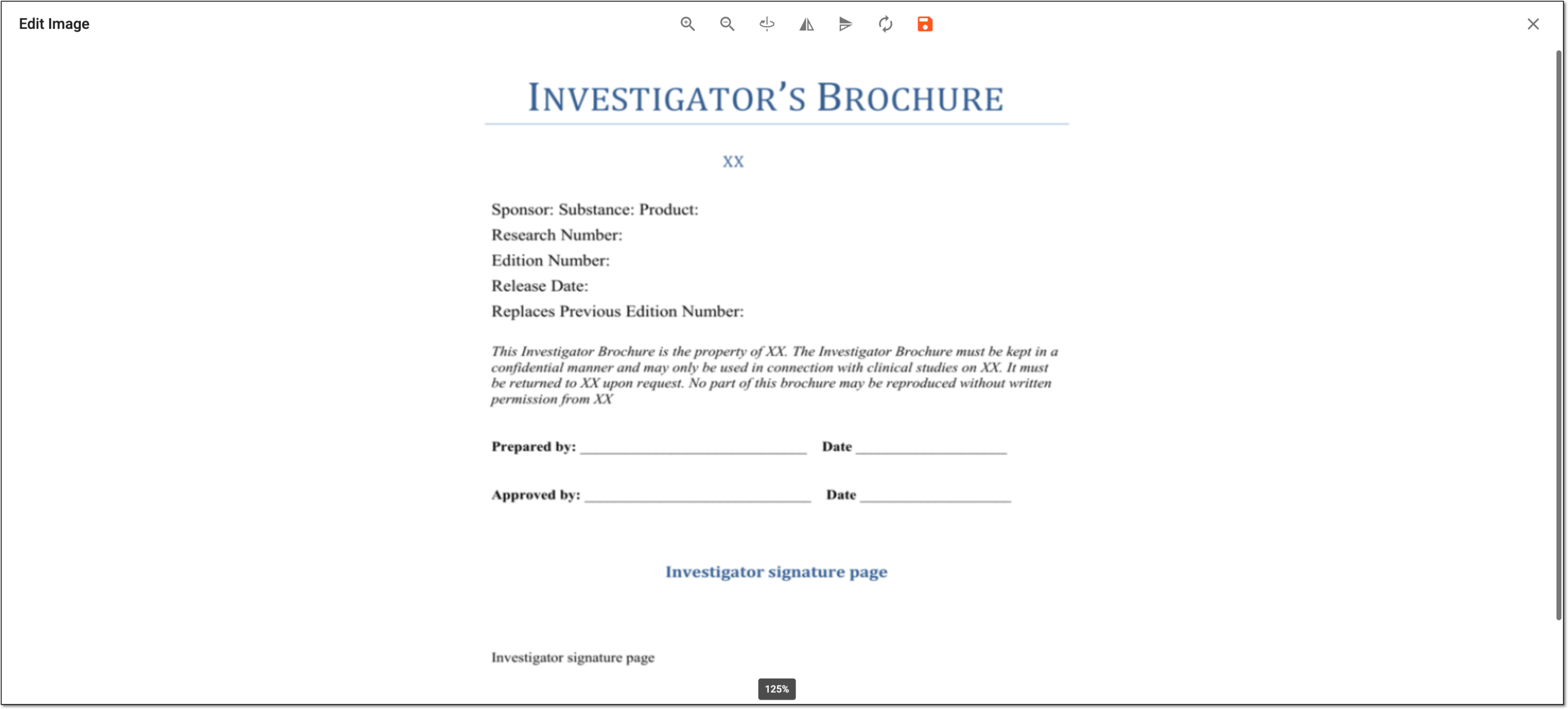 Figure 4. Editing image in document warehouse
Element
Details
Zoom In
Select
 to enlarge the image.
Zoom Out
Select
 to reduce the image.
Rotate
Select
 to rotate the image 90° at a time.
Horizontal Flip
Select
 to flip the image horizontally.
Vertical Flip
Select
 to flip the image vertically.
Reset
Select
 to discard all the unsaved changes and start over.
Save
Select
 to implement the changes.
Select this icon to close the editing mode without saving the changes and return to the document warehouse storage.
Once saved, the image file in the document warehouse is edited.