Manage footer for eDiary forms
When doing CRF design for forms that will be completed via the eDiary mobile app, you can use footer settings to specify the copyright message that will appear on the users' devices when they open each form. This gives you the flexibility to customize the footers of forms issued by external providers or otherwise distinguish the footer texts according to your study requirements.
-
In the Study Designer application header, select the CRF DESIGN tab.
-
In the toolbar, select the latest draft CRF version marked with the respective unlock symbol
 , otherwise, you cannot perform any actions.
 Figure 1. Selecting latest draft CRF version
-
In the left pane that appears, select the needed eDiary visit folder and open the form for which you want to configure the footer.
Tip
To locate the needed forms faster, use Search
 on the workspace toolbar of the
left pane.
on the workspace toolbar of the
left pane.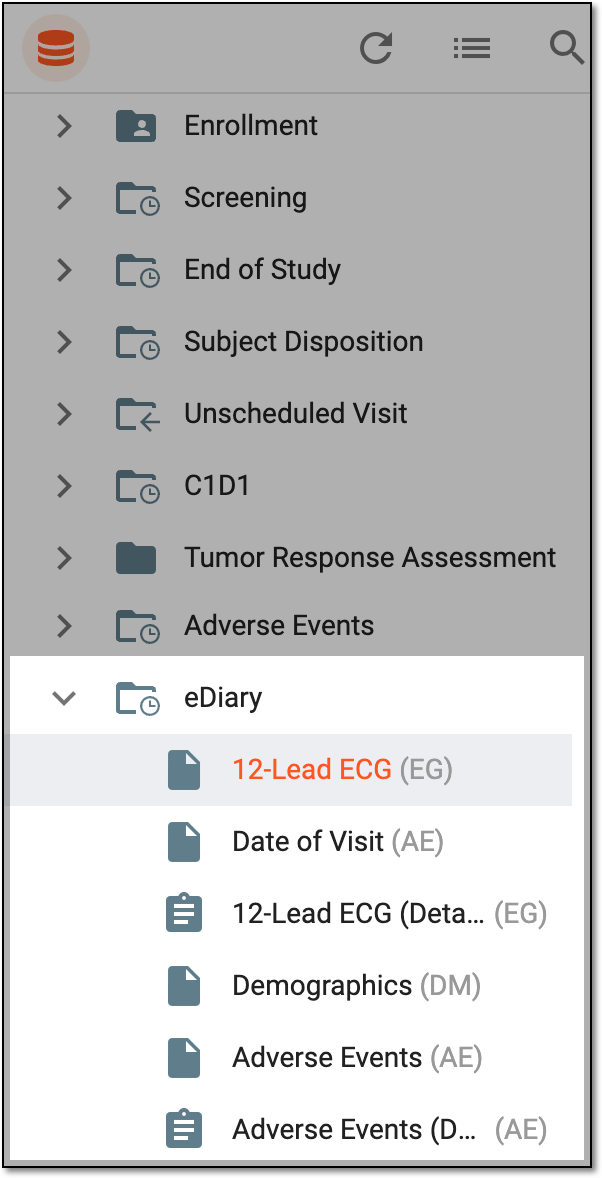 Figure 2. Accessing eDiary visit and form
-
On the page that opens, select the Footer tab and manage the settings as explained following table.
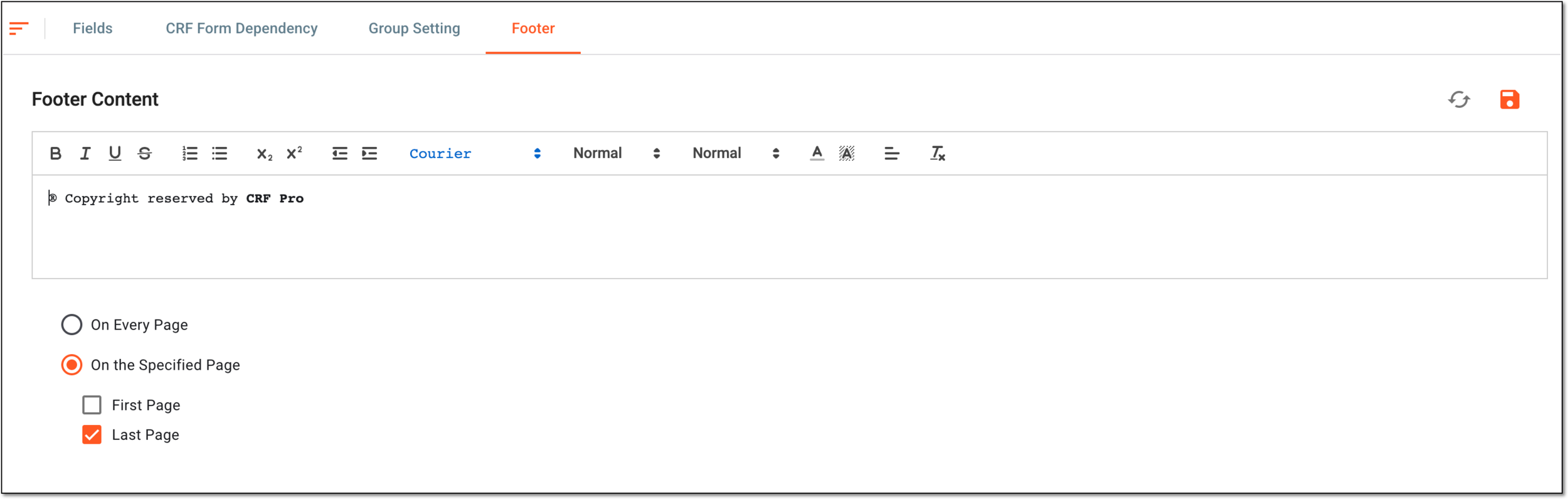 Figure 3. Configuring footer for eDiary form
Element
Details
Footer Content
Enter and style with rich text options the custom copyright message to be displayed in the CRF footer.
On Every Page
Select this option if you want to display the footer message on every page of the forms that have more than one page.
On the Specified Page
Select this option if you want to display the footer message only on the specified page of the forms that have more than one page.
If selected, choose First Page, Last Page, or both by selecting the checkbox next to the desired option.
Save
Select
 to implement the changes.
Reset
Select
 to refresh the page and discard you unsaved changes.
Once saved, the footer is configured for the eDiary form.