Manage group settings for eCOA/eDiary forms
When doing CRF design for forms that will be completed via eDiary and eCOA mobile apps, you can use group settings to specify how the form questions will appear on the users' devices—you can set up to show one question per page, assign pages to questions customary, or configure the system to fit the screen dynamically.
-
In the Study Designer application header, select the CRF DESIGN tab.
-
In the toolbar, select the latest draft CRF version marked with the respective unlock symbol
 , otherwise, you cannot perform any actions.
 Figure 1. Selecting latest draft CRF version
-
In the left pane that appears, select the needed eCOA or eDiary visit folder and open the form for which you want to configure the group settings.
Tip
To locate the needed forms faster, use Search
 on the workspace toolbar of the
left pane.
on the workspace toolbar of the
left pane.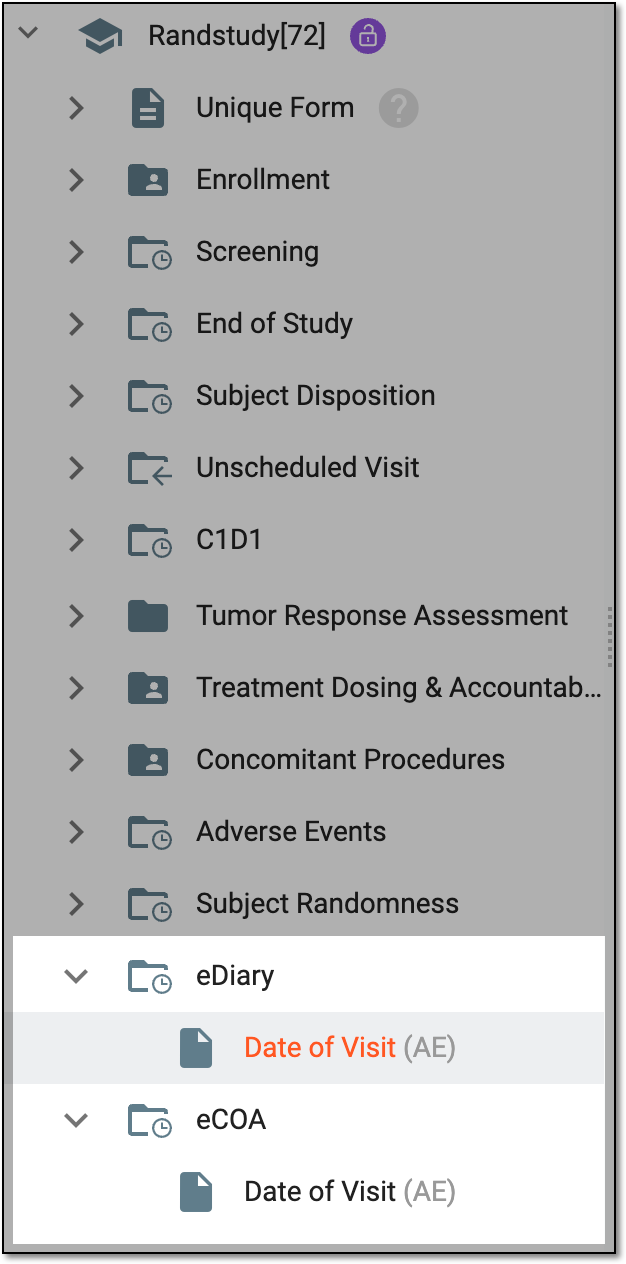 Figure 2. Accessing eDiary and eCOA visit and form
-
On the page that opens, select the Group Setting tab and manage the settings as explained following table.
 Figure 3. Configuring group setting for eCOA or eDiary form
Element
Details
Dynamic Question Pagination
Control how the questions are displayed in the eCOA or eDiary app for the user as follows:
-
Turn on the toggle for the system to automatically calculate the optimal number of questions displayed per page based on the participant's device screen resolution. The system will account for the question complexity and type to ensure the proper fit of the screen and provide the best usability. The system will fit questions based on the screen resolution, disregarding the group setting parameters.
-
Turn off the toggle to always display one question per page, disregarding the participant's device screen resolution.
Multiselect
Select the checkbox next to the question for which you want to configure the group setting.
Save
Select
 to open the Group
Setting dialog. Then enter and save the group number for the selected questions. A group number is a number of the page on which the question is to be displayed. Thus, you can assign one page per question, or you can opt to combine some questions into groups
that belong to the same page.
to open the Group
Setting dialog. Then enter and save the group number for the selected questions. A group number is a number of the page on which the question is to be displayed. Thus, you can assign one page per question, or you can opt to combine some questions into groups
that belong to the same page.For instance, you have a form that has three questions—date of completion, time of completion, and symptoms description. You can assign 1 to the date and time and 2 to the symptoms. Thus, your first two short questions will appear on the first page of the form and the third extensive question will be on the second page for convenience.
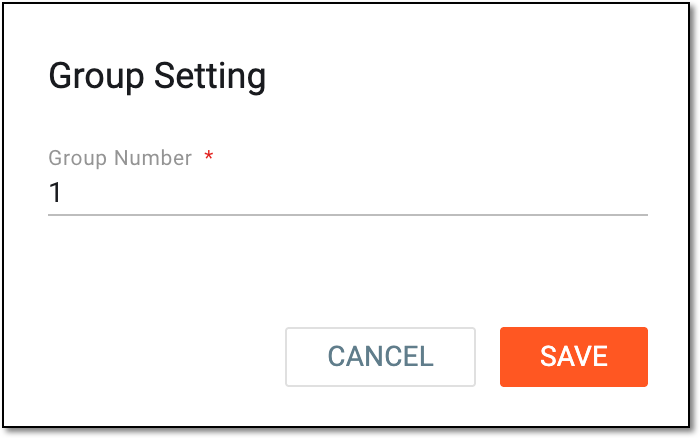 Figure 4. Setting group number
Reset
Select
 to refresh the page and see the latest configurations.
 -
You have configured the group setting for the eCOA or eDiary application form.