Perform translation review
The Translation functionality of EDC is designed to support multilingual studies that require data collection and review in different languages based on locations, participating audience, and other factors.
For preset data, such as CRF items, help texts, validation messages, and so on, the translations are configured in SD. However, the input data must be translated upon collection and for this, EDC has the following options:
-
Autotranslate the input data daily using AI technology. For this functionality to work, you need to enable the AI autotranslation for the study.
-
Enter the translation texts for input data manually from scratch when performing review. For this functionality to work, you need to disable the AI autotranslation for the study.
Considering the sensitivity of the clinical trial data, all translations—autotranslated or entered manually—require professional review and approval to ensure their correctness and validity.
Important
The translations available for review depend on the site access permissions granted to your user group via ADMIN. Thus, you can only see the texts submitted at the sites to which you have access.
-
In the EDC application header, select the STUDY INFO tab.
-
On the page that opens, in the left pane, select Translation > Translation Review.
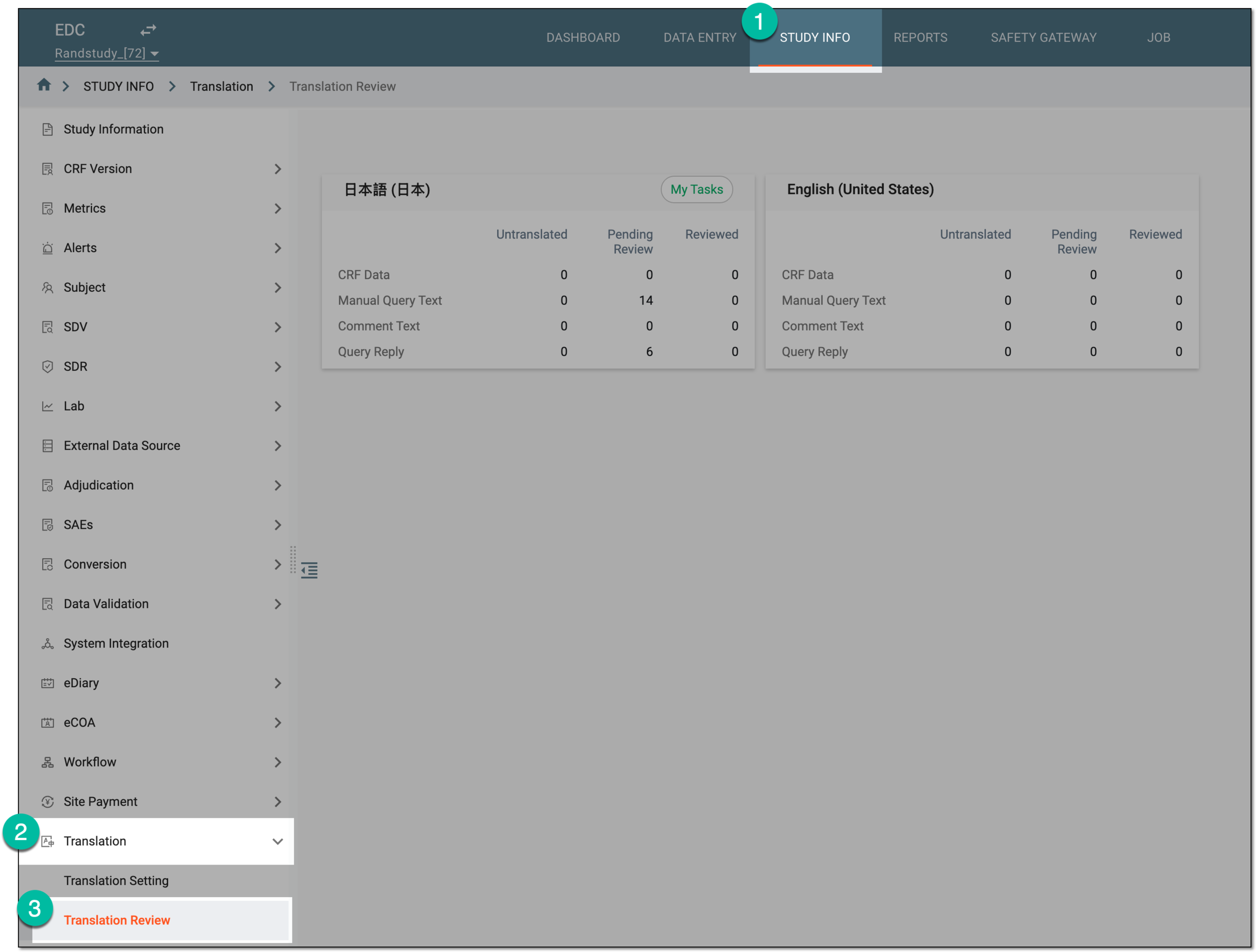 Figure 1. Accessing translation review
-
On the page that opens, select the tile representing the language in which you want to access the translations.
Tip
Select My Tasks to access the translation reviews assigned to you.
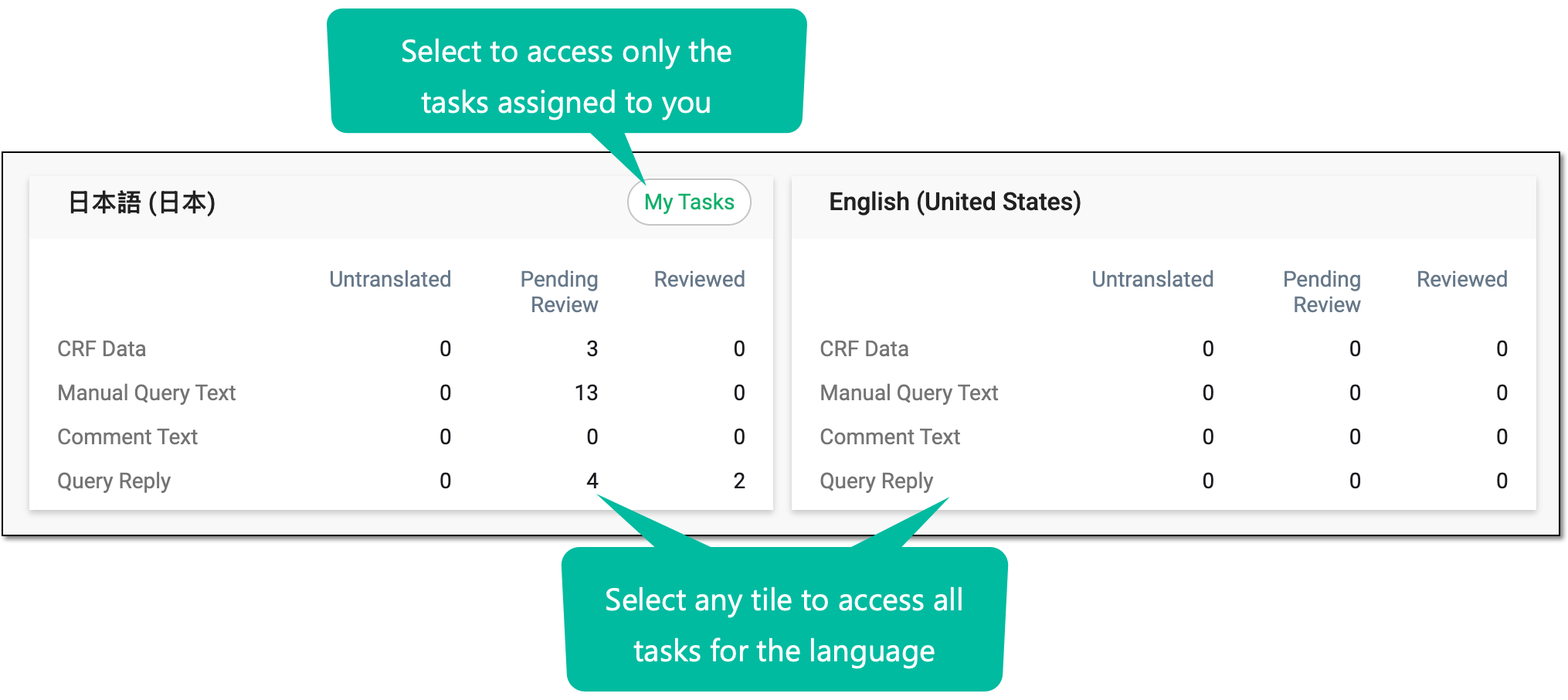 Figure 2. Accessing translation review tasks
-
On the page that opens, switch between the CRF Data, Manual Query Text, Query Reply, and Comment Text tabs to see the pertinent texts intended for translation.
Tip
Only the CRF Data tab is available here if in the global translation settings, the Translate CRF Data Only toggle is turned on.
Use the available preset filters to see the focused data categories: Untranslated, My Pending Review, Total Pending Review, and Reviewed. The count number next to each category is autocalculated in real time and can be clicked to sort the table by category. Some of the UI texts on the review page are displayed in the translation language for reviewer's convenience.
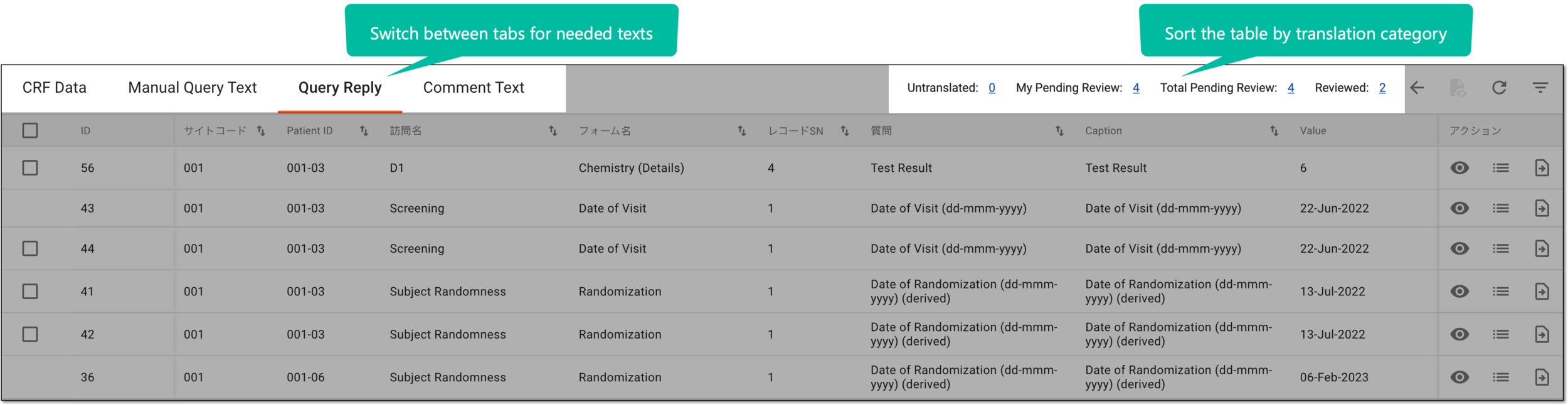 Figure 3. Navigating translation review page
-
Optionally, filter the table data to show only the texts of your interest and locate the needed ones faster.
 Figure 4. Filtering translation texts
-
Perform the translation review in one of the following ways.
-
In the table, next to the needed text, select Review
 .
.Tip
Select Go to CRF
 next to any translation to open the CRF to which the
translated text belongs in a new browser tab. This helps you understand the translation in context.
next to any translation to open the CRF to which the
translated text belongs in a new browser tab. This helps you understand the translation in context.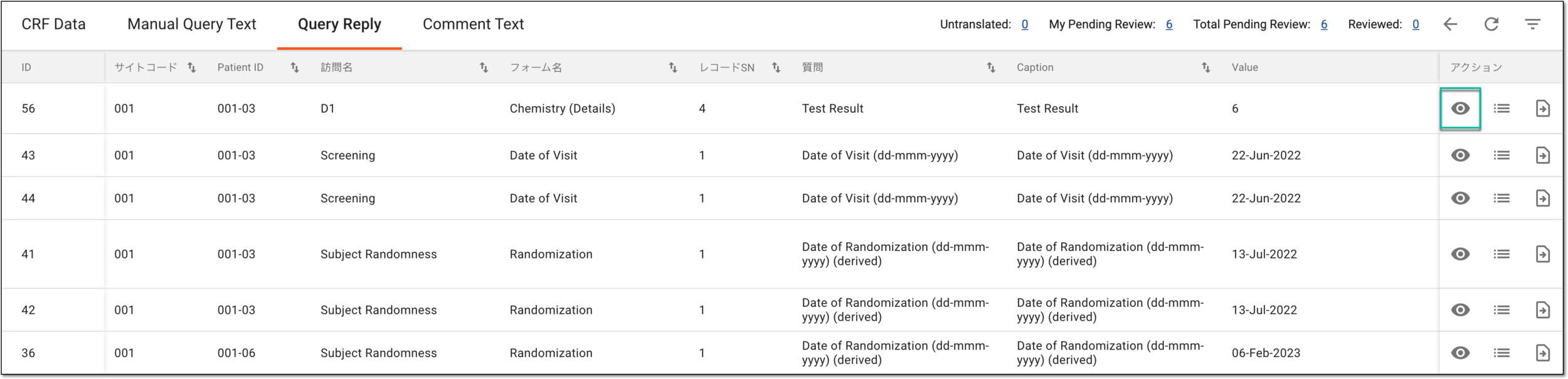 Figure 5. Accessing translation text review
-
In the dialog that opens, do the following:
-
If the AI autotranslation is enabled for the study, review the original text of data entry and the AI-translated version. In the Proofread Value text box, you can amend the AI-generated translation if it requires improvements.
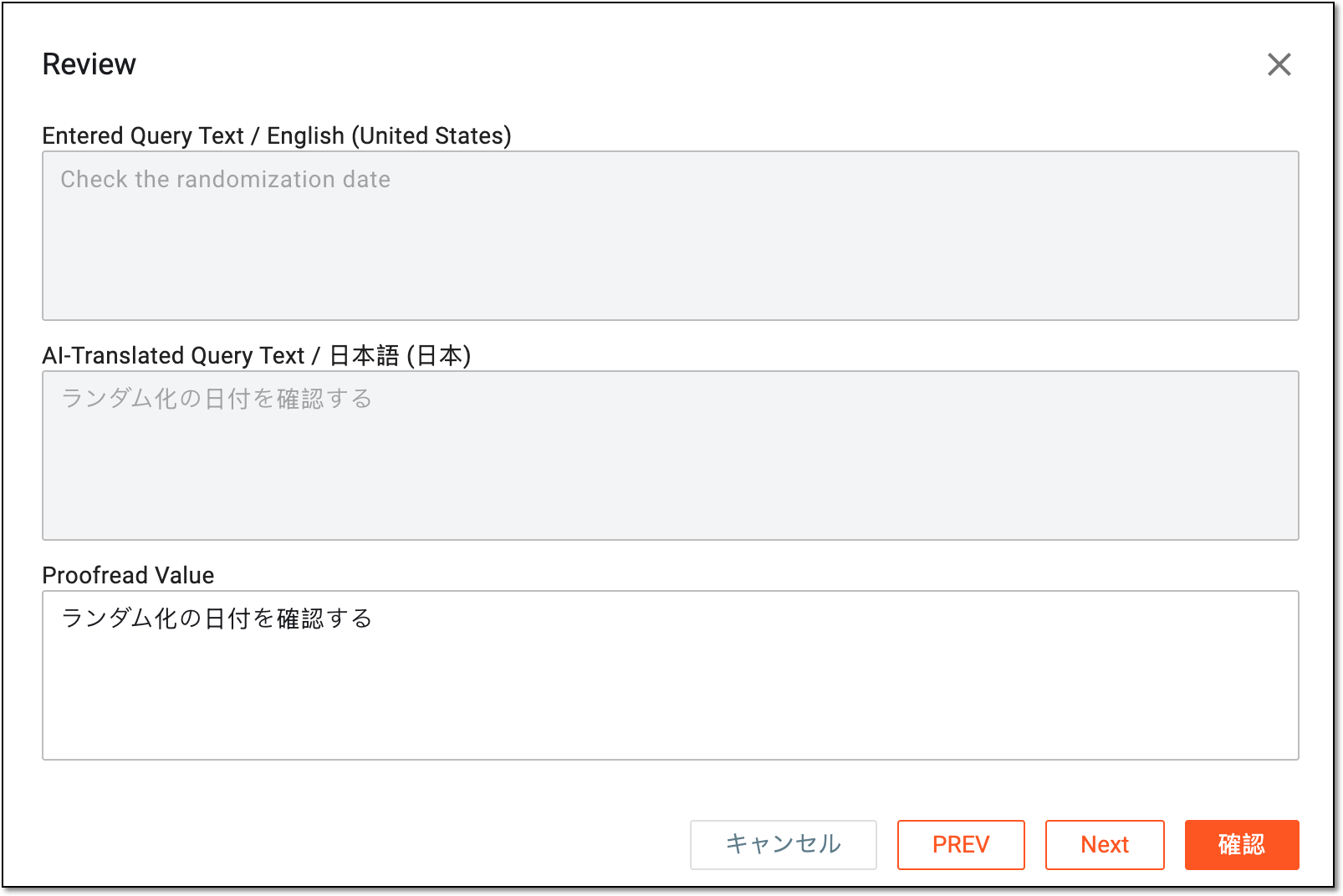 Figure 6. Reviewing autotranslated texts
-
If the AI autotranslation is disabled for the study, review the original text of data entry and in the Proofread Value text box, enter the translated version manually.
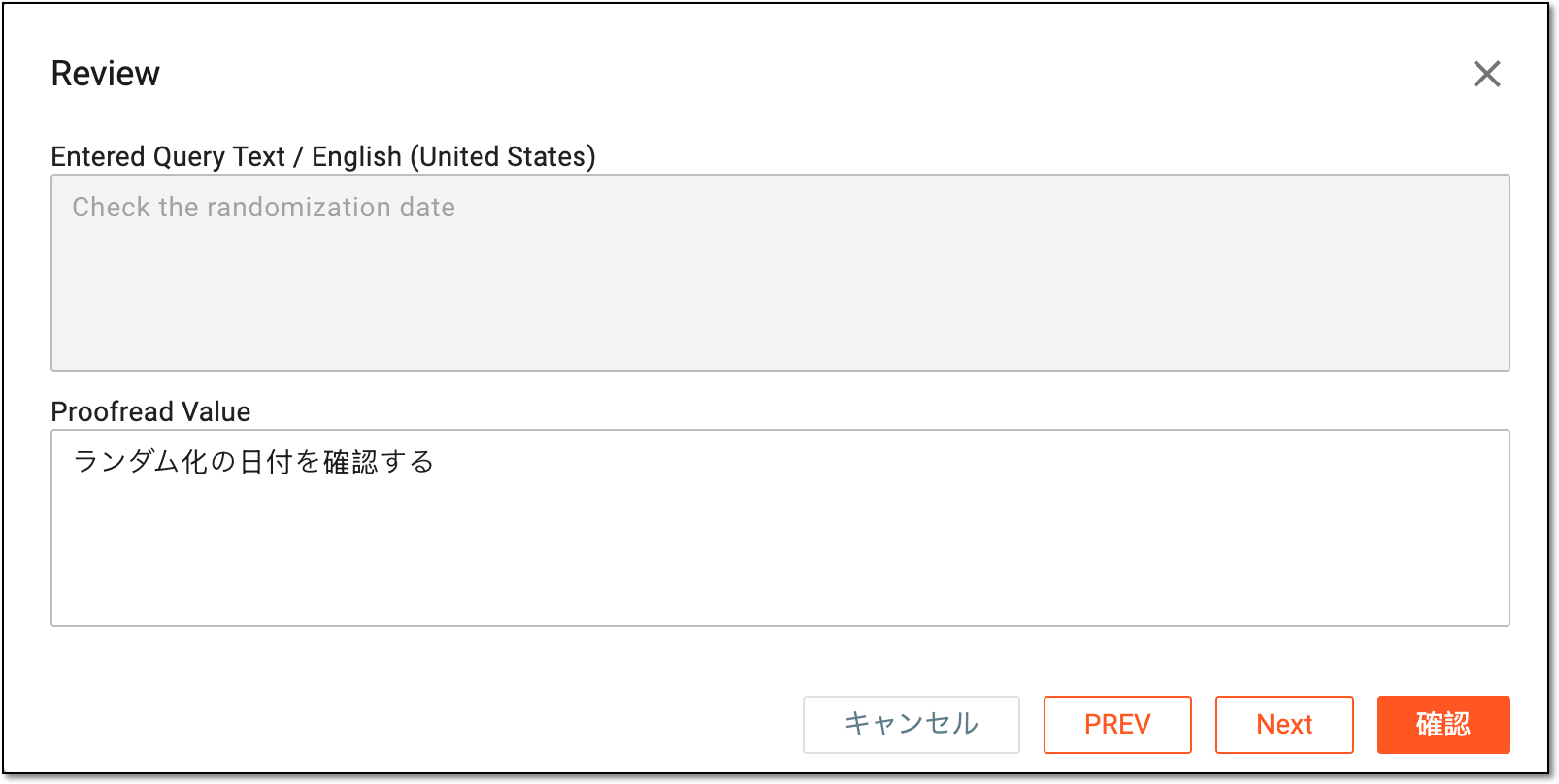 Figure 7. Reviewing autotranslated texts
Tip
For convenience, some UI element names are displayed in the translation language.
Use the PREV and Next buttons to switch between the translation texts until you review or input them all.
-
-
Once the review is done and the texts are entered and proofread, select CONFIRM.
-


Once done, the texts are reviewed; the proofread values are populated to their respective locations in EDC as the validated translation variant.