Configure translation settings
In EDC, you can configure the global-level setting of languages in which the data collection and review can be performed for your study, as well as specify whether only the CRF data or all data—queries, comments, and so on—must be translated. You also specify the personnel in charge of translation review and entry to ensure data integrity.
-
In the EDC application header, select the STUDY INFO tab.
-
On the page that opens, in the left pane, select Translation > Translation Setting.
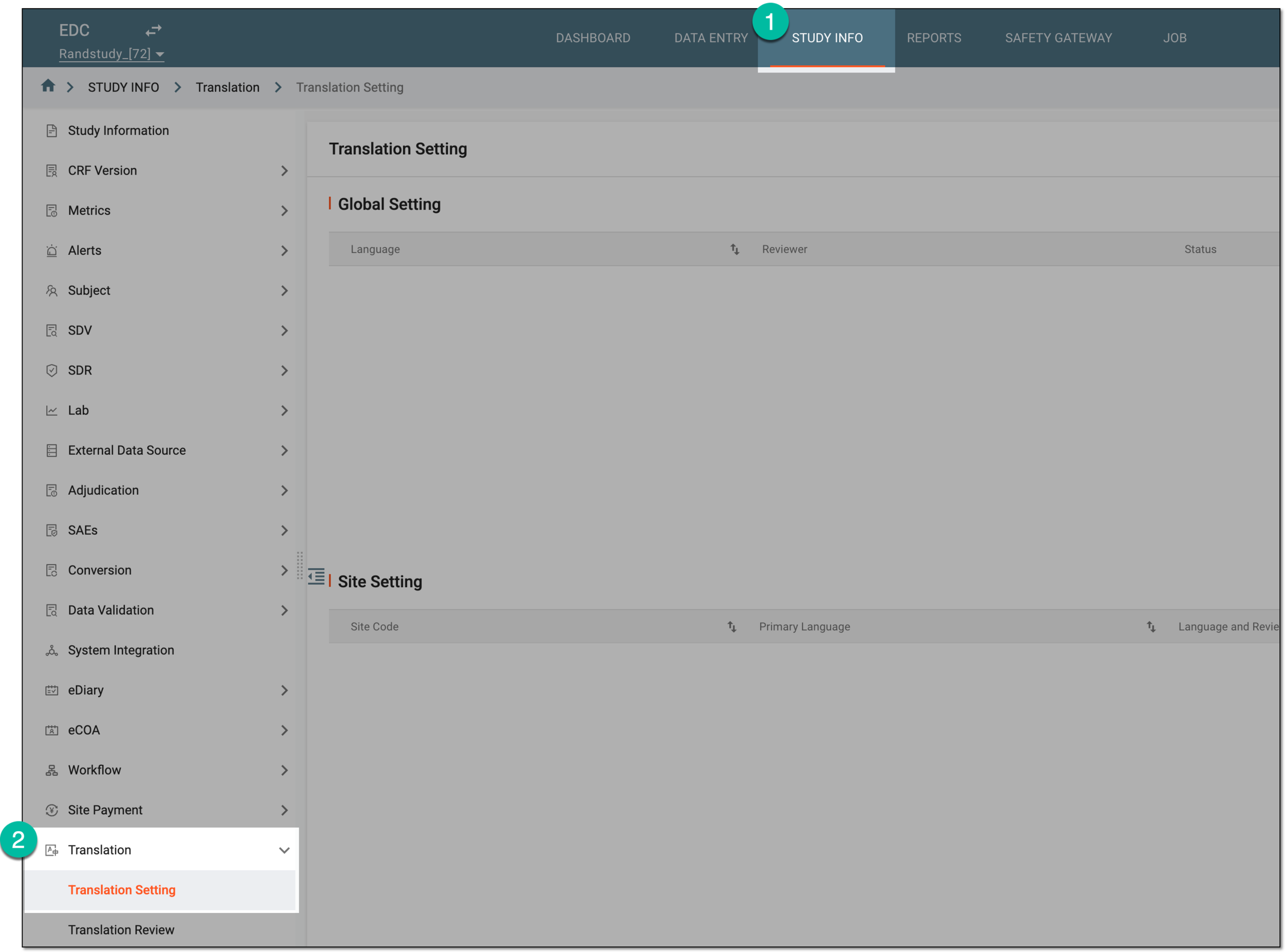 Figure 1. Accessing translation setting
-
On the Translation Setting page, on workspace toolbar of the Global Setting block, define the data intended for translation as follows:
-
Turn on the Translate CRF Data Only toggle to only translate and review the input clinical data from the CRFs.
-
Turn off the Translate CRF Data Only toggle to translate all the data of the study—CRF input texts, texts that belong to queries, comments, and so on
 Figure 2. Enabling only CRF data translation
-
-
From the same workspace toolbar of the Global Setting block, select New Item
 .
. Figure 3. Selecting option to add global translation setting
-
In the Edit Global Setting dialog, complete the settings as explained in the following table.
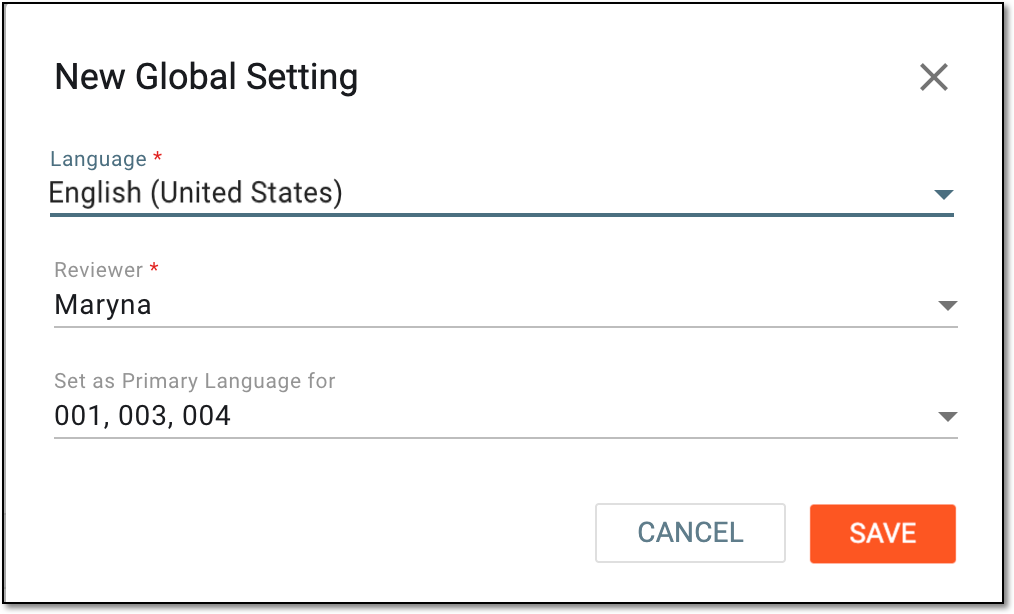 Figure 4. Setting translation language
Tip
In the following table, mandatory elements are marked with an asterisk (*).
Element
Details
Language*
Select the language that you want to set as an option for data collection and review in your study.
The available languages are pulled from the translation settings in SD.Reviewer*
Select the users in charge of reviewing and validating or entering the translated texts in the selected language.
Note that if the AI autotranslation is enabled, the reviewer only checks and amends the autotranslated texts; if
                                  disabled, the reviewer has to enter the translations manually from scratch.
Set as Primary Language for
Select the field and in the dropdown list that appears, select the checkboxes next to the sites for which this language must be set as primary.
Once you set the language as primary for the sites and save this selection, the checkboxes cannot be cleared. To change the primary language for the site, go to the target language settings and select the site's checkbox there. This will automatically clear the
                                  previous selection.
For instance, you have set English as the default primary language for the sites 001, 002, and 003, and now all these sites are selected in the dropdown list for English language settings and cannot be cleared. Then, you need to set Japanese as the primary language for the site 001. Thus, you go to the Japanese language settings and in the Set as Primary Language for field, select the site 001; this automatically clears the previously selected checkbox in the dropdown list for English language settings and makes Japanese primary for the site 001.
SAVE
Select
 to implement the changes.
CANCEL
Select
 to discard the changes without saving.
Once saved, the translation settings are implemented—the scope of data intended for translation set, the language added to the study and set as primary for the selected sites, and the chosen users are now in charge of translation review.
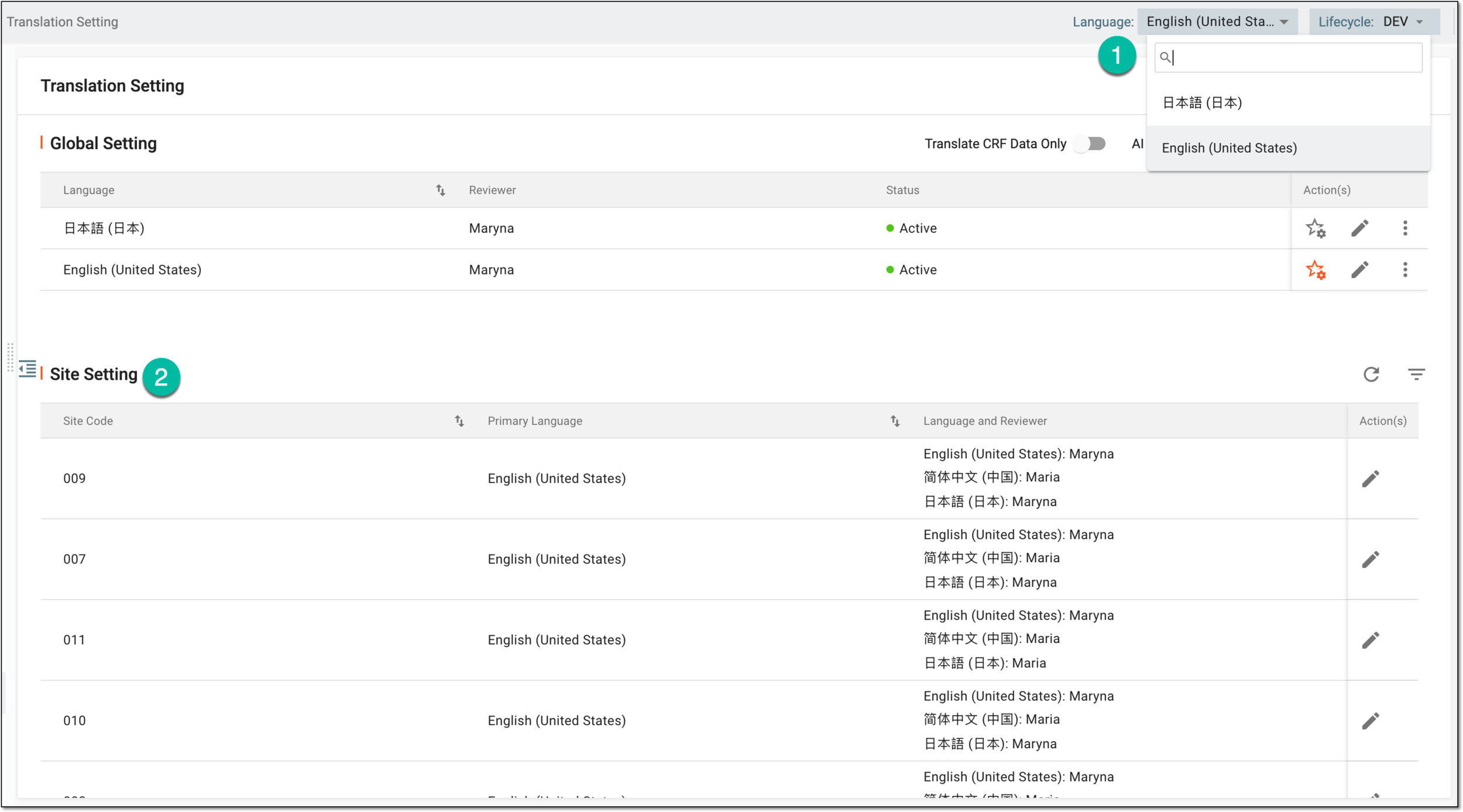
In EDC, the language selection menu appears on the toolbar to switch between set languages. The translation language setting populates to the site-level block, where you can make the needed adjustments per site.