Edit global-level translation setting
In EDC, once you have set certain languages for data translation in your study, you can update the global-level setting for any of them to change the reviewer in charge of validating the translated texts or the applied site list.
-
In the EDC application header, select the STUDY INFO tab.
-
On the page that opens, in the left pane, select Translation > Translation Setting.
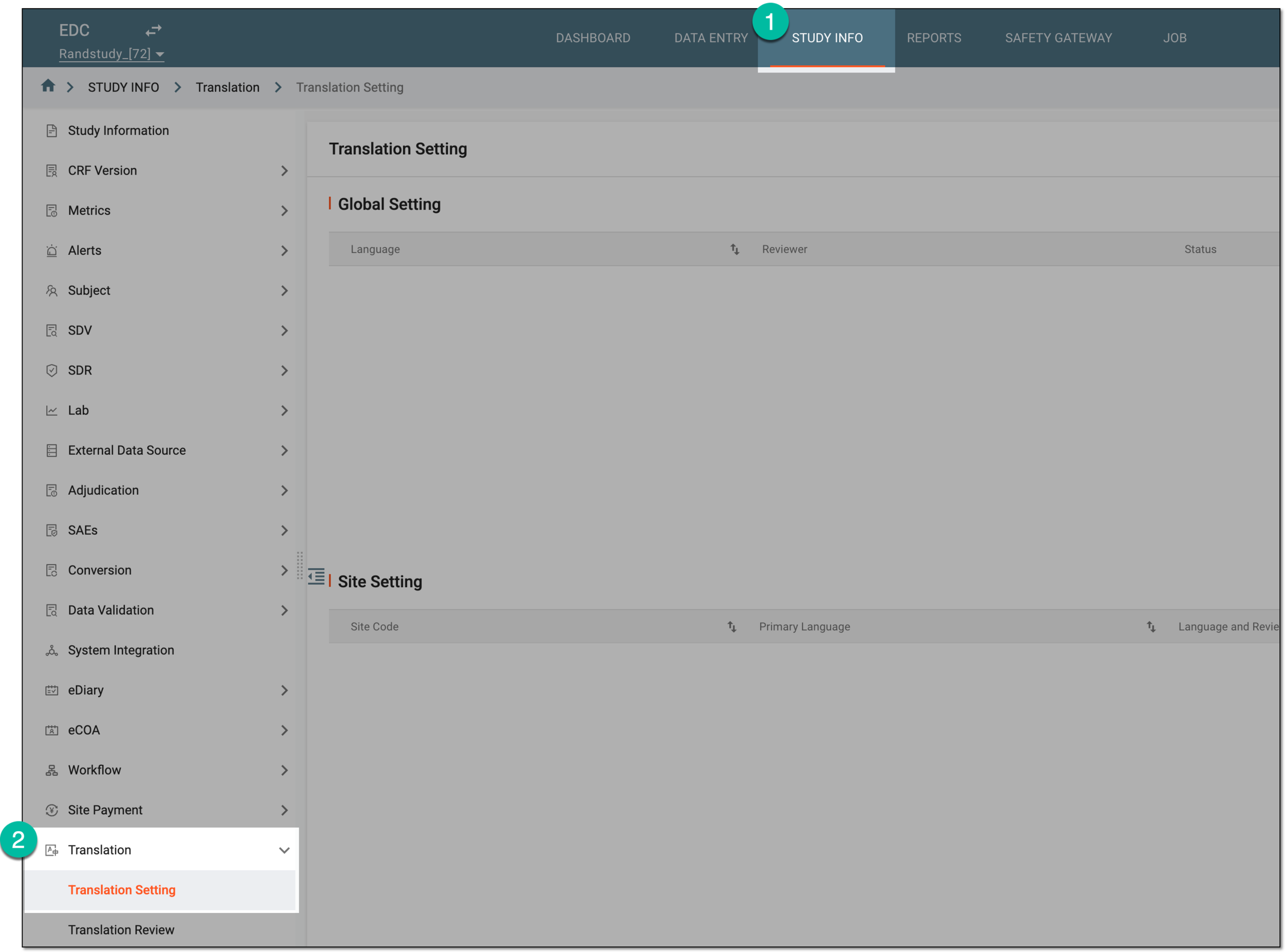 Figure 1. Accessing translation setting
-
On the Translation Setting page, in the Global Setting list, next to the translation language for which you want to make changes, select Edit
 .
. Figure 2. Selecting option to edit global translation setting
-
In the Edit Global Setting dialog that appears, update the details as needed. These details are identical to those explained in the table of the Configure translation settings section.
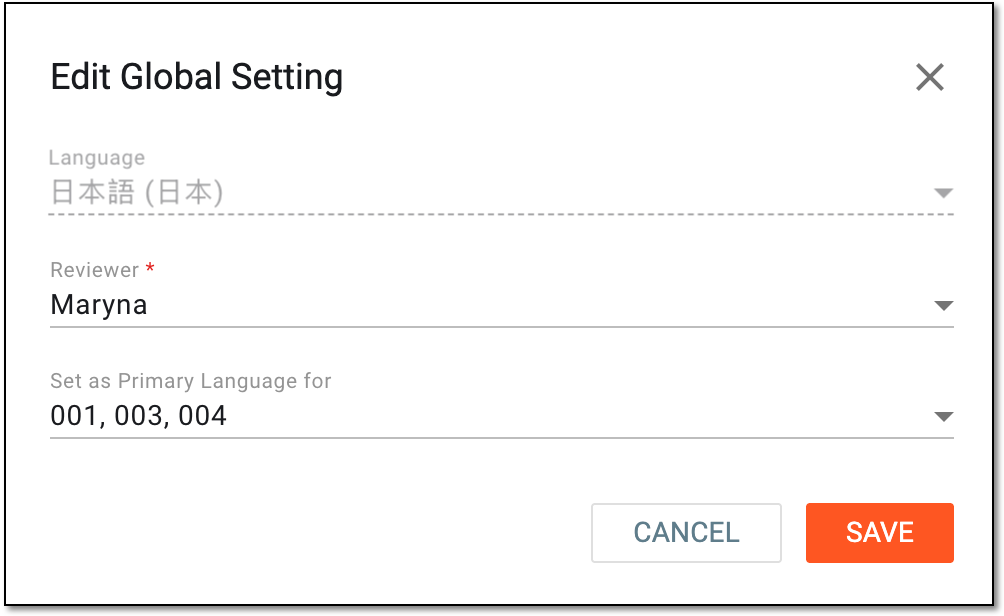 Figure 3. Editing global translation setting
-
Select
 to implement the changes.
Once saved, the changes are applied, the selected sites have this language as primary, and the selected users are now in charge of translation review. If the global and site-level settings for the language reviewer were the same before the update, the global-level setting is autopopulated to the site level. However, if you have some custom site-level review settings, they are not overwritten by the updated global-level setting.
For instance, if User A is to review Chinese translations at all study sites, and the global-level setting is changed to User B, then all the sites' settings automatically change to User B. However, if User A is to review Chinese translations at Site A, and User B is a reviewer for Site B, once the global-level setting for Chinese changes to User C, sites A and B remain with their User A and User B reviewers, respectively.