Set default primary language for sites
In EDC, when managing the global-level setting of languages in which the data collection and review can be performed for your study, you can specify which of the languages is to be set as primary one by default for all the study sites—currently existing and newly added ones.
-
In the EDC application header, select the STUDY INFO tab.
-
On the page that opens, in the left pane, select Translation > Translation Setting.
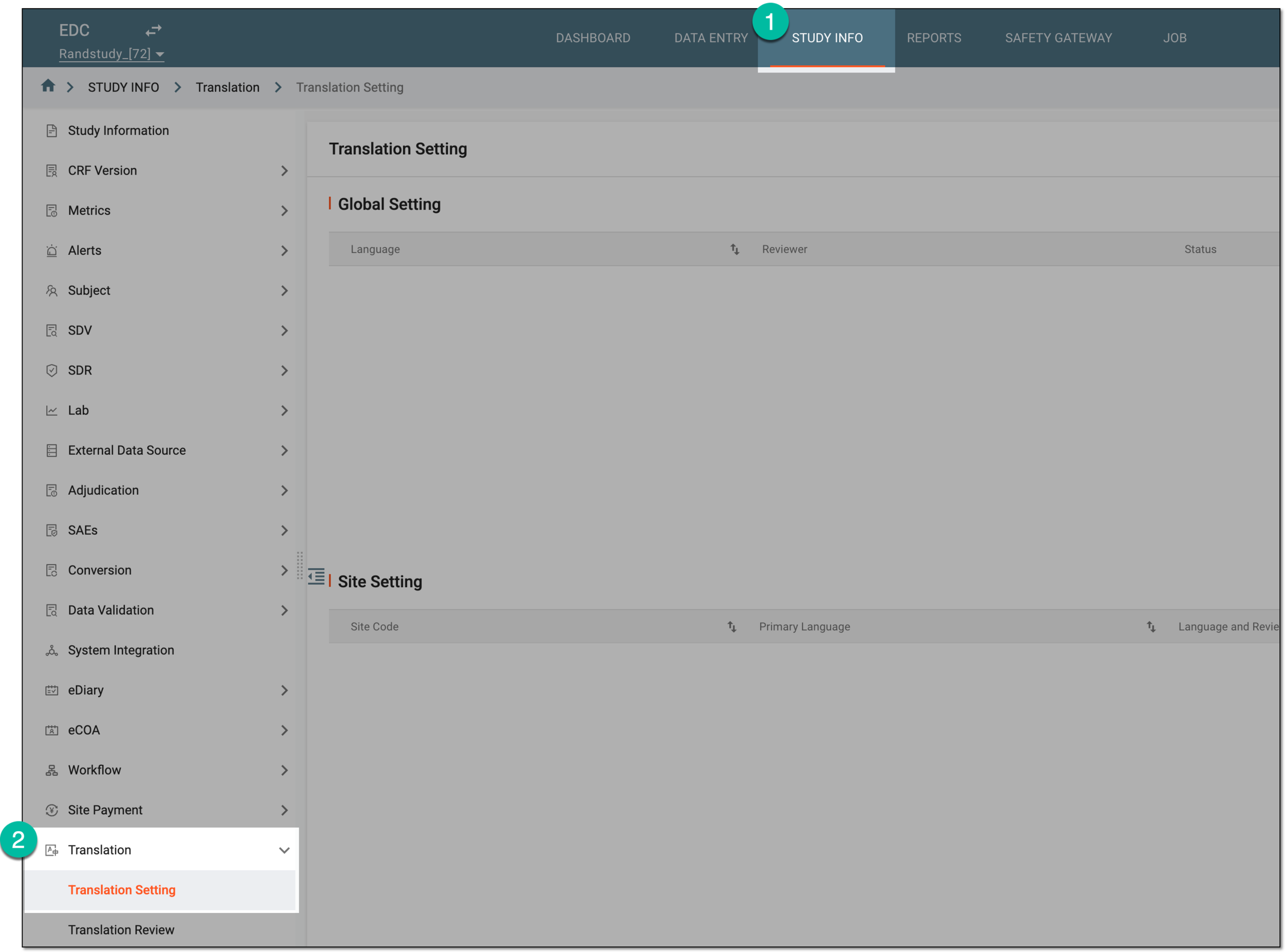 Figure 1. Accessing translation setting
-
On the Translation Setting page, in the Global Setting list, next to the translation language that you want to set as primary, select Set as the default site primary language
 .
.Tip
The red color of Set as the default site primary language
 next to any
language indicates that it is currently set as the primary one. You can change the primary language simply by selecting another one.
next to any
language indicates that it is currently set as the primary one. You can change the primary language simply by selecting another one. Figure 2. Selecting default primary language for sites
Once selected, the language becomes the primary one by default for all the existing and any new sites added to the study. You can also set a different primary language for any of the currently existing sites in bulk upon editing the global-level translation setting for the target language or individually by editing the site-level settings.
Important
If one language is set as the default primary one for the study, but for some sites, another languages are set as primary via individual language settings, selecting Set as the default site primary language again does not overwrite the individual settings.