Enable/Disable AI autotranslation
In EDC, when handling multilingual studies, you can decide on the global (study) level if you want the AI-driven autotranslation to be performed for your collected data. If enabled, all the data collected via CRFs is autotranslated by the system using AI, and then the respective task is created for the personnel in charge to perform the translation review. If disabled, your study personnel has to translate the data manually while performing review.
-
In the EDC application header, select the STUDY INFO tab.
-
On the page that opens, in the left pane, select Translation > Translation Setting.
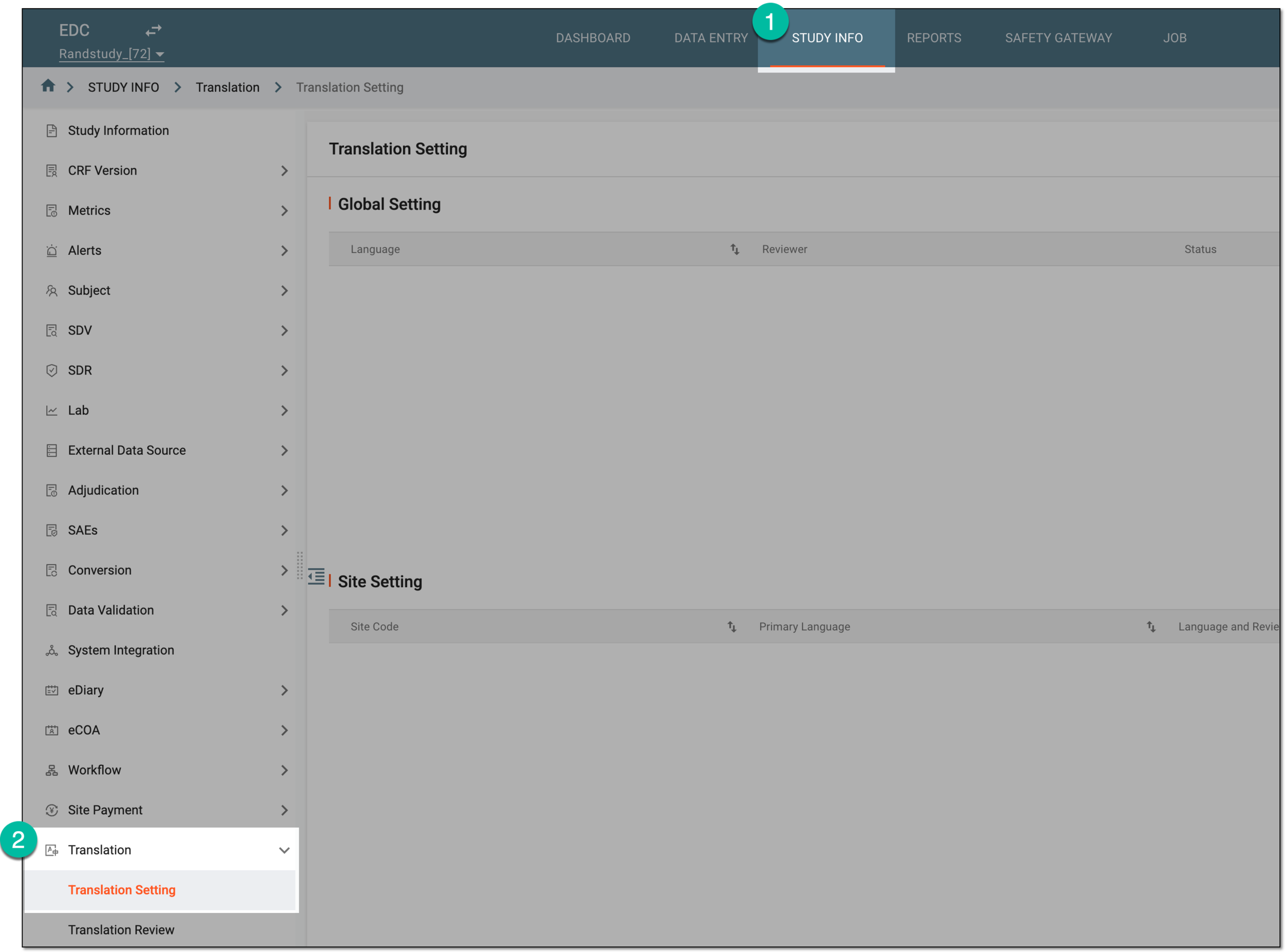 Figure 1. Accessing translation setting
-
On the Translation Setting page, on the workspace toolbar of the Global Setting block, do one of the following:
-
Turn on the AI Auto Translate toggle to enable the autotranslation of the CRF data using the AI. If enabled, the functionality to autotranslate texts in bulk becomes available for the study; the dedicated personnel has to only check and amend the autotranslated texts when performing their review tasks.
 Figure 2. Enabling AI autotranslation
-
Turn off the AI Auto Translate toggle to disable the autotranslation of the CRF data using the AI. If disabled, the functionality to autotranslate data in bulk is unavailable for the study and the dedicated personnel must enter all the translation texts manually when performing their review tasks.
 Figure 3. Disabling AI autotranslation
-
Once the toggle is turned on or off, you have enabled or disabled the AI autotranslation for your study data according to your business needs.