Activate/Inactivate translation language
In EDC, once you have set certain language for data translation in your study, you can temporarily inactivate it if necessary. This temporarily prevents EDC users from selecting this language for data entry and UI display. Once reinstated, you can activate the language again.
Important
You cannot inactivate the language if:
-
The language is set as the primary one for any site.
-
This is the only active language in the global setting list.
-
In the EDC application header, select the STUDY INFO tab.
-
On the page that opens, in the left pane, select Translation > Translation Setting.
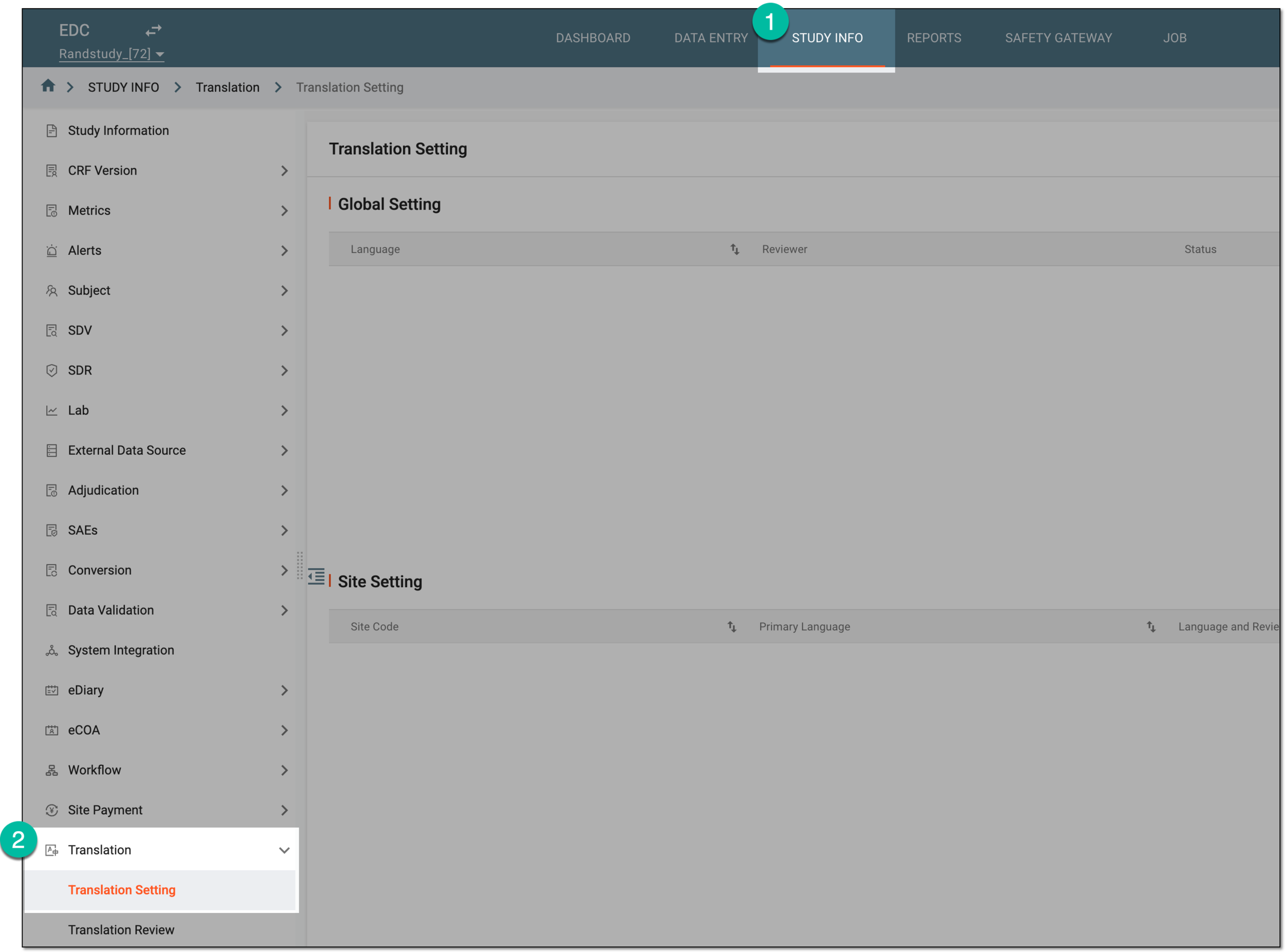 Figure 1. Accessing translation setting
-
On the Translation Setting page, in the Global Setting list, next to the translation language of your interest, select More
 and then one of the following:
-
Activate
 : select this option to activate the inactive language and make it available for selection for data entry and
UI display in EDC.
: select this option to activate the inactive language and make it available for selection for data entry and
UI display in EDC. -
Inactivate
 : select this option to inactivate the active language and make it unavailable for selection for data
entry and UI display in EDC.
: select this option to inactivate the active language and make it unavailable for selection for data
entry and UI display in EDC.
 Figure 2. Selecting option to inactivate translation language
-
-
In the confirmation dialog that appears, select OK to proceed with your action.
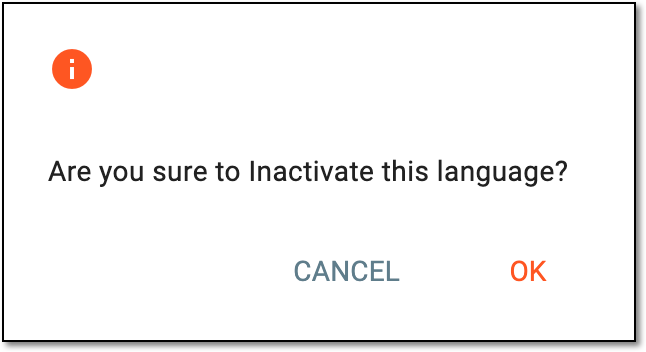 Figure 3. Confirming language inactivation
Once confirmed, the translation language becomes inactive or active for the study based on your selection.