Edit contract
A contract is an agreement between the sponsor and the vendor for certain services to be financially compensated on the established terms.
In CTMS, you can create contracts with counterparties, reflecting different business scenarios and enabling financial operations. If needed, you can update your contract details to adjust it to your business needs.
Important
If the contract audit is enabled for your study, you cannot edit a contract in the Auditing status.
Editing a contract in the Active status initiates a new contract version. Editing a contract in the Draft status does not affect the contract version.
-
Access the study management page in one of the following ways:
-
In the CTMS application header, select the DASHBOARD tab and then select the study dashboard of your interest.
 Figure 1. Accessing study management from dashboard
-
In the CTMS application header, select the STUDY MANAGEMENT tab. Then from the Study Data List table, select the study name of your interest.
 Figure 2. Accessing study management from study data list
-
-
On the page that opens, in the left pane, select Financial Management > Contract.
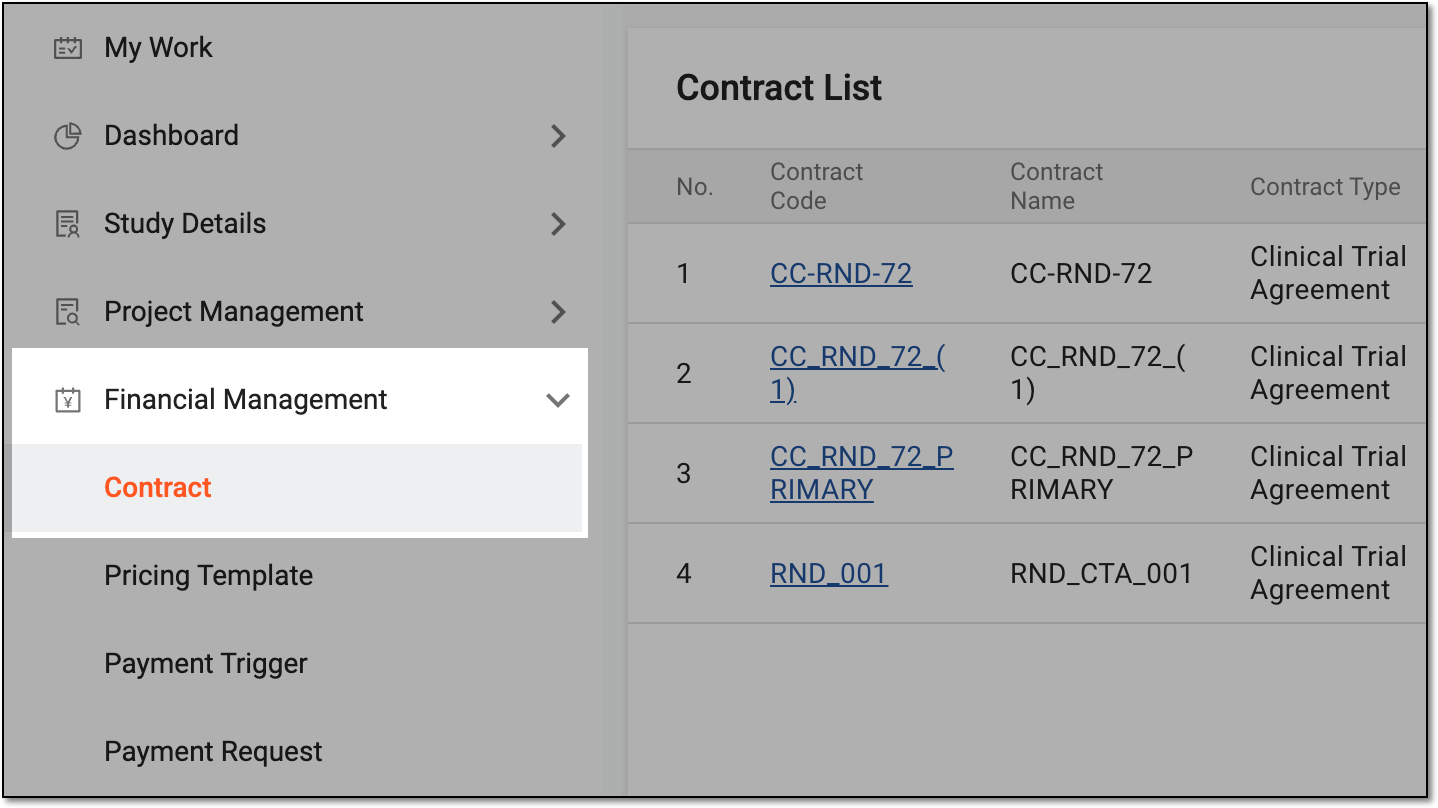 Figure 3. Accessing contract list
-
In Contract List that appears, locate the contract you want to edit. Then select the contract name or from the Action(s) column, select Edit
 .
.Tip
Both contract code and Edit
redirects you to the contract details page. If
the contract is already in audit, you can no longer edit its details, so the Edit option becomes disabled. However, you can still access the details by
selecting the contract code, but not make any changes there. Figure 4. Accessing contract details
-
On the page that opens, update the contract details. These details are identical to those explained in the table of the Create contract section.
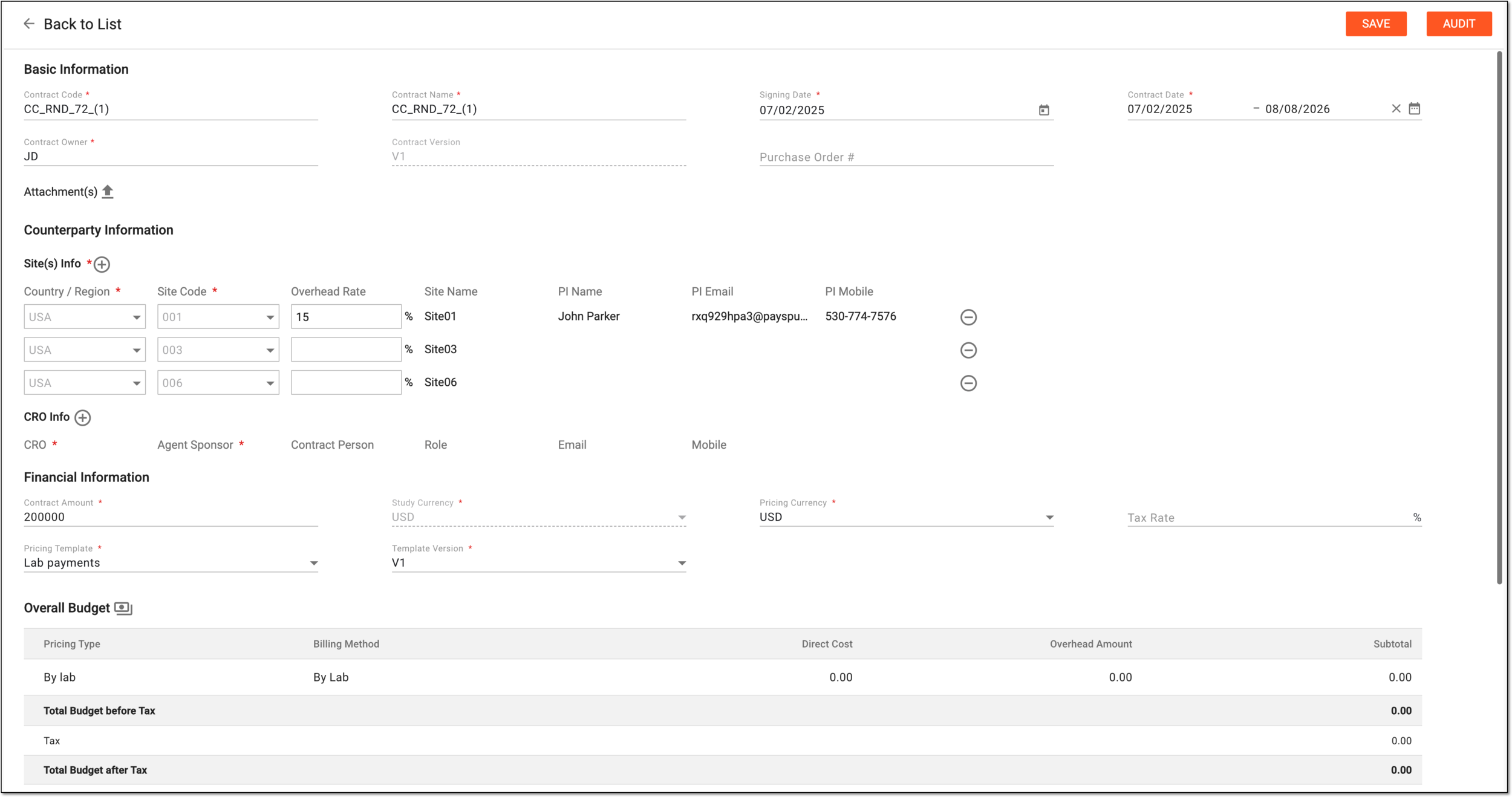 Figure 5. Editing contract details
-
Select
 to implement the changes.
Once saved, the contract is updated as follows:
-
For the contract in Draft, the changes are saved, and you now need to submit the contract.
-
For the contract in Active the changes are saved and you now need to submit the contract. Upon submission, the contract version increases by one, and the contract status changes to Auditing. The dedicated personnel has to audit the contract amendments to validate them.