Edit product unit
At any time, you can make updates and edits to your product units. For example, you may want to change the item type, update the item unit name, and so on.
-
In the IWRS application header, select the TREATMENT DESIGN tab.
-
In the left pane, select the Item Unit subtab.
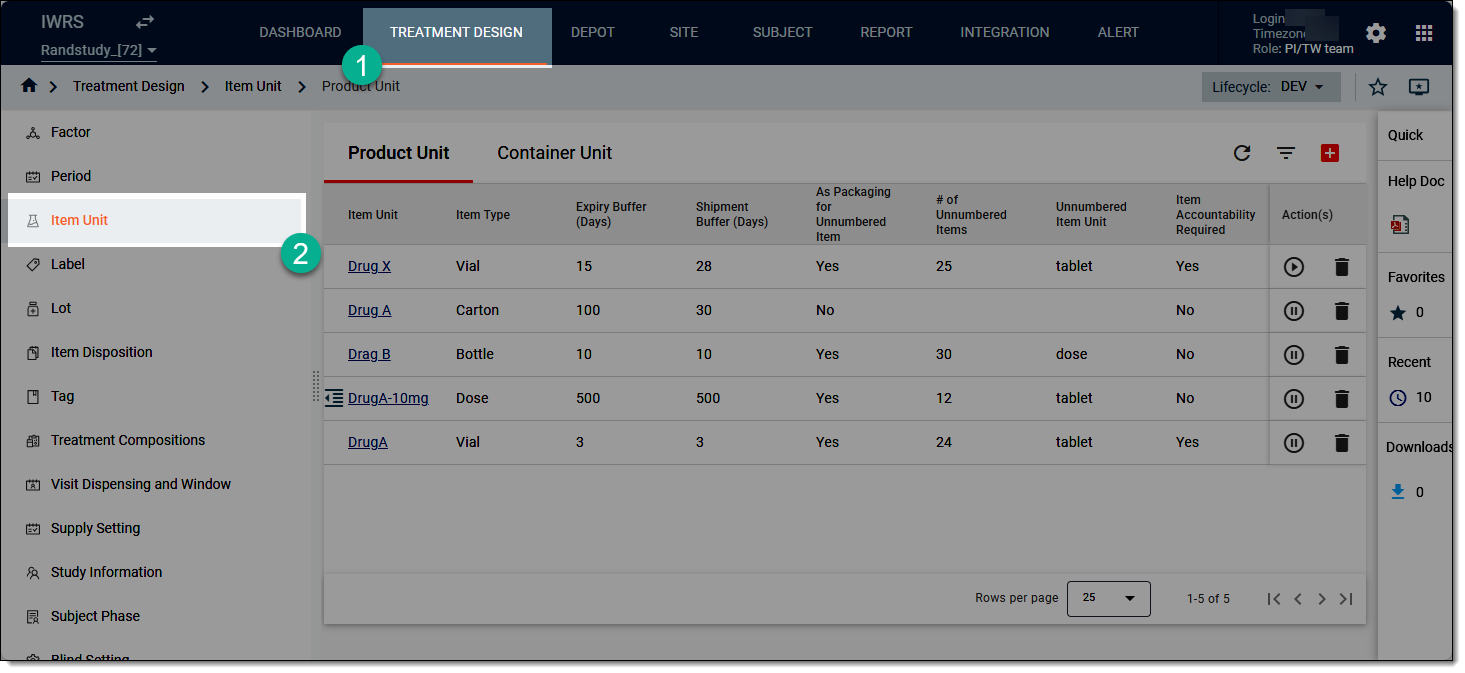 Figure 1. Accessing product unit list
-
In the Product Unit tab that opens, go to the product unit that you want to update and select it.
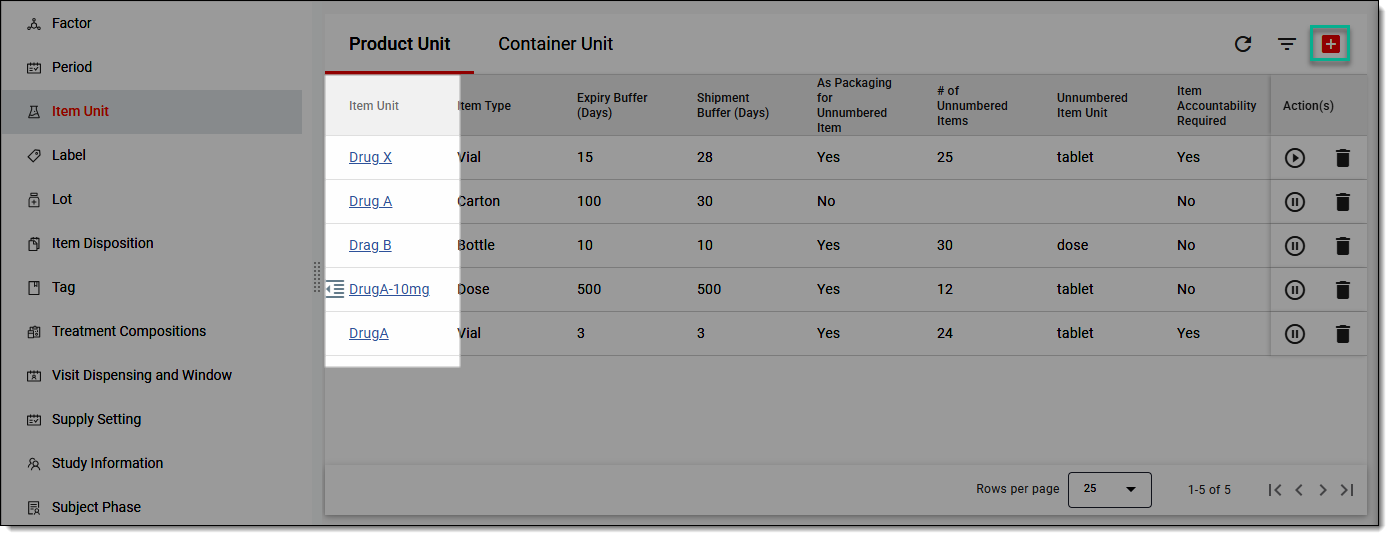 Figure 2. Selecting product unit
-
On the page that appears, update the product unit details as explained in the following table.
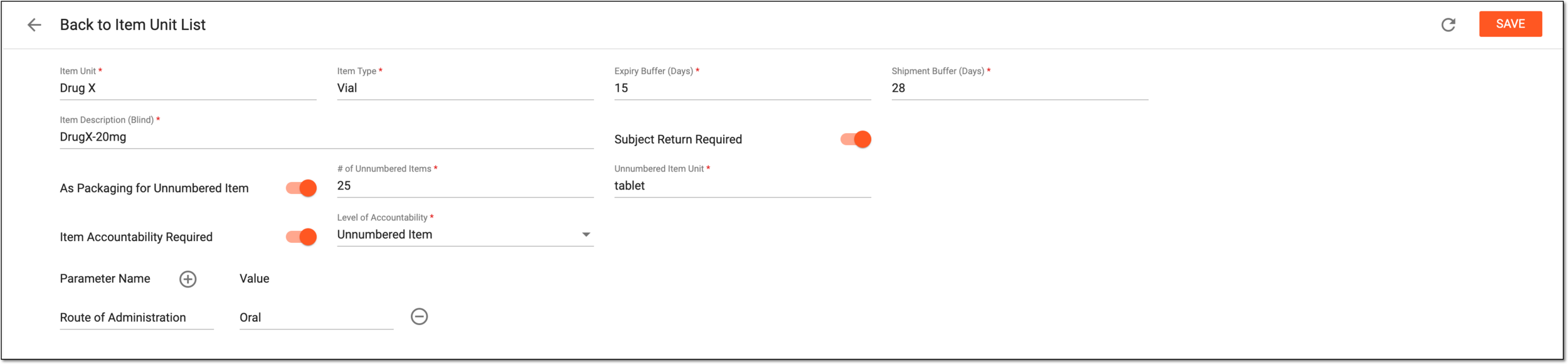 Figure 3. Editing product unit details
Element
Details
Item Unit*
Enter a unique product unit name, for example, "DrugX."
If the product unit has been released to a depot or site and you update its name, a new name is applied everywhere across IWRS.Item Type*
Select the type of product unit you are creating. This can be either Bottle, Vial, Carton, Device, or any other customized type you want (simply define your own option by entering its name on your keyboard).
Expiry Buffer (days)*
Enter the number of buffer days before the product expires. For example, if a product expires in N days which is less than the expiry buffer days, the system will not use the product for dispensing and shipping.
Shipment Buffer (days)*
Enter the number of days to be established as a threshold between the shipment of the drug and its expiration date. This helps avoid situations where the item expires before even being delivered to its destination.
For example, if a drug expires in 25 days and the shipment buffer is 30 days, the system will not use the item for shipping.
Item Description (blind)*
Enter a meaningful description of the product unit you add, for example, "DrugX-20mg."
This is a blinded field. In the product details, unless the user has Unblind View permission granted to their user role via the ADMIN application, Blind is displayed instead of a real value.Subject Return Required
Turn the toggle on or off to determine whether the subject needs to return the product if it has not been used (taken), respectively.
As Packaging for Unnumbered Item
Turn the toggle on or off to determine whether the product you are adding is a package unit of several subproducts or not, respectively. For example, it can be a bottle (item) containing tablets (subproduct or unnumbered product).
# of Unnumbered Items*
Define the number of subproduct contained in the product of the unit. For example, a bottle (item) contains 25 tablets (subproduct or unnumbered product).
The field is only available if the As Packaging for Unnumbered Item toggle is turned on.Unnumbered Item Unit*
Enter the name of the subitem contained in the product of the unit, for example, tablet.
The field is only available if the As Packaging for Unnumbered Item toggle is turned on.Item Accountability Required
Turn this toggle on or off if you want to enable or disable the item reconciliation for depots and sites before drug destruction or return.
Level of Accountability*
Select one of the following options:
-
Item: to establish that the returned drug item—vial, blister, tablet, and so on—must be accounted for upon reconciliation.
-
Unnumbered Item: to establish that the returned subitems in the drug packaging—number of tablets in a blister or vial and such—must be accounted for upon reconciliation.
The option is only available if the As Packaging for Unnumbered Item toggle is turned on.
Parameter Name
Select the plus symbol
 to add a new field and introduce a custom characteristic of the product unit you configure. Add as many such fields as required, for instance,
"Route of Administration."
to add a new field and introduce a custom characteristic of the product unit you configure. Add as many such fields as required, for instance,
"Route of Administration."Select the minus symbol
 to remove a field added by mistake.
Value
Enter the value of the custom characteristic of the product unit you configure, for instance, for the "Route of Administration" parameter, the value can be "Oral."
SAVE
Select
 to save your product unit.
REFRESH
Select
 to refresh the fields and clean all the data you have entered.
If the data has been changed and saved by others while you are on this page, you can select to
reload the page and view the updated data. -
Once all the updates are saved, a confirmation message appears at the bottom of the screen. Your product unit has now been updated. You can also activate/inactivate or permanently delete a product unit.