Check reference items of PD template
A protocol deviation (PD) is any change, divergence, or departure from the study design and procedures originally approved and defined in the protocol, consent document, or other study materials.
To seamlessly record potential or occurred protocol deviations, the predefined templates from the CTMS library are associated with a study, site, or subject to document the corresponding divergence from the protocol. For analysis purposes, you can check which protocol deviations are recorded using which templates.
-
Access the study management page in one of the following ways:
-
In the CTMS application header, select the DASHBOARD tab and then select the study dashboard of your interest.
 Figure 1. Accessing study management from dashboard
-
In the CTMS application header, select the STUDY MANAGEMENT tab. Then from the Study Data List table, select the study name of your interest.
 Figure 2. Accessing study management from study data list
-
-
On the study page, in the left pane, select Protocol Deviation > Setting.
-
In the Template Setting block, next to the study, site, or subject's associated template, select Reference Items
 .
.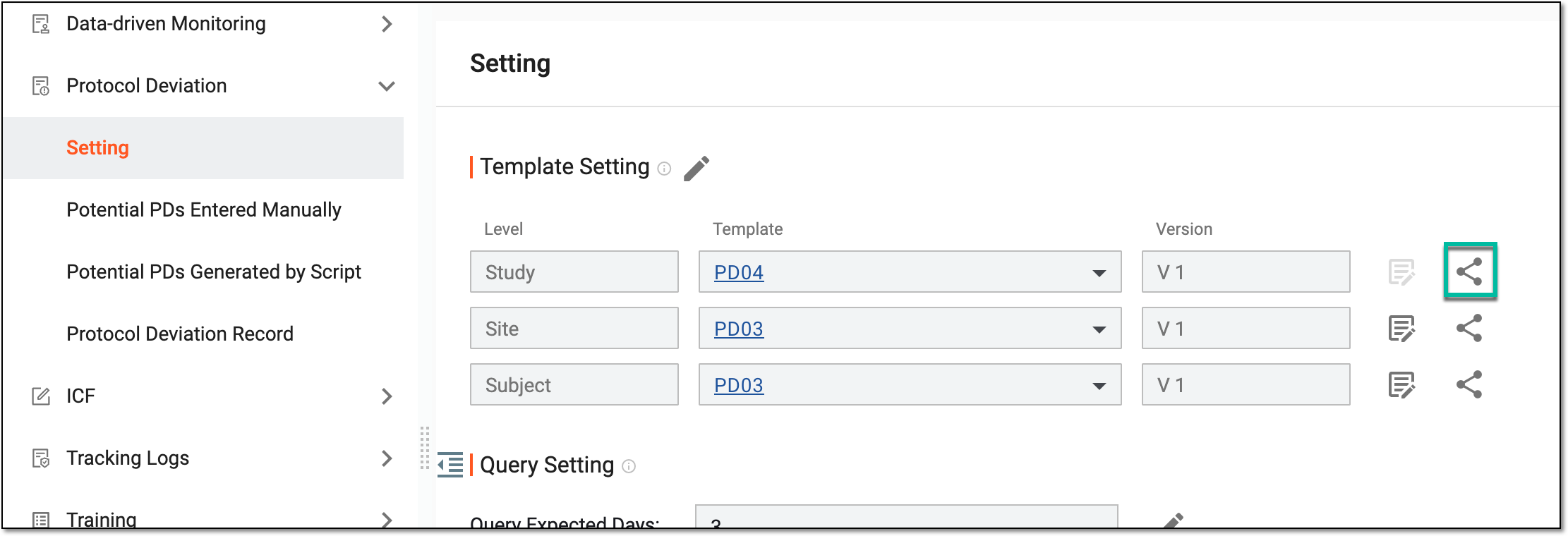 Figure 3. Accessing reference items
Tip
You can select the associated template link to go to the template in the CTMS library and update it if needed.
-
On the page that opens, select PD Record or Potential PDs Entered Manually to view the list of templates referenced to occurred PD records or potential PD records, respectively.
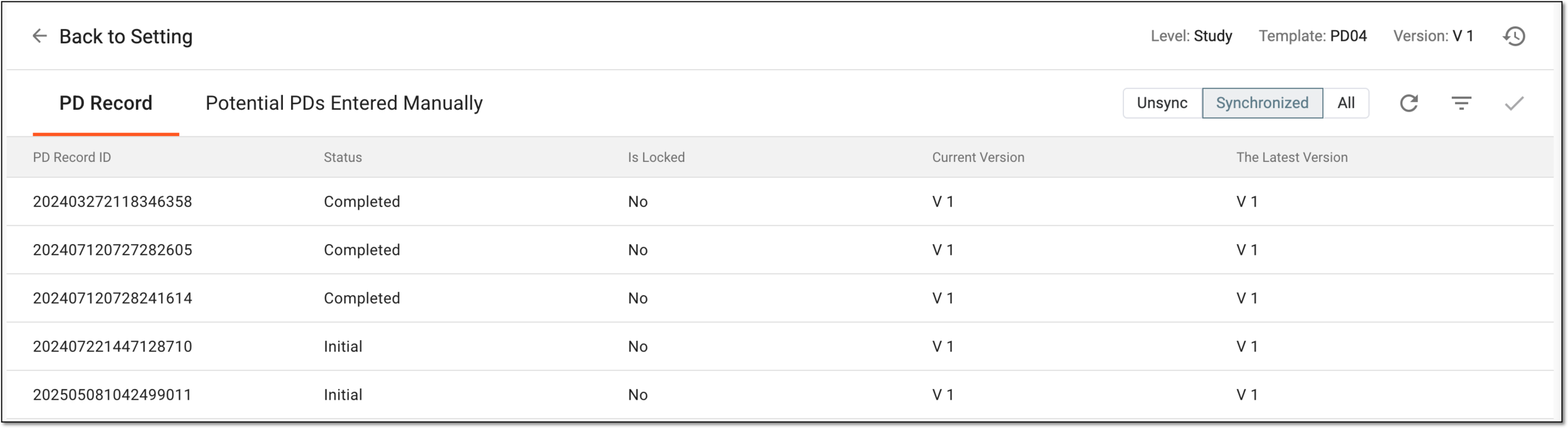 Figure 4. Analyzing reference items of PD template
Tip
To efficiently analyze the items, select the filters—Unsync, Synchronized, and All—to view the PD records that are not synchronized with the latest PD template version, the ones that are synchronized, and all the PD records of the template, respectively.
You can also select the unsynchronized records and upgrade them to the latest template version by selecting
 in the workspace
toolbar.
in the workspace
toolbar.
Once you have analyzed the reference items of the PD template, you can proceed with checking the operation history of the reference items, if needed.
Analyze operation history of PD template reference items
In CTMS, you can analyze the operation history of the reference items of the protocol deviation (PD) template associated with a study, site, or subject. The reference items are a list of PD records that are using the corresponding templates. These items can be upgraded to a new version of the template, and by analyzing the operation history, you can check when and by whom the item's version has been upgraded.
-
Access the study management page in one of the following ways:
-
In the CTMS application header, select the DASHBOARD tab and then select the study dashboard of your interest.
Figure 1. Accessing study management from dashboard
-
In the CTMS application header, select the STUDY MANAGEMENT tab. Then from the Study Data List table, select the study name of your interest.
Figure 2. Accessing study management from study data list
-
-
On the study page, in the left pane, expand Protocol Deviation and select Setting.
-
In the Template Setting block, next to the study, site, or subject's associated template, select Reference Items
.Figure 3. Accessing reference items
Tip
You can select the associated template link to go to the template in the CTMS library and update it if needed.
-
On the page that opens, from the workspace toolbar, select Operation History
 .
.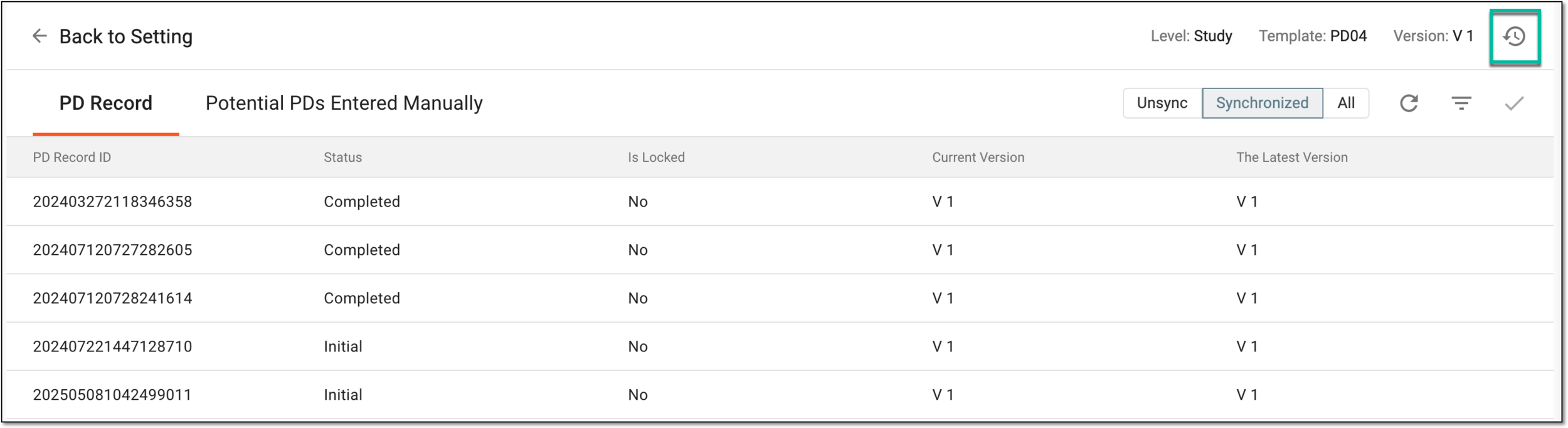 Figure 4. Accessing operation history of reference items
-
In the dialog that opens, analyze the changes made to reference items.
Once you have analyzed the changes, select OK to return to the reference items.