Associate milestone with study activities
In CTMS, you can define milestones representing a significant phase or checkpoint in a study or project, such as subject enrollment, site openings, or critical study visits. You can associate a milestone with study activities defined in library ensuring that key project events are linked to specific tasks, enabling better tracking and coordination. This connection allows milestones to reflect progress based on the completion of associated activities.
-
In the CTMS application header, select the LIBRARY tab.
-
On the page that opens, from the left pane, select Milestone Template.
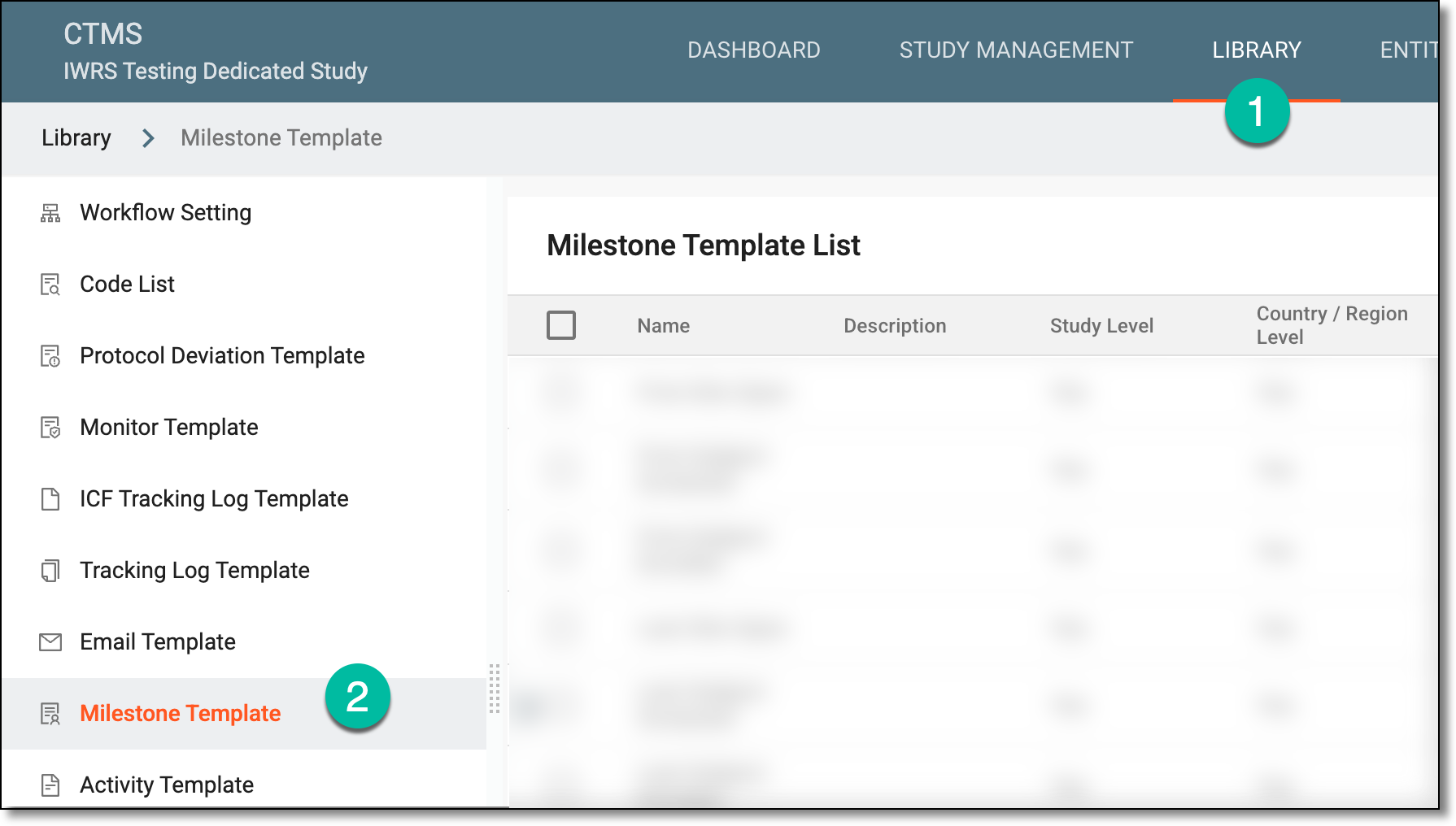 Figure 1. Accessing milestone template subtab
-
On the page that opens, in the Milestone Template List table, next to the required milestone, from the Action(s) column, select Associate with Activities
 .
.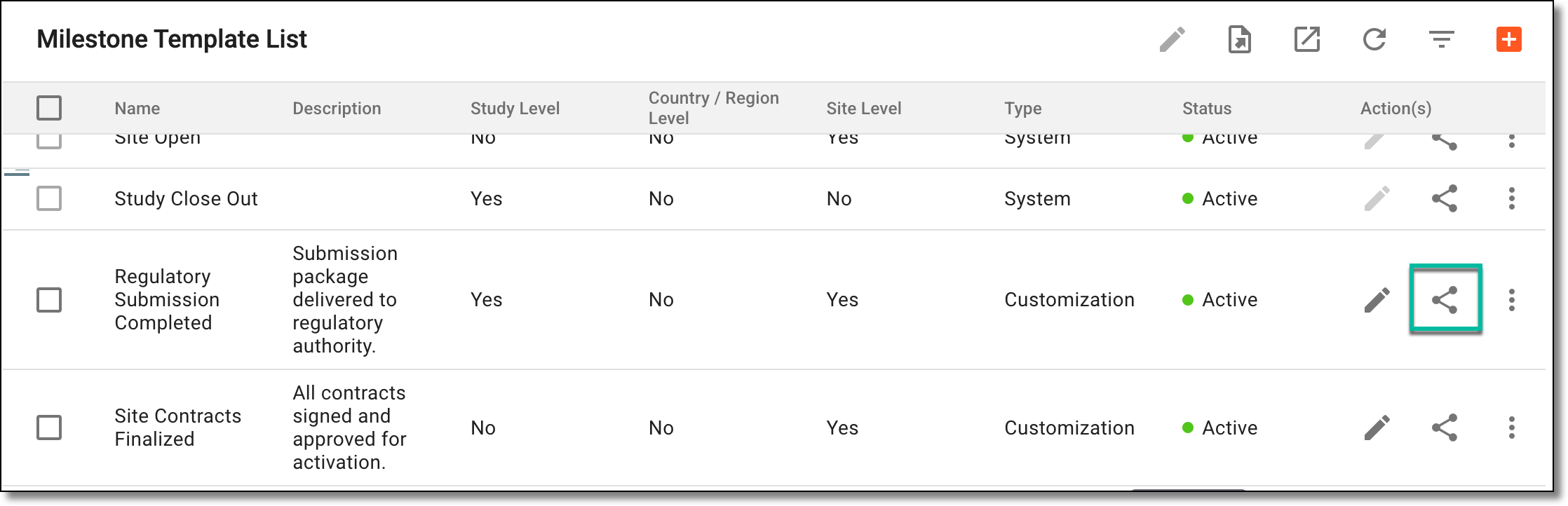 Figure 2. Selecting to associate milestone with activity
-
In the dialog that opens, select the activities you want to associate with your milestone as explained in the following table.
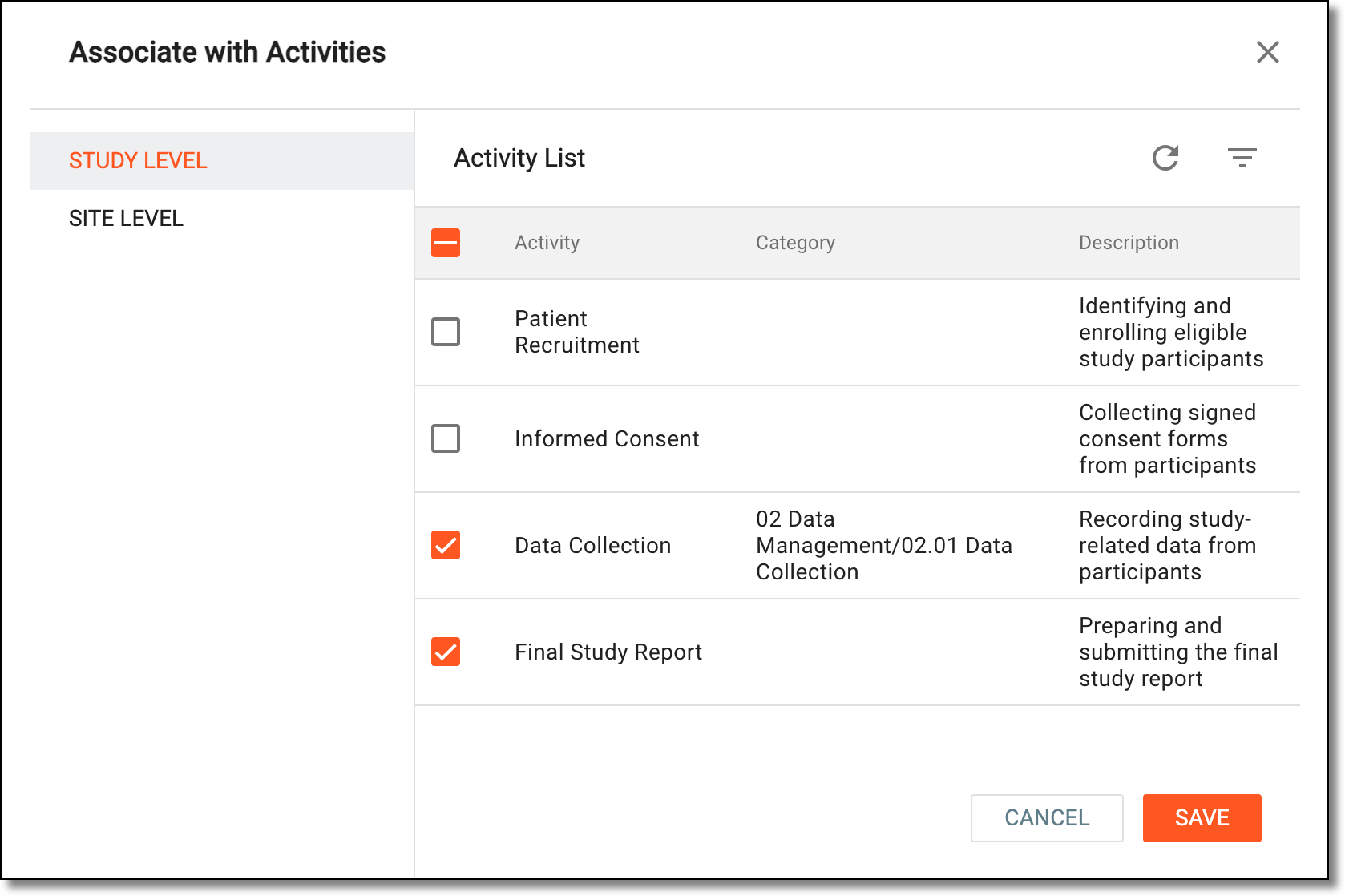 Figure 3. Associating activity with milestone
Element
Details
STUDY LEVEL
Displays the activities applicable to the study. This option is visible and selectable only if the milestone was marked as applicable to the study during its creation.
COUNTRY/REGION LEVEL
Displays the activities available at the country or region level. This option is visible and selectable only if the milestone was marked as applicable to the country or region during its creation.
SITE LEVEL
Displays the activities available for the site. This option is visible and selectable only if the milestone was marked as applicable to the site during its creation.
Activity List
Select the study, country/region, or site activities you want to associate with your milestone.
Note that the activities you see here are fetched from activities predefined in the library.SAVE
Select
 to implement your changes.
CANCEL
Select
 to dismiss your changes without saving.
Once saved, the activities are associated with your milestone.