Create activity
In the CTMS library, you can create an activity to use it later in a study. An activity in a clinical trial refers to a specific task, process, or event that must be completed as part of the study workflow. Activities are essential for effective study execution, tracking, and regulatory compliance, helping each phase move forward in line with the protocol.
-
In the CTMS application header, select the LIBRARY tab.
-
On the page that opens, from the left pane, select Activity Template.
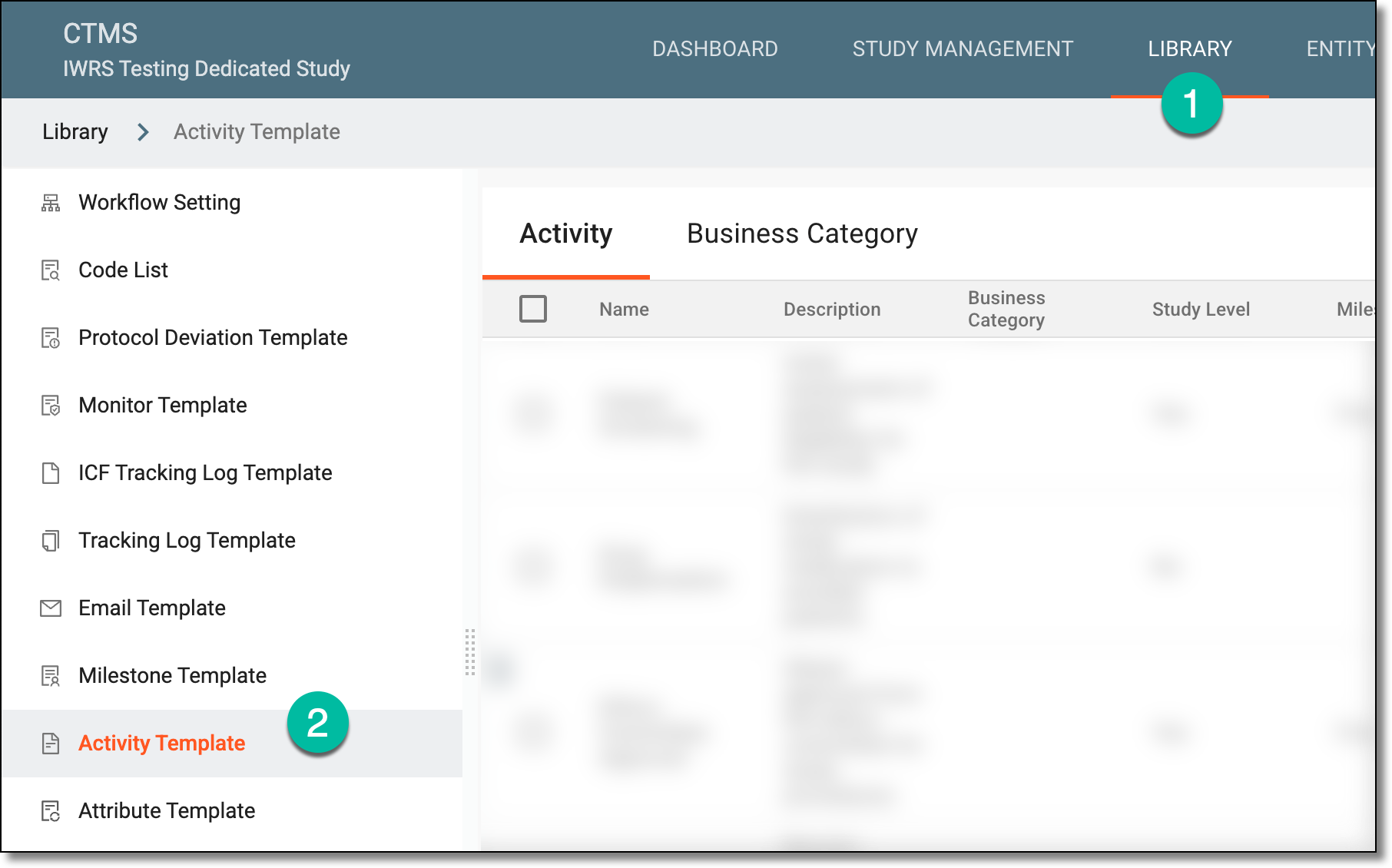 Figure 1. Accessing activity template subtab
-
On the Activity Template List page that opens, from the workspace toolbar, select New Item
 .
.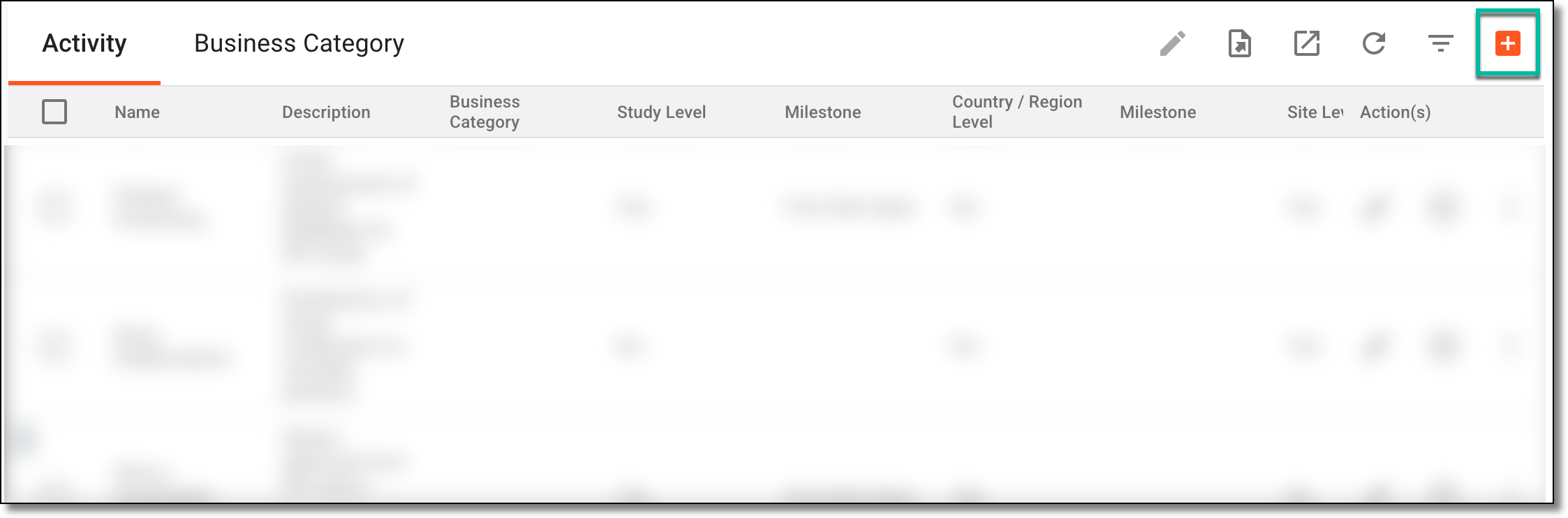 Figure 2. Selecting to create new activity
-
In the dialog that opens, enter the new activity or activities' details as explained in the following table.
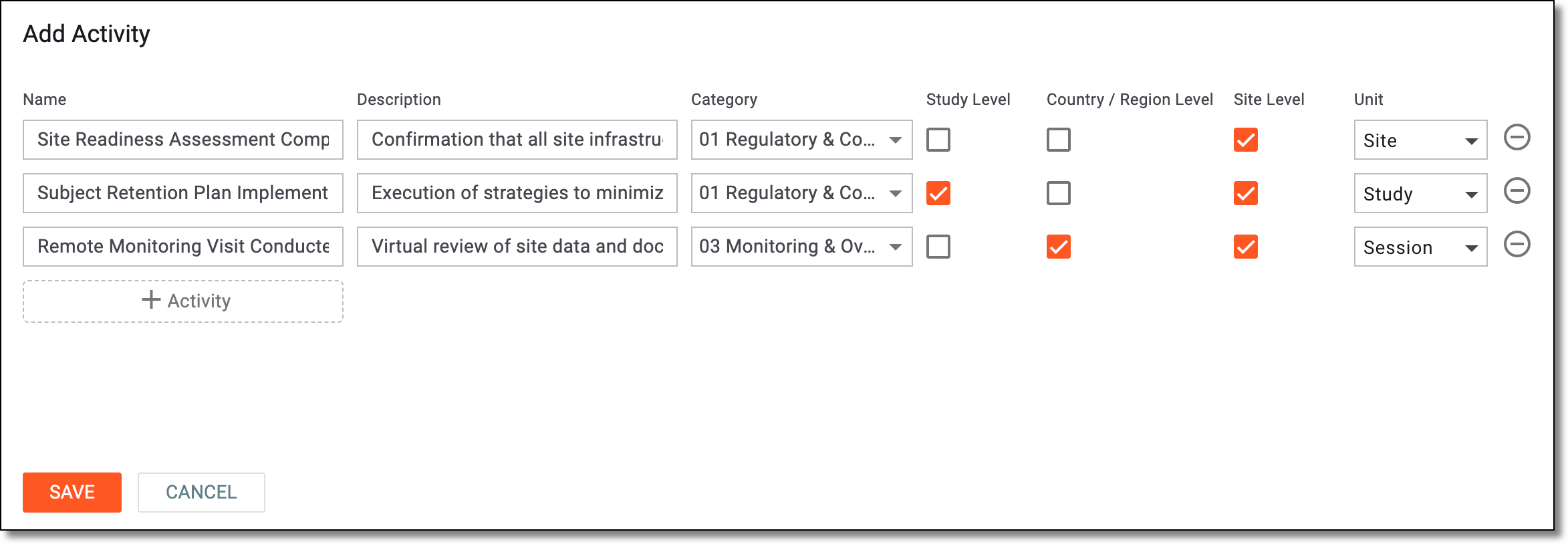 Figure 3. Creating new activities
Element
Details
Name
Enter a unique name for the activity.
Description
Enter the activity's description providing additional details or clarification to the system users.
Study Level
Select the checkbox if you want to add the activity to your current study in which you are working.
Country/Region Level
Select the checkbox to add the activity in all the countries and regions where the study is held and which are referenced in the system.
Site Level
Select the checkbox to add the activity to all the sites of the study.
Unit
Select the measurement unit for the activity, such as study, panel, page, and others.
Add activity
Select
 to add an additional row where you can define a new activity. This way, you can define multiple activities and then add them all at once.
Remove
Select
 to remove an activity you have accidentally added.
SAVE
Select
 to implement your changes and add the activities.
CANCEL
Select
 to dismiss your changes without saving.
Once saved, the activity or activities are added. You can now proceed to assign the pre-activities or associate the activity with a predefined category.