Assign preactivities to activity
After an activity is created, you can link it to an existing activity in the library that must be completed beforehand. This helps define task dependencies, maintain proper sequence, and ensure smooth execution of the study workflow.
-
In the CTMS application header, select the LIBRARY tab.
-
On the page that opens, from the left pane, select Activity Template.
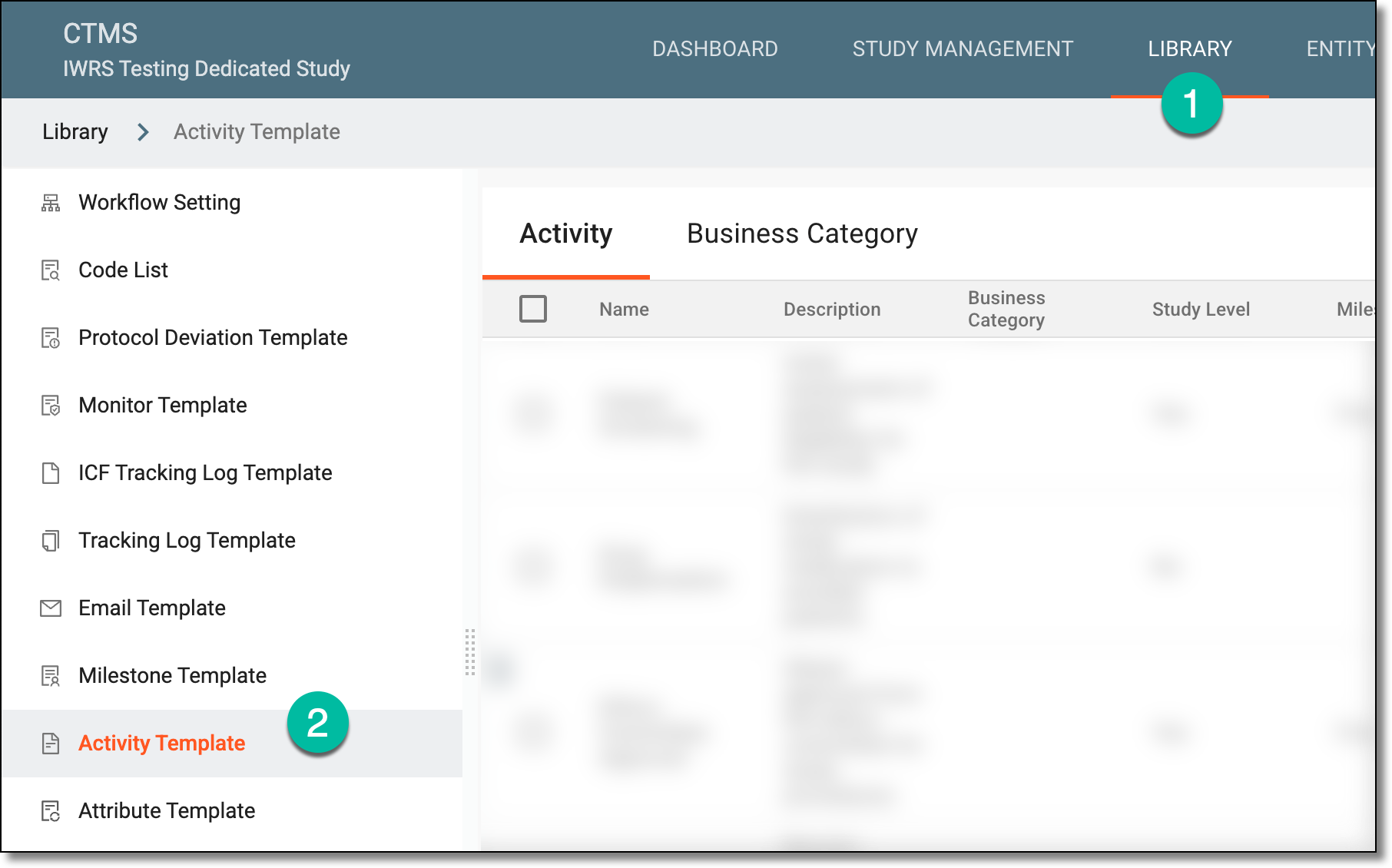 Figure 1. Accessing activity template subtab
-
On the Activity Template List page that opens, locate the activity to which you want to assign pre-activities, and next to it, from the Action(s) column, select More
 > Pre-activities
  .
.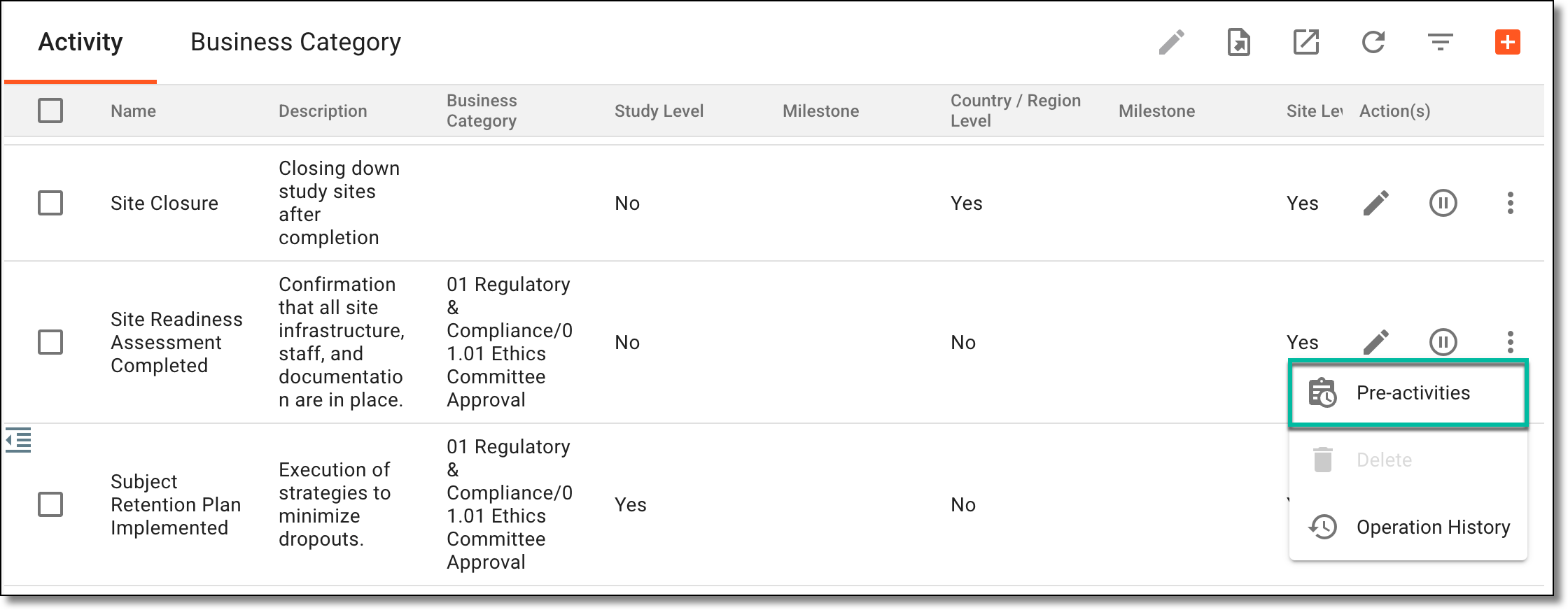 Figure 2. Selecting to assign preactivities
-
In the dialog that opens, assign the preactivities as explained in the following table.
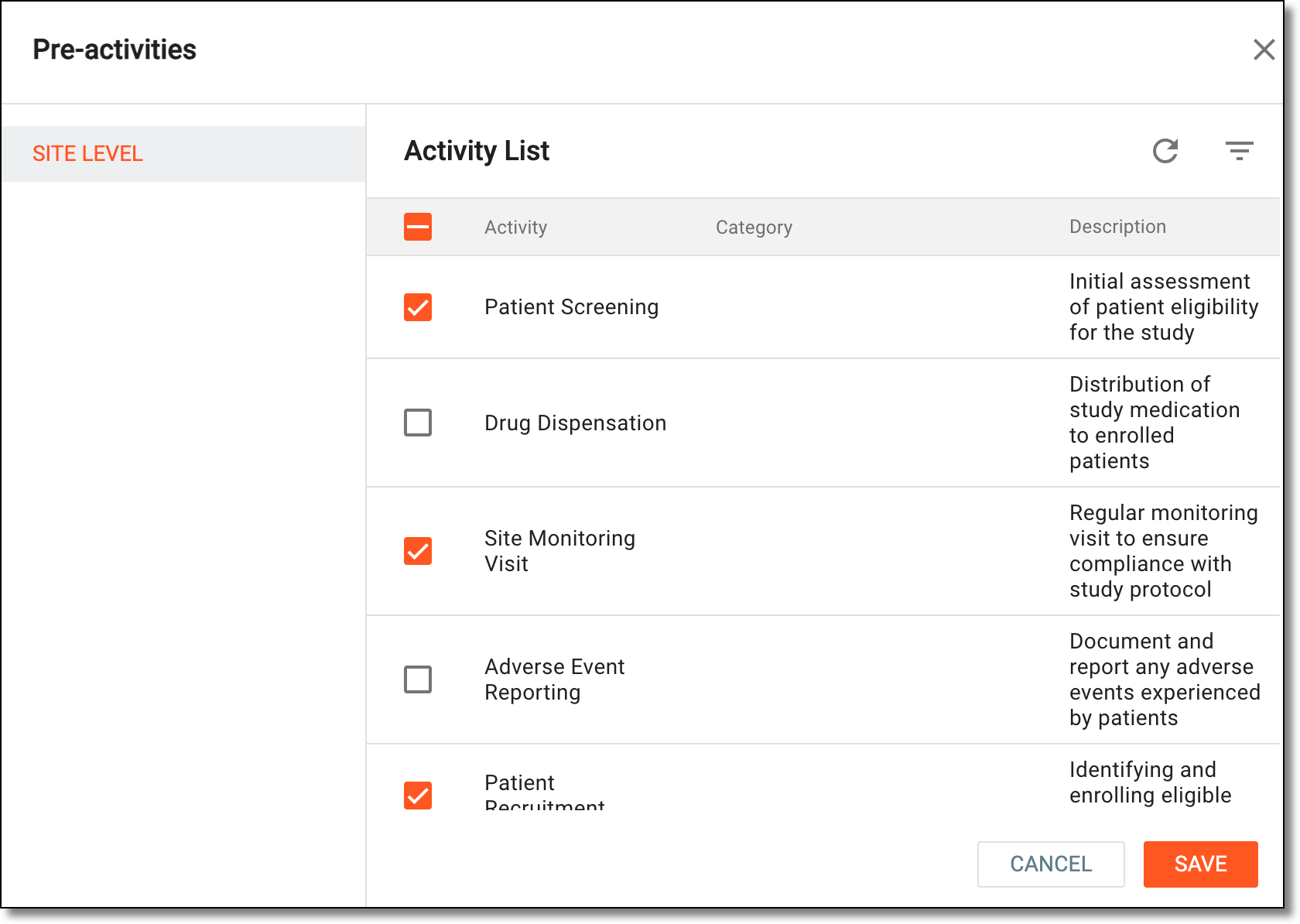 Figure 3. Assigning preactivities to activity
Element
Details
SITE LEVEL
Displays the activities available for the site. This option is visible and selectable only if the activity was marked as applicable to the site during its creation.
STUDY LEVEL
Displays the activities applicable to the study. This option is visible and selectable only if the activity was marked as applicable to the study during its creation.
COUNTRY/REGION LEVEL
Displays the activities available at the country or region level. This option is visible and selectable only if the activity was marked as applicable to the country or region during its creation.
Activity List
Select the study, country/region, or site activities you want to associate with your milestone.
Note that the activities you see here are fetched from activities predefined in the library.SAVE
Select
 to implement your changes.
CANCEL
Select
 to dismiss your changes without saving.
Once saved, the preactivity or preactivities are assigned to your activity.