Trip report addenda
The Trip Report Addenda functionality is used to document and submit additional updates or follow-up information related to a previously submitted monitoring trip report. It allows monitors to capture observations, clarifications, or newly identified findings that occurred after the original report was finalized. This ensures that all relevant information is accurately recorded and associated with the correct monitoring visit, supporting transparency and compliance in clinical trial documentation.
In Monitoring > Trip Report Addenda, supplementary documentation or updates can be submitted for a previously completed trip report. A trip report addendum allows users to include additional details or follow-up information that was not part of the original report. This feature provides flexibility to record new observations, clarifications, or updates while maintaining a clear link to the related monitoring visit.
-
Access the study management page in one of the following ways:
-
In the CTMS application header, select the DASHBOARD tab and then select the study dashboard of your interest.
 Figure 1. Accessing study management from dashboard
-
In the CTMS application header, select the STUDY MANAGEMENT tab. Then from the Study Data List table, select the study name of your interest.
 Figure 2. Accessing study management from study data list
-
-
On the study page that opens, in the left pane, expand Monitoring and select Trip Report Addenda.
-
From the workspace toolbar, select New Item
 .
.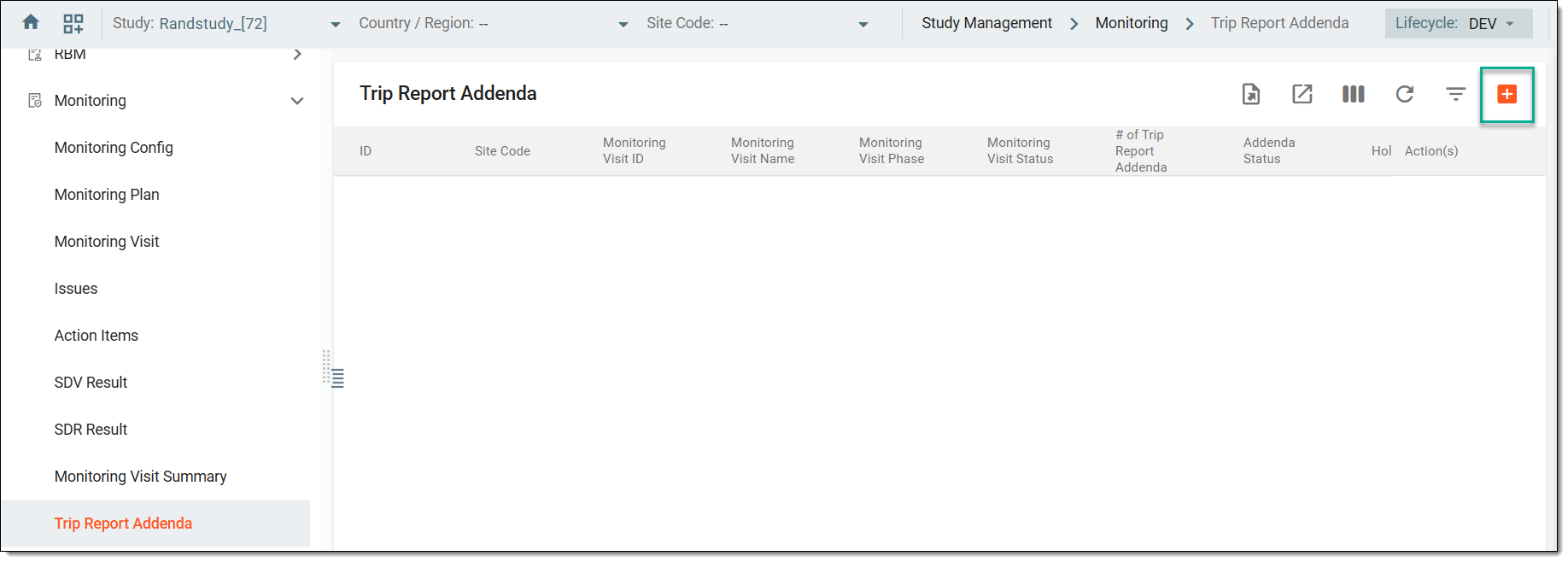 Figure 3. Selecting option to add trip report addendum
-
In the Add panel that opens on the right, enter the details as explained in the following table.
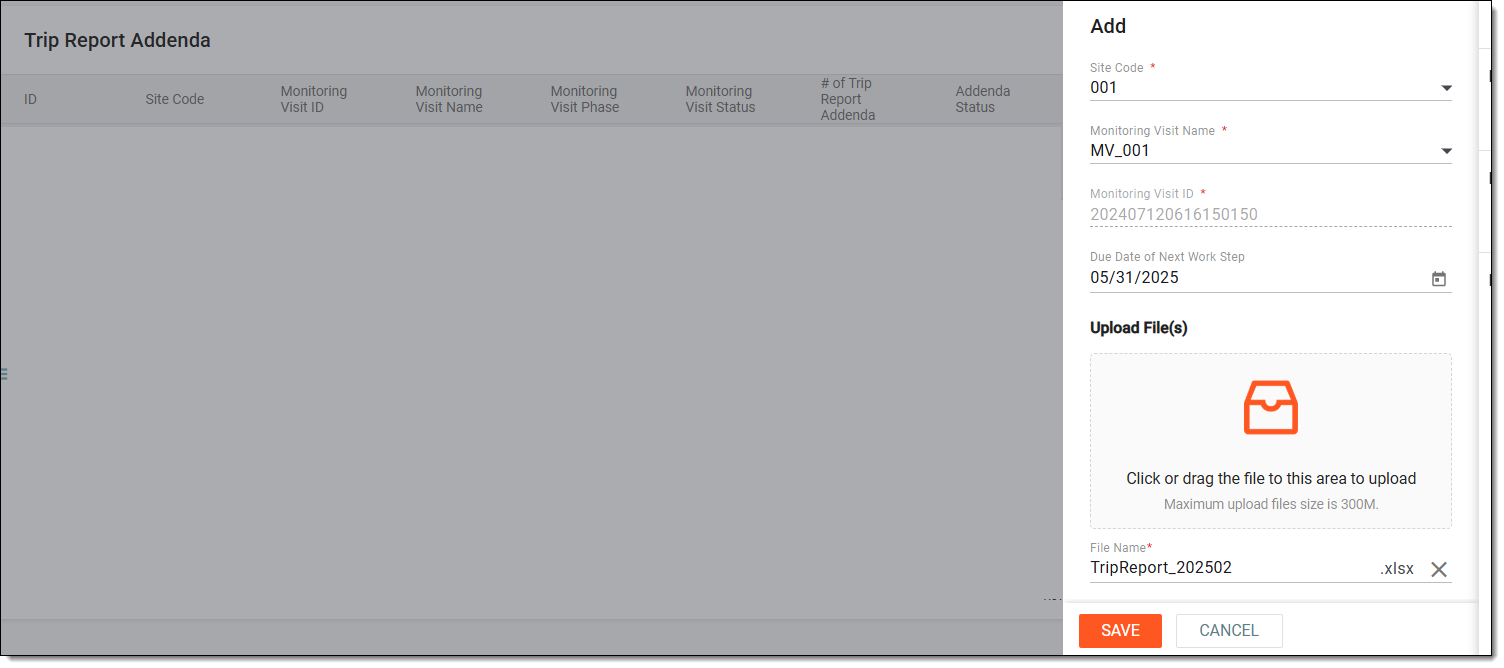 Figure 4. Adding trip report addendum
Tip
In the following table, mandatory elements are marked with an asterisk (*).
Element
Details
Site Code*
Select the code of the site associated with the monitoring visit for which the addendum is being added.
Monitoring Visit Name*
Select the name of the specific monitoring visit tied to the trip report. This links the addendum to a previously completed visit.
Monitoring Visit ID*
Autopopulated field that uniquely identifies the selected monitoring visit. It cannot be edited manually.
Upload File(s)
Select to upload the addendum file from your computer.
SAVE
Select
 to add the addendum.
CANCEL
Select
 to dismiss the process without saving.
Once selected, the file is added to the system and can now be managed with the trip reports.
Auditing a trip report addendum involves reviewing the submitted documentation to ensure it is complete, accurate, and aligned with the original trip report. This process helps verify that any follow-up details or clarifications are properly recorded and comply with study protocols and regulatory requirements.
-
Access the study management page in one of the following ways:
-
In the CTMS application header, select the DASHBOARD tab and then select the study dashboard of your interest.
Figure 1. Accessing study management from dashboard
-
In the CTMS application header, select the STUDY MANAGEMENT tab. Then from the Study Data List table, select the study name of your interest.
Figure 2. Accessing study management from study data list
-
-
On the study page that opens, in the left pane, select Monitoring > Trip Report Addenda.
-
Next to the required addenda, from the Action(s) column, select Audit
 .
.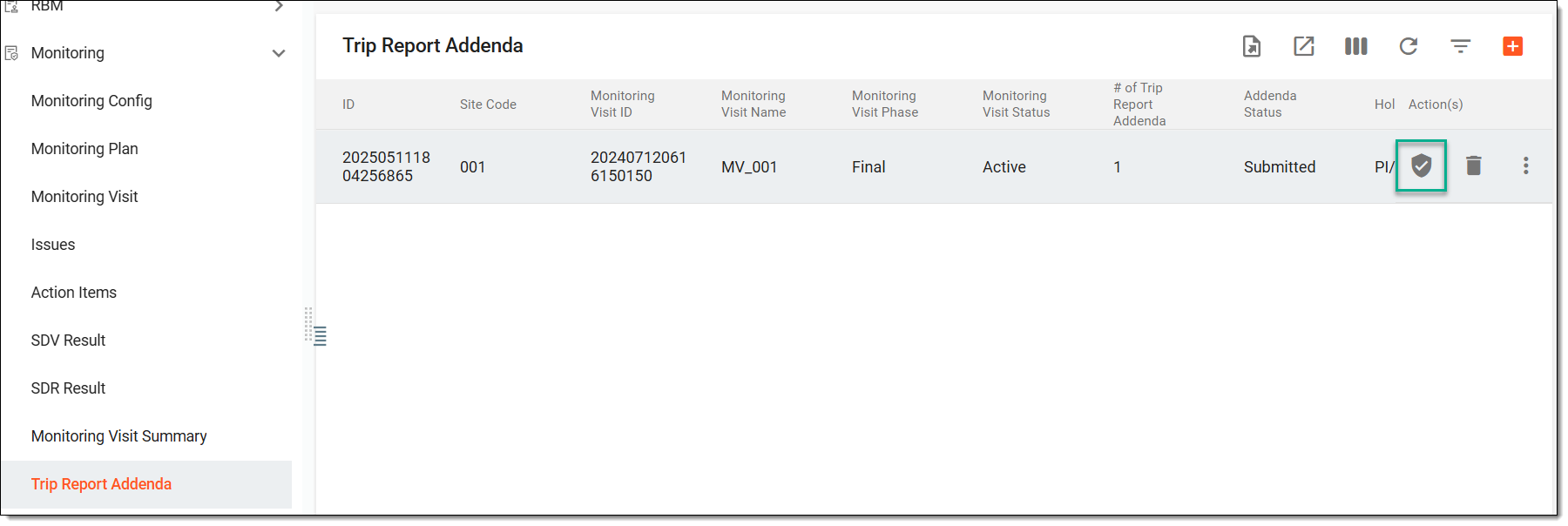 Figure 3. Accessing audit trip report
-
In the dialog that appears, select the decision to either approve or reject the trip report as explained in the following table.
Important
The details you need to provide for action confirmation depend on the authentication method configured for you in the system—via SSO or via providing your login and password.
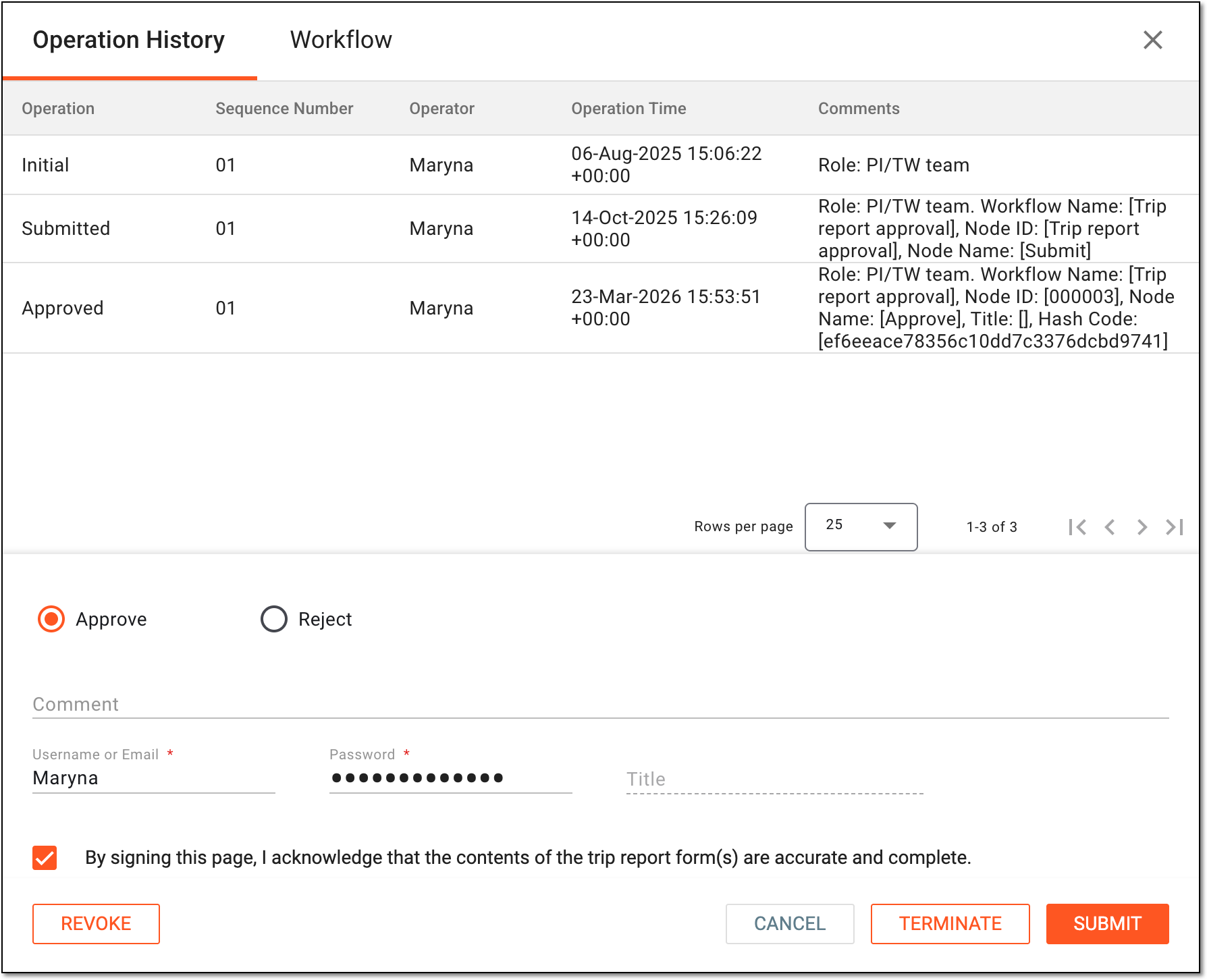 Figure 4. Approving trip report
Tip
In the following table, mandatory elements are marked with an asterisk (*).
Element
Details
Approve
Select this option to approve the trip report and all its forms.
Reject
Select this option to reject the trip report if there are reasons for it, such as incorrect or missing data or else.
Due Date of Next Work Step
Select the due date for the next user action required according to the assigned trip report auditing workflow.
This field becomes available only for the rejection operation.Comment
Enter a comment to follow up on the trip report. This might be an important note for the next reviewer or else.
This field becomes mandatory only for the rejection operation.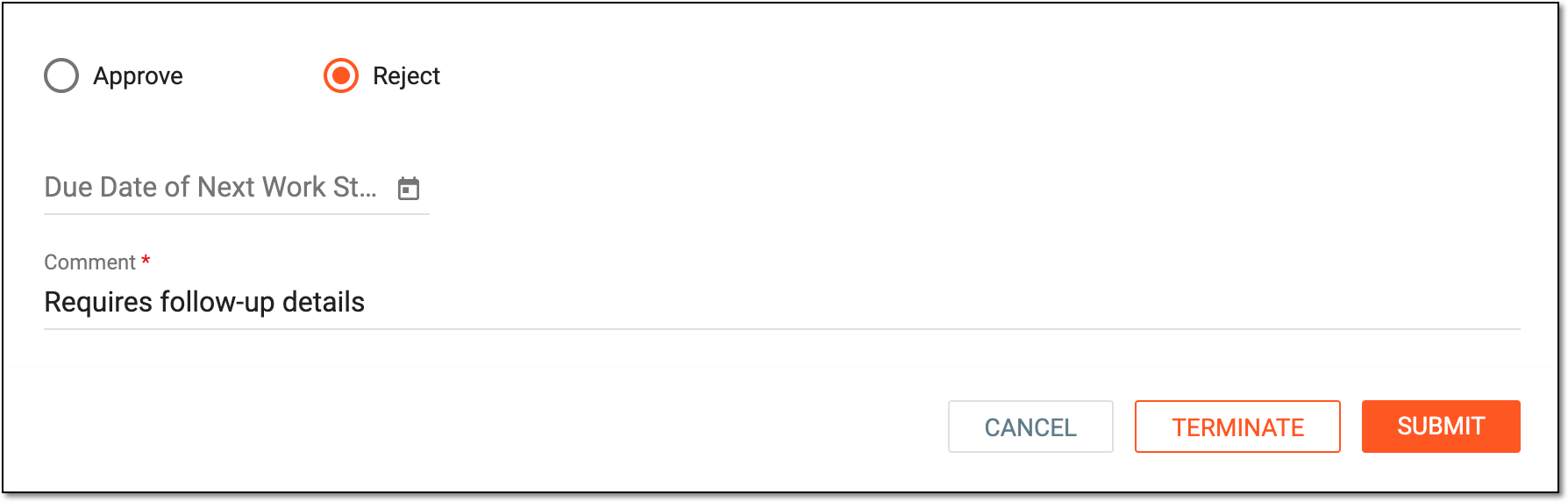 Figure 5. Adding mandatory comment for rejection
Username or Email*
Enter your username or email that you use to log in to the eClinical applications.
Password*
Enter the password that you use to log in to the eClinical applications.
The field is only available if you use the authorization method by providing your login and password.Send Code
Select
 to send the temporary PIN code to your email for which the SSO method is configured.
The button is only available if you use the authorization method via SSO.Code*
Enter the temporary PIN code that you received via email.
The field is only available if you use the authorization method via SSO.SUBMIT
Select
 to proceed with your selected action.
TERMINATE
Select
 to reset the workflow to the previous step according to the associated workflow.
CANCEL
Select
to discard your changes, close the dialog, and return to the trip report page.Important
For security, the system logs you out after three failed attempts to confirm your identity with a password or code.
Once audited, depending on the selected action, the trip report addenda is approved or rejected. Based on the associated workflow, the trip report is finalized or forwarded to the next auditing step.
Previewing a trip report addendum allows you to review the uploaded content before final submission or approval. This step helps ensure that the correct file has been attached and that the information provided is accurate and complete.
-
Access the study management page in one of the following ways:
-
In the CTMS application header, select the DASHBOARD tab and then select the study dashboard of your interest.
Figure 1. Accessing study management from dashboard
-
In the CTMS application header, select the STUDY MANAGEMENT tab. Then from the Study Data List table, select the study name of your interest.
Figure 2. Accessing study management from study data list
-
-
On the study page that opens, in the left pane, select Monitoring > Trip Report Addenda.
-
Next to the required addenda, from the Action(s) column, select More
 >
Preview
>
Preview  .
.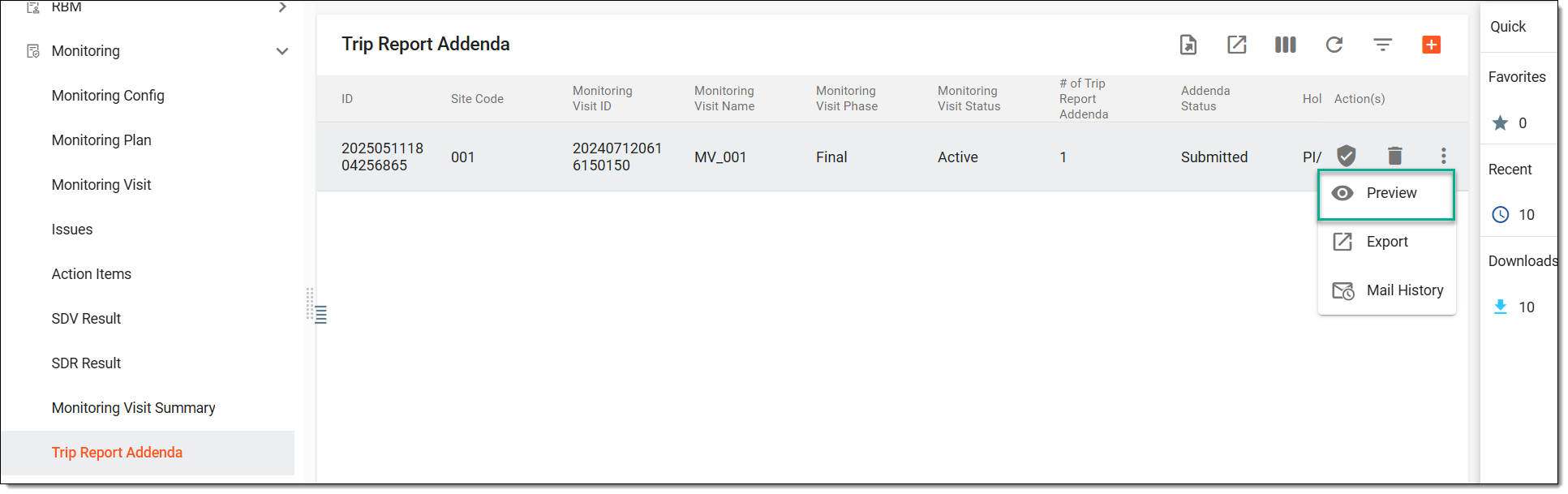 Figure 3. Selecting to preview trip report addenda
Tip
Alternatively, you can also select Audit
, and in the dialog that opens, from the workspace
toolbar, select Preview . -
On the page that opens, you can view the file details, and also, from the Action(s) column, select Download
 to export the file to your computer for analysis purposes.
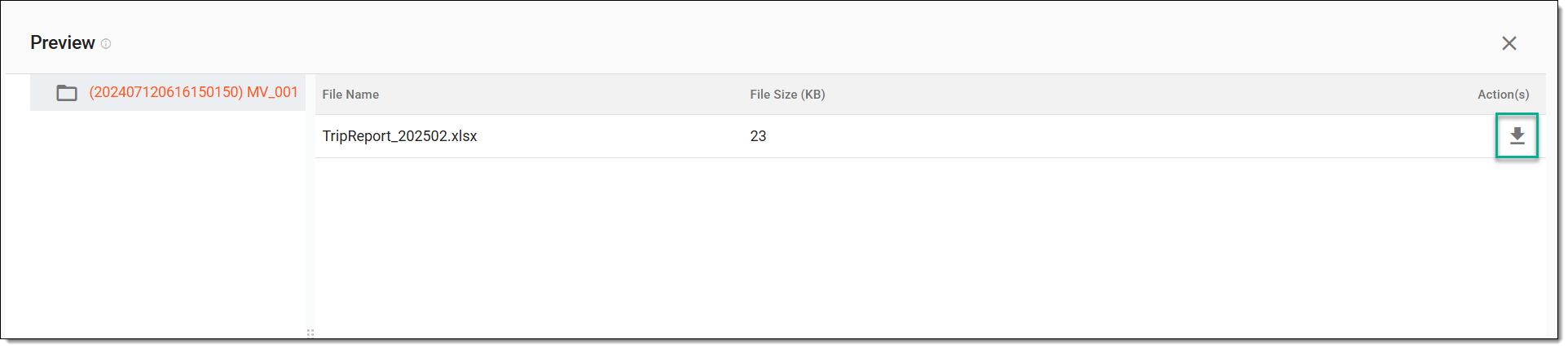 Figure 4. Previewing and downloading trip report addendum
Once previewed, you can go back to the trip report addendum and proceed with monitoring or trip report configurations as needed.
The mail history of a trip report addendum provides a record of all email communications related to the addendum. This includes details such as when notifications were sent, to whom, and the status of each message, ensuring transparency and traceability in correspondence.
-
Access the study management page in one of the following ways:
-
In the CTMS application header, select the DASHBOARD tab and then select the study dashboard of your interest.
Figure 1. Accessing study management from dashboard
-
In the CTMS application header, select the STUDY MANAGEMENT tab. Then from the Study Data List table, select the study name of your interest.
Figure 2. Accessing study management from study data list
-
-
On the study page that opens, in the left pane, select Monitoring > Trip Report Addenda.
-
Next to the required addenda, from the Action(s) column, select More
>
Mail History  .
.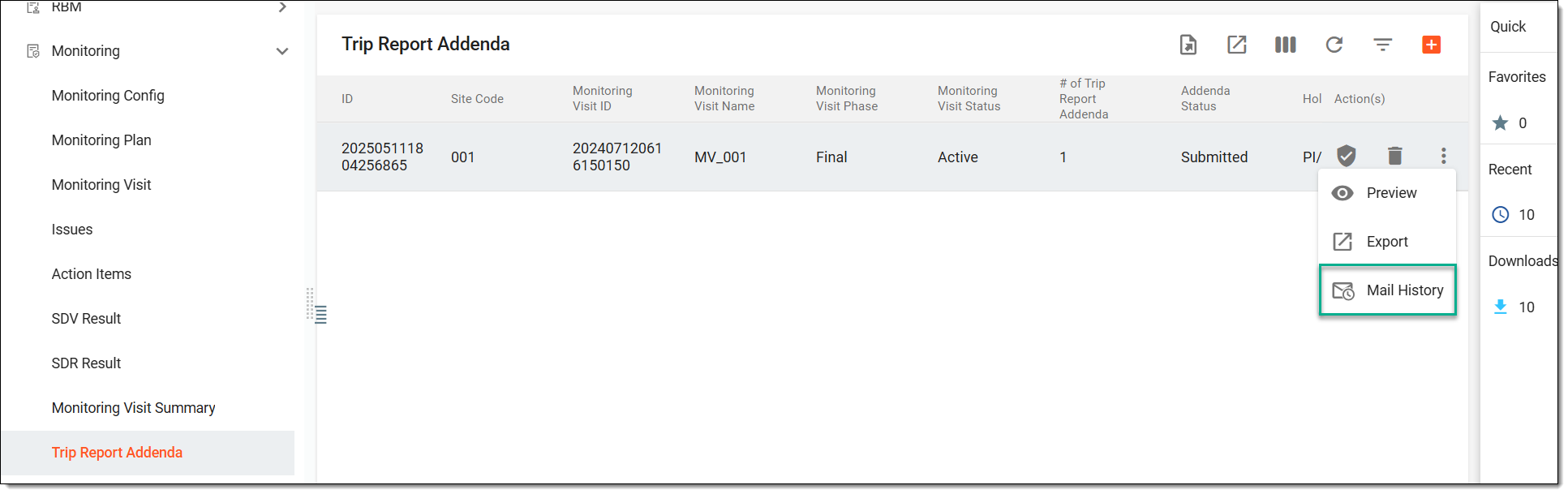 Figure 3. Selecting trip report addendum mail history
-
In the Mail History dialog that opens, select Download
to export the trip
report addendum in a PDF file to your computer or select Preview  to view this report in the browser.
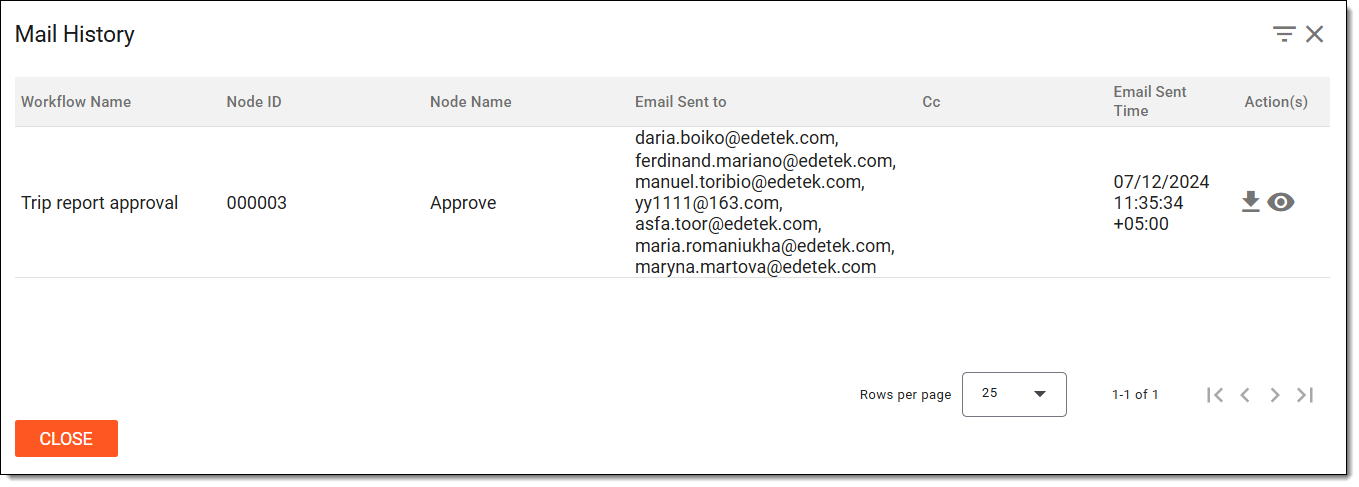 Figure 4. Viewing mail history
Once previewed, you can select CLOSE to go back to the trip report addenda and proceed with monitoring or trip report configurations as needed.
Exporting trip report addenda allows you to download and save the submitted addendum records for offline review, sharing, or documentation purposes. This helps maintain a complete and accessible archive of updates linked to monitoring visits.
-
Access the study management page in one of the following ways:
-
In the CTMS application header, select the DASHBOARD tab and then select the study dashboard of your interest.
Figure 1. Accessing study management from dashboard
-
In the CTMS application header, select the STUDY MANAGEMENT tab. Then from the Study Data List table, select the study name of your interest.
Figure 2. Accessing study management from study data list
-
-
On the study page that opens, in the left pane, select Monitoring > Trip Report Addenda.
-
Now, either from the workspace toolbar, select Export
 to export all the trip report addenda, or next to the required
addendum, from the Action(s) column, select More > Export to only export a particular addendum.
to export all the trip report addenda, or next to the required
addendum, from the Action(s) column, select More > Export to only export a particular addendum.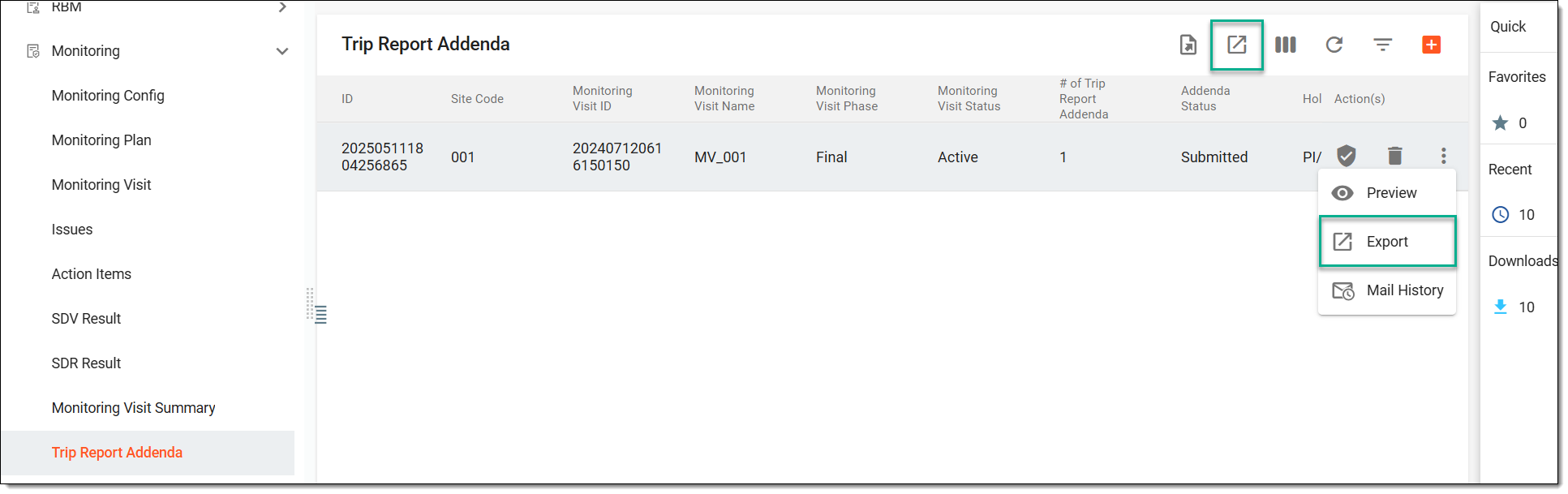 Figure 3. Choosing options to export trip report addenda
-
The downloads widget appears showing the export progress. Select the widget to access exported files.
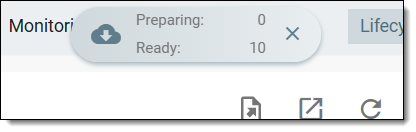 Figure 4. Downloads widget showing trip report addendum being exported
-
In the My Downloads dialog that appears, in the Download is Ready tab, select
next to the required exported file.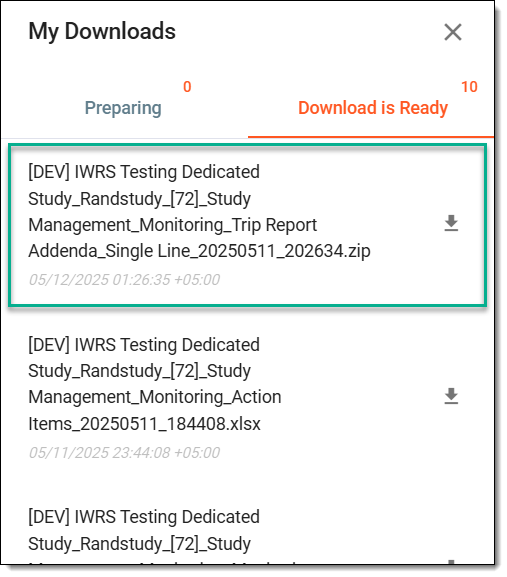 Figure 5. Downloading exported trip report addendum
Once selected, the trip report addenda is downloaded as an XLSX file to your computer.
Deleting a trip report addendum may be necessary if it was added in error or is no longer relevant to the monitoring visit. This action helps maintain accurate and up-to-date trip report records within the study documentation.
-
Access the study management page in one of the following ways:
-
In the CTMS application header, select the DASHBOARD tab and then select the study dashboard of your interest.
Figure 1. Accessing study management from dashboard
-
In the CTMS application header, select the STUDY MANAGEMENT tab. Then from the Study Data List table, select the study name of your interest.
Figure 2. Accessing study management from study data list
-
-
On the study page that opens, in the left pane, select Monitoring > Trip Report Addenda.
-
Next to the required addendum, from the Action(s) column, select More
>
Delete  .
.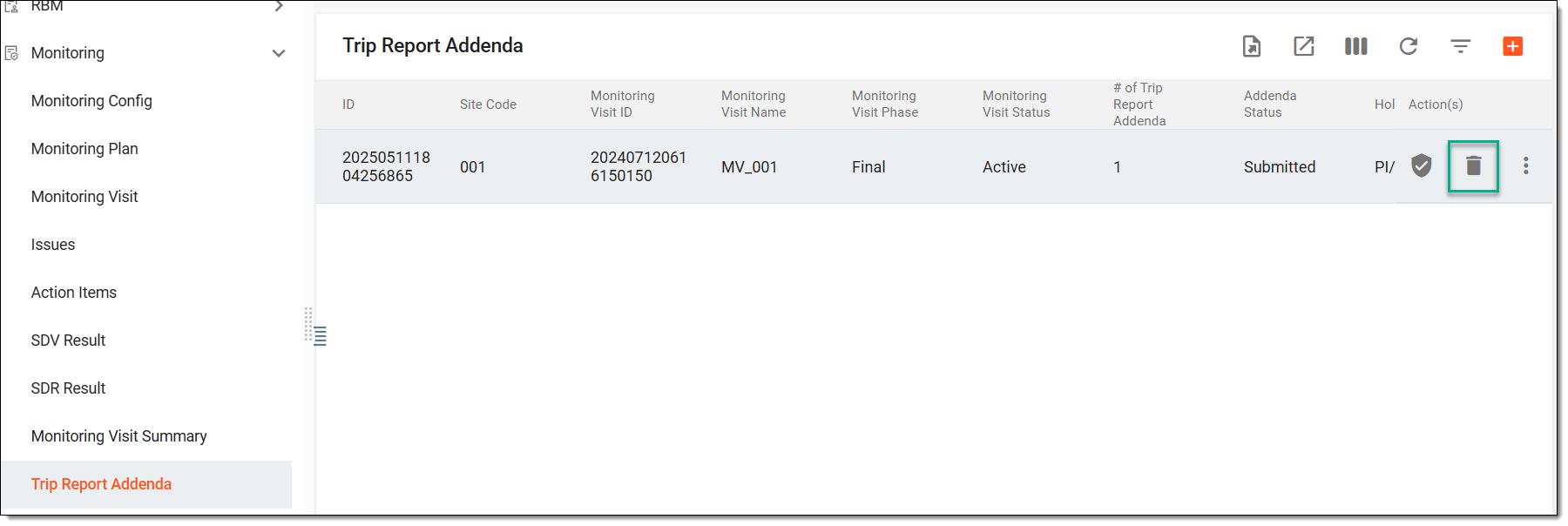 Figure 3. Selecting to delete trip report addendum
-
In the Reason dialog that opens, enter the reason for deletion and then select SAVE.
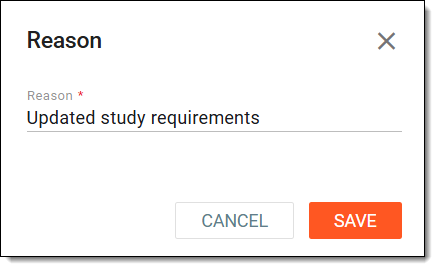 Figure 4. Entering reason to delete trip report addendum
Once selected, the trip report addendum is deleted from the system.