Move visit
When designing a visit structure for your study, you may need to change the order of some visits in the Study Designer tree. This can happen, for example, when you want to define a dependency so the visits will appear in a specific order for data entry in the EDC application.
Tip
You can also move cycle groups and visit folders in the Study Designer tree in the same way you move visits.
-
In the Study Designer application header, select the CRF DESIGN tab.
-
In the toolbar, select the latest draft CRF version marked with the respective unlock symbol
 , otherwise, you cannot perform any actions.
 Figure 1. Selecting latest draft CRF version
-
In the left pane that appears, select and drag the needed visit to the desired location in the tree.
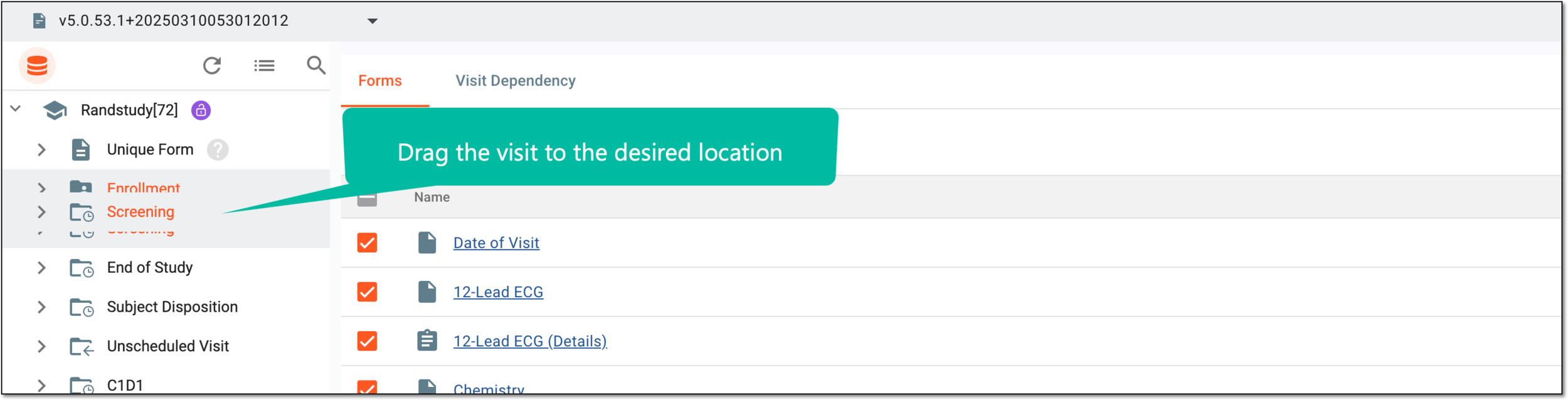 Figure 2. Moving visit
Important
Cycle visits can be moved only within a parent cycle group and folder visits can be moved only within the parent folder.
Once dragged, the visit is moved to the new location in the tree.