Delete visit
When designing a visit structure for your study, you may need to delete some of the previously created visits. This can happen due to changes in the protocol or a sponsor introducing new study requirements.
Important
Once the CRF version has been published to EDC and subjects have already entered data in some visit forms, the deletion of a corresponding visit will result in data loss.
-
In the Study Designer application header, select the CRF DESIGN tab.
-
In the toolbar, select the latest draft CRF version marked with the respective unlock symbol
 , otherwise, you cannot perform any actions.
 Figure 1. Selecting latest draft CRF version
-
In the left pane that appears, right-click the visit that you want to delete.
-
In the context menu that opens, select Delete
 .
.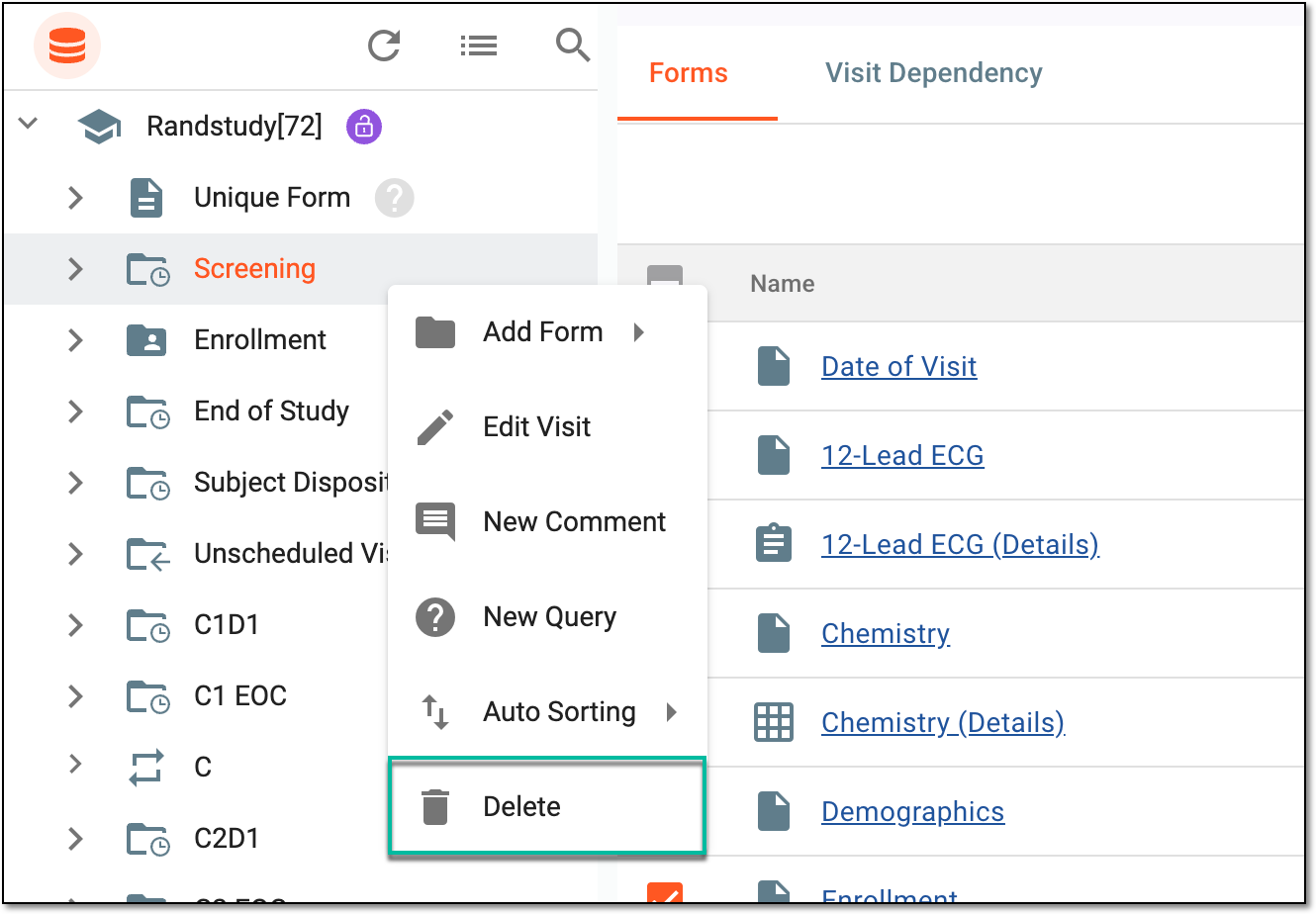 Figure 2. Selection option to delete visit
-
In the confirmation dialog that appears, select
 .
.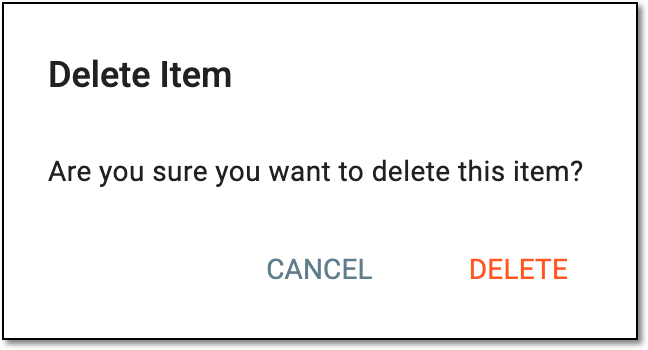 Figure 3. Confirming visit deletion
-
In another notification dialog that appears, select
 to confirm your decision since the visit deletion operation may result in subject data loss in the
EDC system.
to confirm your decision since the visit deletion operation may result in subject data loss in the
EDC system. Figure 4. Confirming visit deletion
Once confirmed, the visit is deleted.