Review safety data extracted from PDF
With the PDF Import functionality, you can import safety data from the unstructured source documents, such as scanned SAE forms in the PDF format. The files can be uploaded manually or you can configure the email intake to pull the files automatically from the predefined mailbox and land them to PV for further processing. Based on the preconfigured template, the system is able to analyze and transcribe the file to retrieve the data and create an ICSR in PV.
Once the data is extracted, you can review it to ensure all is compliant with regulatory and business requirements, make the needed adjustments, and check for duplicate cases existing in the system before finalizing the ICSR creation.
-
In the PV application header, select the INTAKE tab.
-
From the left pane that appears, select PDF Import.
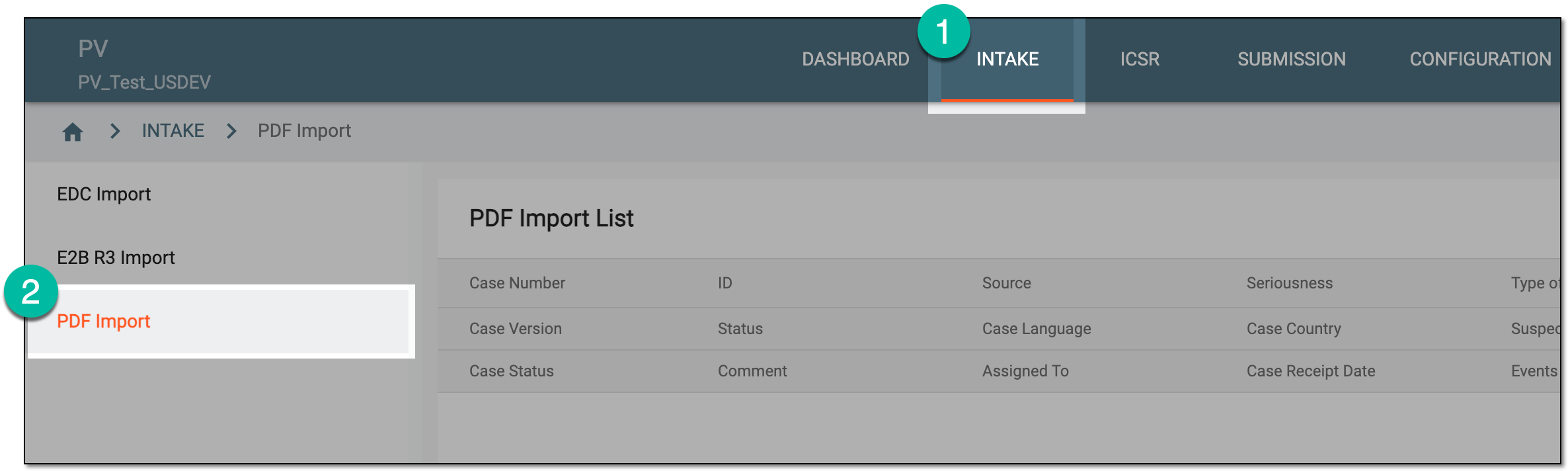 Figure 1. Accessing PDF import
-
On the PDF Import page that opens, locate the record for the extracted safety data that you need to review. Then from the Actions column next to the record, select Review
 .
. Figure 2. Accessing extracted safety data review
-
On the page that opens, review the safety data by navigating between case forms in the left pane.
Tip
The numbers next to the forms indicate how many records there are. If the number is highlighted red, you need to take action on the record as mandatory data can be missing because of the transcription failure or other reasons.
Select File Preview
 or
or  to open or close the source PDF file panel, respectively. For multiple source files, the one marked as primary is displayed by default. From the dropdown list, switch between all available source files if needed.
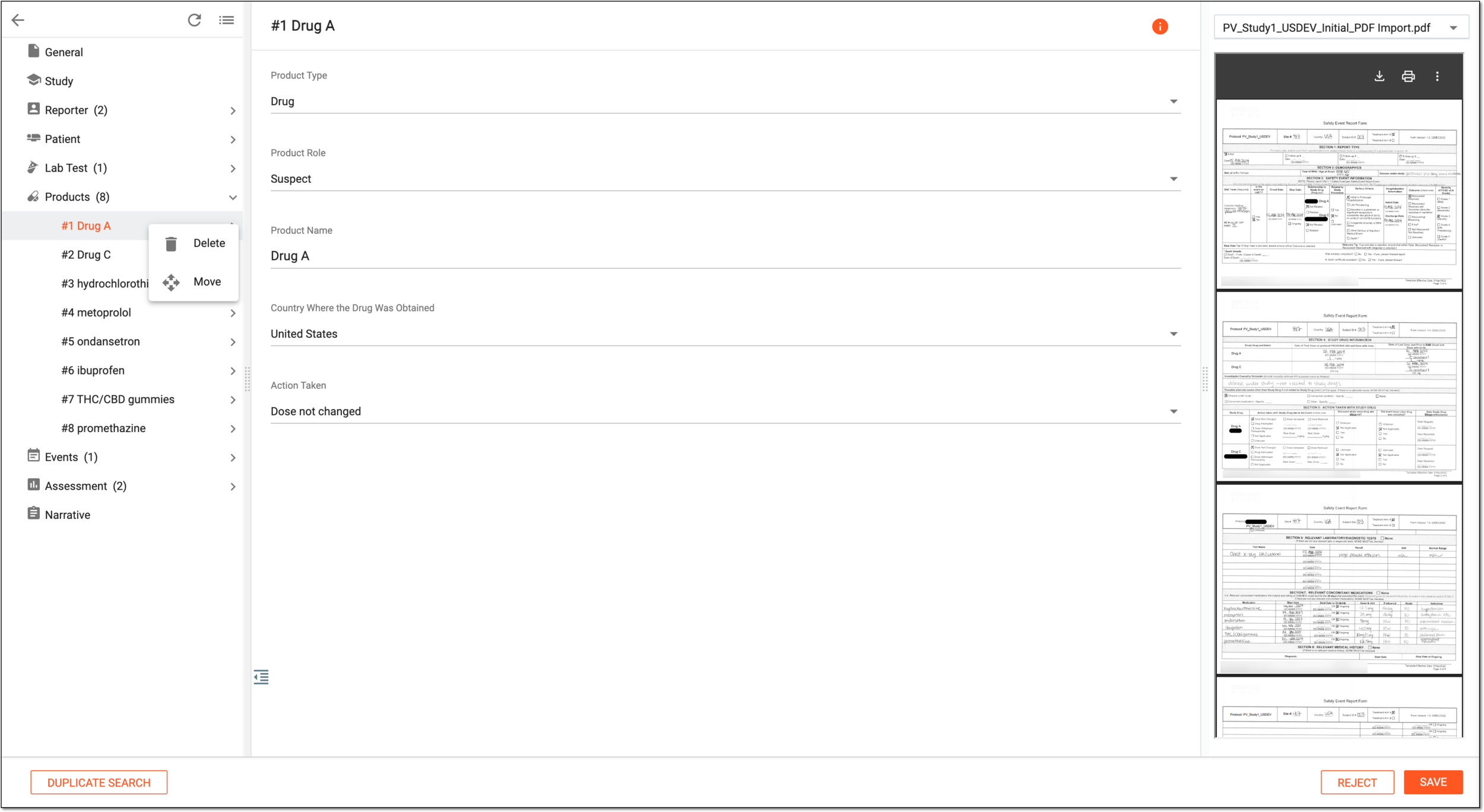 Figure 3. Reviewing extracted safety data
-
After the analysis, you may need to perform certain actions to the data record. Right-click the record and access the actions explained in the following table.
Element
Details
New Record
Select
 to add new record to the multirecord forms like Events, Products, and such. Then complete the record form that appears on the contents panel.
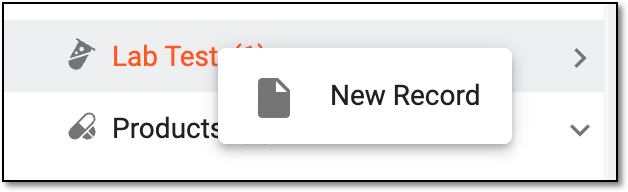 Figure 4. Selecting to add new record
Move
Select
 to change the record order. From the dialog that appears, select the record before which you want to place the moved one. Then click
  .
.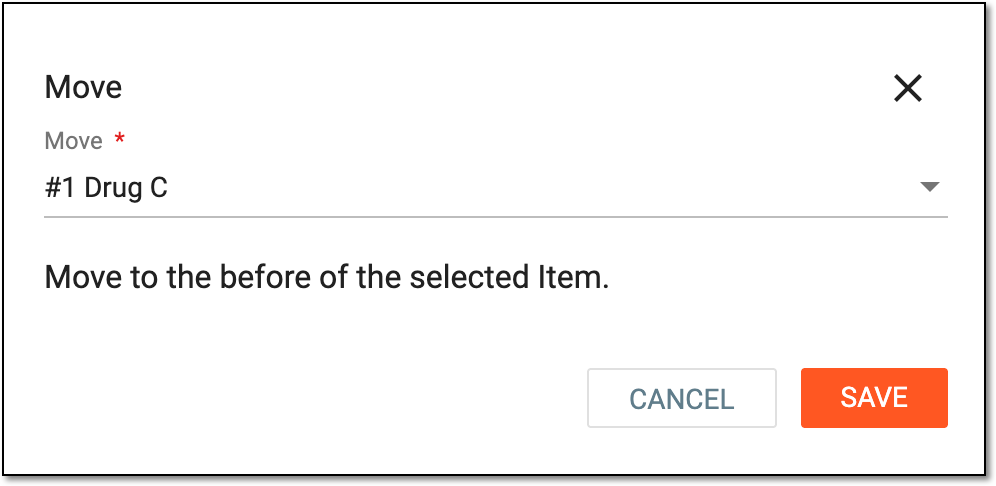 Figure 5. Selecting record to place moved one before
Delete
Select
 to remove the record from the form.
 -
Once the data is reviewed and fixed, perform one of the actions explained in the following table.
Action
Details
Select this button to save the implemented changes.

Select this button to reject the imported safety data.

Select this button to access the duplicate search functionality and find if the reports with the same specific parameters already exist in the system and either create the initial ICSR (if no duplicates found) or make this new ICSR a continuation (follow-up) with its information to the detected duplicate one.
Once saved, all your manual changes are implemented.