Reinitiate failed PDF processing
With the PDF Import functionality, you can upload your safety data PDF files for the system to process and transcribe them for you and create new ICSRs in PV accordingly. You can also configure the email intake to pull the files automatically from the predefined mailbox and land them to PV for further processing.
There are two reasons when the system processing may fail:
-
PDF processing template incompliance. The system must be configured according to the PDF template (provided by the client). If the template is missing or uploaded PDFs do not comply with the template, the processing fails.
Tip
To fix the problem, reload the correct files, select another template for processing, or contact the EDETEK administration for further instructions.
-
System error. Any technical issue that may disrupt data processing.
Tip
To fix the problem, try to reinitiate the PDF processing later.
In this section, you can learn how to reinitiate processing for both scenarios.
-
In the PV application header, select the INTAKE tab.
-
From the left pane that appears, select PDF Import.
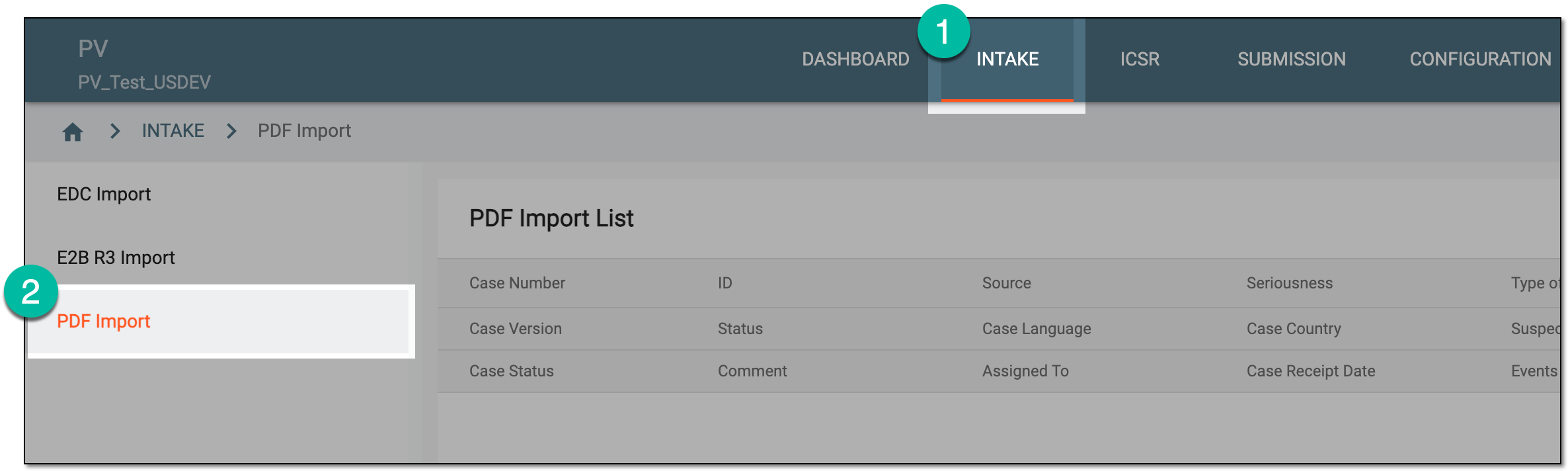 Figure 1. Accessing PDF import
-
On the PDF Import page that opens, locate the file group with the Process Failed status. Then from the Actions column next to the file group, select Edit
 .
. Figure 2. Selecting option to reprocess safety data PDF
-
In the dialog that appears, select the option you prefer as follows:
-
From the Available Template field, select the template according to which you want the system to process your PDF files to retrieve safety data. Then select
 .
.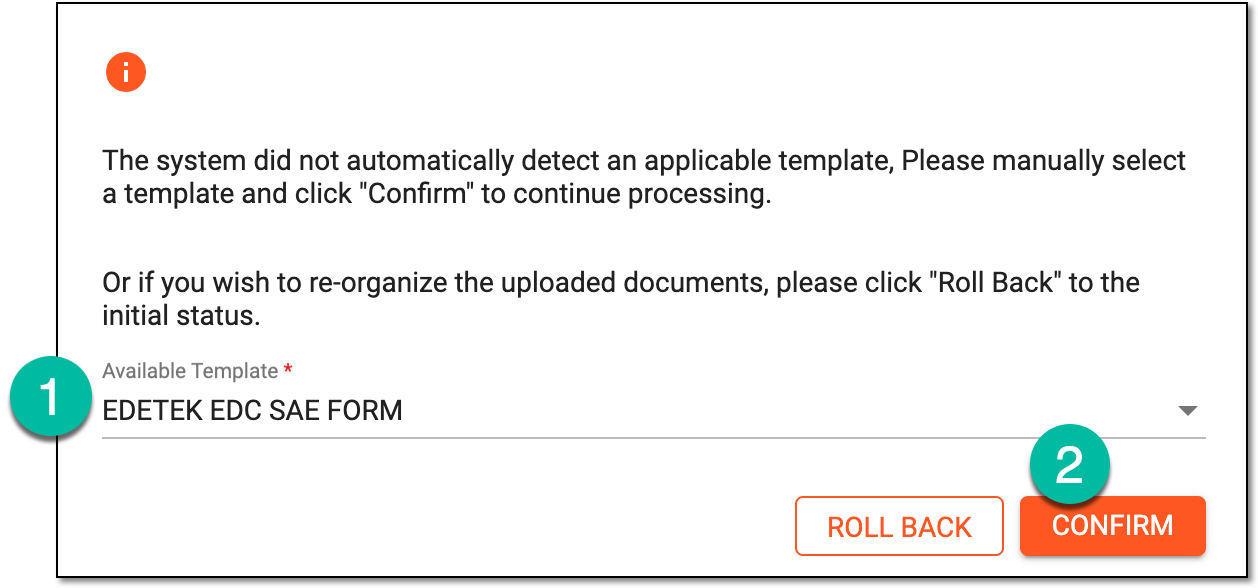 Figure 3. Selecting to reprocess
-
Select
 to return your safety files to the Unprocessed status. Then in the dialog that
appears, confirm your action to proceed.
to return your safety files to the Unprocessed status. Then in the dialog that
appears, confirm your action to proceed.Rolling back may be helpful if you understand that the files are incompatible and want to change them. Thus, you can return to file processing and reupload your documents or delete this batch and start over.
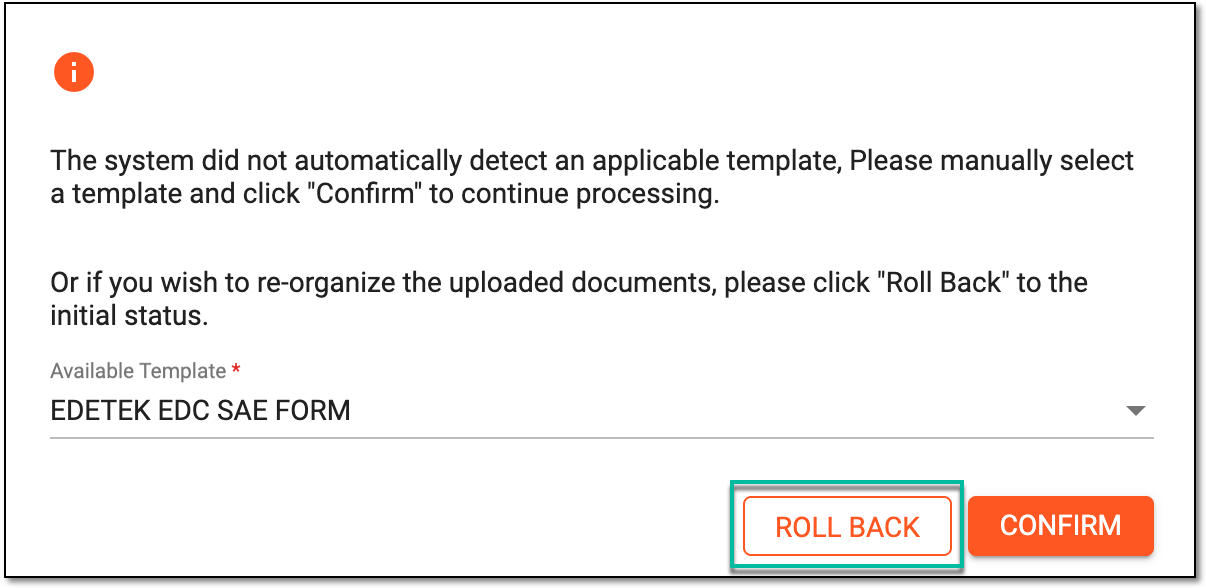 Figure 4. Selecting to roll back
-
Once the needed option is confirmed, your file batch either obtains the In Progress status and initiates data extraction or becomes Unprocessed and you can manage it as needed.