View audit trail for safety data extracted from PDF
With the PDF Import functionality, you can import safety data from the unstructured source documents, such as scanned SAE forms in the PDF format. The files can be uploaded manually or you can configure the email intake to pull the files automatically from the predefined mailbox and land them to PV for further processing. Based on the preconfigured template, the system is able to analyze and transcribe the file to retrieve the data and create an ICSR in PV.
Once the data is reviewed and the ICSR is successfully imported into PV, or at any time during these processes, you can view the audit trail—a log of all performed operations from the moment of the file upload and up to date. This functionality might be of help if you need to reconstruct the course of the events with the imported data for a specific case.
-
In the PV application header, select the INTAKE tab.
-
From the left pane that appears, select PDF Import.
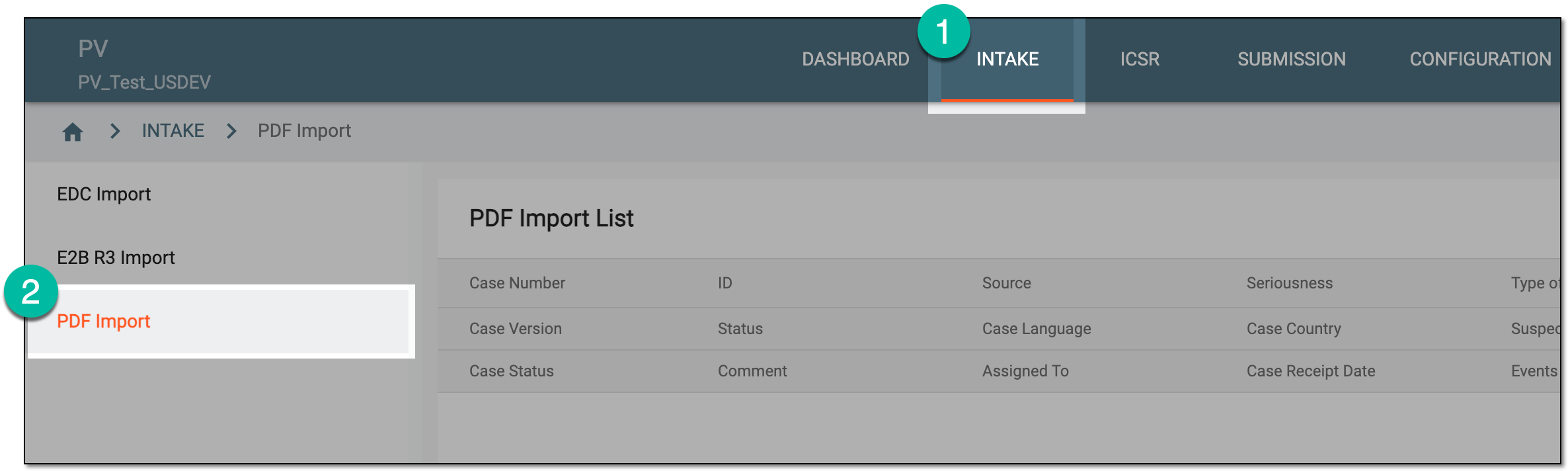 Figure 1. Accessing PDF import
-
On the PDF Import page that opens, locate the record for which you want to review the audit trail. Then from the Actions column next to the record, select More
 > Audit Trail
  .
.Tip
You can see the cases based on the study access permission granted via ADMIN.
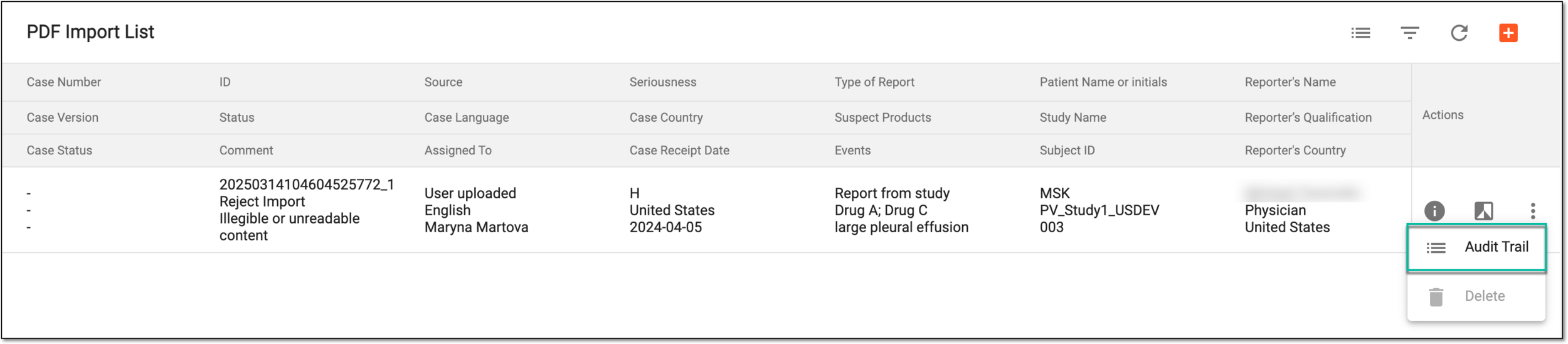 Figure 2. Accessing audit trail for extracted safety data
-
In the dialog that appears, review the audit trail for your extracted safety data—which operations were performed on it, when, and by whom.
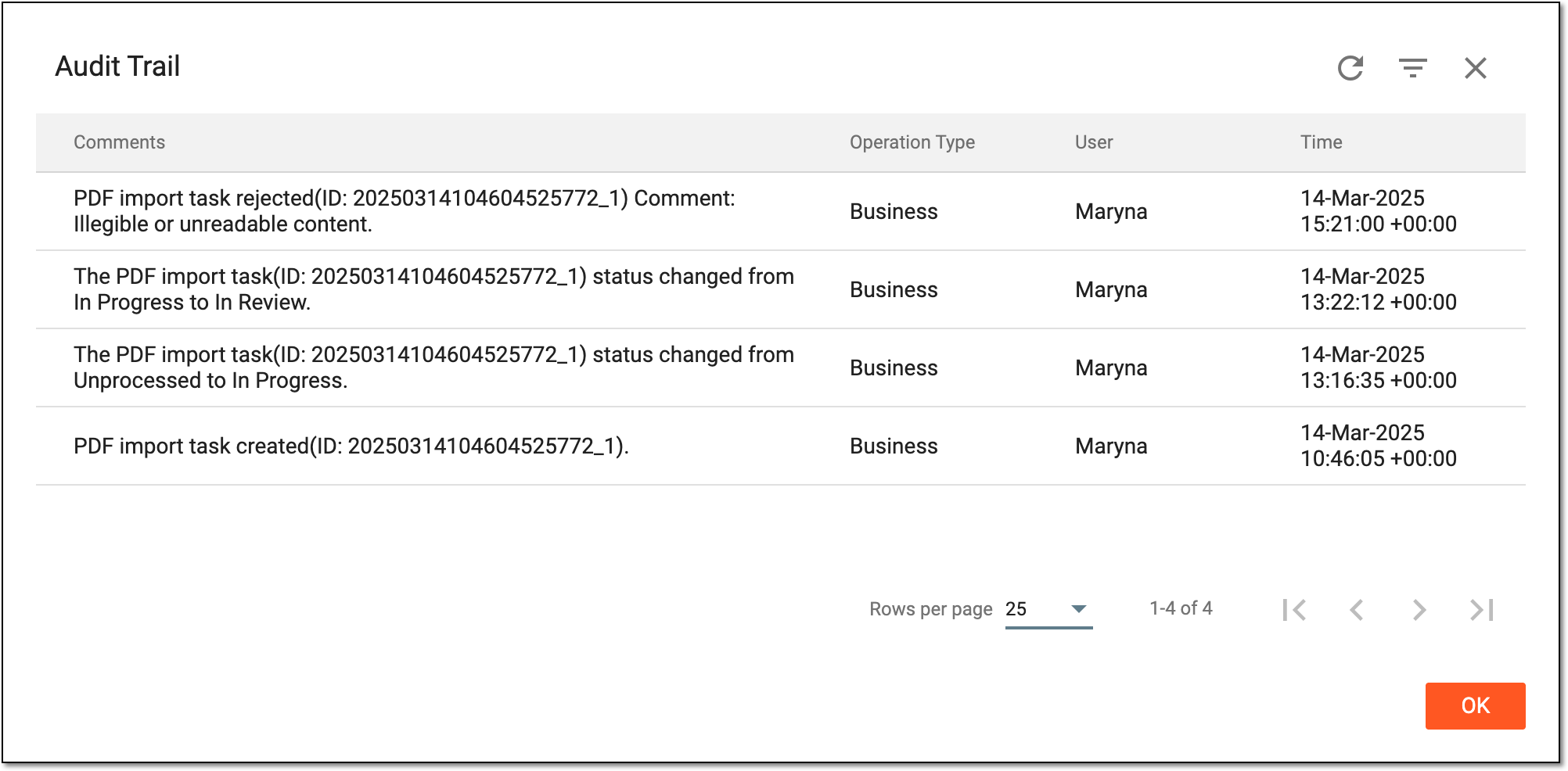 Figure 3. Viewing audit trail for extracted safety data
-
Select
 to close the dialog.
Once selected, you are returned to the PDF Import page. You have viewed the audit trail for the safety data imported from PDF.