Schedule report extraction job
In IWRS, all the available reports can be extracted from the system to the preset external server using scheduled jobs—automated tasks for data extraction. Scheduling jobs saves time for manual export and enables regular and timely execution, minimizing risks of human error.
-
In the IWRS application header, select the REPORTS tab.
-
On the page that opens, from the left pane, select Report Extraction Job.
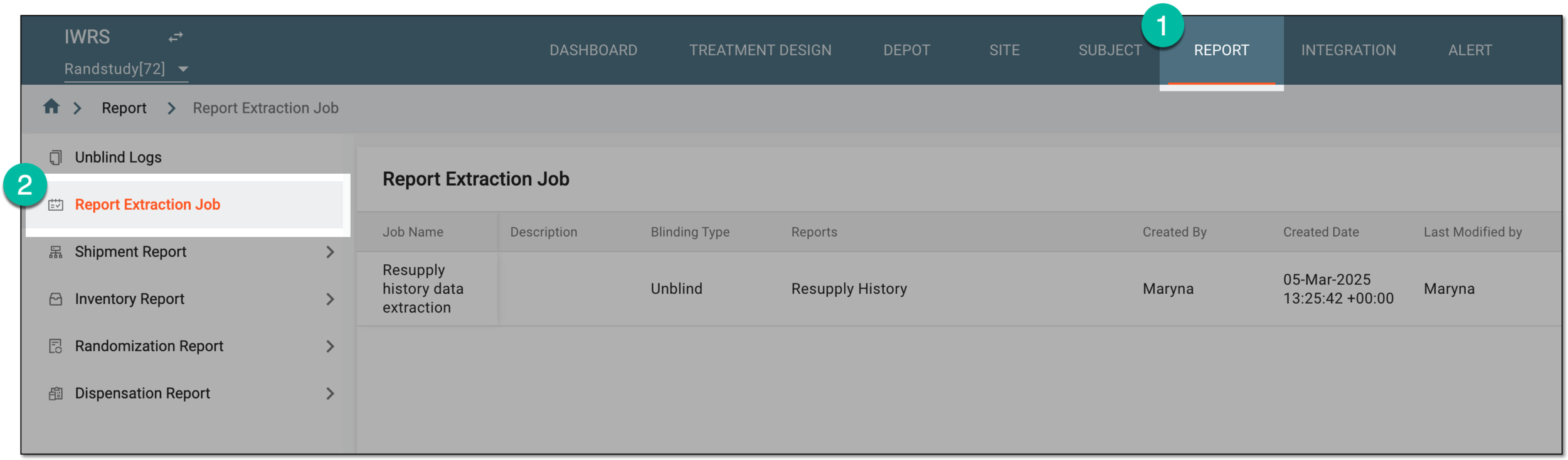 Figure 1. Accessing report extraction jobs
-
On the Report Extraction Job page that opens, from the workspace toolbar, select New Item
 .
. Figure 2. Adding new report extraction job
-
In the New dialog that opens, complete the details of your job and its schedule as explained in the following table.
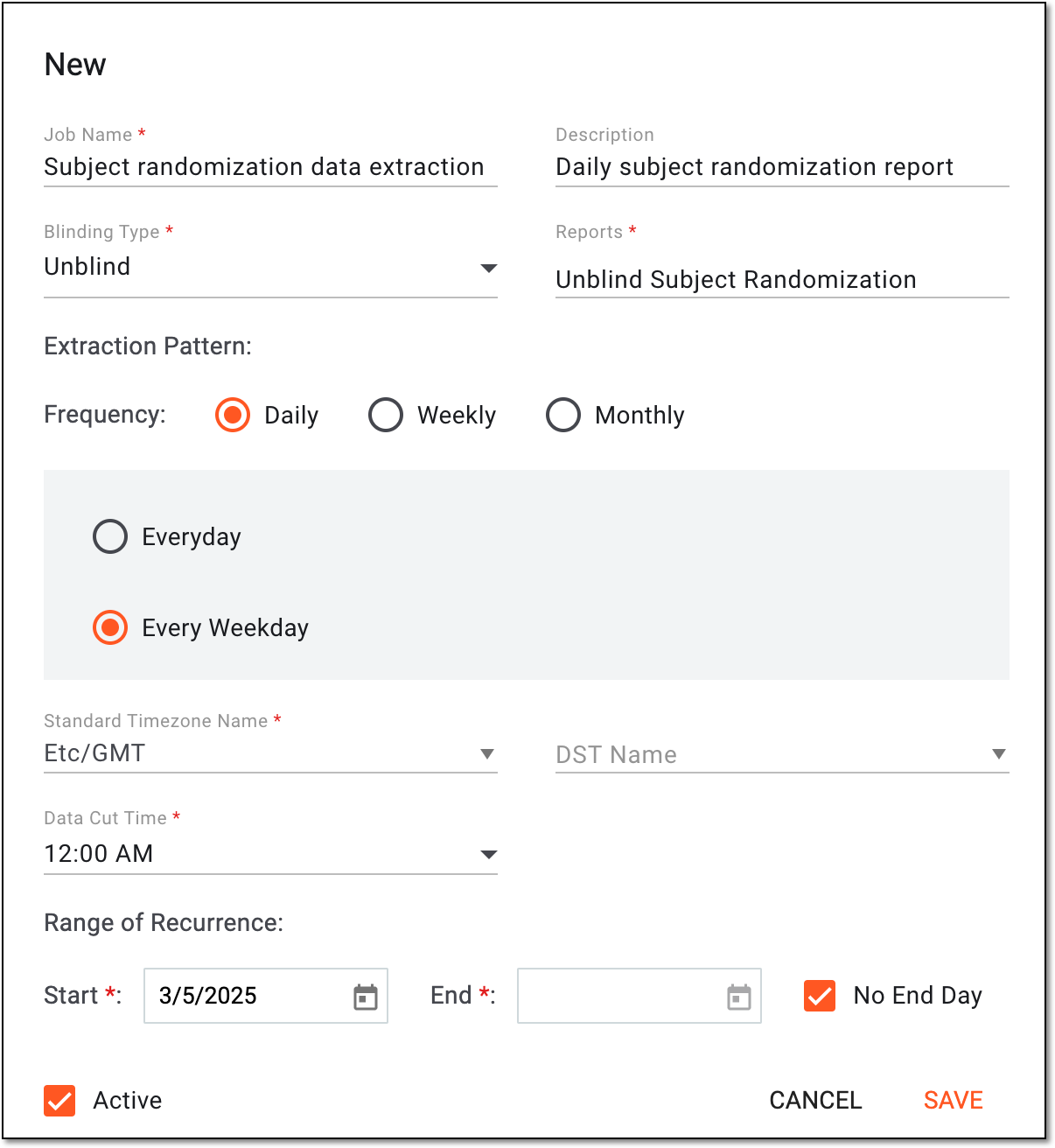 Figure 3. Scheduling report extraction job
Tip
In the following table, mandatory elements are marked with an asterisk (*).
Element
Details
Job Name*
Enter a descriptive name of the report extraction job.
Description
Provide auxiliary information to give system users more details on the purpose or specifics of the report extraction job.
Blinding Type*
Select the value that influences the reports available for selection for the job and the data availability in the extracted report once the job is executed. The available options are as follows:
-
Unblind: to create data extraction job for any report or report group from IWRS system. In the extracted report, all data—including sensitive ones, such as item units or subject details—is available.
-
Blind: to create data extraction job only for blinded reports. In the extracted report, the sensitive data—such as item units or subject details—is concealed to prevent unblinding.
Reports*
Select the field and in the resulting dialog, select the checkbox next to the report groups or individual reports for which you want to schedule automatic data extraction. Use the Select All option to add all reports from the list to the data extraction job. Then select
 .
.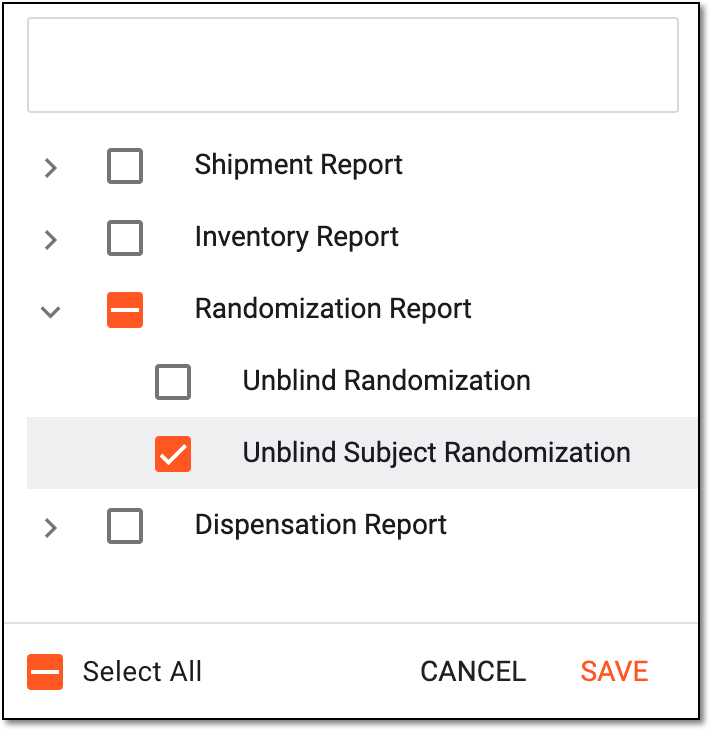 Figure 4. Selecting report for data extraction
The report availability depends on the selected blinding type.Extraction Pattern
Frequency
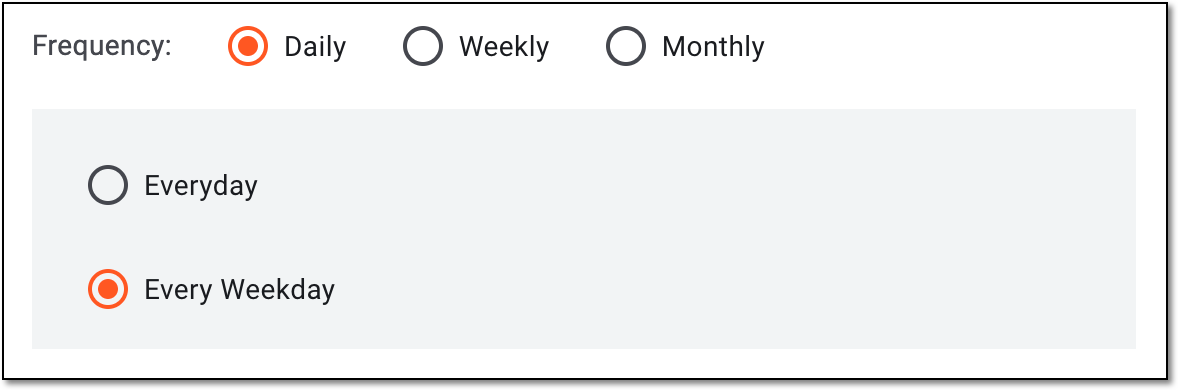
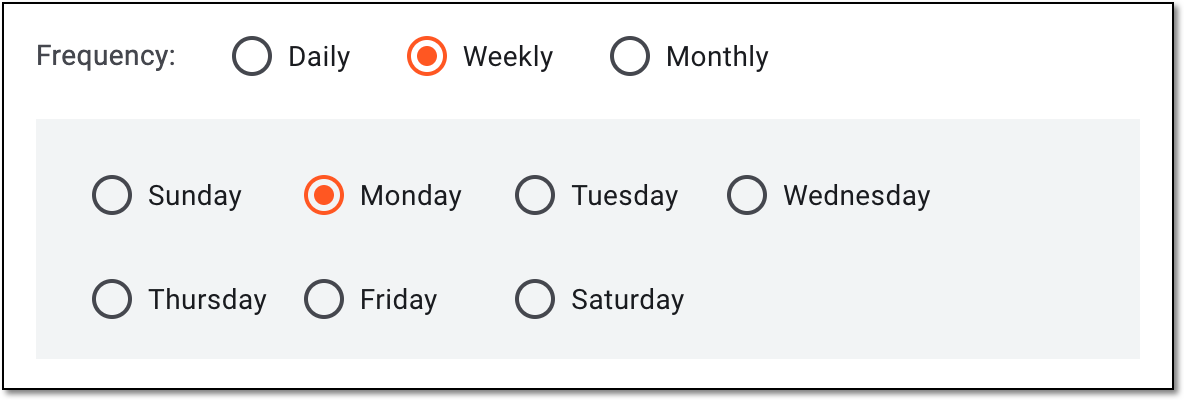
Select one of the options to schedule your data extraction:
Select this option to extract the data to the server monthly. Then customize the schedule by selecting to extract data on a specific day of the month (for instance, every second day of the month) or a particular weekday (for instance, every first Monday).
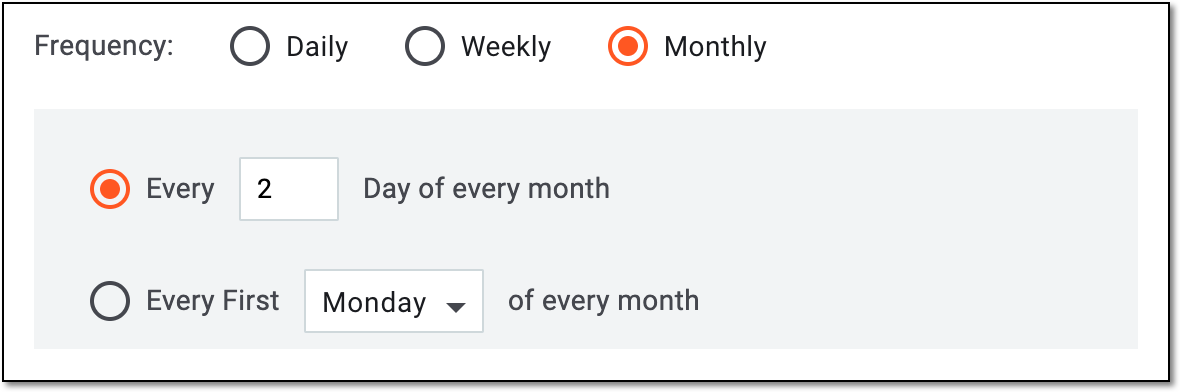 Figure 7. Monthly report extraction schedule
Standard Timezone Name*
Select the time zone according to which the data is extracted to the server based on the selected pattern. This allows adjusting the extraction time to the target audience so that they receive their data timely according to their business needs.
DST Name
Select the Daylight Saving Time (DST) for the system to switch automatically from summer to winter time when needed.
Data Cut Time*
Select the time for the system to extract the data to the server based on the selected schedule, time zone, and DST, if any.
Range of Recurrence
Start*
Set the date for the system to start running the data extraction job according to the defined schedule.
End*
Set the date for the system to stop running the data extraction job according to the defined schedule.
No End Day
Select this checkbox if you want the system to run the data extraction job indefinitely until it is manually deleted.
If selected, the End field is automatically disabled.Active
Select this checkbox to make the job active and start executing according to the defined schedule right after creation.
If cleared, the job is not active and does not execute until activated.
SAVE
Select
to implement the changes.CANCEL
Select
 to discard the changes without saving.
 -
Once saved, your report extraction job is scheduled. You can now associate it with the file server.