Query for coding
In cases where additional clarification or verification is needed for a coding decision, you can initiate a query specifically related to the coding of a verbatim term (VT). This process helps you indicate the query topic, define an expected response timeframe, and assign the query to responsible users. By using the Query for Coding feature, you can ensure that coding-related questions are directed to the appropriate individuals, streamlining communication and improving the accuracy and consistency of the coding process.
-
In the Medical Coding application header, select the CODING tab.
 Figure 1. Accessing coding functionality
-
On the VT List page that opens, next to the VT for which you want to query the coding, select
 and choose Query for coding
  .
.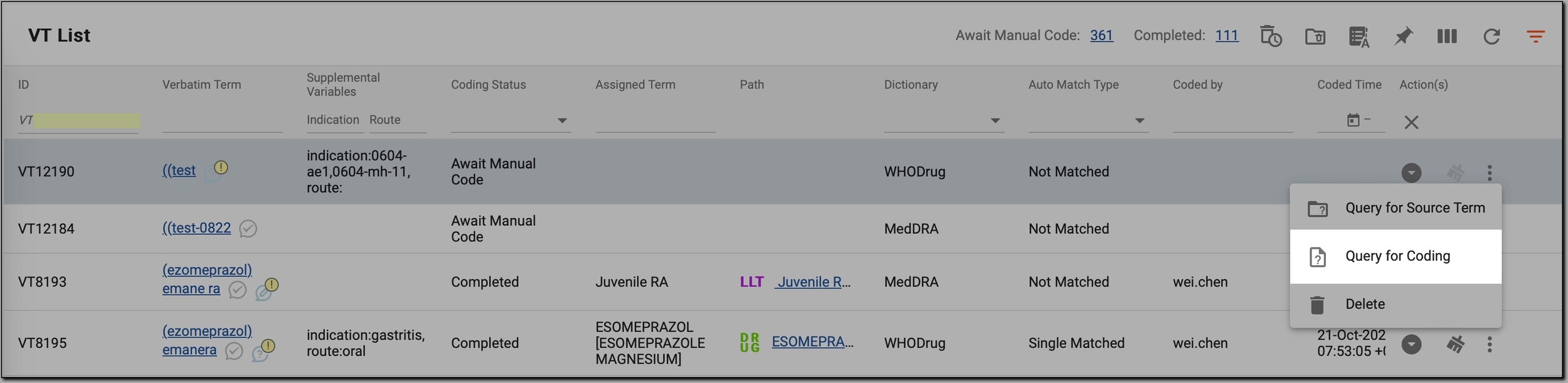 Figure 2. Querying for coding
-
In the New dialog that opens, provide the query details as explained in the following table.
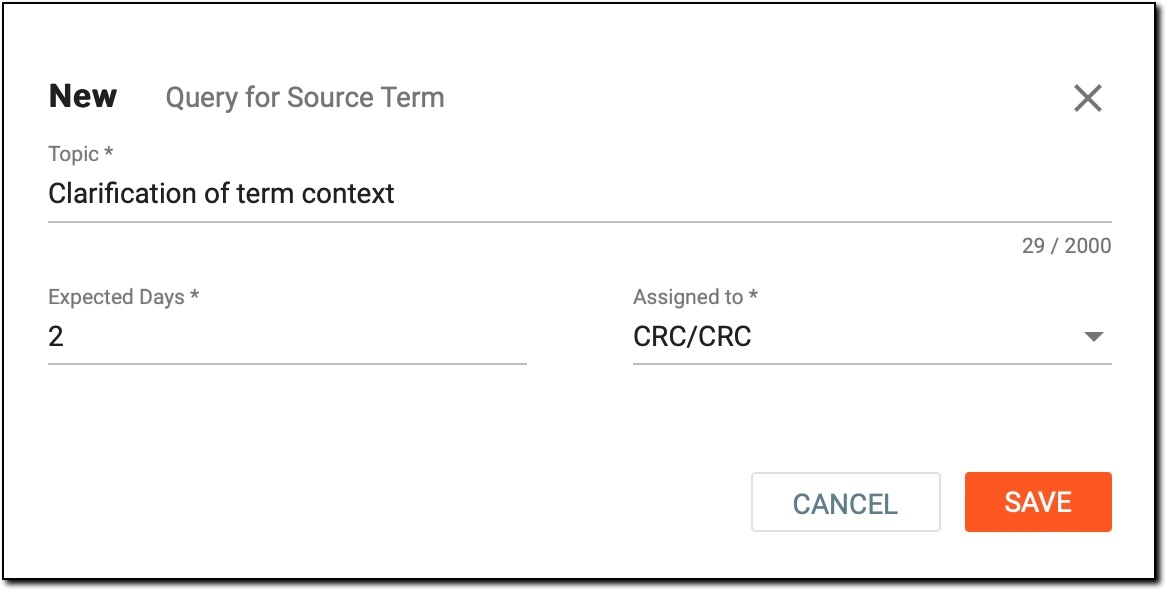 Figure 3. Providing query details
Tip
In the following table, mandatory elements are marked with an asterisk (*).
Element
Details
Topic*
Enter a concise summary of the purpose of the query. This should briefly explain what information is needed or any clarifications being requested.
Expected Days*
Specify the number of days within which you expect a response to the query. This helps prioritize and set timelines for resolving the query.
The default value is defined in the CONFIGURATION > Study Information
                                  module.
Assigned to*
Select the role responsible for responding to the query. Only users assigned to this role can reply to the query, ensuring it is directed to the appropriate group with the required expertise.
SAVE
Select
 to submit the query, save all entered details, and assign it for resolution.
CANCEL
Select
 to cancel the query creation and dismiss the changes.
Once the query is submitted, it is assigned to the designated role. The users assigned to this role will see a green query icon in the VT list, indicating that the query requires their review and response within the specified expected days timeframe.