Unsign site inventory reconciliation list
An inventory reconciliation is a practice mostly performed by the clinical research associate (CRA) to ensure the quantity of items to be returned to the depot or destroyed at the site is valid according to the previously reported numbers by the clinical research coordinator (CRC).
Once all the required activities are performed at the site, the CRA in charge must sign the reconciliation list to verify it. The signature disables all the further amendments to ensure the integrity of reconciliation results.
However, if new details on item count become available and it is required to change the reconciliation results, there is an option to retrieve the electronic signature, thus enabling amendments.
Tip
You can review the signature details to see who signed the reconciliation in the first place and consult them regarding unsigning if required.
-
In the IWRS application header, select the SITE tab.
-
On the Site List page that opens, in the table, select the site code of your interest.
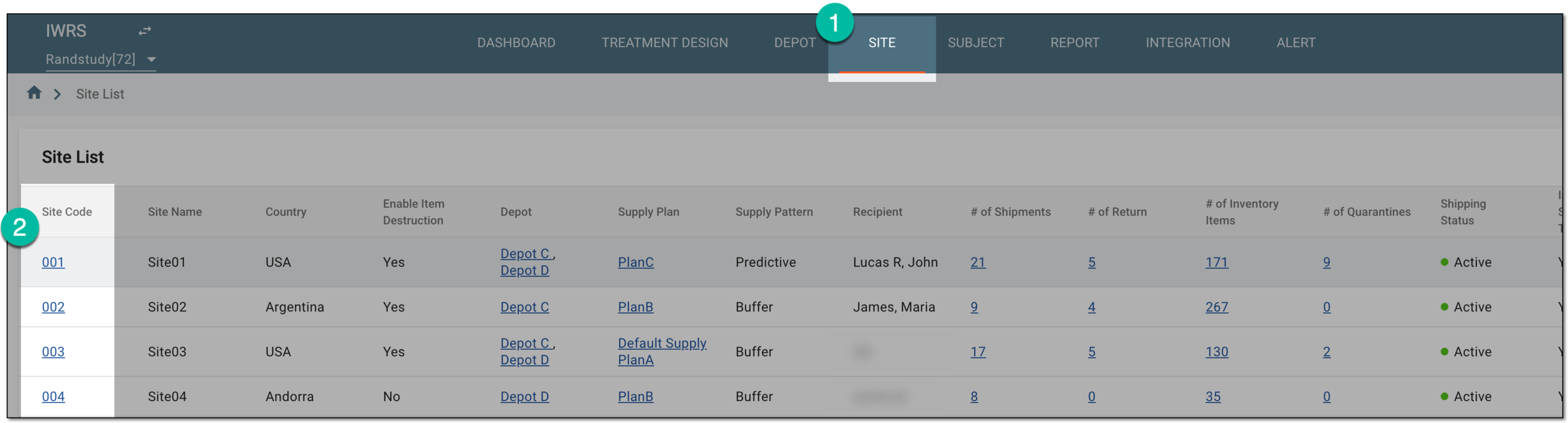 Figure 1. Selecting site to open its details
-
On the page that opens, from the left pane, select Inventory.
-
On the inventory page, from the contents panel, select Reconciliation.
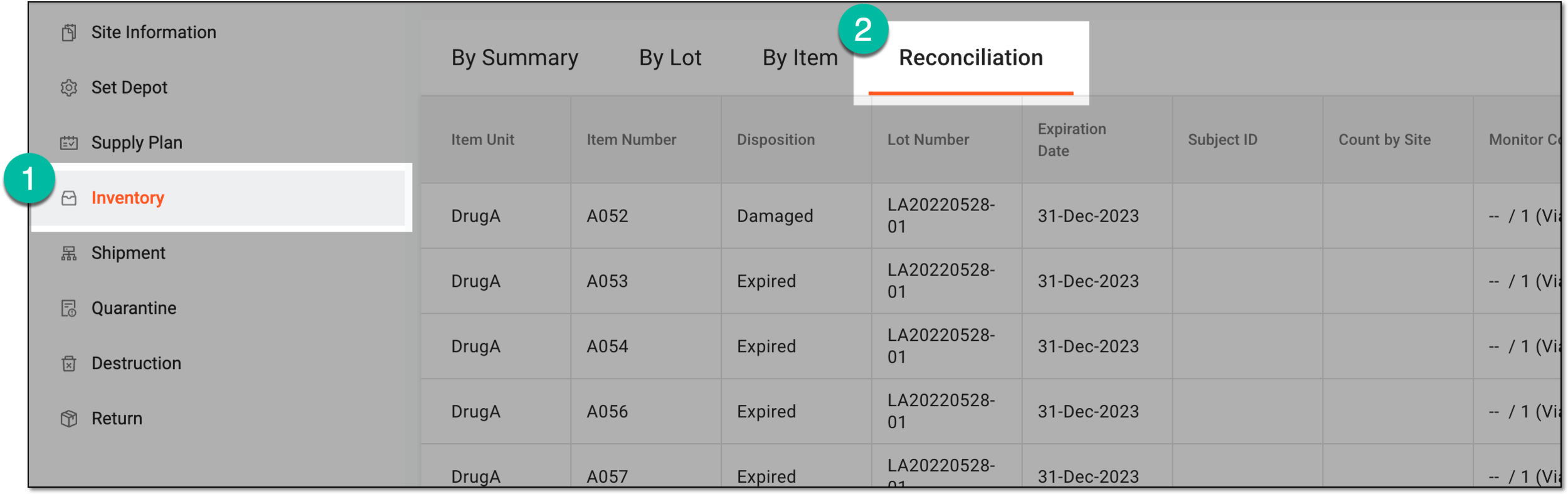 Figure 2. Accessing site inventory reconciliation
Tip
Once you open the reconciliation page for a site, you can use the breadcrumbs navigation to switch between different sites' reconciliation lists without returning to the Site List page.
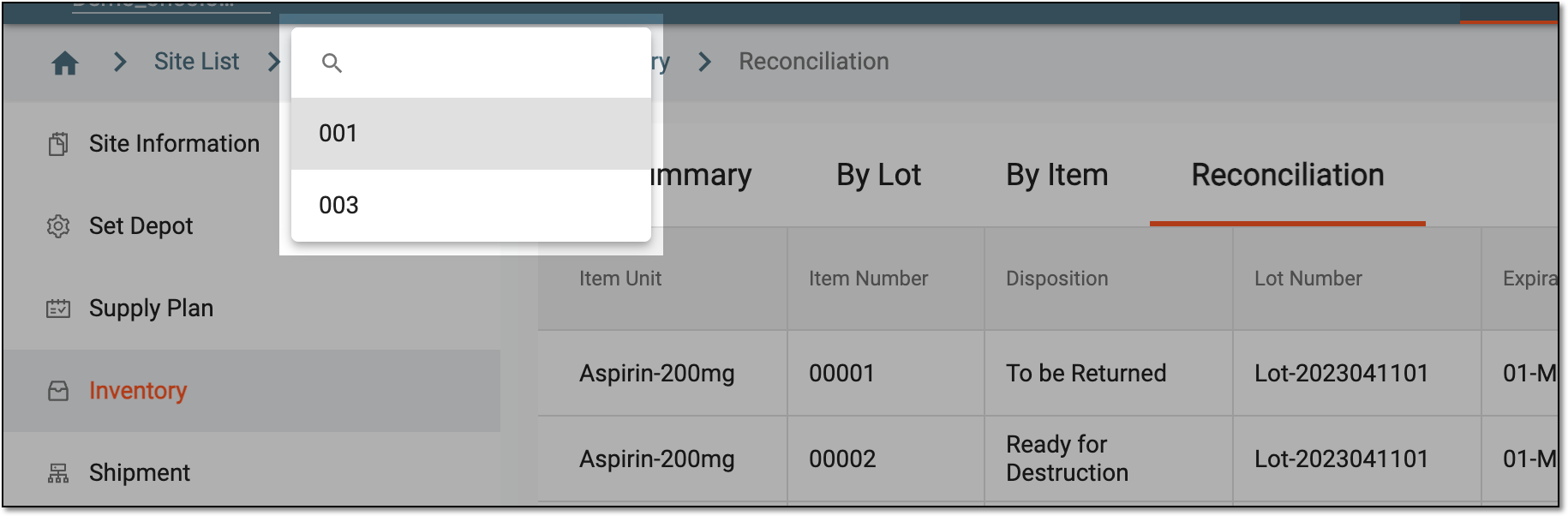 Figure 3. Switching sites from reconciliation page
-
From the workspace toolbar of the Reconciliation page, select Unsign
 .
.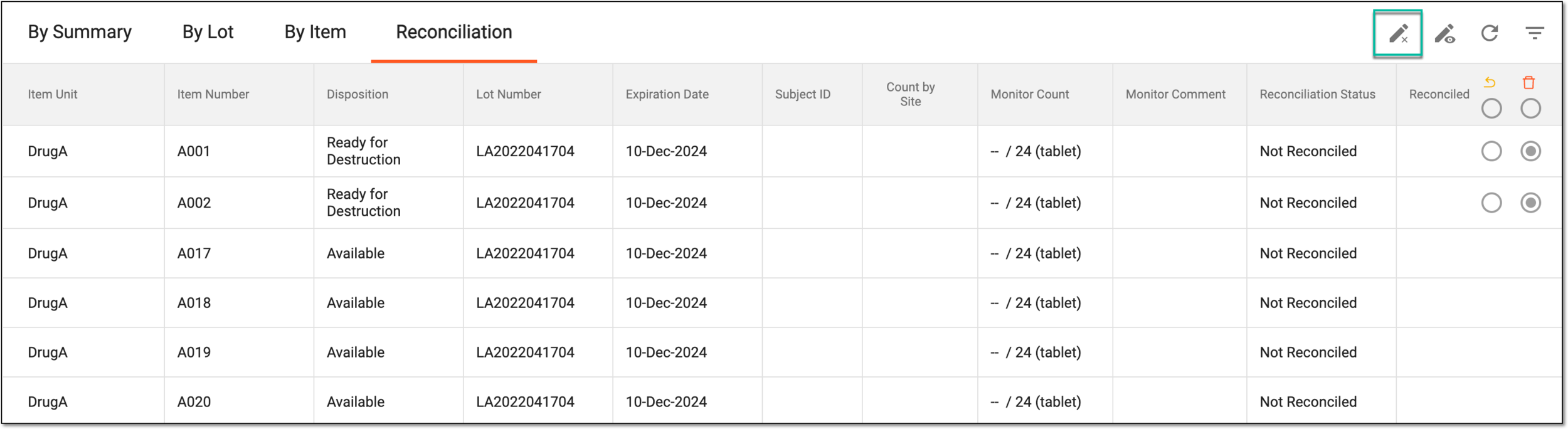 Figure 4. Unsigning site reconciliation list
-
In the Unsign dialog that appears, provide your credentials as explained in the following table.
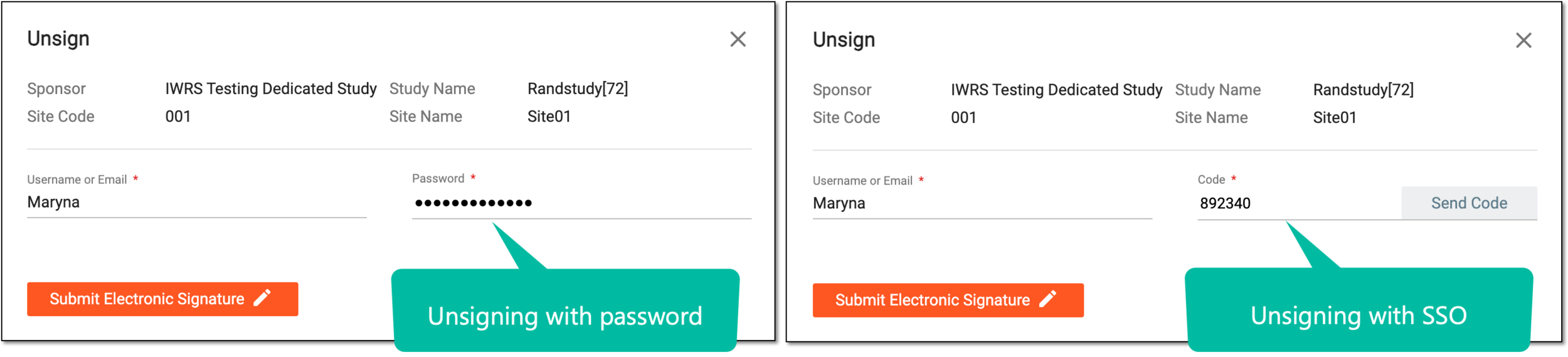 Figure 5. Providing credentials to retrieve signature
Tip
In the following table, mandatory elements are marked with an asterisk (*).
Element
Details
Username or Email*
Enter your username or email that you use to log in to the eClinical applications.
Send Code
Select
 to send the temporary PIN code to your email for which the SSO method is configured.
The button is only available if you use the authorization method via SSO.Code*
Enter the temporary PIN code that you received via email.
The field is only available if you use the authorization method via SSO.Password*
Enter the password that you use to log in to the eClinical applications.
The field is only available if you use the authorization method by providing your login and password.Submit Electronic Signature
Select
 to confirm your action with your signature and save the implemented changes.
Select the cross icon to discard the action, close the dialog, and return to the Reconciliation page.
Once the signature is retrieved, you can perform site reconciliation as required.