Submit ICF tracking log template
After you have created an ICF tracking log template and configured its data (questions and items), your template is ready for submission.
Once you submit the template and make it active, you can use it in the ICF tracking log settings under the STUDY MANAGEMENT tab.
-
In the CTMS application header, select the LIBRARY tab.
-
On the page that opens, from the left pane, select ICF Tracking Log Template.
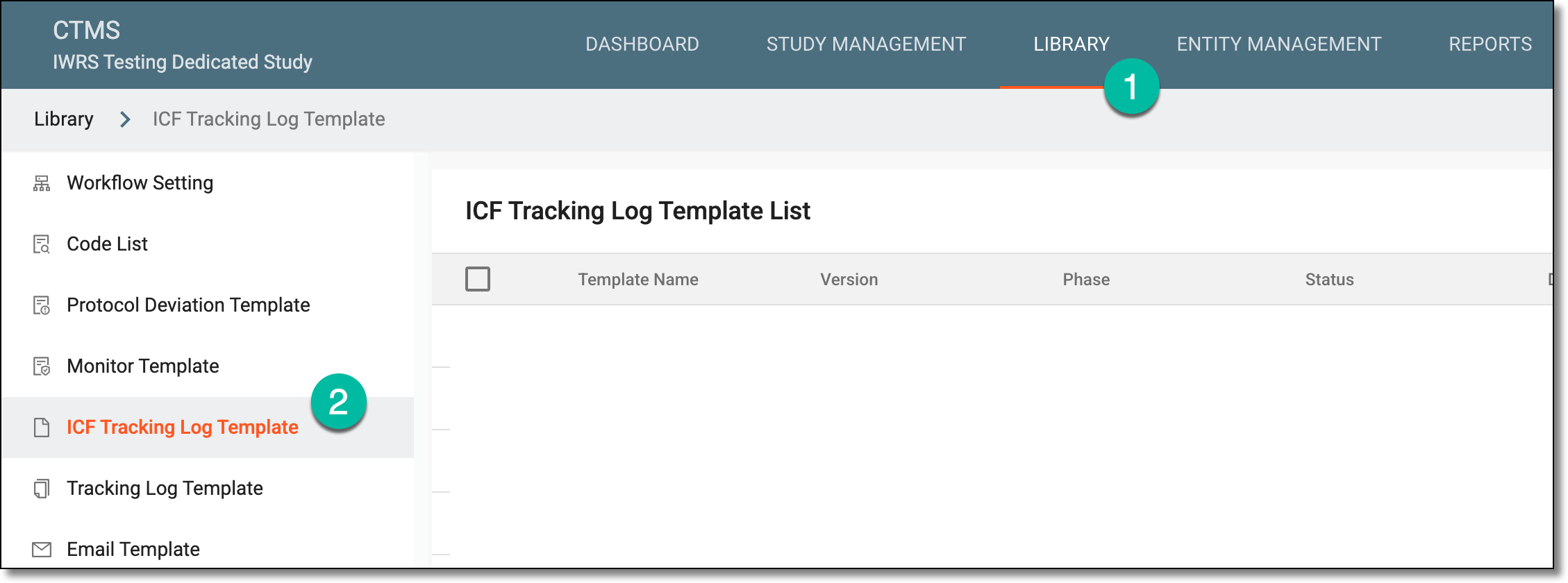 Figure 1. Accessing ICF tracking log template subtab
-
From the ICF Tracking Log Template List table that opens, locate the template that you want to submit. Then next to it, in the Action(s) column, select Submit
 .
. Figure 2. Submitting ICF tracking log template
Important
This option is only visible if you have just created your template or have made any modifications to the template. The newly created template or the changed modifications in the template require resubmission of the template.
-
In the Submit dialog that appears, in the Comment field, enter any details related to the template that you want to specify.
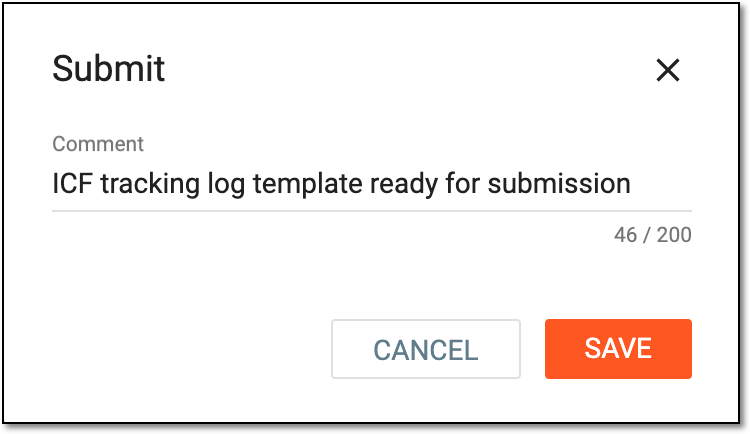 Figure 3. Submitting ICF tracking log template
Tip
The information you provide in the Comment field may be especially useful if your template is set as requiring approval from designated personnel. In this field, you can add any details that you want the assignee to know before they start reviewing your template.
-
Select
 to save your changes.
The ICF tracking log template is submitted. Based on the specifications you have set for the template, the following actions are required for the template to become available for further usage in the system:
-
If approval is required, the assignee can now approve the template. Until approved, the template remains in the Auditing phase in the ICF Tracking Log Template List table.
-
If approval is not needed, the template is submitted and its phase is set to Final in the ICF Tracking Log Template List table. You can now activate your template.