Modify ICF tracking log template form
In CTMS, you can modify the questions that you have added in the ICF tracking log template form.
This may be helpful if you have cloned an existing template and you want to modify some questions as per your requirement or the questions currently added are not sufficient enough to acquire the complete details of the ICF tracking log, or there is an error in some question, or due to some other reason.
There are several modification options provided for you to alter an ICF tracking log template as explained in the following sections.
You can edit a particular question in the ICF tracking log template. This may be helpful if a specific question in the template requires modification in its text, data type, format, or so on.
-
In the CTMS application header, select the LIBRARY tab.
-
On the page that opens, from the left pane, select ICF Tracking Log Template.
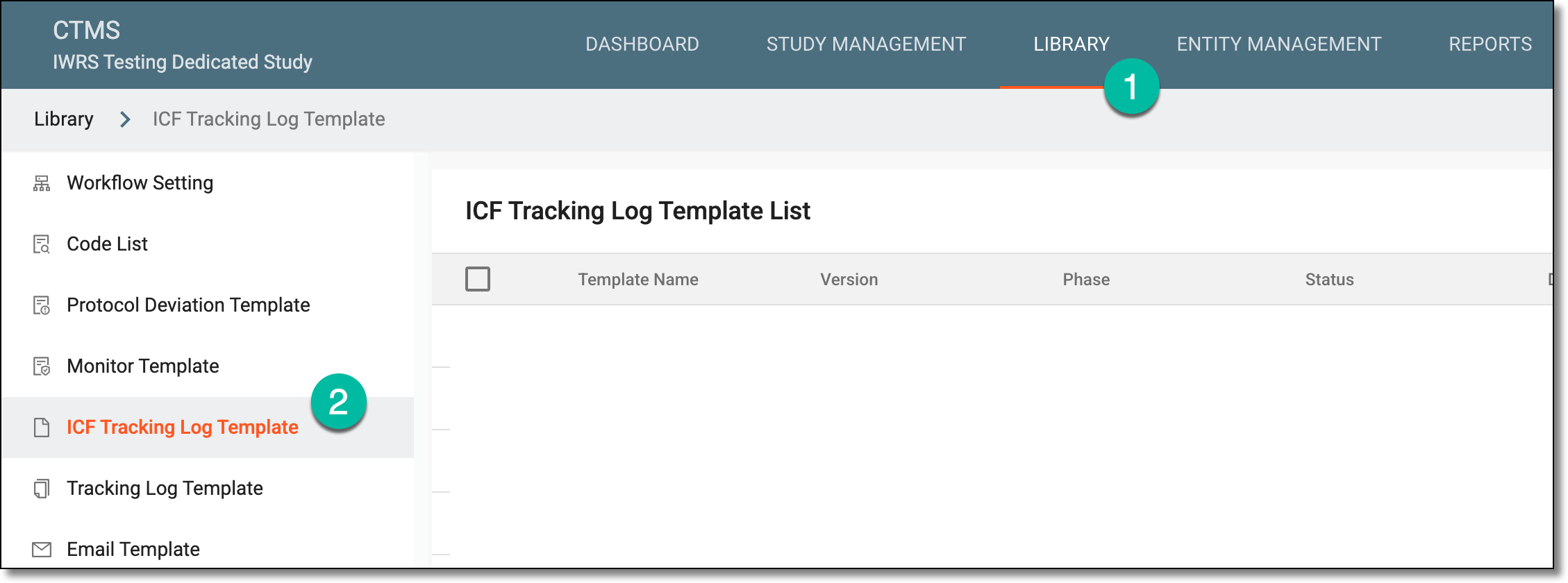 Figure 1. Accessing ICF tracking log template subtab
-
From the ICF Tracking Log Template List table that opens, locate the template you want to configure and select its name.
 Figure 2. Accessing template configuration
-
In the form that appears, locate the question that you want to edit. Then next to it, select More
 > Edit Item
  .
.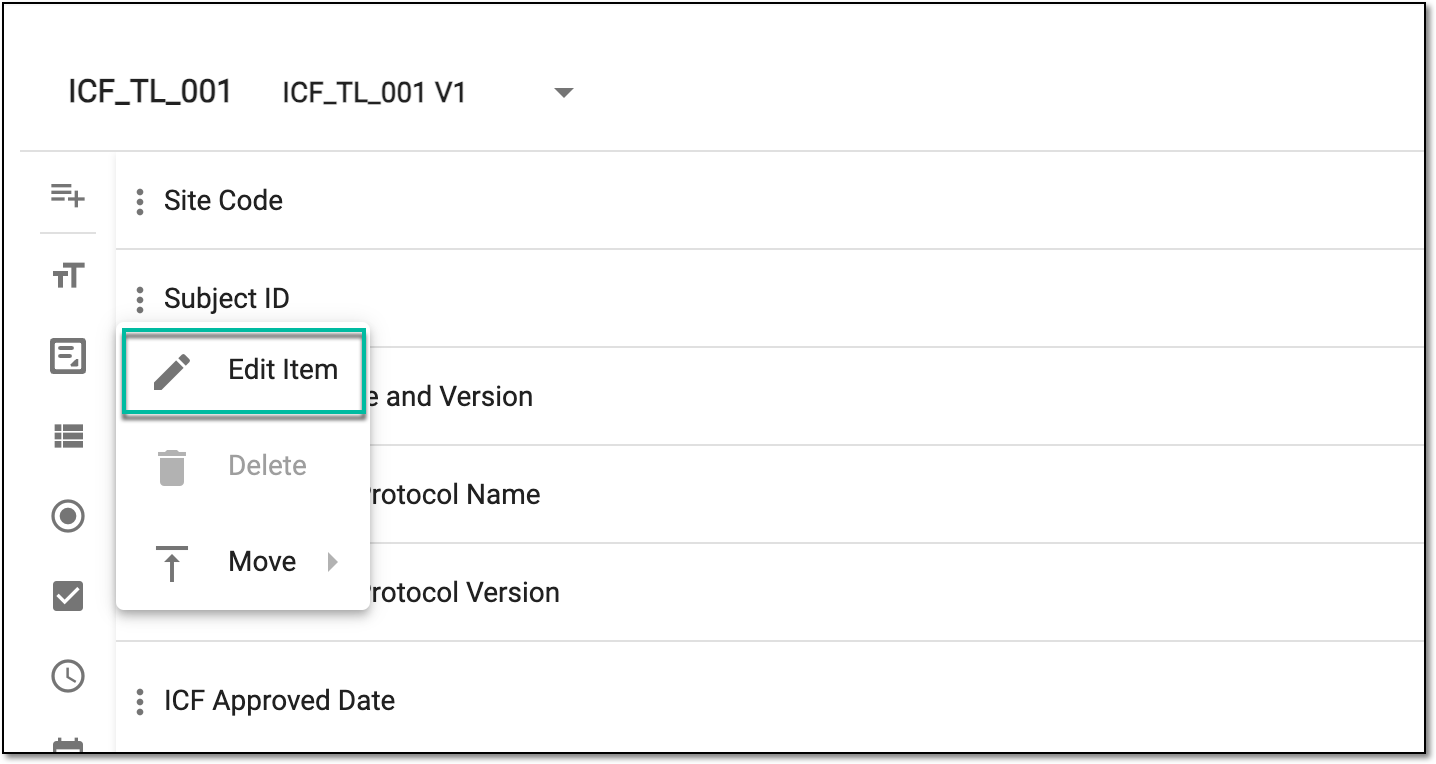 Figure 3. Selecting to edit item
-
In the panel that expands, modify the details of the questions as required as explained in the following table.
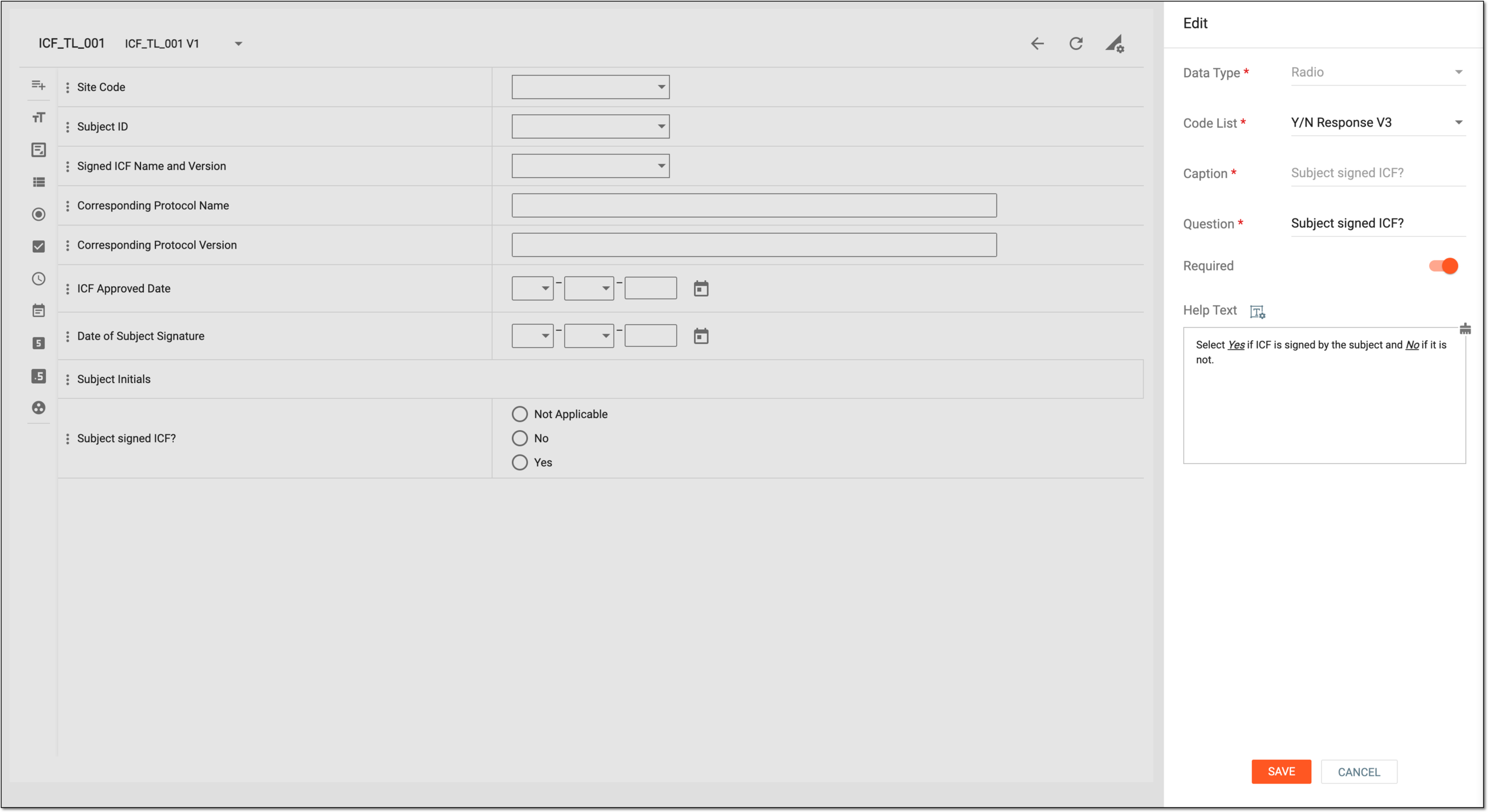 Figure 4. Editing item details
Tip
In the following table, mandatory elements are marked with an asterisk (*).
Element
Details
Data Type*
Represents the data type selected upon adding an item to the form. The field is read-only.
Code List*
Select the code list that includes the options from which you want the user to select an answer.
This option is only displayed if you have selected the following data types: ListBox, Radio, CheckBox, or Code list
                                        Group.
Caption*
Represents the caption text for a question entered upon adding an item to the form. The field is read-only.
Question*
Enter a unique question text that you want to include in the protocol deviation template.
Format*
Select the format in which you want the user to provide their answer, such as month/date/year, hour/minutes/seconds, and so on.
This option is only displayed for the Date and Time data types.Precision
Enter a precision value up to which you want the user to provide a decimal value in the answer field.
For example, if you set the precision value to 2, then the user can enter the value "2.02" in the answer field.
This option is only displayed for the Float data type.Required
Turn the toggle on if you want the question to be mandatory in the protocol deviation template.
Help Text
Enter additional information, instructions, or clarification about the item. It may include details on how to answer a corresponding question or what data is collected in the field.
You can also select Rich Text
 to open the text editor where you can format the text with a variety of
styling options. The rich text editor provides a wide range of formatting capabilities such as adding bulleted or numbered lists, making a text bold or italicized, and more.
to open the text editor where you can format the text with a variety of
styling options. The rich text editor provides a wide range of formatting capabilities such as adding bulleted or numbered lists, making a text bold or italicized, and more.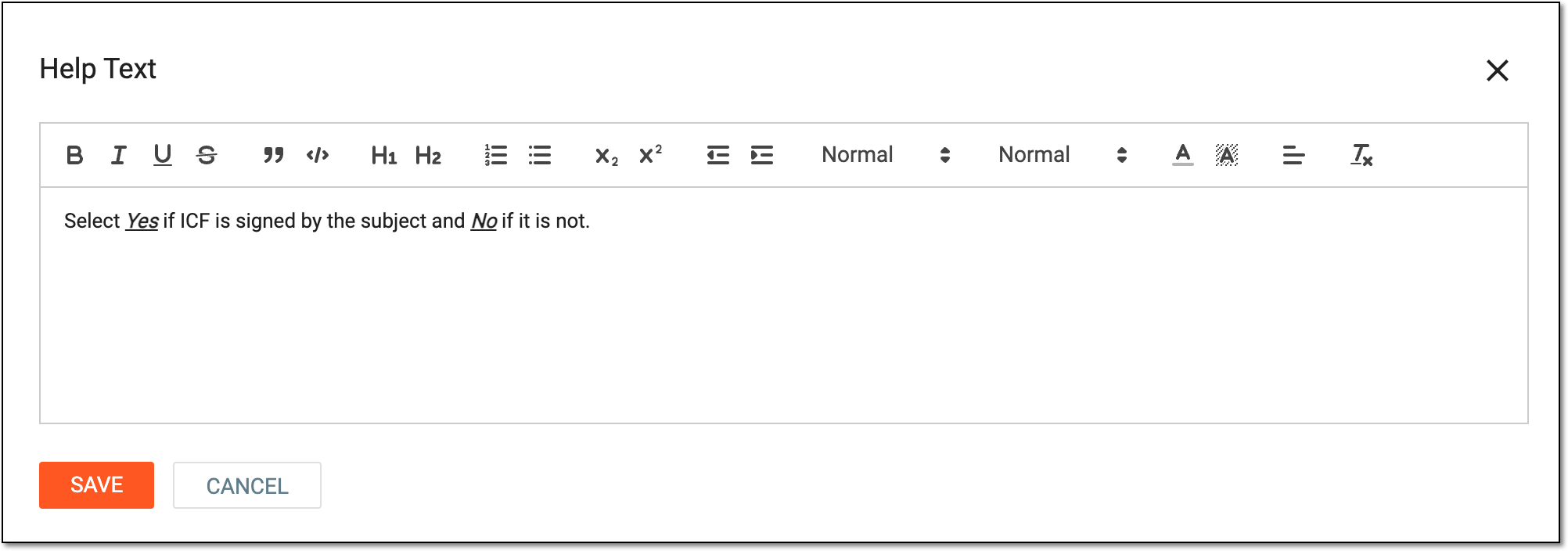 Figure 5. Entering text in rich text editor
SAVE
Select
 to save your changes.
CANCEL
Select
 to discard your changes.
Once saved, the item is edited.
You can set dependency rules between a particular question and the answer to another question in the ICF tracking log template. This may be helpful if a specific question only should appear if the previous question is answered in a certain way.
For instance, you can set the Date of Subject Signature field to only appear in your form if the answer to the question Subject Signed ICF? is Yes.
-
In the CTMS application header, select the LIBRARY tab.
-
On the page that opens, from the left pane, select ICF Tracking Log Template.
Figure 1. Accessing ICF tracking log template subtab
-
From the ICF Tracking Log Template List table that opens, locate the template you want to configure and select its name.
Figure 2. Accessing template configuration
-
On the page that appears, locate the question for which you want to set a dependency on another question item. Then next to it, select More
 > Dependence
  .
.Continuing our example, to make the Date of Subject Signature question dependent on Subject Signed ICF? = Yes, we select the Dependence option for Date of Subject Signature.
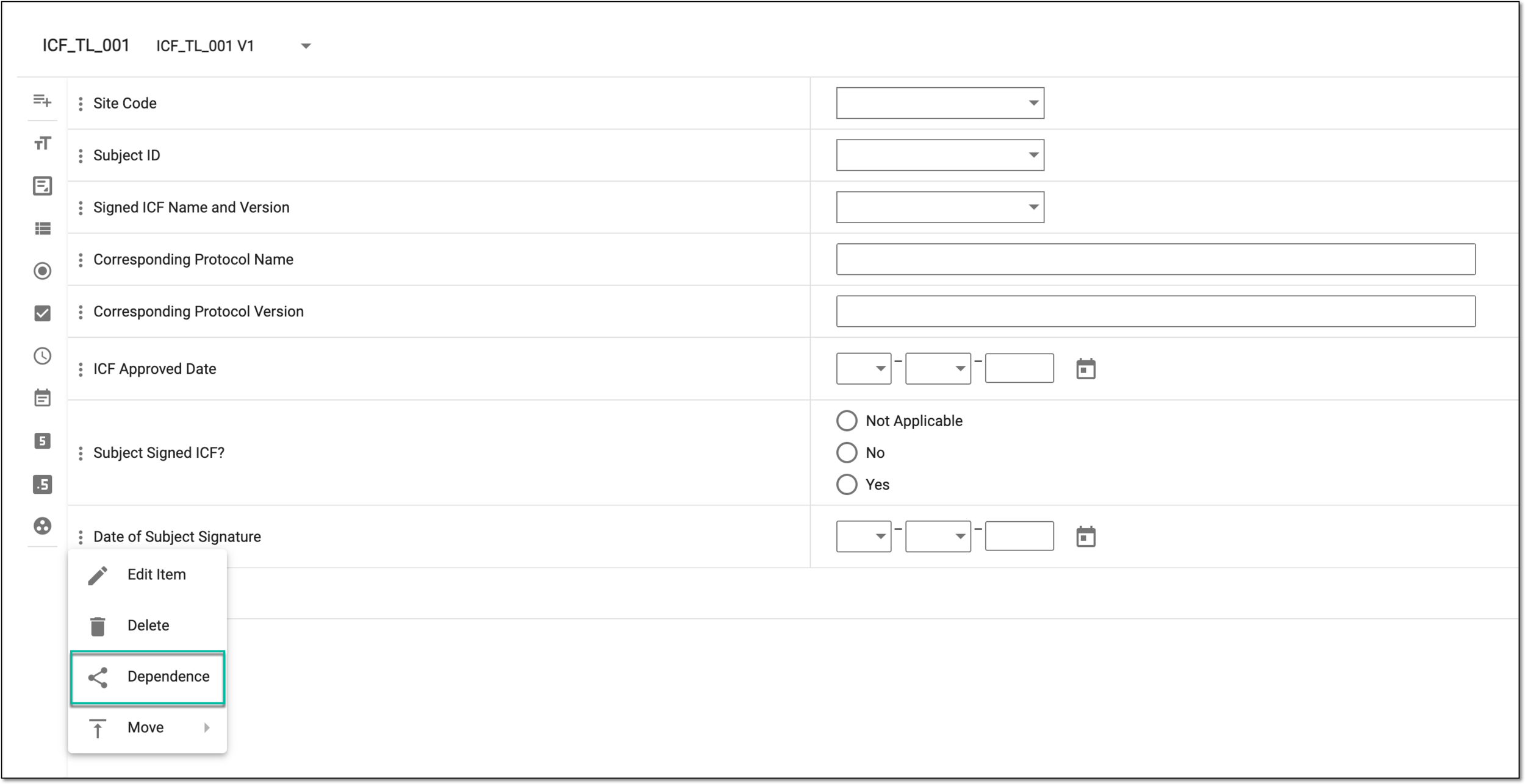 Figure 3. Selecting set dependency
-
In the Depemdence dialog that appears, from the tree, select the question to which you want to create the association. Then from the Define a Condition block, select the checkboxes next to the options that should trigger your dependency rule.
Continuing our example, select the checkbox next to Yes to complete the following dependency: if Subject Signed ICF? = Yes, then the Date of Subject Signature question appears.
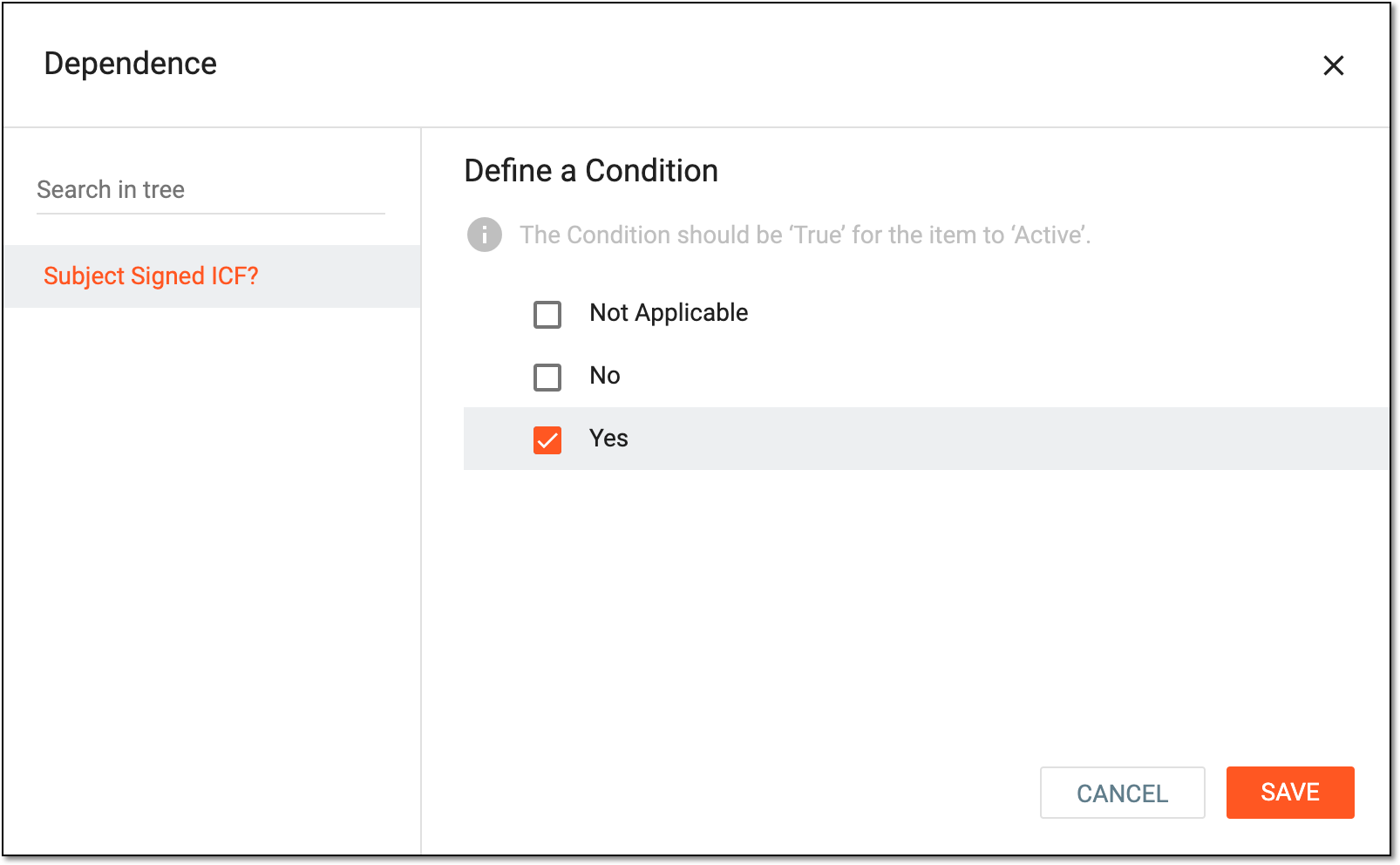 Figure 4. Setting question dependency
-
Select
to save your changes.
Upon saving, the dependency is set between the questions of the ICF tracking template.
Using this functionality, in the ICF tracking log template, you can move a question to a specific location, such as if you want to place the signature date before the signature date, place the principal investigator's name before the subject ID, and so on.
-
In the CTMS application header, select the LIBRARY tab.
-
On the page that opens, from the left pane, select ICF Tracking Log Template.
Figure 1. Accessing ICF tracking log template subtab
-
From the ICF Tracking Log Template List table that opens, locate the template you want to configure and select its name.
Figure 2. Accessing template configuration
-
On the Details page that appears, locate the question that you want to move. Then next to it, select More
> Move  .
. -
In the second dropdown menu that opens, select an option as explained in the following table.
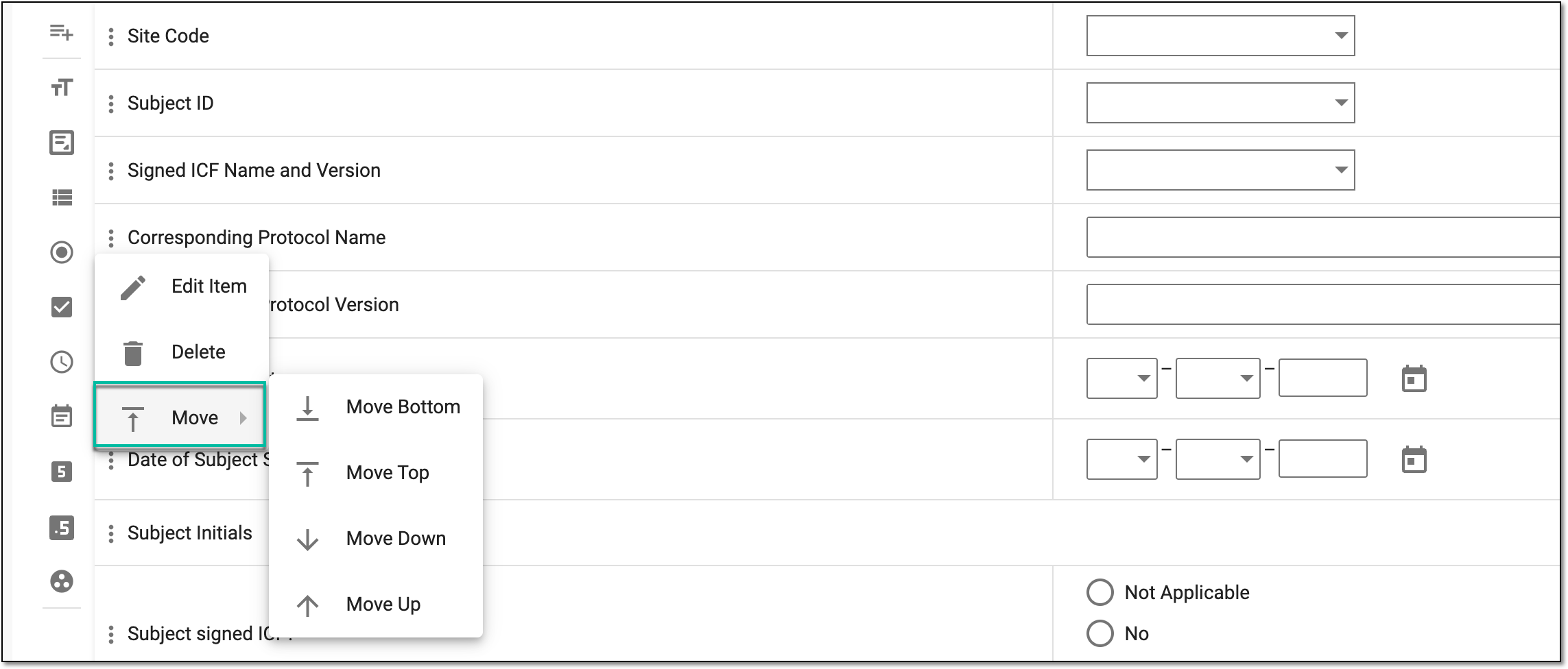 Figure 3. Selecting option to move question
Element
Details
Move Bottom

Select this option to move the selected item to the bottom of the template form; that is, the question is placed at the end of the template form.
Move Top
Select this option to move the selected item to the top of the template form; that is, the question becomes the first one in the template form.
Move Down

Select this option to move the selected question one place below its current position in the template.
Move Up

Select this option to move the selected question one place above its current position in the template.
Tip
Alternatively, you can move a question by dragging it to its required position.
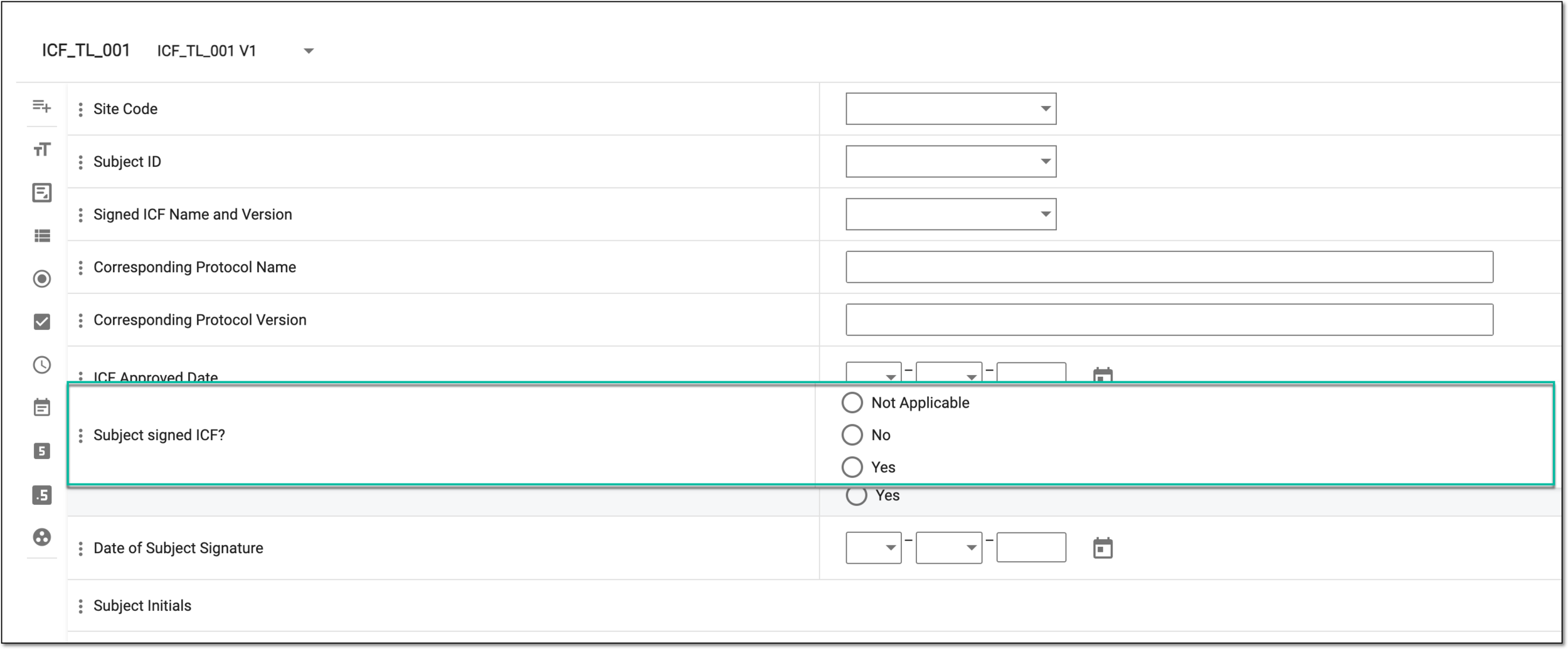 Figure 4. Moving question by dragging
You have moved your questions to place them in the form in the required order.
In CTMS, you can view operation history of a column in the ICF tracking log template. You may want to view the history to analyze details of edits, such as who made the changes, what was modified, and when the updates occurred—supporting transparency and audit readiness.
-
In the CTMS application header, select the LIBRARY tab.
-
On the page that opens, from the left pane, select ICF Tracking Log Template.
Figure 1. Accessing ICF tracking log template subtab
-
From the ICF Tracking Log Template List table that opens, locate the template you want to configure and select its name.
Figure 2. Accessing template configuration
-
On the Details page that appears, locate the item that you want to analyze. Then next to it, select More
> Operation History  .
.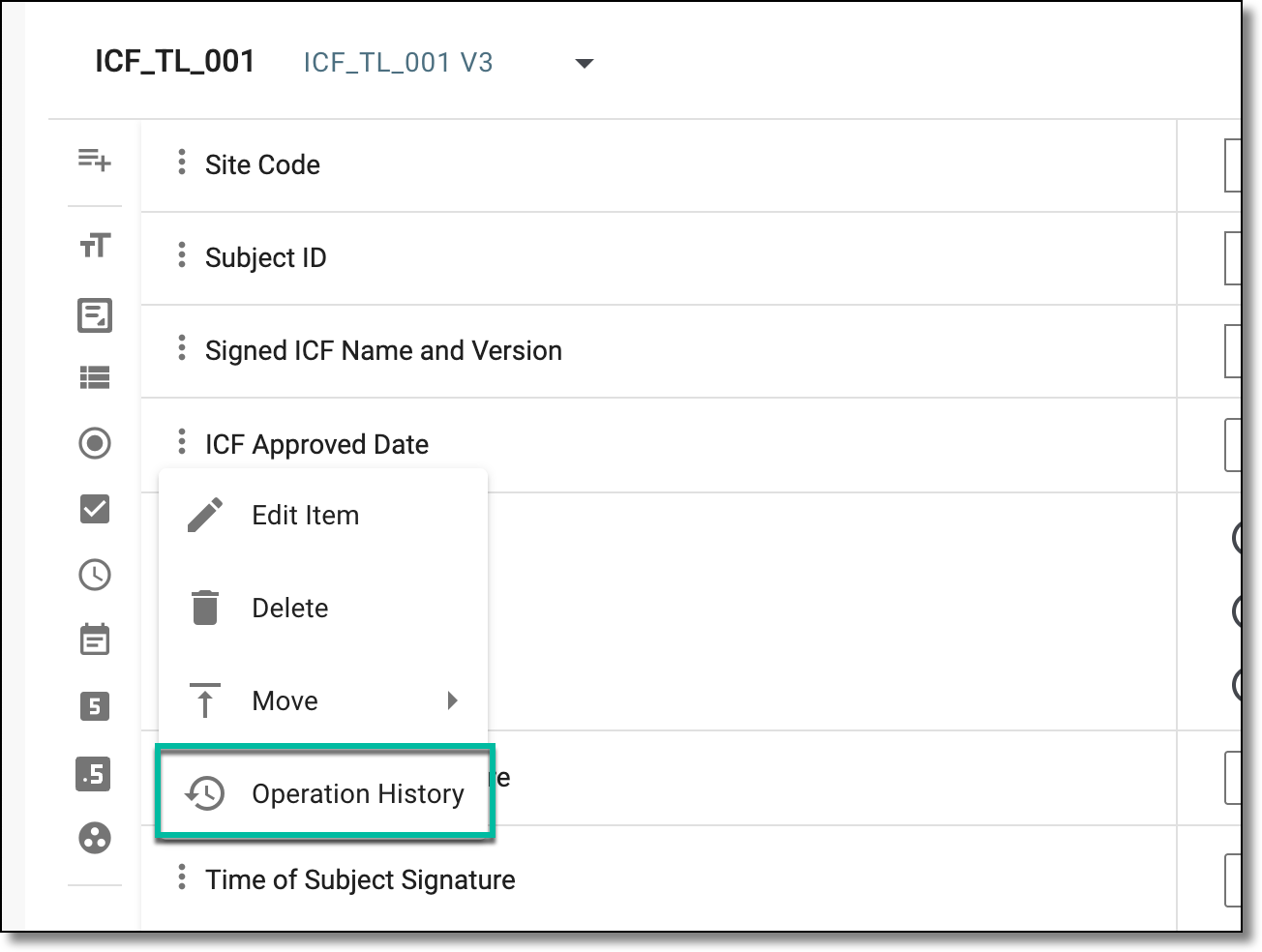 Figure 3. Accessing operation history of item in ICF tracking template
-
In the dialog that opens, analyze the details of the changes made to the item.
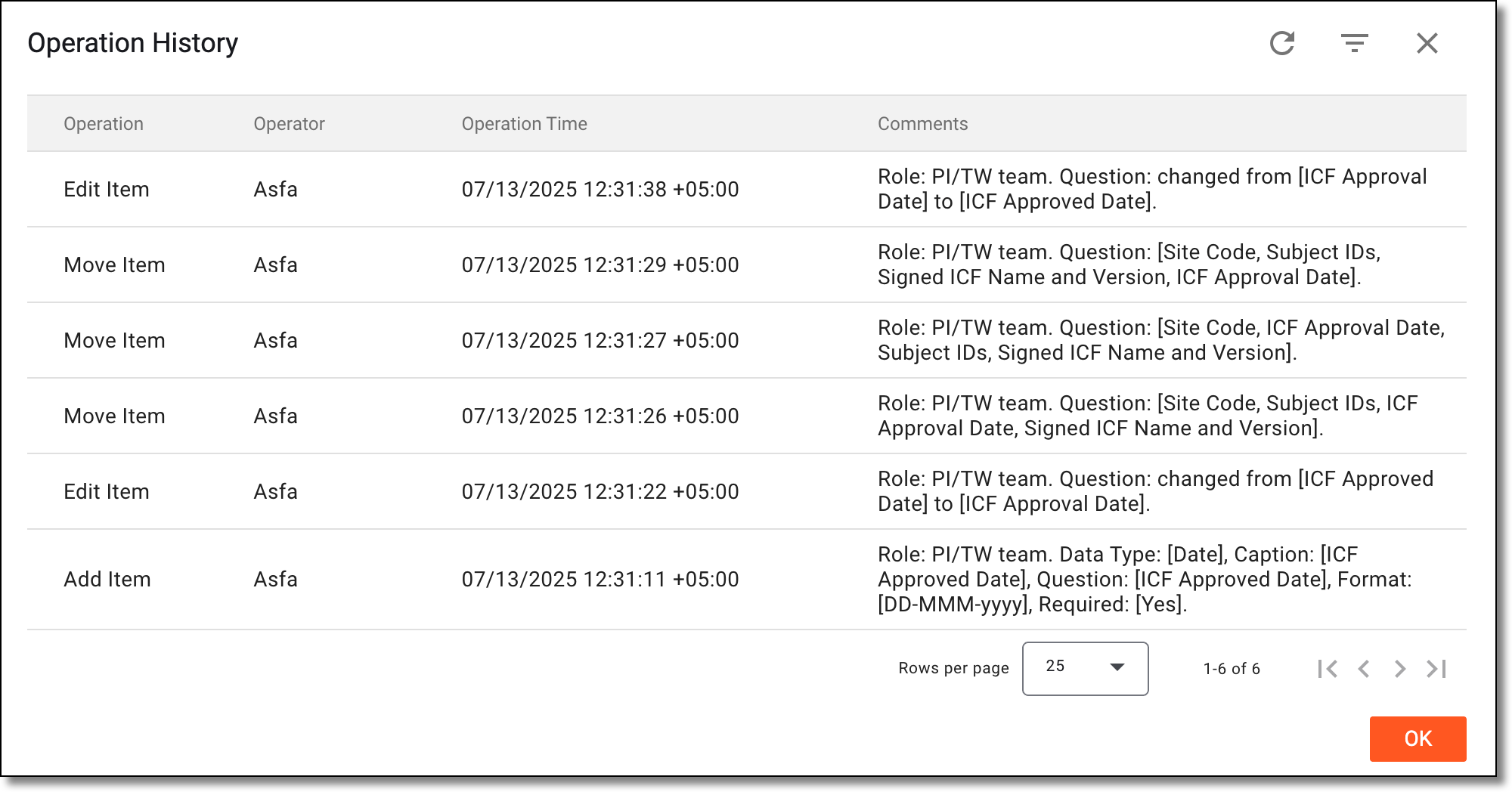 Figure 4. Analyzing operation history of question in ICF tracking template
Once you have analyzed the item's change history, select OK to close the dialog and return to the ICF tracking log template form.
You can delete a specific question from an ICF tracking log template if it is no longer required. This may be required if a question has some errors, does not acquire relevant information, or there is some other reason.
Important
You can only delete custom-created items or predefined items added manually to the form. You cannot delete the items added to your form by default—Site Code, Subject ID, or Signed ICF Name and Version as they are mandatory for all ICF tracking log templates. However, you can edit these items or move them.
-
In the CTMS application header, select the LIBRARY tab.
-
On the page that opens, from the left pane, select ICF Tracking Log Template.
Figure 1. Accessing ICF tracking log template subtab
-
From the ICF Tracking Log Template List table that opens, locate the template you want to configure and select its name.
Figure 2. Accessing template configuration
-
On the page that opens, locate the question that you want to delete. Then next to it, select More
> Delete  .
.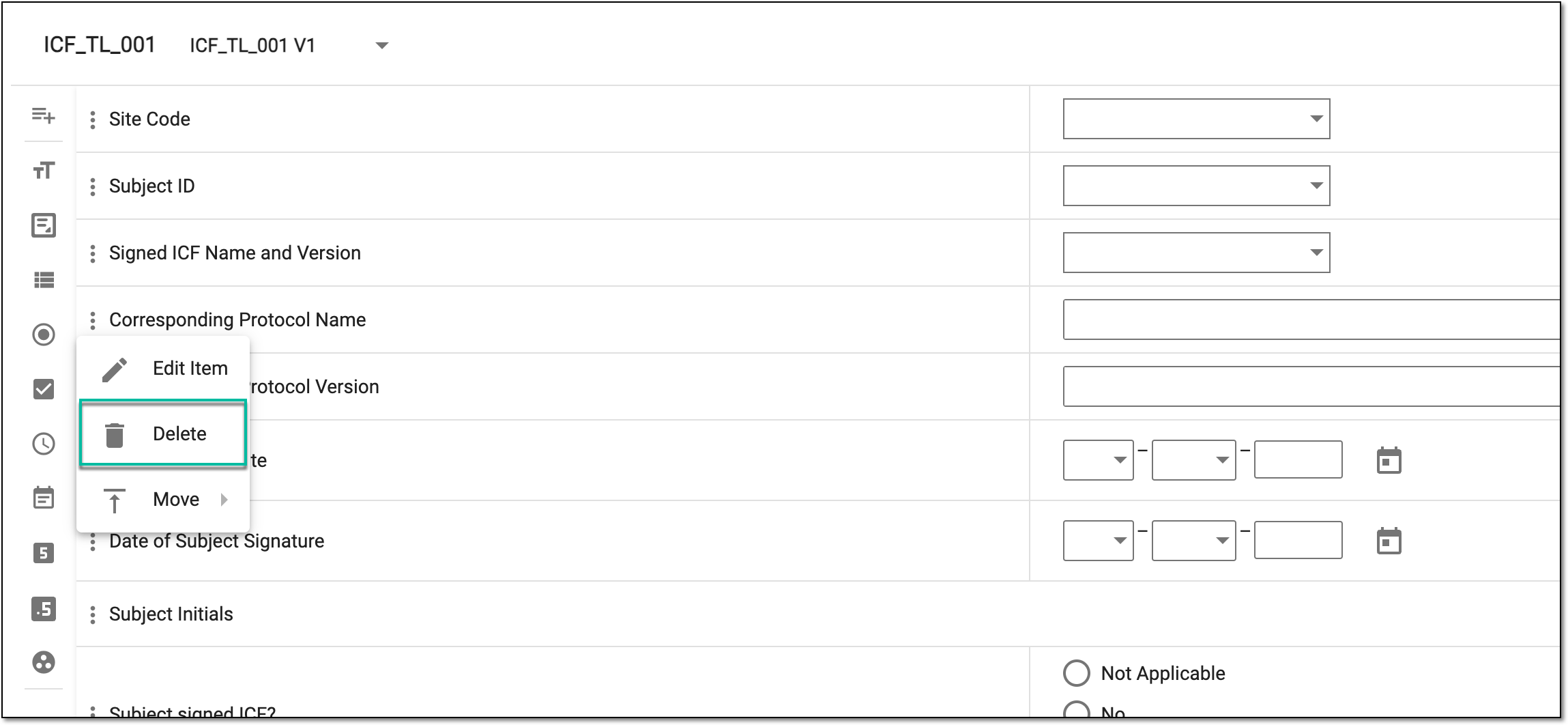 Figure 3. Selecting to delete item
-
In the Delete Item dialog that appears, confirm the action by selecting
 .
.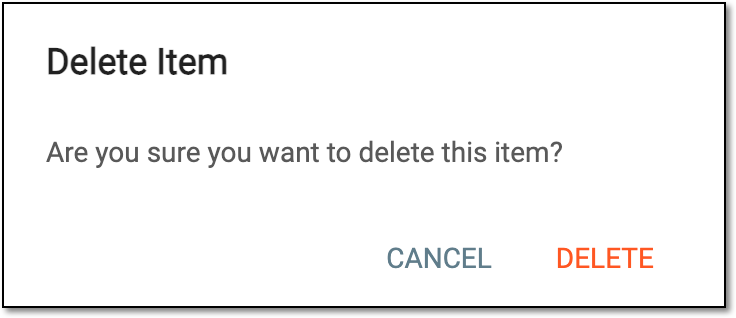 Figure 4. Confirming question deletion
Once confirmed, an item is deleted from the ICF tracking log template form.