Configure ICF tracking log template form
ICF tracking log is a document used to track the distribution, collection, and status of Informed Consent Forms (ICFs) from participants in the trial. It is a management tool that ensures proper documentation and completion of all steps related to informed consent throughout the trial process.
In CTMS, you can create a library of ICF tracking log templates that can be reused throughout your studies. For each template you create, you can configure a unique form by adding questions and items according to your needs and protocol requirements.
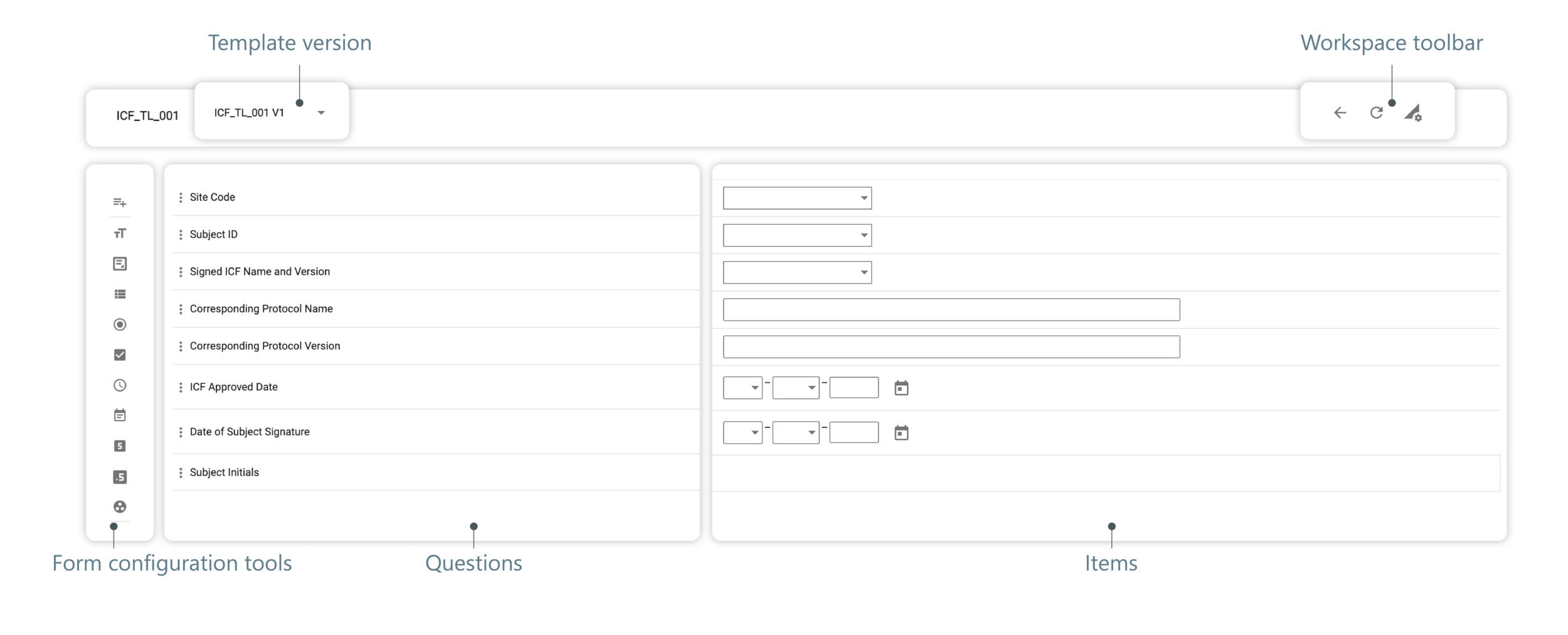
In the following sections, you can learn how to configure your template forms and use available tools.
In CTMS, you can create a library of ICF tracking log templates that can be reused throughout your studies. For each template you create, you can configure a unique form by adding questions and items according to your needs and protocol requirements.
-
In the CTMS application header, select the LIBRARY tab.
-
On the page that opens, from the left pane, select ICF Tracking Log Template.
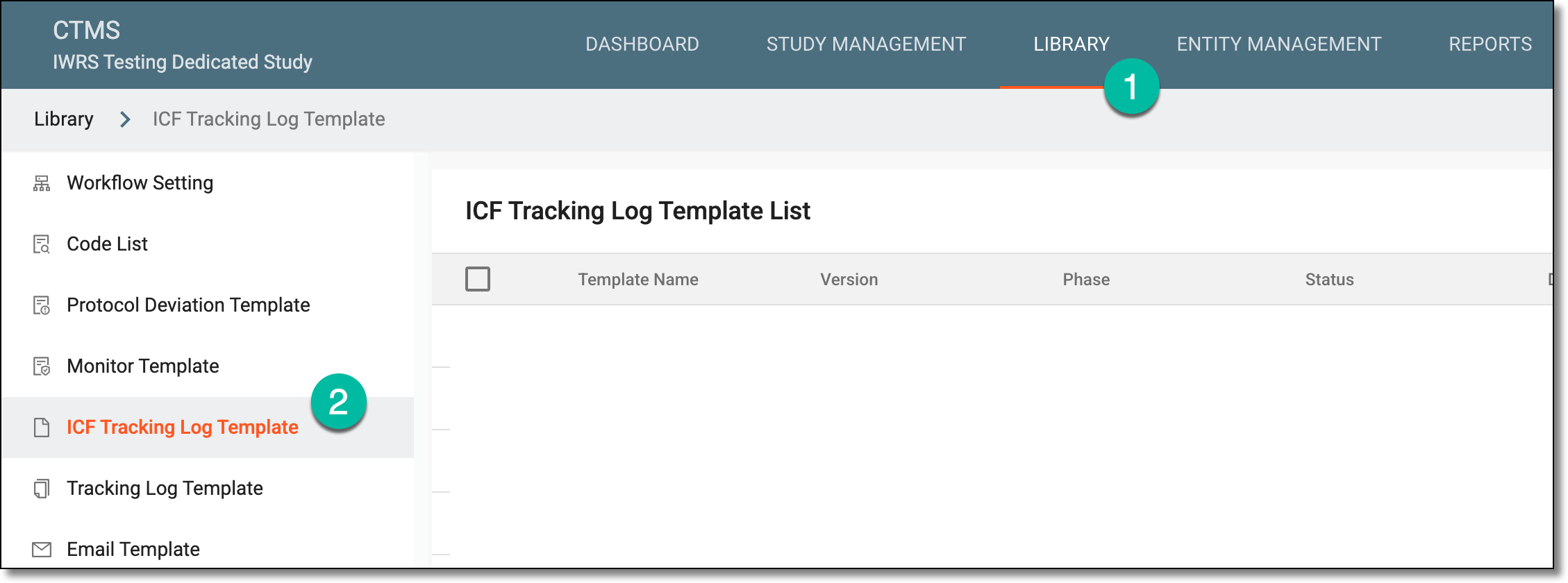 Figure 1. Accessing ICF tracking log template subtab
-
From the ICF Tracking Log Template List table that opens, locate the template you want to configure and select its name.
 Figure 2. Accessing template configuration
-
On the page that opens, start configuring questions of the form in one of the following ways:
-
To add preconfigured questions, from the workspace toolbar, click Select Predefined Items
 . Then in the dialog that opens, select the checkboxes next to questions you want to add to your form and select
  .
.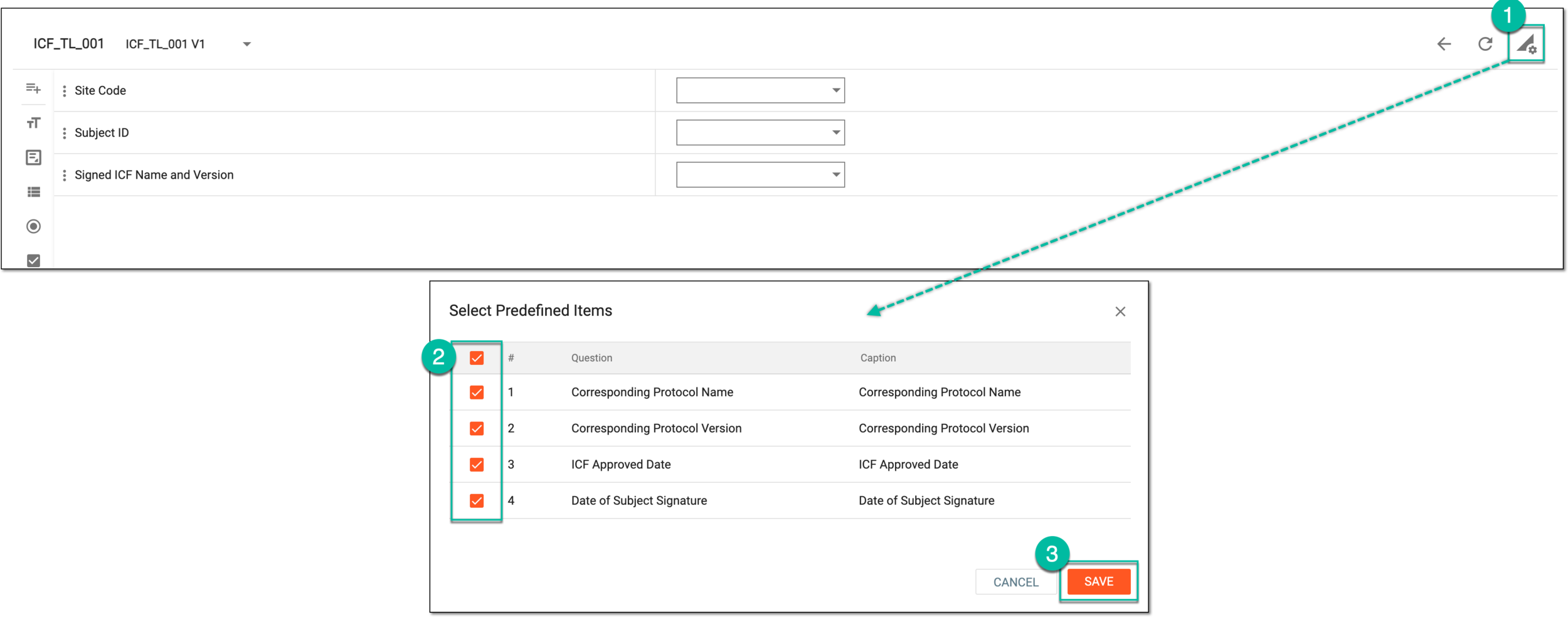 Figure 3. Adding predefined questions
-
To add a custom question, select Question
 and in the New
Question panel that opens, configure your question as explained in the following table.
and in the New
Question panel that opens, configure your question as explained in the following table.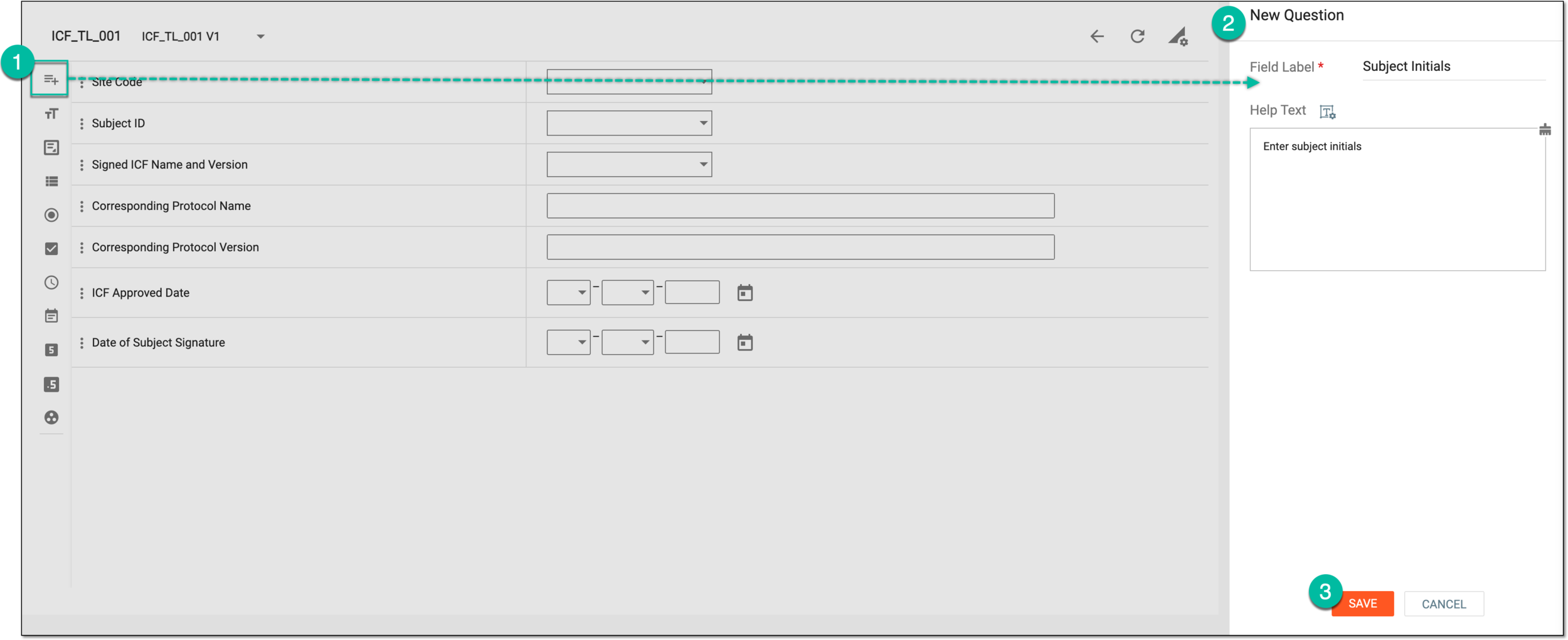 Figure 4. Adding custom question
Element
Details
Field Label*
Enter the text of your question that is to be displayed in a form in the final output.
Help Text
Enter any helpful details, directives, or suggestions on field completion that are to be displayed as a legend for your form field in the final output.
Rich Text
Select
 to open the Help Text dialog and amend your text using formatting tools.
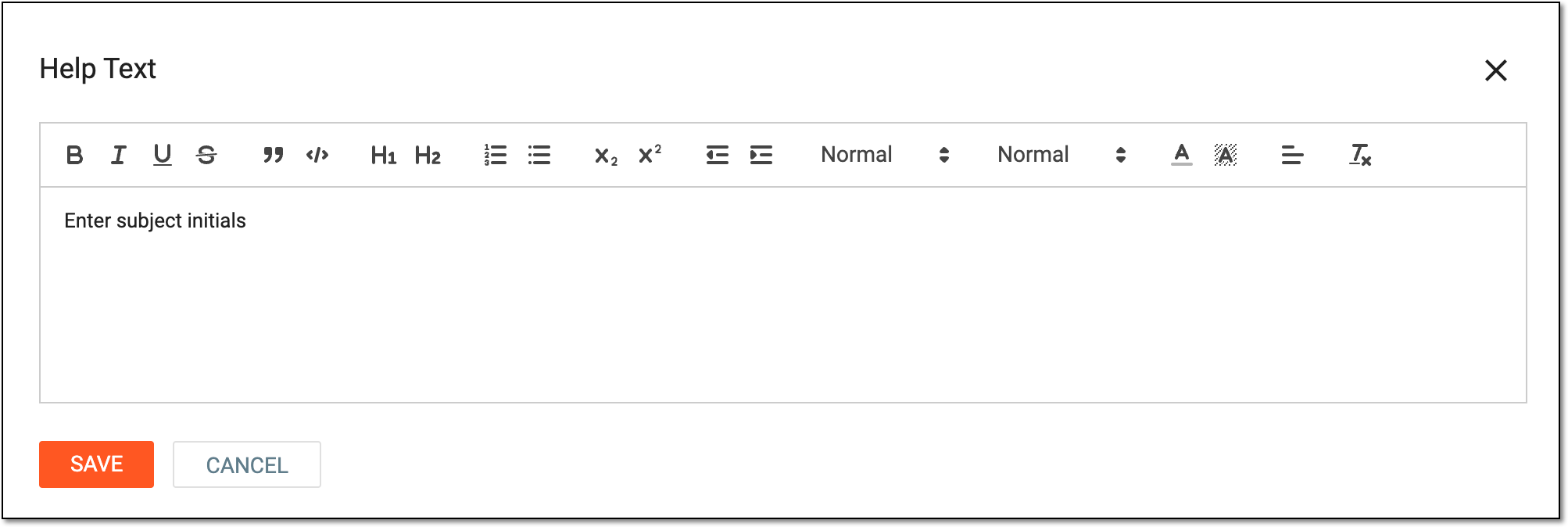 Figure 5. Entering help text
CLEAR
Select
 in the Help Text field to clear the contents and start over.
SAVE
Select
to save the changes.CANCEL
Select
 to discard the changes without saving.
-
Once saved, the question is added to your form. You can now add an item to a question.
In CTMS, you can create a library of ICF tracking log templates that can be reused throughout your studies. For each template you create, you can configure a unique form by adding questions and items according to your needs and protocol requirements.
-
In the CTMS application header, select the LIBRARY tab.
-
On the page that opens, from the left pane, select ICF Tracking Log Template.
Figure 1. Accessing ICF tracking log template subtab
-
From the ICF Tracking Log Template List table that opens, locate the template you want to configure and select its name.
Figure 2. Accessing template configuration
-
On the page that opens, start adding items to questions on the form. For this, select the item type you need from the form configuration tools panel. The available item types are explained in the following table.
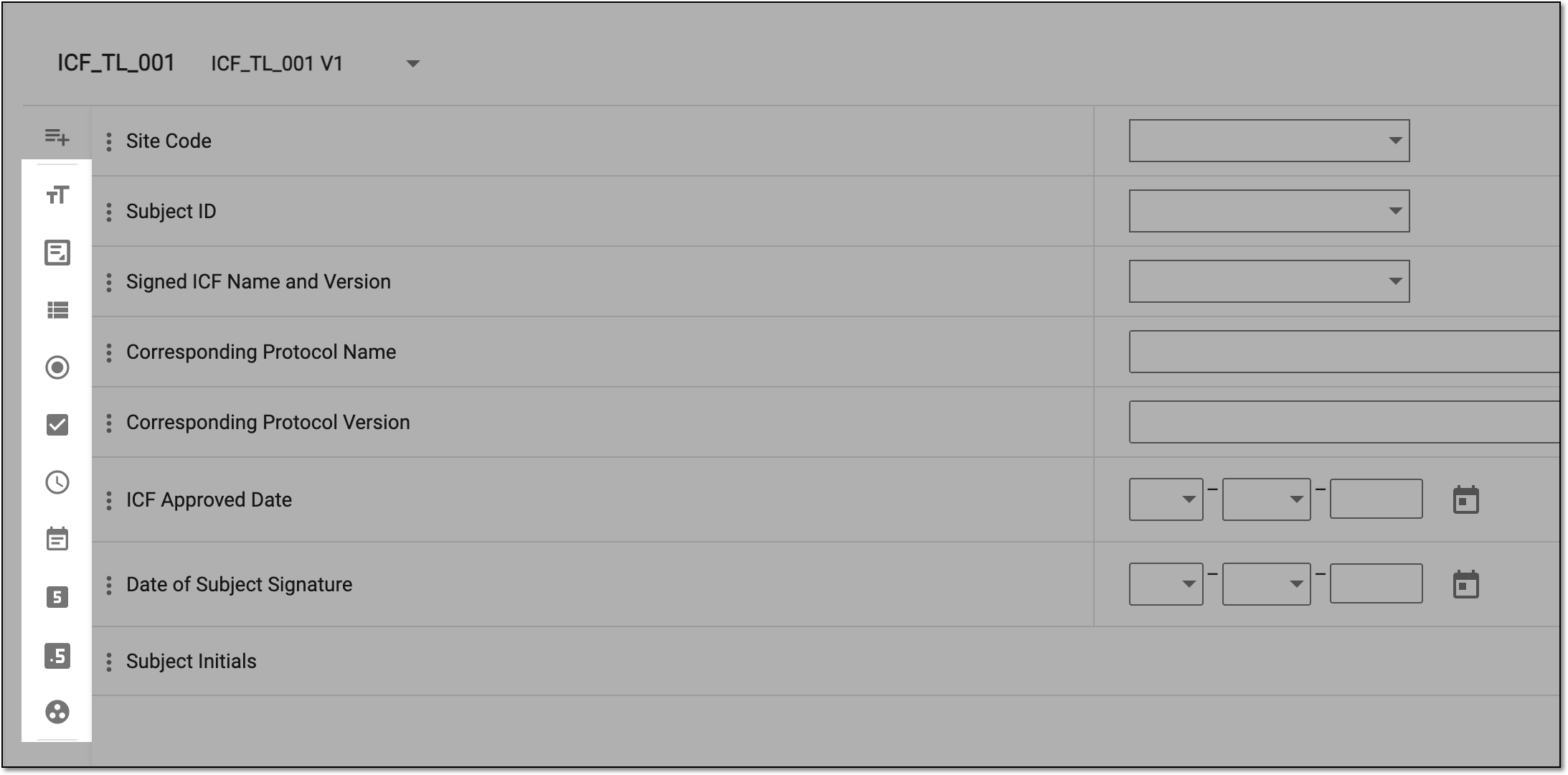 Figure 3. Available item types
Element
Details
Text

Represents a text field for a brief description.
Select this type to create questions for additional comments and such.
TextArea

Represents a larger text field for long descriptions.
You can select this type to acquire a detailed description of the ICF tracking log record.
ListBox

Represents a dropdown list from which the user can select only one option to answer the question.
You can select the ListBox option to add questions about the protocol version or others.
The list of options is fetched from Code List. Therefore, before creating such questions, the code list must be prepared.Radio

Represents multiple options in the form of option buttons from which the user can select only one to answer the question. This data type is usually used for displaying up to 5 options. If your questions have more options, then the ListBox is recommended.
Select the Radio data type to add questions like: "Was the ICF signed by the subject?".
The multiple options displayed in the form of option buttons are fetched from Code List. Therefore, before creating such questions, the code list must be
                                        prepared.
CheckBox

Represents multiple options from which the user can select one or more options to answer the question.
Use the CheckBox data type to add questions like: "Select the type of safeguards utilized by research personnel".
The multiple options displayed are fetched from Code List. Therefore, before creating such questions, the code list must be prepared.Time

Represents fields to enter time in various formats, such as hour/minutes, hour/minutes/seconds, and others.
You can select this option to inquire about the time when the ICF is approved or signed, and so on.
Date

Represents fields to enter a date in various formats, such as date/month/year, month/year, and others.
You can select this option to inquire about the date when the ICF is approved or signed, and so on.
Integer

Represents a numeric field to enter a number only.
This type can be selected to include questions, such as "Enter the total number of subjects participating in the study".
Float

Represents a numeric field that allows entering a number with a decimal point.
Select this type to include questions that inquire about the amount of drug used in a study.
Code list Group

Represents a combination of dropdown lists. In order to answer the question, the user must select one option from each of the dropdown lists provided.
You can select the Code list Group option to add questions inquiring about the site address, where one dropdown list includes provinces, the second includes cities, and the last one may include a list of streets.
The combination of the dropdown lists and the items displayed in the lists are created and fetched from Code List. Therefore, before creating such questions, the code list must be prepared. -
Once the item type is selected, in the New panel that expands, configure your question details as explained in the following table.
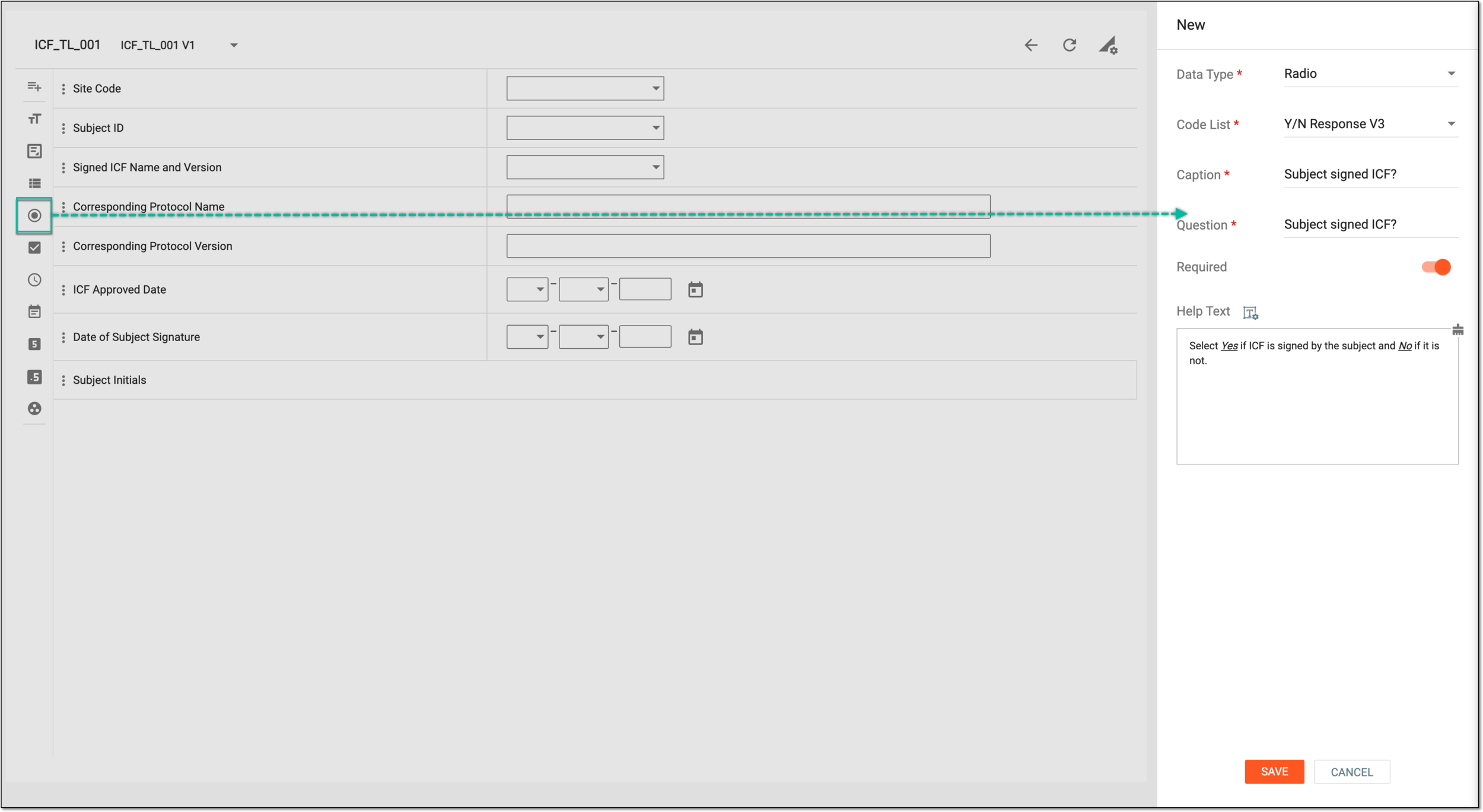 Figure 4. Configuring item question
Tip
In the following table, mandatory elements are marked with an asterisk (*).
Element
Details
Data Type*
While adding the question, if you wish to change the data selected from the one that you have selected at the previous step, then from this dropdown list, select a different data type.
Code List*
Select the code list that includes the options from which you want the user to select an answer.
This option is only displayed if you have selected the following data types: ListBox, Radio, CheckBox, Code list Group.Caption*
Enter a unique caption text for a question that you want to include in the protocol deviation template.
Question*
Enter a unique question text that you want to include in the protocol deviation template.
Format*
Select the format in which you want the user to provide their answer, such as month/date/year, hour/minutes/seconds, and so on.
This option is only displayed for the Date and Time data types.Precision
Enter a precision value up to which you want the user to provide a decimal value in the answer field.
For example, if you set the precision value to 2, then the user can enter the value "2.02" in the answer field.
This option is only displayed for the Float data type.Required
Turn the toggle on if you want the question to be mandatory in the protocol deviation template.
Help Text
Enter additional information, instructions, or clarification about the item. It may include details on how to answer a corresponding question or what data is collected in the field.
You can also select Rich Text
 to open the text editor where you can format the text with a variety of
styling options. The rich text editor provides a wide range of formatting capabilities such as adding bulleted or numbered lists, making a text bold or italicized, and more.
to open the text editor where you can format the text with a variety of
styling options. The rich text editor provides a wide range of formatting capabilities such as adding bulleted or numbered lists, making a text bold or italicized, and more.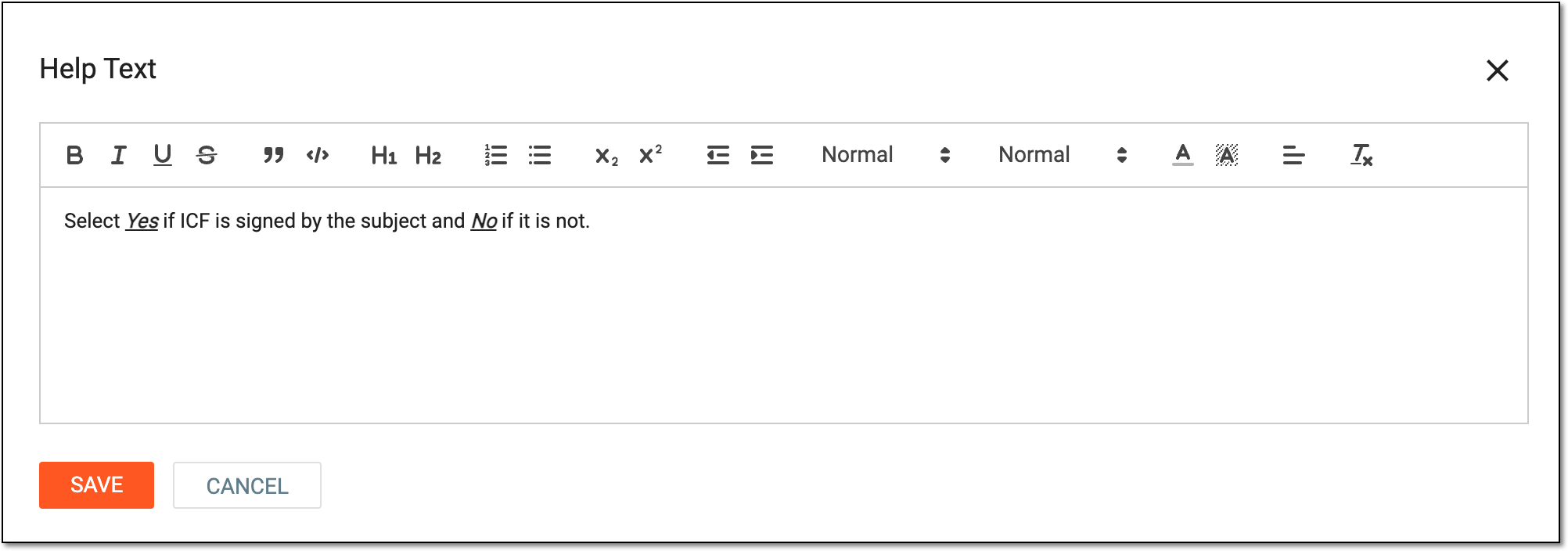 Figure 5. Entering text in rich text editor
SAVE
Select
to save your changes.CANCEL
Select
to discard your changes.
Once saved, the question is added to your form. You can also move this question to position it according to your needs.