ICF tracking log template creation
ICF tracking log is a document used to track the distribution, collection, and status of Informed Consent Forms (ICFs) from participants in the trial. It is a management tool that ensures proper documentation and completion of all steps related to informed consent throughout the trial process.
In CTMS, you can create ICF tracking log templates in three ways at your convenience as explained in the following sections.
ICF tracking log is a document used to track the distribution, collection, and status of Informed Consent Forms (ICFs) from participants in the trial. It is a management tool that ensures proper documentation and completion of all steps related to informed consent throughout the trial process.
In CTMS, you can create a library of ICF tracking log templates that can be reused throughout your studies. This section concentrates on how to create such a template in the system from scratch.
-
In the CTMS application header, select the LIBRARY tab.
-
On the page that opens, from the left pane, select ICF Tracking Log Template.
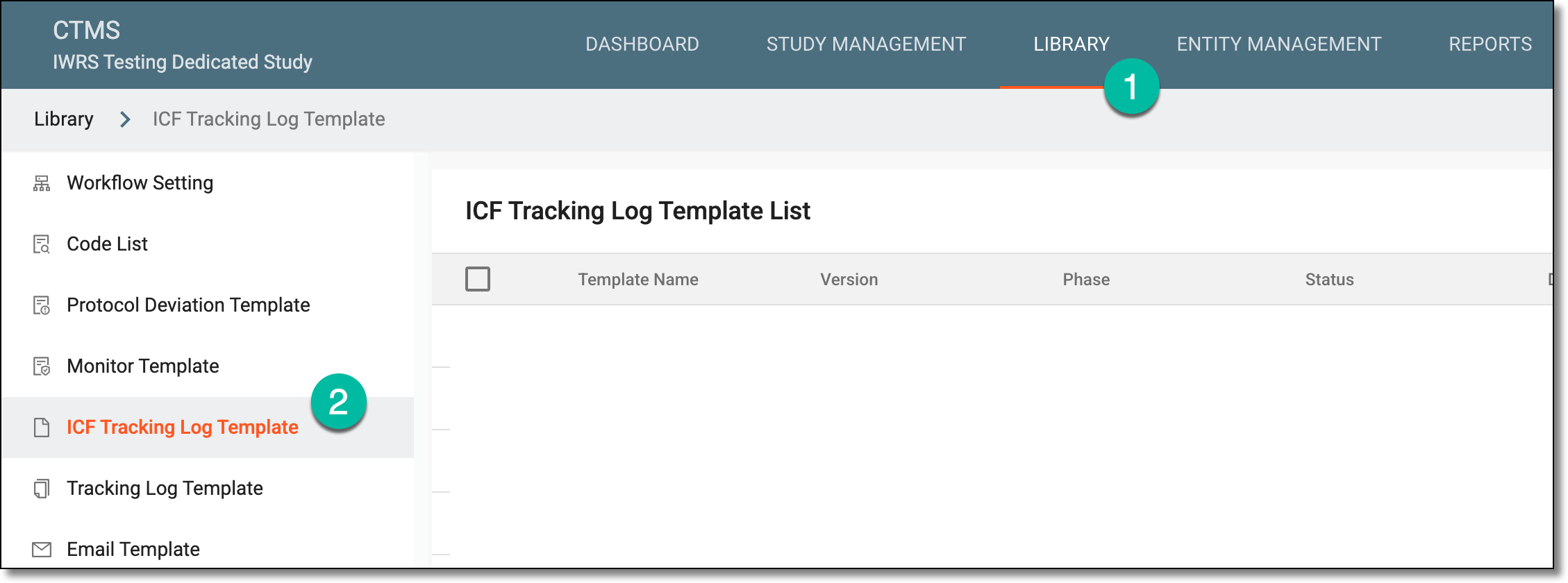 Figure 1. Accessing ICF tracking log template subtab
-
On the ICF Tracking Log Template List page that opens, from the workspace toolbar, select New Item
 .
. Figure 2. Adding new ICF tracking log template
-
In the New dialog that opens, configure the template details as explained in the following table.
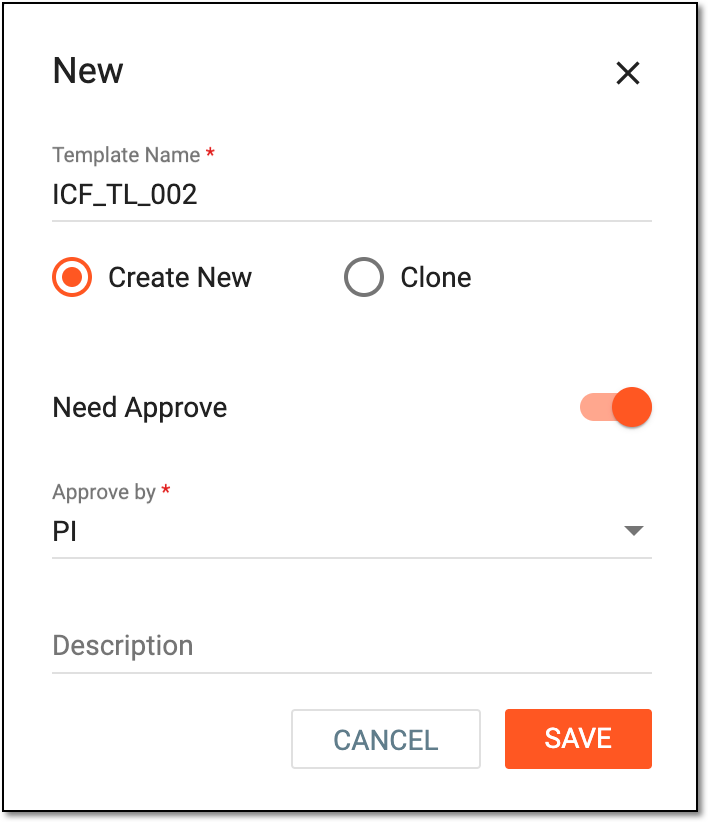 Figure 3. Configuring new ICF tracking log template
Tip
In the following table, mandatory elements are marked with an asterisk (*).
Element
Details
Template Name*
Enter a unique name for your template. It is advised to use a descriptive and comprehensive name as it is used to distinguish the template from others when configuring the ICF tracking log setting.
Create New
Select this option to create a new template and configure it from scratch in CTMS.
Clone
Select this option to clone the existing template.
Need Approve
Configure as follows:
-
Turn the toggle on if you want to assign an approver to verify the configured template before it becomes valid and available for further use in the system.
-
Turn the toggle off if there is no need to assign an approver to verify the configured template.
Approve by*
If the Need Approve toggle is turned on, select the user role responsible for approving your configured template.
This field is unavailable if the Need Approve toggle is turned off.Description
Enter additional information or helpful details about the template.
SAVE
Select
 to save the implemented changes.
CANCEL
Select
 to discard the changes without saving.
 -
Once saved, the template is created. You can now configure the template form.
ICF tracking log is a document used to track the distribution, collection, and status of Informed Consent Forms (ICFs) from participants in the trial. It is a management tool that ensures proper documentation and completion of all steps related to informed consent throughout the trial process.
In CTMS, you can create a library of ICF tracking log templates that can be reused throughout your studies. This section concentrates on how to create such a template by cloning the existing one and further amending it as needed.
-
In the CTMS application header, select the LIBRARY tab.
-
On the page that opens, from the left pane, select ICF Tracking Log Template.
Figure 1. Accessing ICF tracking log template subtab
-
On the ICF Tracking Log Template List page that opens, from the workspace toolbar, select New Item
.Figure 2. Adding new ICF tracking log template
-
In the New dialog that opens, configure the template details as explained in the following table.
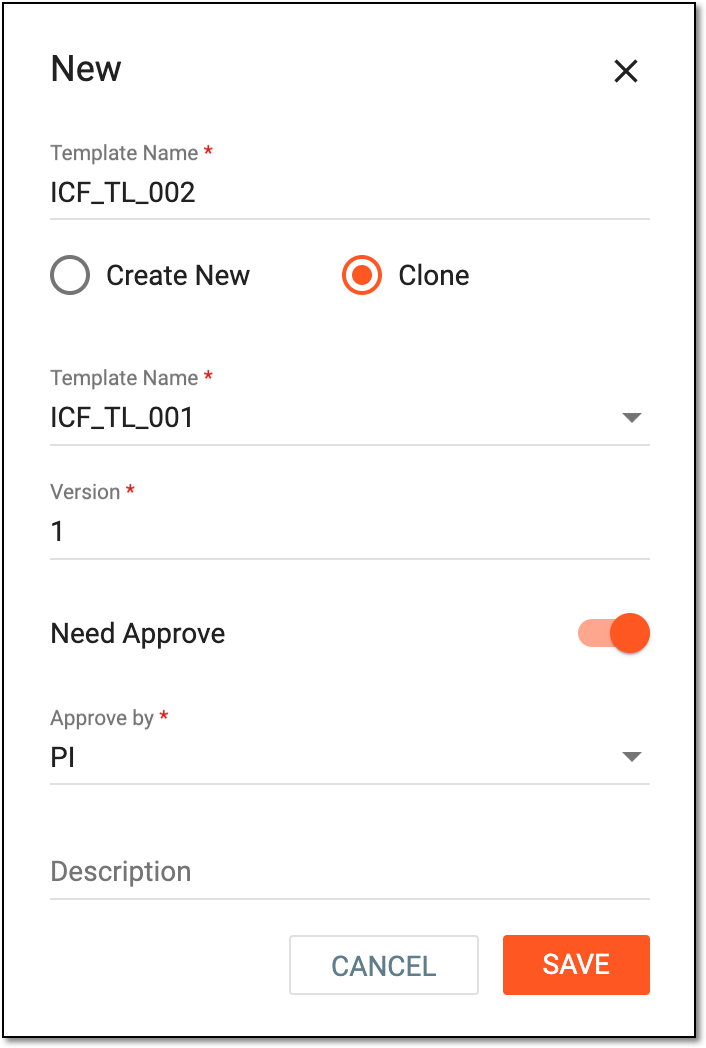 Figure 3. Configuring new ICF tracking log template
Tip
In the following table, mandatory elements are marked with an asterisk (*).
Element
Details
Template Name*
Enter a unique name for your template. It is advised to use a descriptive and comprehensive name as it is used to distinguish the template from others when configuring the ICF tracking log setting.
Create New
Select this option to create a new template and configure it from scratch in CTMS.
Clone
Select this option to clone the existing template.
Template Name*
Select the template from which you want to clone the configurations into a newly created one.
Version*
Represents the template version. The version number is autogenerated by the system and cannot be changed manually.
Need Approve
Configure as follows:
-
Turn the toggle on if you want to assign an approver to verify the configured template before it becomes valid and available for further use in the system.
-
Turn the toggle off if there is no need to assign an approver to verify the configured template.
Approve by*
If the Need Approve toggle is turned on, select the user role responsible for approving your configured template.
This field is unavailable if the Need Approve toggle is turned off.Description
Enter additional information or helpful details about the template.
SAVE
Select
to save the implemented changes.CANCEL
Select
to discard the changes without saving. -
Once saved, the template is created. You can now configure the template form.