Activate/Inactivate ICF tracking log template
In CTMS, you can modify the status of an ICF tracking log template. You can either set the template's status to Active or Inactive. An active template can be used in the ICF tracking log settings under the STUDY MANAGEMENT tab of CTMS. Whereas, an inactive template cannot be used anywhere in the system and remains only available as a drafted version in the library.
You may want to inactivate a template if, for example, it is not currently required for the ongoing study but it might be used for another study, site, or subject in the future, so you cannot risk losing it. Therefore, in the future, whenever required, you can again activate it.
-
In the CTMS application header, select the LIBRARY tab.
-
On the page that opens, from the left pane, select ICF Tracking Log Template.
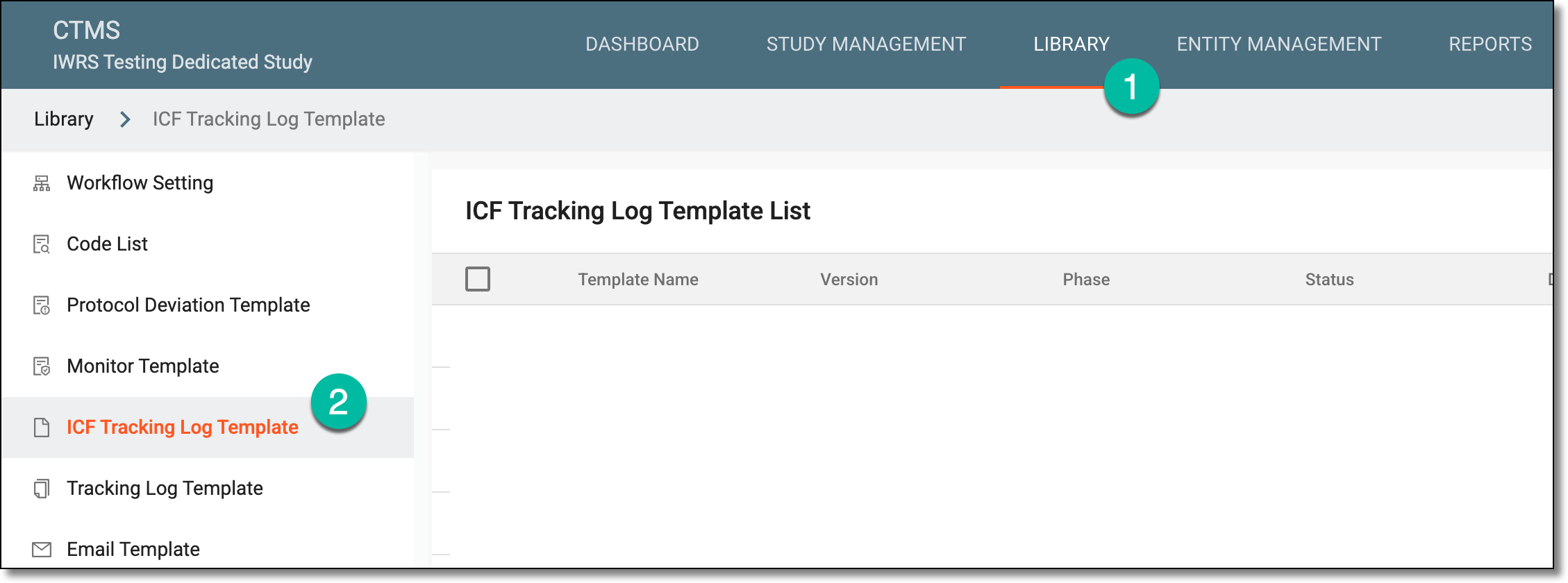 Figure 1. Accessing ICF tracking log template subtab
-
From the ICF Tracking Log Template List table, locate the active template that you want to inactivate or an inactive template that you want to activate.
-
Next to the template, in the Action(s) column, select Activate
 or Inactivate
  as required.
 Figure 2. Activating/Inactivating ICF tracking template
Once the needed actions are performed, the ICF tracking log template is activated or inactivated.