View upgrade history
Upgrading the verbatim term (VT) coding results to the latest MedDRA or WHODrug version ensures that your study uses the most up-to-date coding standards. This upgrade can be requested after the release of a new dictionary version. The upgrade history is automatically recorded in the CODING application as part of the audit trail, offering a detailed log of all changes. Viewing this history is important for transparency and accountability, allowing you to track and verify the usage of the latest coding standards and monitor the accuracy of your study's coding.
Important
The option is unavailable unless you have the CODING_Admin role.
To change the role, in the CODING toolbar, expand the lifecycle list, then select the appropriate environment, and choose the CODING_Admin role.

-
In the Coding Admin application header, select the STUDY MANAGEMENT tab.
 Figure 2. Accessing the STUDY MANAGEMENT tab
-
In the Study List table that appears, next to the study for which you want to view an upgrade history, select Upgrade History
 .
. Figure 3. Accessing Upgrade History option
-
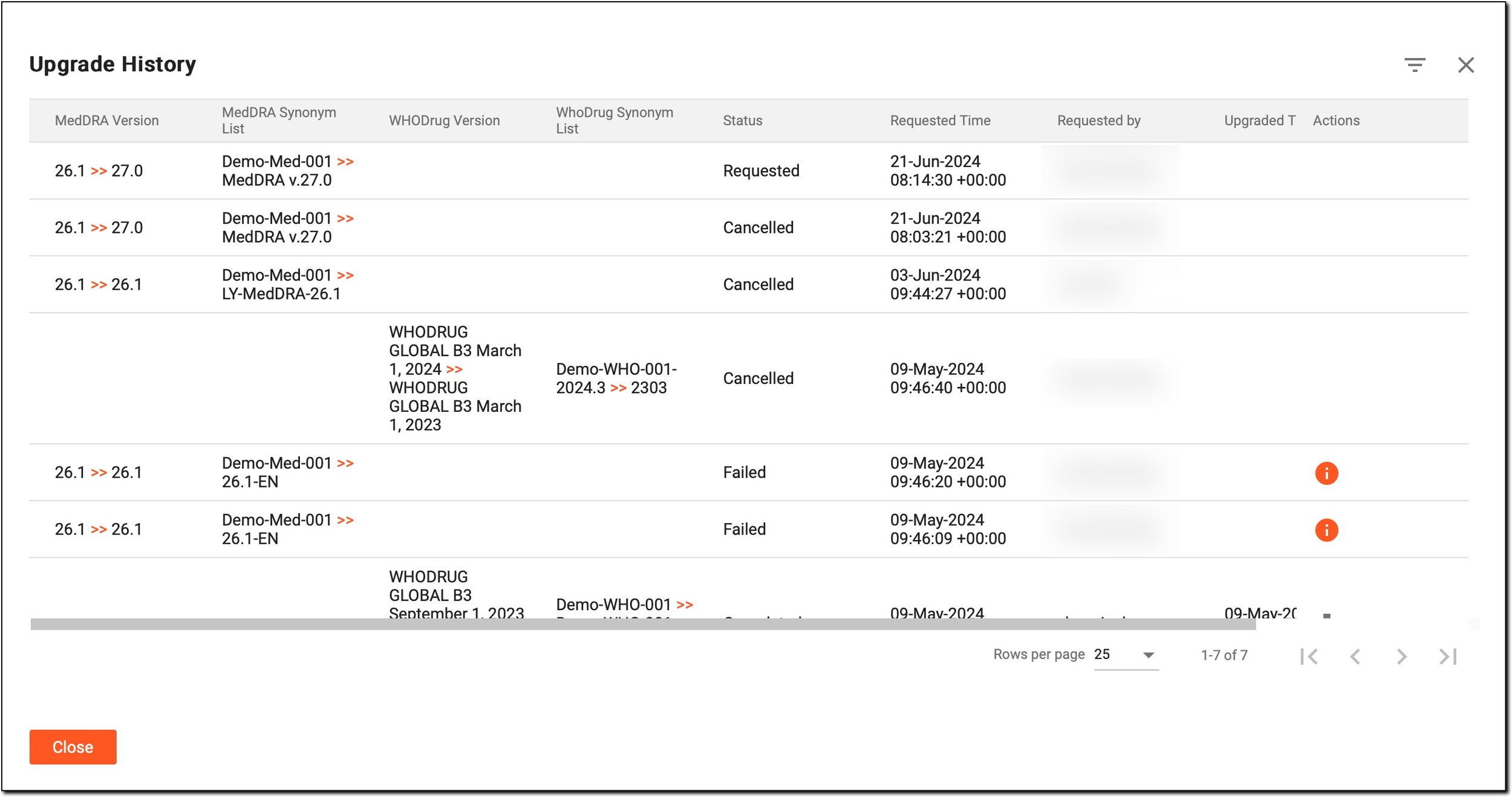
In the Upgrade History dialog that opens, view the history of the dictionary version upgrades for your study, including details about each upgrade attempt and its status as explained in the following table.
Column
Details
MedDRA Version
Shows the MedDRA version before and after the upgrade.
MedDRA Synonym List
Displays the synonym list used for MedDRA coding before and after the upgrade.
WHODrug Version
Shows the WHODrug version before and after the upgrade.
WHODrug Synonym List
Displays the synonym list used for WHODrug coding before and after the upgrade.
Status
Indicates the current status of the upgrade, such as Requested, Cancelled, Failed, or Completed.
Requested Time
Displays the timestamp when the upgrade was requested.
Requested by
Displays the user who performed the upgrade.
Upgraded Time
Displays the timestamp when the upgrade was completed.
Upgraded by
Displays the user who performed the upgrade.
Actions
-
Upgrade Error Message
 : select it to review the reason why the upgrade failed.
This action is available only for study upgrades in the Failed status.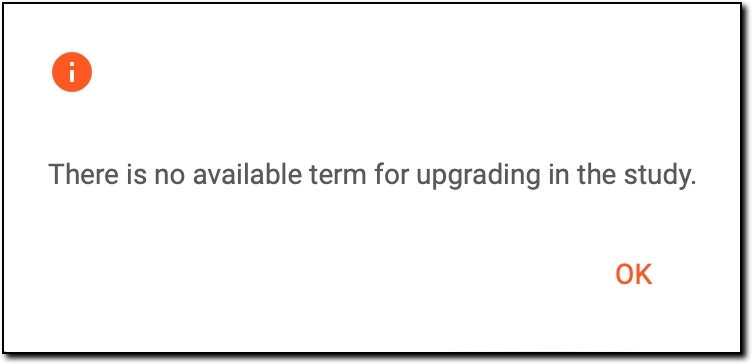 Figure 5. Reason for upgrade fail
-
Download
 : select it to download the upgrade history in an Excel format and view it offline or to share
it with someone who does not have access to the CODING application.
: select it to download the upgrade history in an Excel format and view it offline or to share
it with someone who does not have access to the CODING application.The action is available only for study upgrades in the Completed status.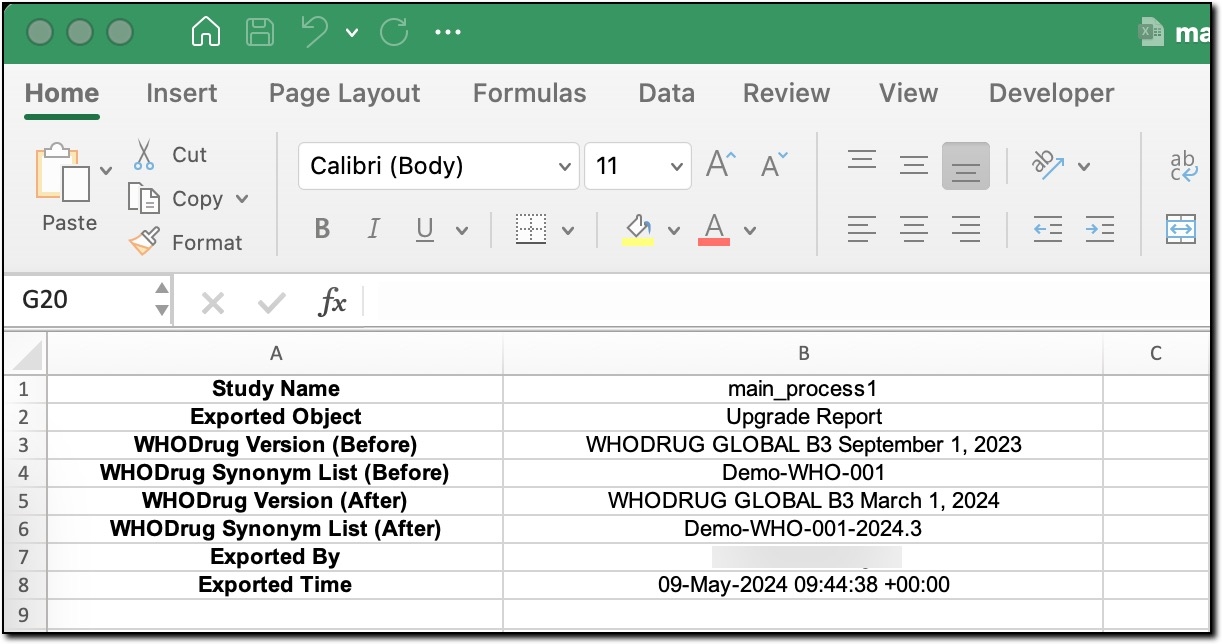 Figure 6. Viewing upgrade history in Excel
Figure 4. Viewing upgrade history
Once done, in the Upgrade History dialog, select
 to exit the log of all dictionary version upgrades for your study.
 -