Request study upgrade
Upgrading the verbatim term (VT) coding results to a new MedDRA/WHODrug version ensures that your study uses the most up-to-date coding standards. This process is crucial for maintaining coding accuracy and relevance. You can request an upgrade after a new dictionary is released to ensure the latest standards are applied to your study. The upgrade history is recorded in the system as part of the audit trail, providing a comprehensive log of all changes.
Important
The option is unavailable unless you have the CODING_Admin role.
To change the role, in the CODING toolbar, expand the lifecycle list, then select the appropriate environment, and choose the CODING_Admin role.

-
In the Coding Admin application header, select the STUDY MANAGEMENT tab.
 Figure 2. Accessing the STUDY MANAGEMENT tab
-
In the Study List table that appears, next to the study for which you want to request a dictionary upgrade, select Upgrade
 .
. Figure 3. Requesting study upgrade
-
In the Upgrade dialog that appears, configure your upgrade request as explained in the following table.
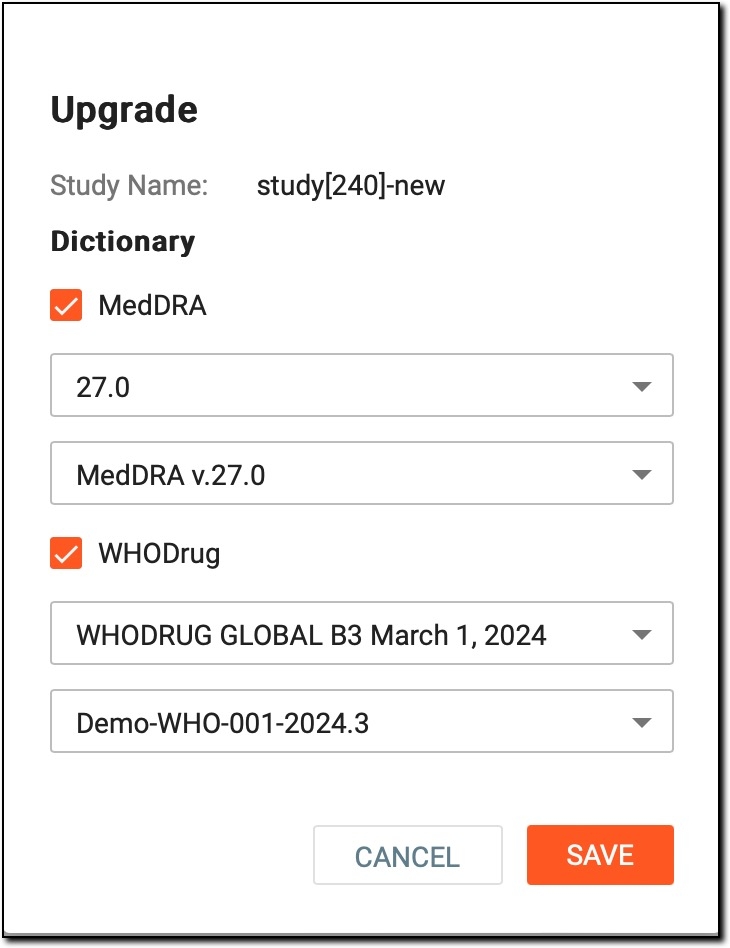 Figure 4. Requesting dictionary upgrade
Element
Details
Study name
A read-only field representing the name of the study for which new coding standards must be applied.
MedDRA
Select the checkbox if the MedDRA dictionary version must be upgraded for this study.
[MedDRA version]
Expand the list and select the version of the MedDRA dictionary to which the study must be upgraded.
[MedDRA synonym list]
Expand the list and select the version of the MedDRA synonym list to be used for coding verbatim terms.
WHODrug
Select the checkbox if the WHODrug dictionary version must be upgraded for this study.
[WHODrug version]
Expand the list and select the version of the WHODrug dictionary to which the study must be upgraded.
[WHODrug synonym list]
Expand the list and select the version of the WHODrug synonym list to be used for coding verbatim terms.
SAVE
Select
 to submit the study upgrade request.
CANCEL
Select
 to cancel the study upgrade request.
 -
In the confirmation dialog, select OK to proceed with the study upgrade request.
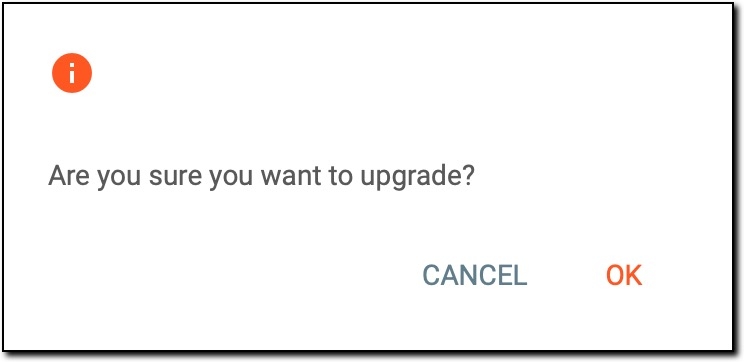 Figure 5. Confirmation dialog
Important
If there are batches of files with verbatim terms pending coding completion, the study cannot be upgraded to the latest dictionary version and you receive a similar error. To troubleshoot it, go to the Medical Coding module, complete these batches, and then go back to Coding Admin and initiate the study upgrade one more time.
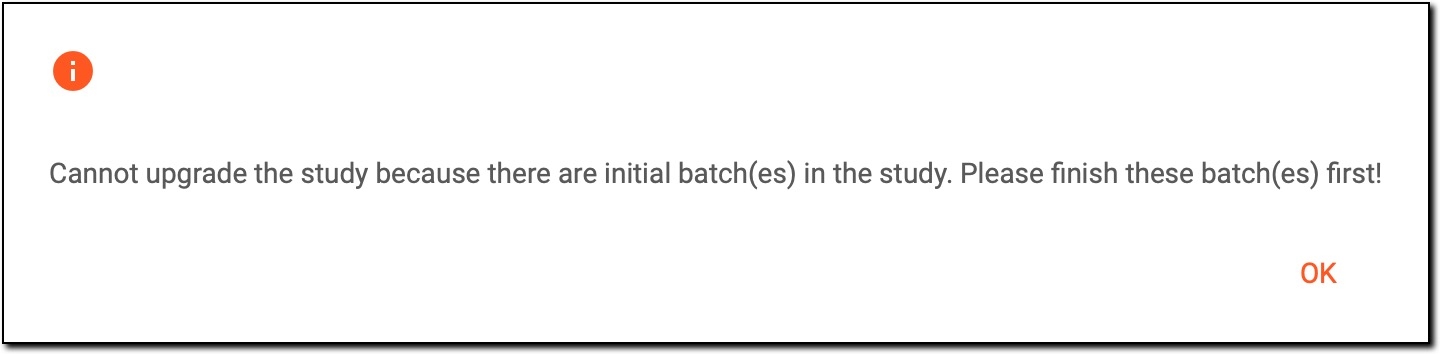 Figure 6. Study upgrade failed
The request for the study dictionary upgrade has been submitted. Now, the following happens:
-
The status of the study automatically changes to Upgrading.
 Figure 7. Changed study status
-
The coder signs in to Medical Coding > CODING to review the upgrading results.
Tip
For coder's convenience, the differences before and after the upgrade are highlighted within the interface, making it easy to identify changes in coding assignments.
This means that if the term name or term code in the upgrade results differs from the current coding result, the name or code will be marked in red. This helps coders easily spot modifications, ensuring they can review and validate any updates efficiently.
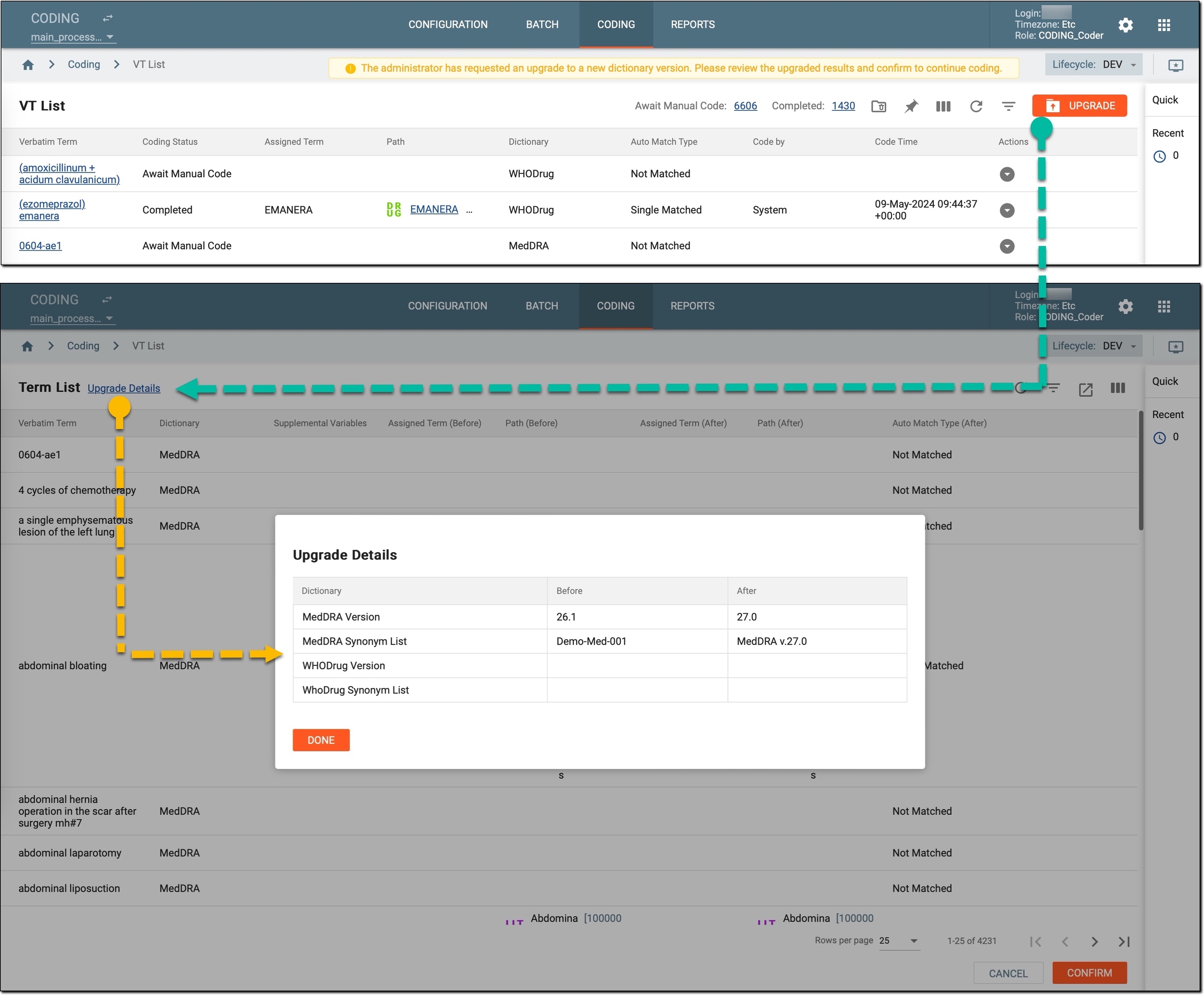 Figure 8. Medical Coding module. Coder viewing upgrading results
-
If there are any issues with the results, the coder contacts the administrator to cancel the upgrade.
-
If the coder confirms that the results are satisfactory, they apply the upgrade results to the verbatim terms (VTs).
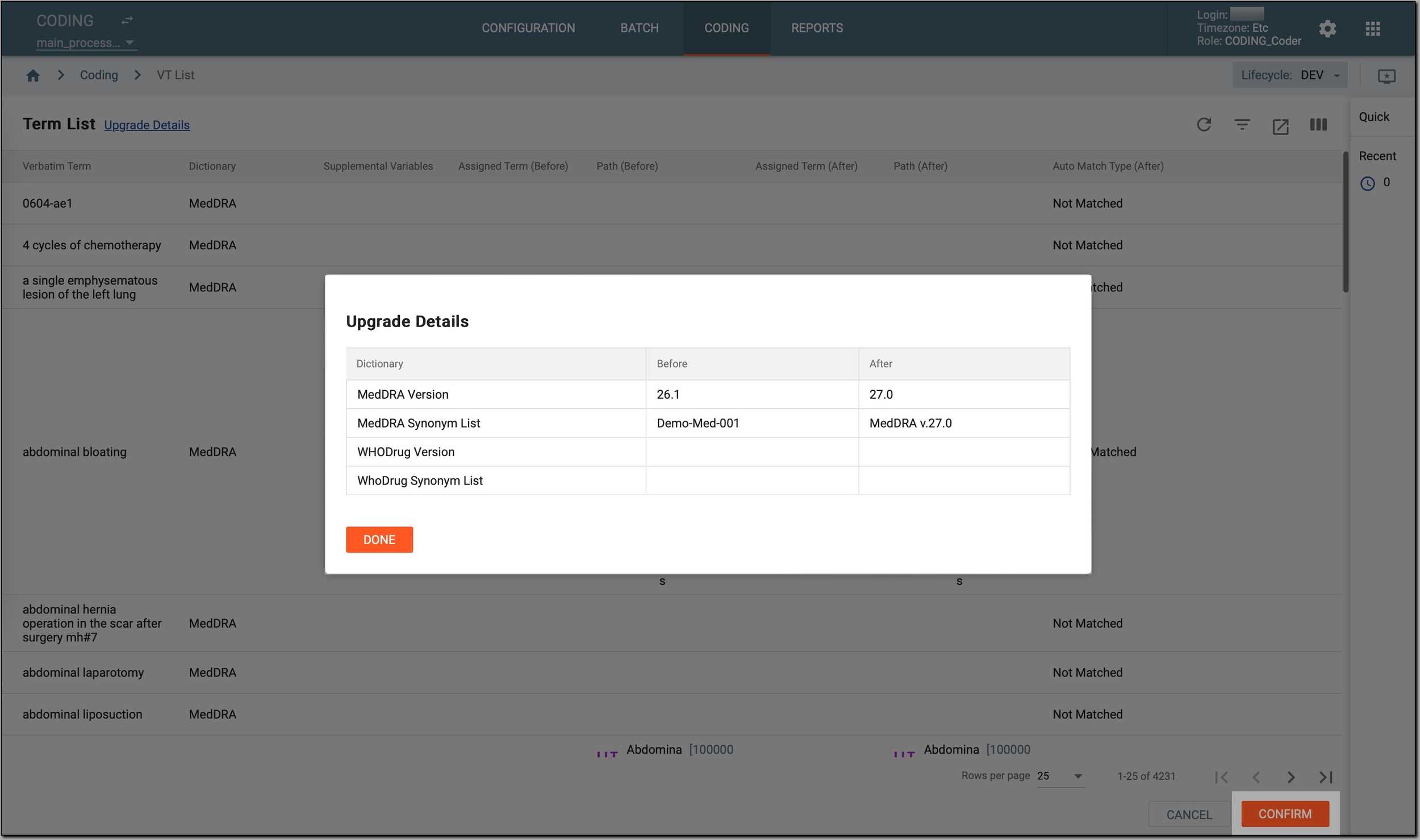 Figure 9. Confirming upgrading results
-
After confirming the coding results, the study status is updated back to Ongoing.
-
The upgrade process is complete.