Change coding status
In the STUDY MANAGEMENT tab, administrators can change the coding status of a study. This feature is essential for maintaining an organized workflow and ensuring that all team members are aware of the current progress of each study.
For example, changing the status to Locked signifies that the coding for this study is complete and no further modifications can be made to the data, ensuring data integrity and finality in the coding process.
Important
The option is unavailable unless you have the CODING_Admin role.
To change the role, in the CODING toolbar, expand the lifecycle list, then select the appropriate environment, and choose the CODING_Admin role.

-
In the Coding Admin application header, select the STUDY MANAGEMENT tab.
 Figure 2. Accessing the STUDY MANAGEMENT tab
-
In the Study List table that appears, next to the study for which you want to change the status, expand the list and select the new status for your study.
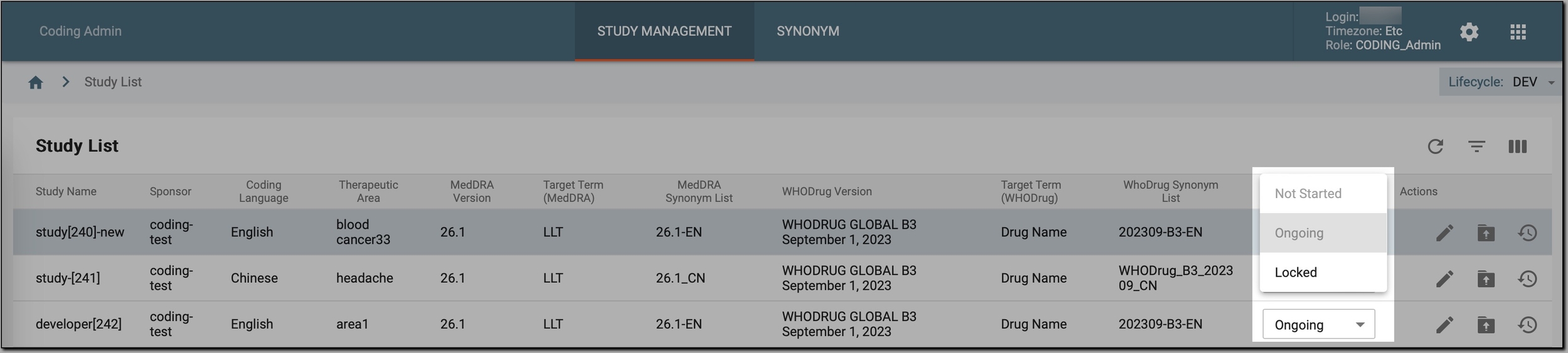 Figure 3. Available coding statuses
-
Not Started (default status): indicates that coding has not yet begun for this study.
-
Ongoing: indicates that the study is currently in the coding phase.
-
Upgraded: indicates that the study is being updated with the latest coding standards or data.
Important
This status is unavailable unless a user has previously submitted a request to upgrade a study to a new MedDRA/WHODrug version.
-
Locked: indicates that the coding for this study is complete and the data is locked from further modifications.
Once done, the study's status is updated to reflect its current phase, ensuring that all users are informed about the study's progress in the coding process.
-