Activate/Inactivate visit
The Report Setting tab you can specify certain criteria to display the records in Study Progress by Visit Report. From this tab, you can set the type of completed visits and the subjects' details. It illustrates how you can activate/inactivate a visit. All the subjects of an inactive visit are not counted in the data displayed in the Study Progress by Visit report.
In this section, you can learn how to activate/inactivate a particular visit.
For instance, if Visit A is inactive, all the subjects in Visit A are excluded from the total number of subjects in the Study Progress by Visit report until it is activated.
-
In the EDC application header, select the REPORTS tab.
-
On the page that opens, in the left pane, select Data Analysis subtab to expand the list of of available reports and select Study Progress by Visit.
-
On the page that appears, in the Total number of subjects table, next to needed visit, select Activate
 or Inactivate
  to perform either of the following options:
-
Activate
: select to activate the inactive
subjects of the particular visit. Once the visit is activated, its data is included in the Study Progress by Visit report. -
Inactivate
: select to inactivate the active
subjects of the particular visit. Once the visit is inactivated, its data is excluded from the Study Progress by Visit report.
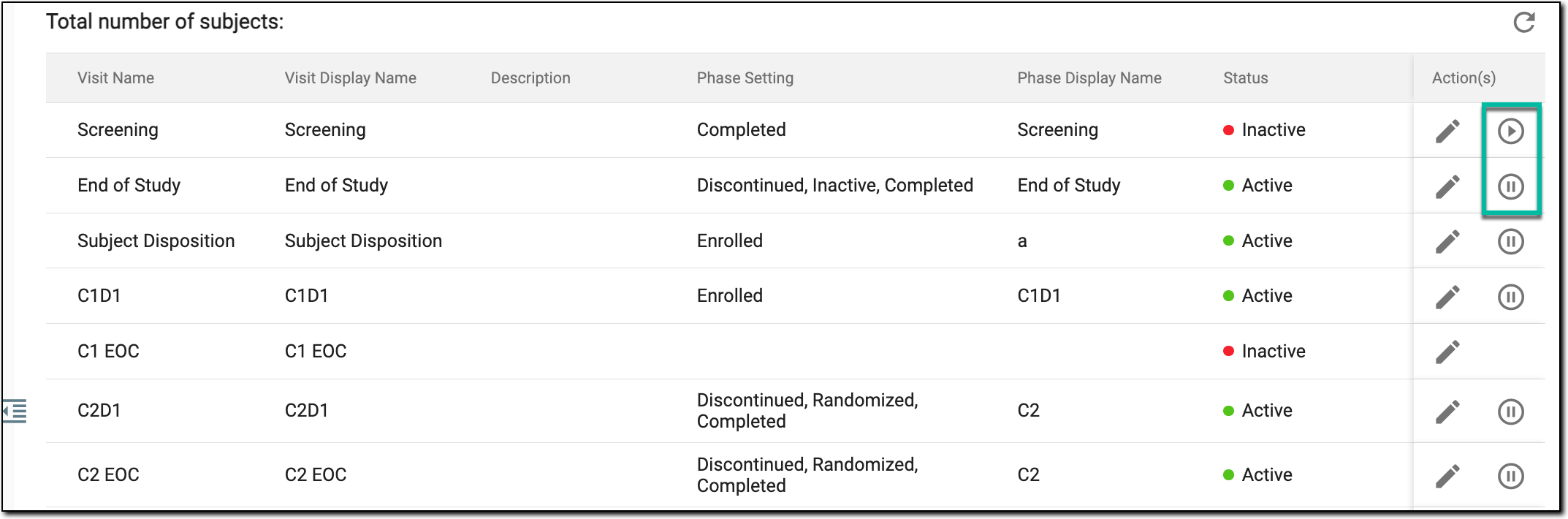 Figure 1. Activating/Inactivating visit
-
-
Once the activate/inactivate option is selected, in the confirmation dialog that appears, select
 .
.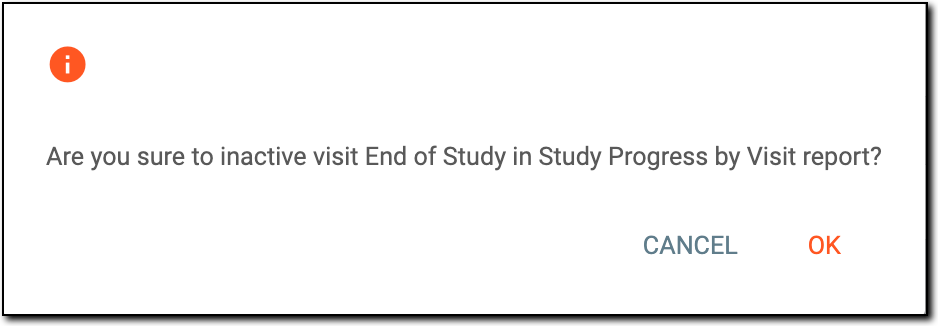 Figure 2. Confirming visit activation/inactivation
Upon confirmation, depending on the option selected, the visit data becomes available/unavailable in the report.