View study progress by visit
In EDC, Study Progress by Visit assists in analyzing comprehensive details on the completion status of all the visits under a particular stage. The data displayed in Study Progress by Visit Report is fetched from the details provided in the report setting. It contains a bar chart and table that summarizes the total number of visits completed, for instance, it shows the total number of visits completed in the Pre-Screening stage.
Important
To view this report, you must have permission granted to your role via the ADMIN application.
-
In the EDC application header, select the REPORTS tab.
-
On the page that opens, in the left pane, select the Data Analysis subtab to expand the list of of available reports and select Study Progress by Visit.
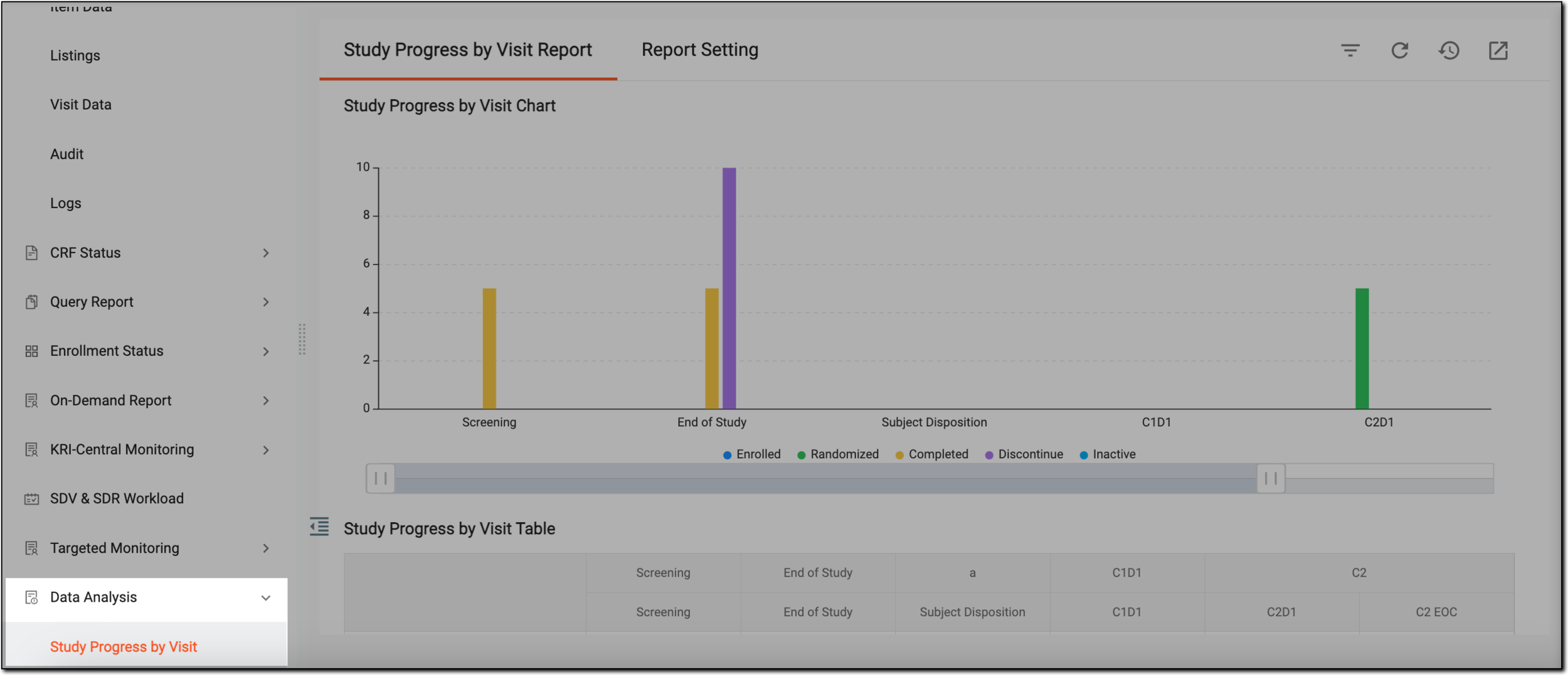 Figure 1. Accessing study progress by visit
-
On the page that appears, under the Study Progress by Visit Report tab, view the bar chart of Study Progress by Visit Chart.
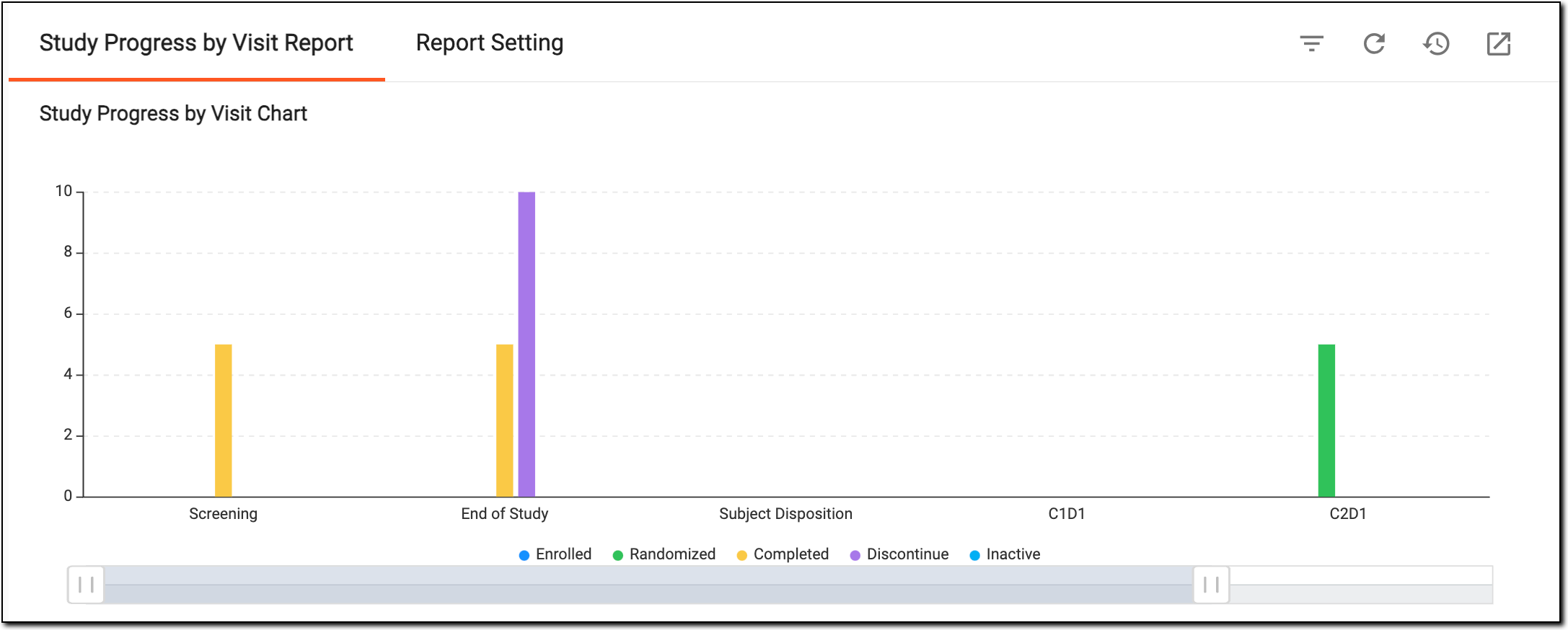 Figure 2. Viewing study progress by visit bar chart
In the preceding figure, the y-axis denotes the total number of subjects, and the x-axis denotes the different phases, such as Completed, Enrolled, and so on. The data displayed in this chart is configured in the report settings.
-
In Study Progress by Visit Table that appears, analyze the completed visits in a particular stage.
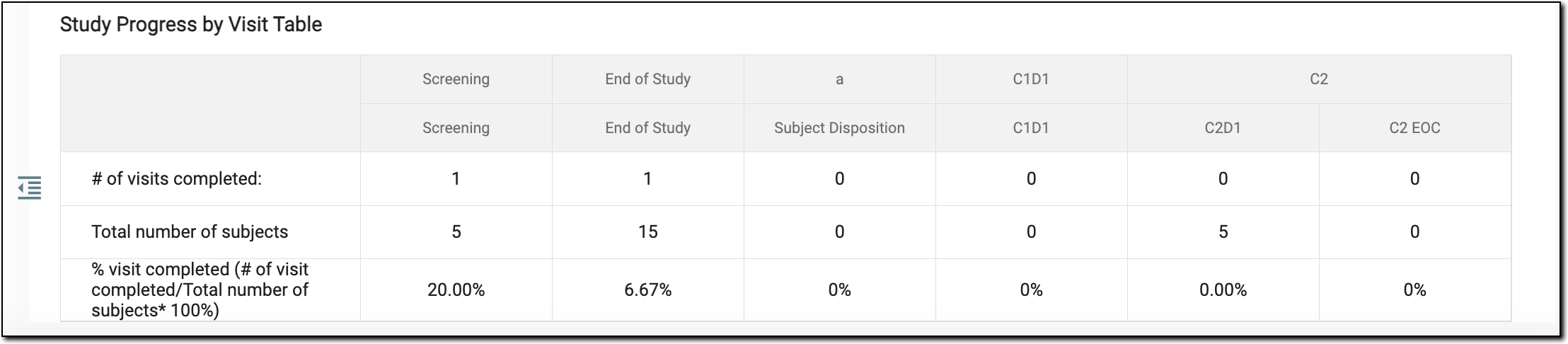 Figure 3. Viewing study progress by visit table
In the preceding figure, you can view the total number of completed visits, the percentage of visits completed within a particular stage, and the total number of subjects. The percentage of completed visits is calculated by dividing #of visits completed with Total number of subjects and multiplying the answer by 100. The display settings and values to be calculated are configured in the report settings.
You have viewed the details of the Study Progress by Visit report.